
Xero Practice Manager
Manage XPM clients, send envelopes, and run identity verifications from a dedicated dashboard in Annature.

Annature's integration with Xero Practice Manager (XPM) connects your client data directly with Annature, allowing you to manage envelopes and identity verifications without switching systems.
With this integration you can:
View and manage all XPM clients within Annature.
Create envelopes and identity verifications directly from the integration dashboard.
Automatically sync client data between systems.
Prerequisites
Only the organisation owner can connect integrations.
Connecting Xero Practice Manager
Go to Settings > Integrations in Annature.
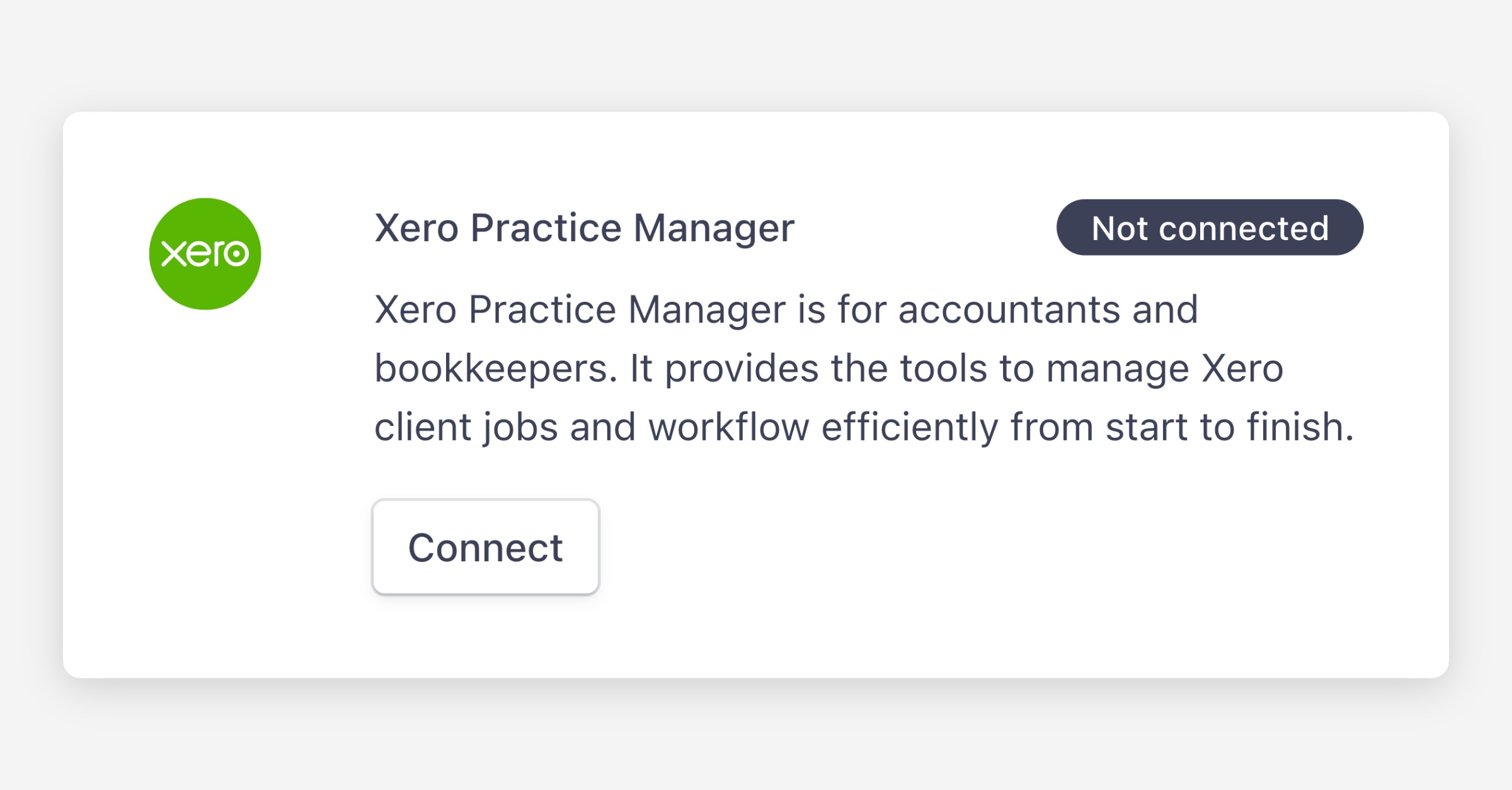
Click Connect under Xero Practice Manager.
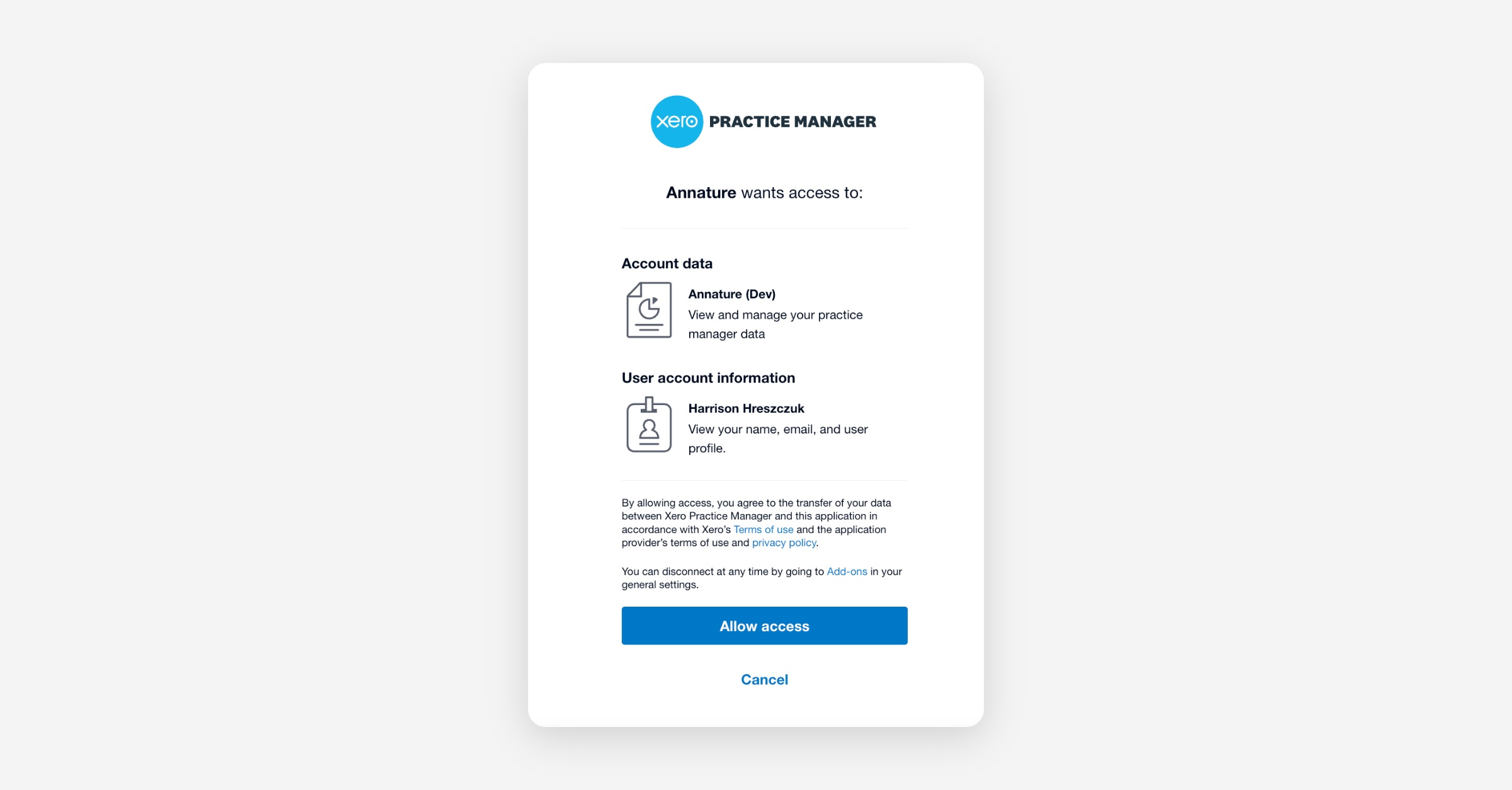
Log in to your Xero Practice Manager account when prompted.
Click Allow access.
Once connected, Xero Practice Manager will appear in your left-hand dashboard menu.
Using the XPM dashboard
Select Xero Practice Manager from the left-hand menu to access the dashboard. It displays a live feed of your XPM clients, updated more frequently than standard address book syncs.
From the dashboard you can:
View client details.
Create and track envelopes.
Initiate identity verifications.
Always update client information directly in Xero Practice Manager. Annature syncs changes every hour. Changes made in Annature are not pushed back to XPM and may be overwritten.
Sending envelopes to XPM clients
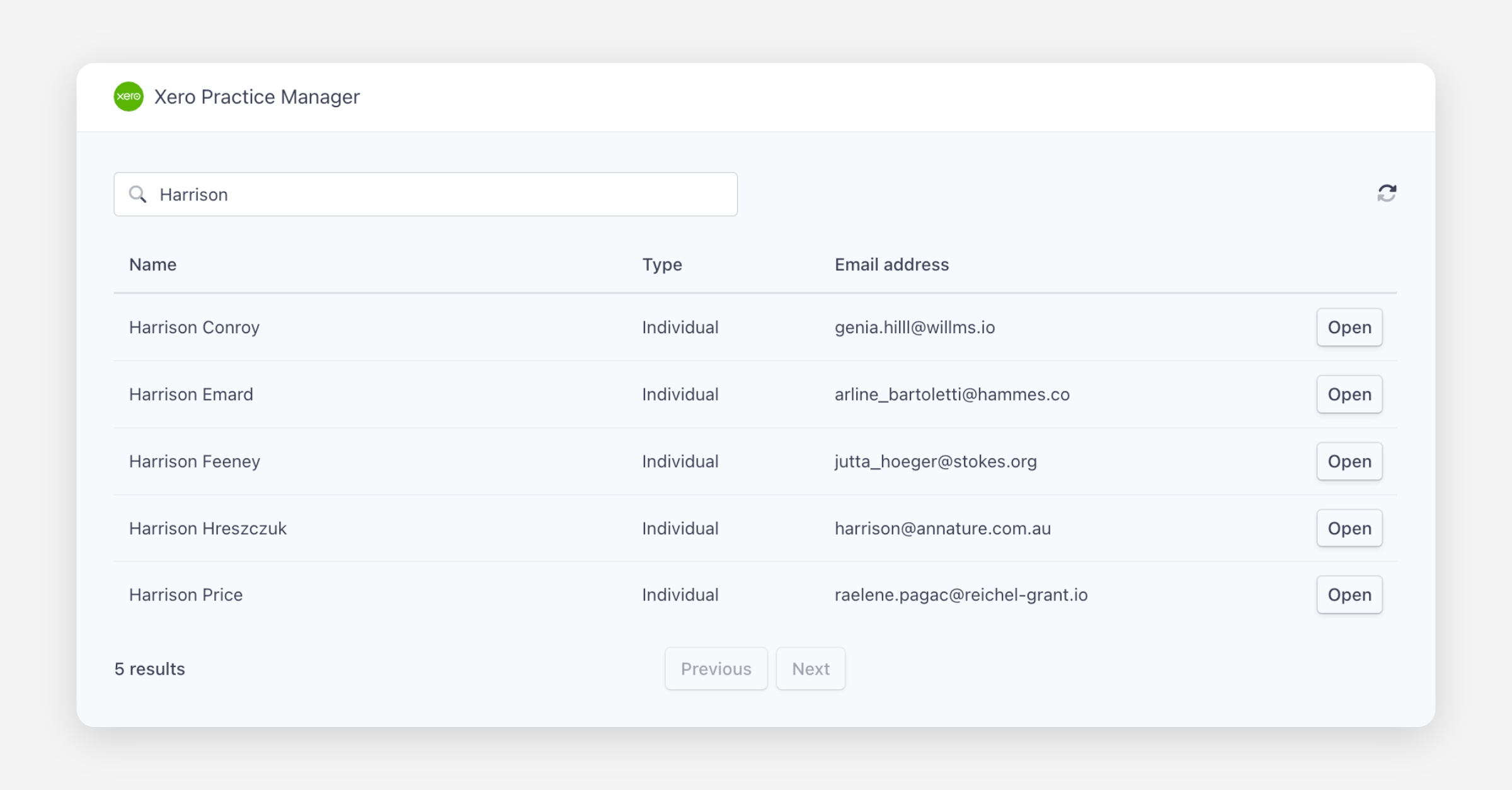
On the XPM integration page, search and click Open beside a client.
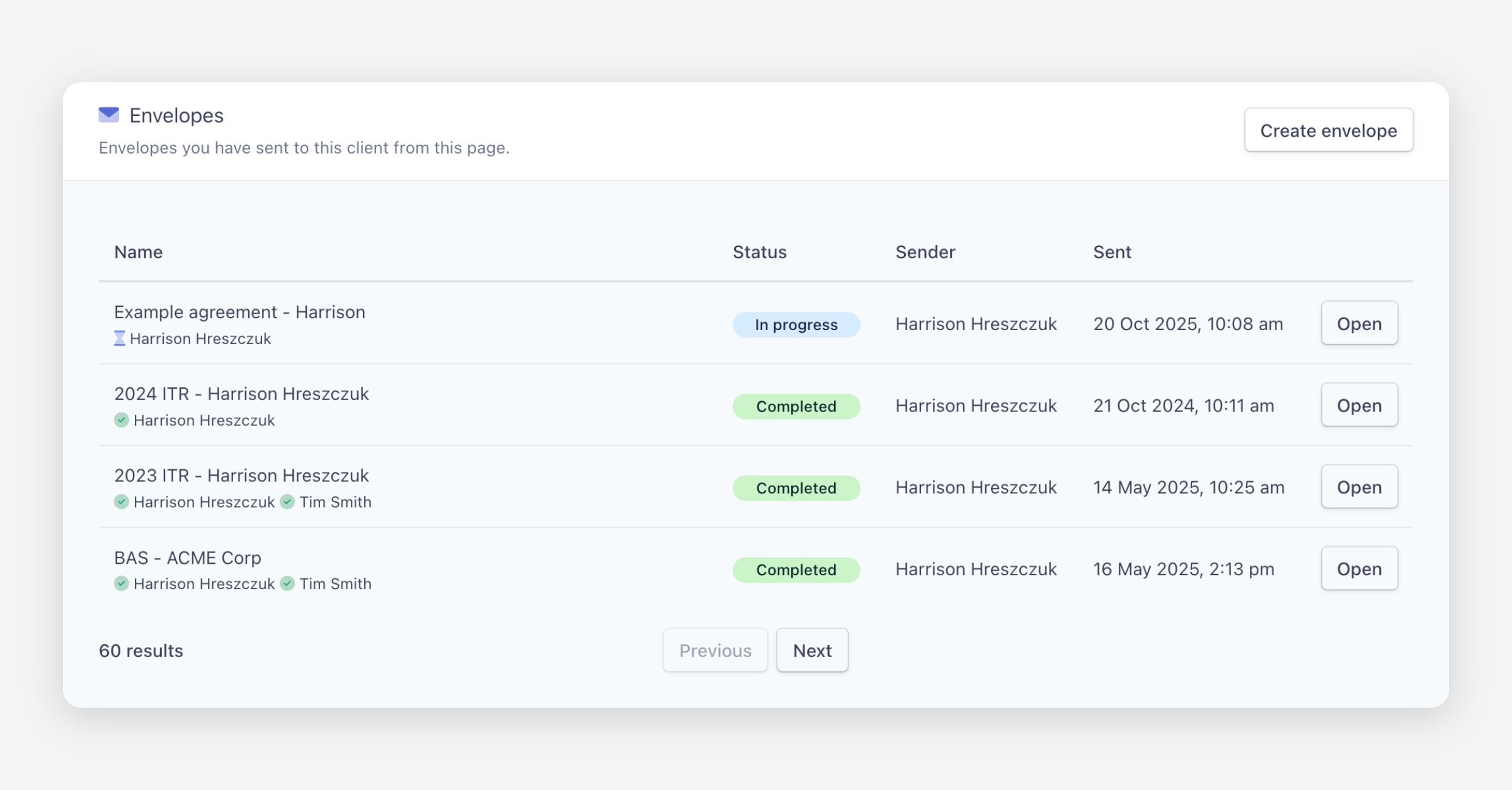
Under Envelopes, click Create envelope.
Select the recipients you'd like to include in the envelope. For example, if you are sending to a company or trust with multiple recipients, you can select all relevant recipients to include.
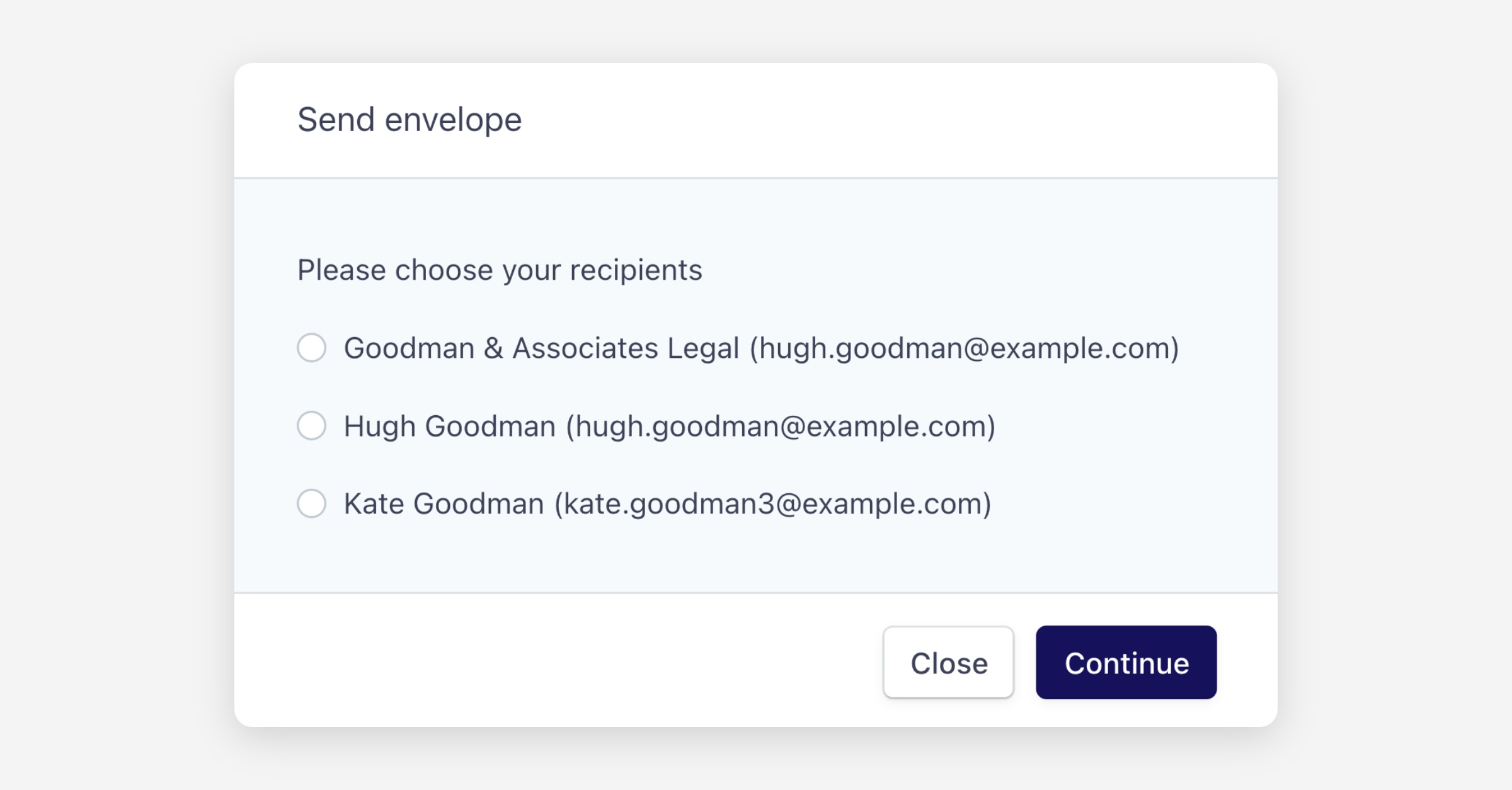
Annature will automatically populate the recipient details from your XPM client record.
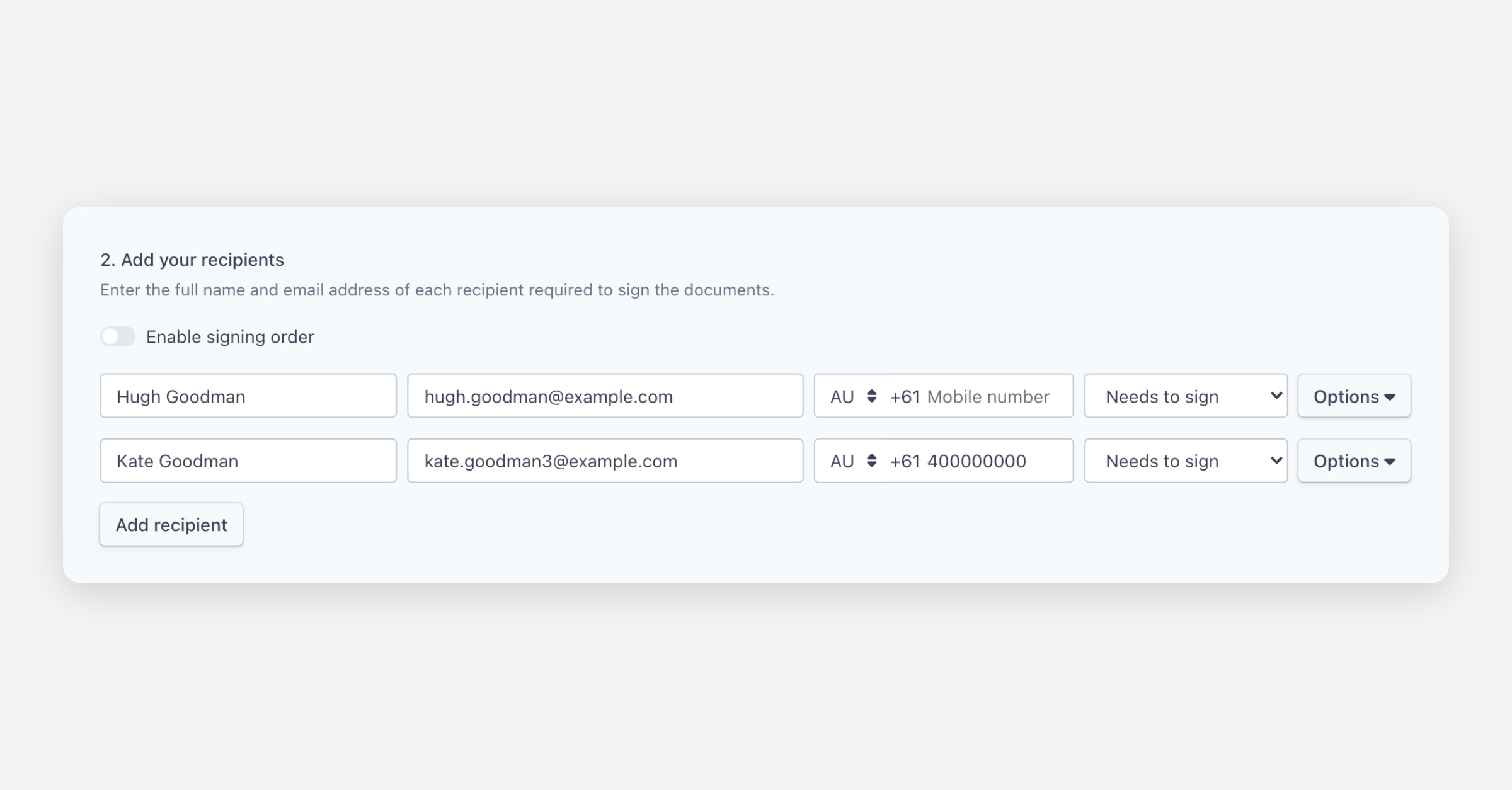
Continue preparing and sending your envelope as usual.
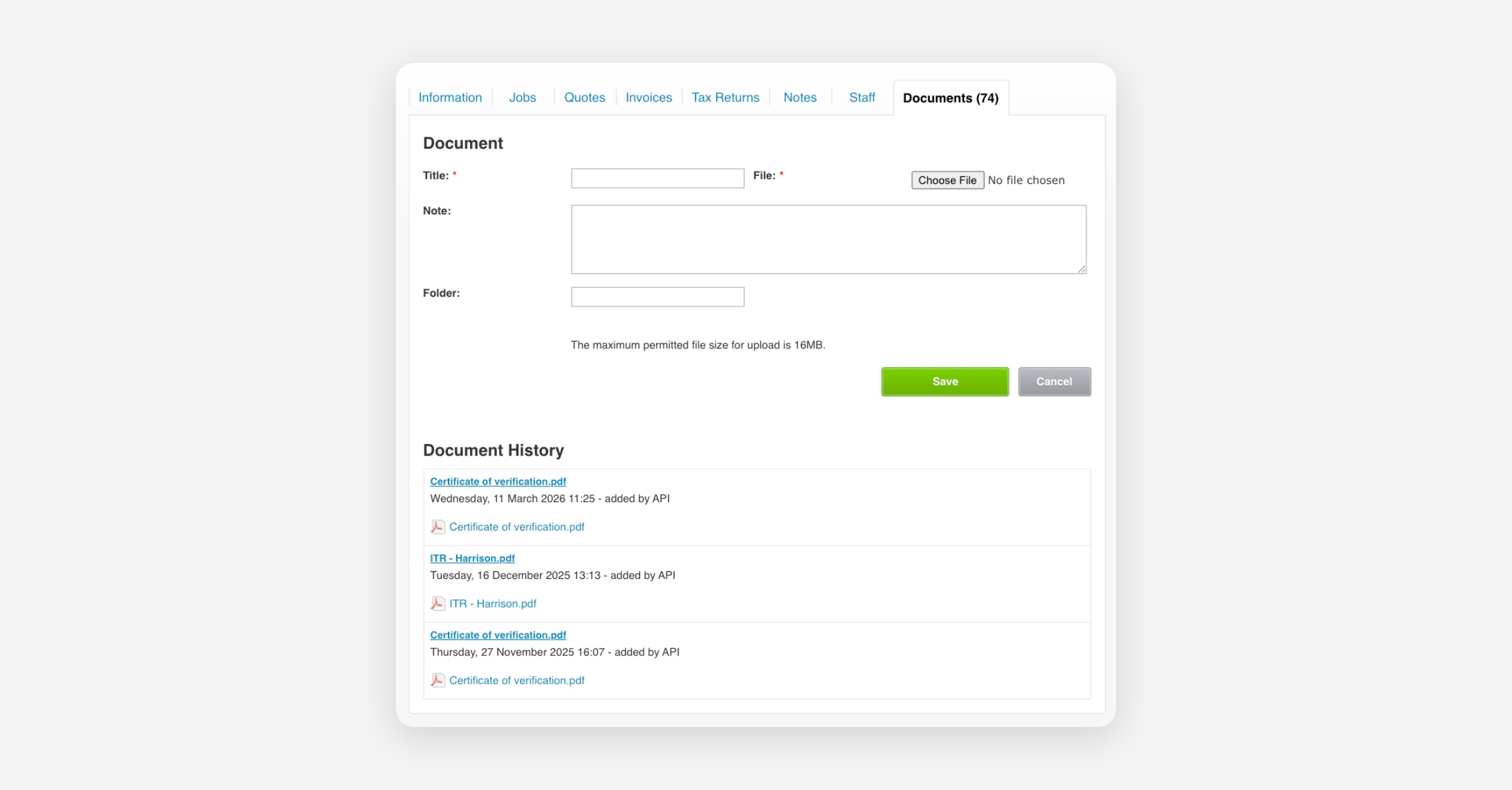
Once completed, a copy of the signed document is automatically sent to Xero Practice Manager and added under the client's Documents tab.
Creating identity verifications for XPM clients
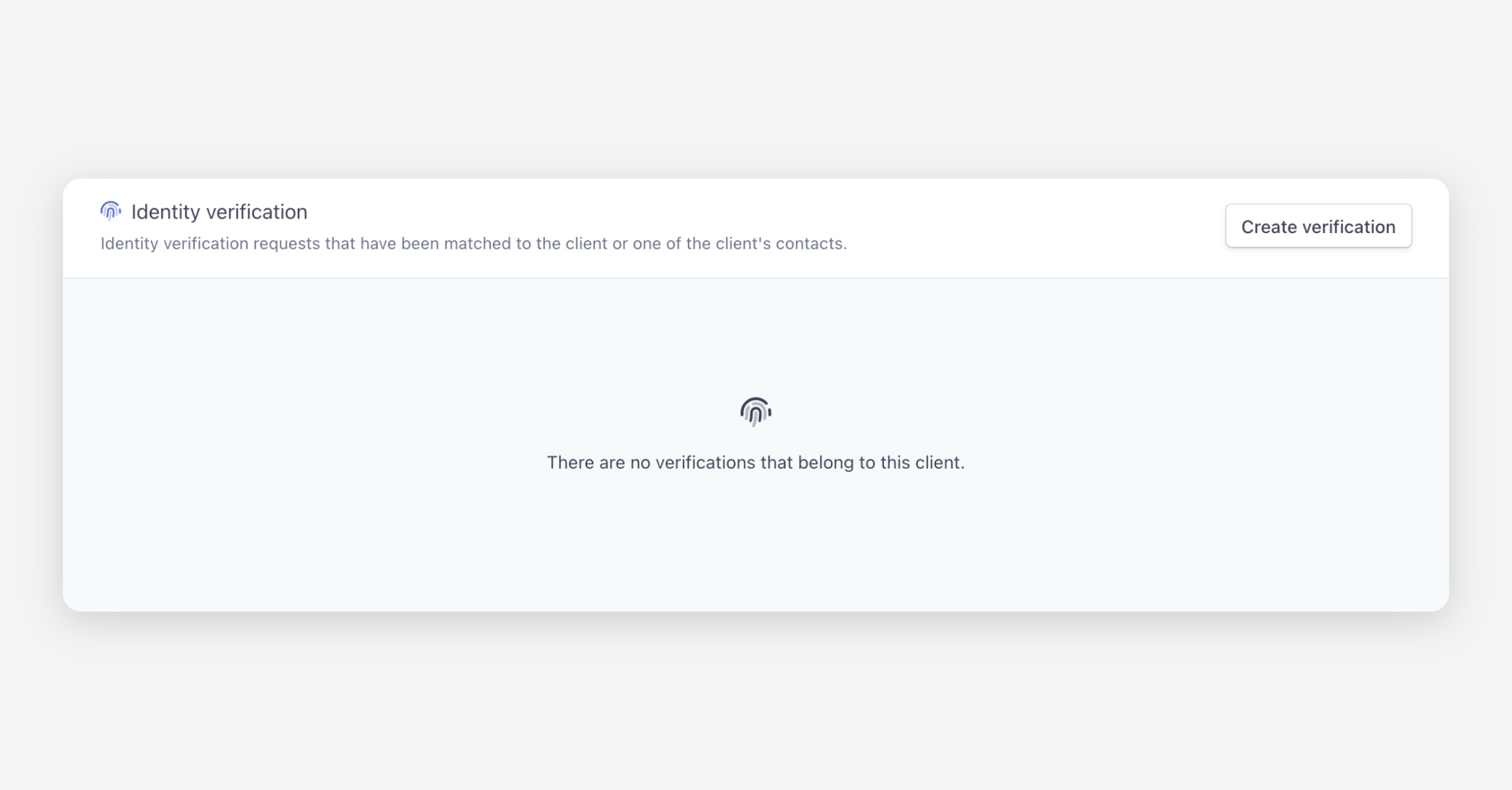
On the XPM integration page, click Open beside the client.
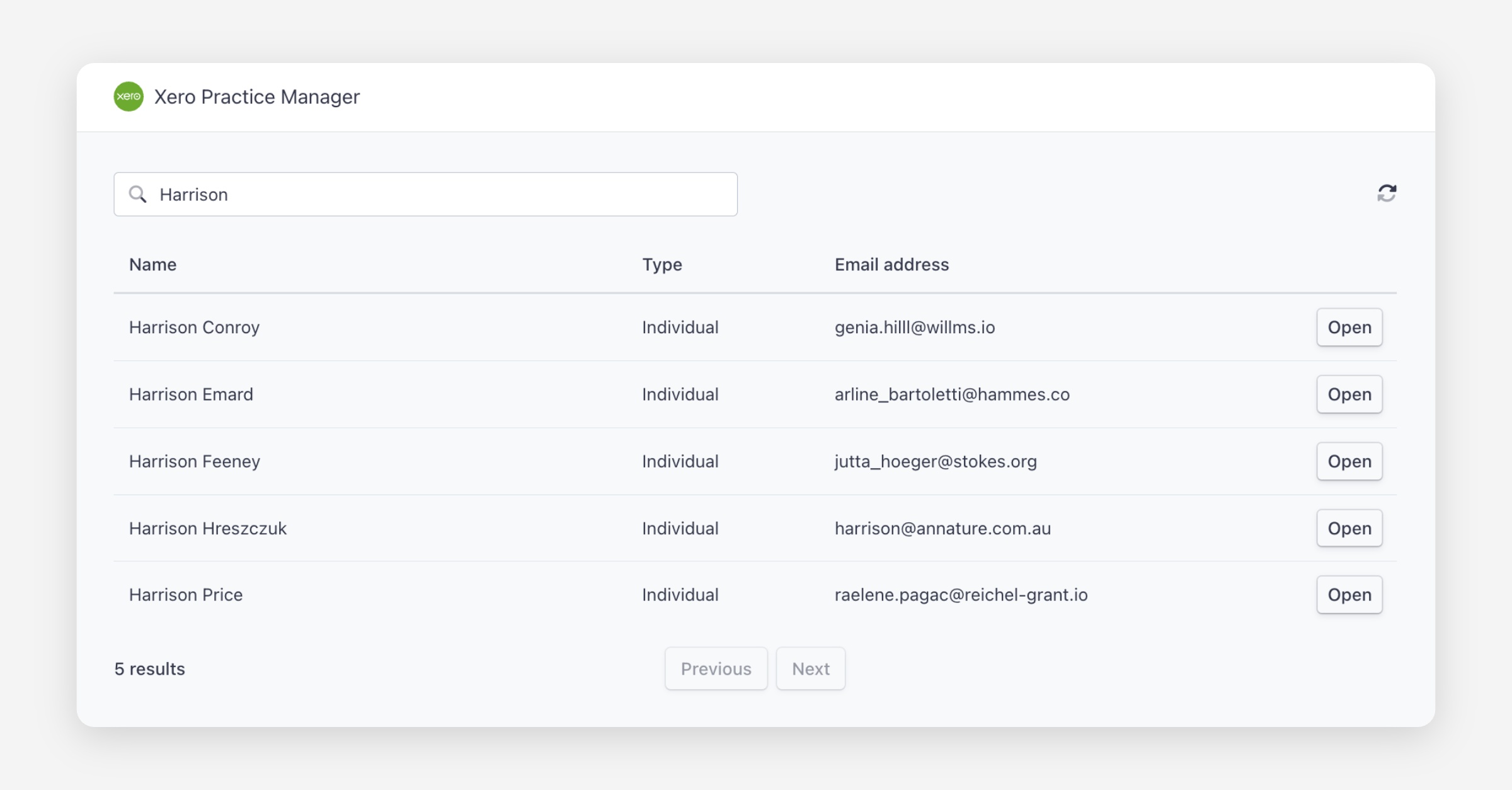
Under Identity verification, click Create verification.
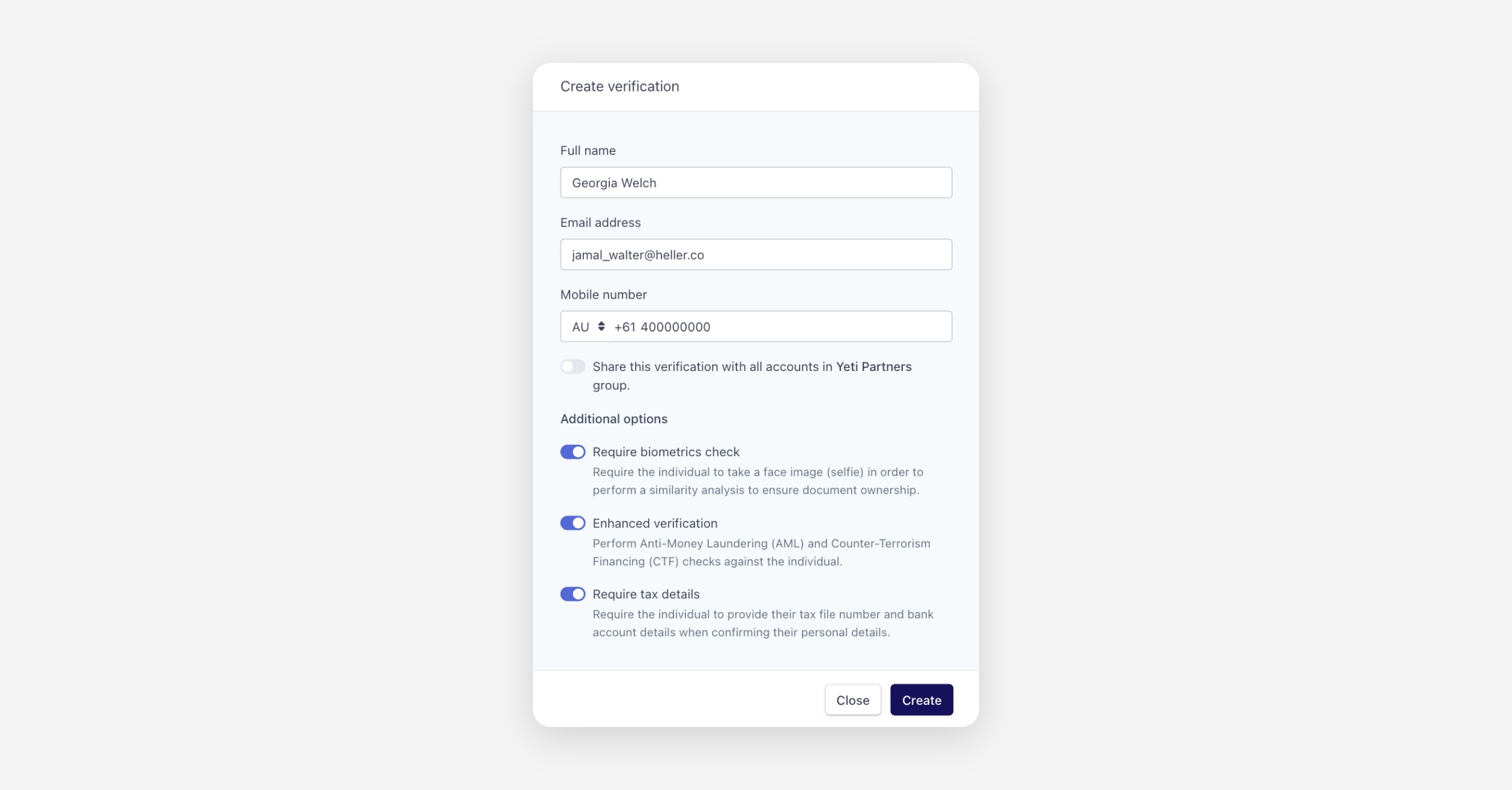
Review the pre-filled client details and click Create.
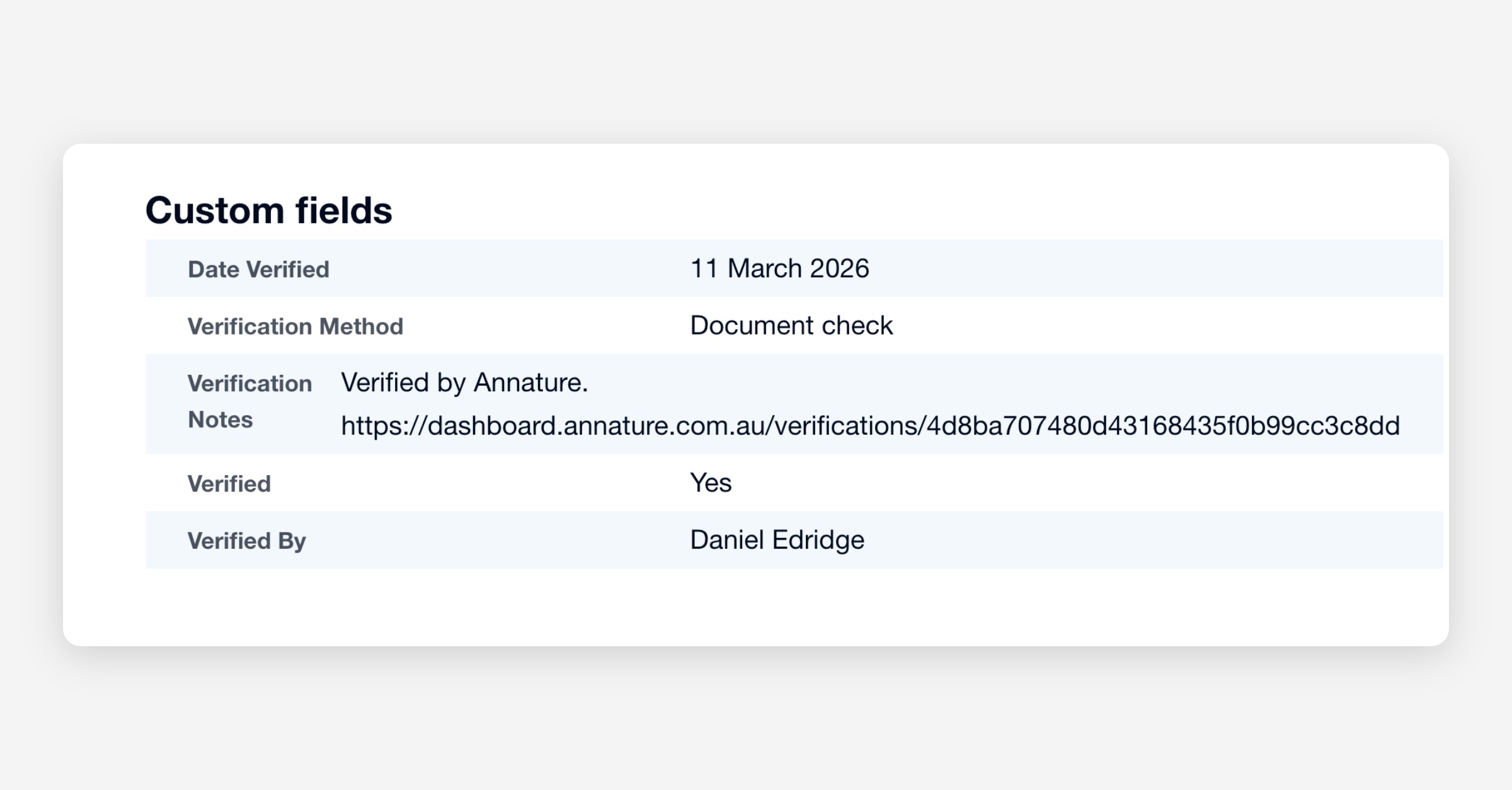
When the verification is complete, a certificate is automatically sent to Xero Practice Manager and stored in the client's Documents tab. Custom fields are also added with key verification metadata.
Data sync
To import your XPM client data, navigate to Settings > Integrations > Xero > Import Data > Save changes.
Once imported:
Annature checks for new or updated XPM clients every hour.
Client data syncs directly into your Annature address book.
Annature imports the Display Name from Xero Practice Manager.
We recommend using the XPM integration page (rather than the address book) to create envelopes and verifications, as this ensures they sync correctly back to XPM.
Troubleshooting
If you see the error "You don't have access to connect any Xero Practice Manager accounts", you need to update your XPM permissions:
In XPM, open the Business dropdown and select Settings.
Go to Staff.
Find the staff member connecting XPM with Annature and click Edit staff details.
Under Permissions > Practice Administration, enable Connect third-party add-ons.
Retry connecting Annature to XPM.
Was this helpful?