
Creating templates
Set up a reusable template with documents, roles, fields, and default envelope settings for your team.
Templates save time by allowing you to pre-configure documents, fields, roles, and envelope settings that can be reused when sending envelopes. Creating a template follows a similar process to creating an envelope, with a few key differences.
To create a new template, click Templates in the left-hand navigation menu and click Create.
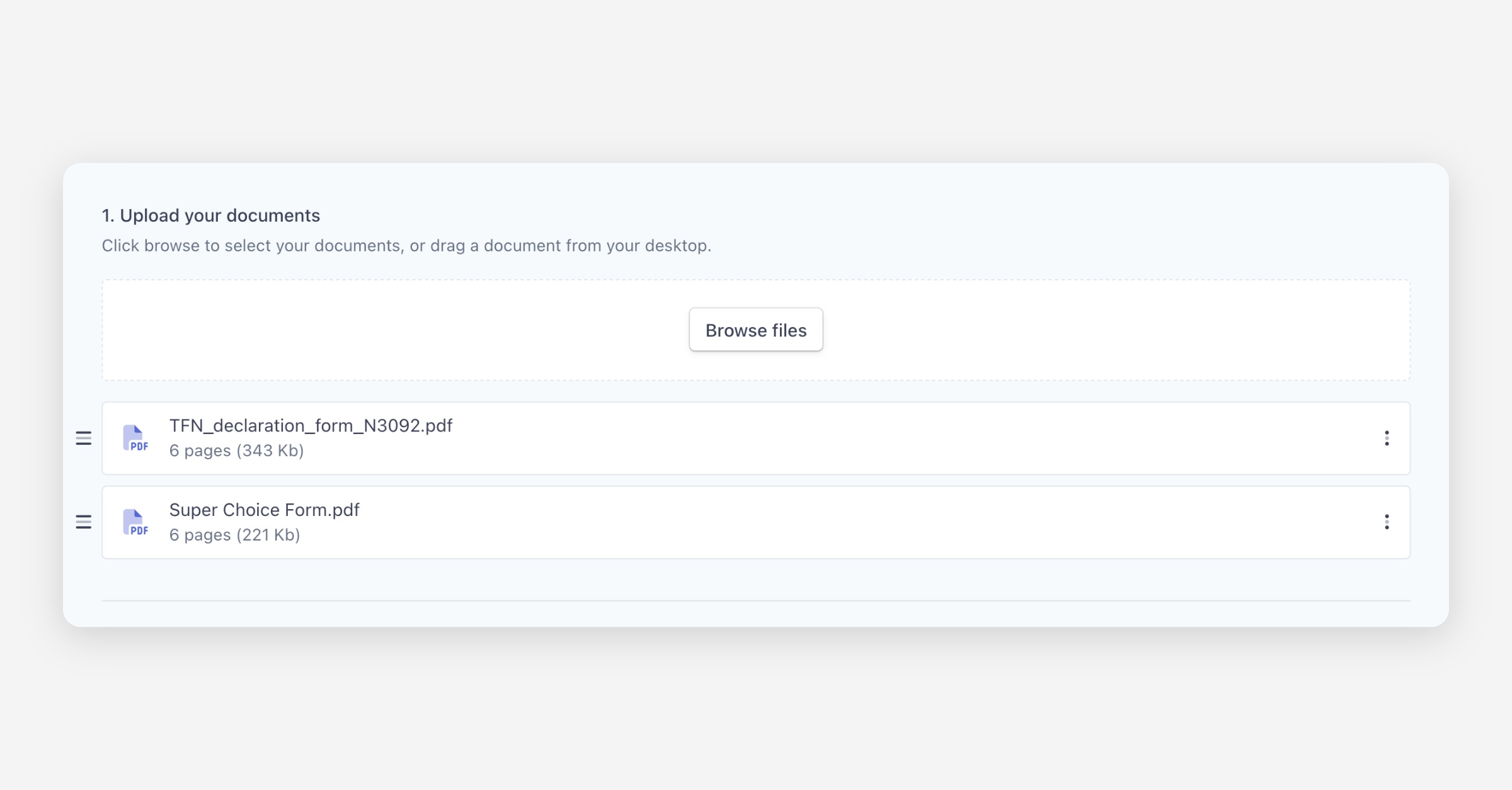
Step 1: Upload Your Documents
Click Browse files or drag and drop documents from your desktop. Annature supports PDF & DOCX files.
Step 2: Add Your Roles
Instead of adding specific recipients, templates use roles as placeholders that are filled in when the template is used. Define a descriptive role name for each placeholder (e.g. "Buyer", "Seller", "Employee", "Witness") so it is clear which recipient should be assigned to each role.
For each role, select a type from the dropdown:
Needs to sign — The recipient assigned to this role must sign the documents.
Needs to view — The recipient only needs to view the documents.
Receives a copy — The recipient receives a copy of the completed envelope.
You can toggle on Enable signing order to define the sequence in which roles receive the envelope.
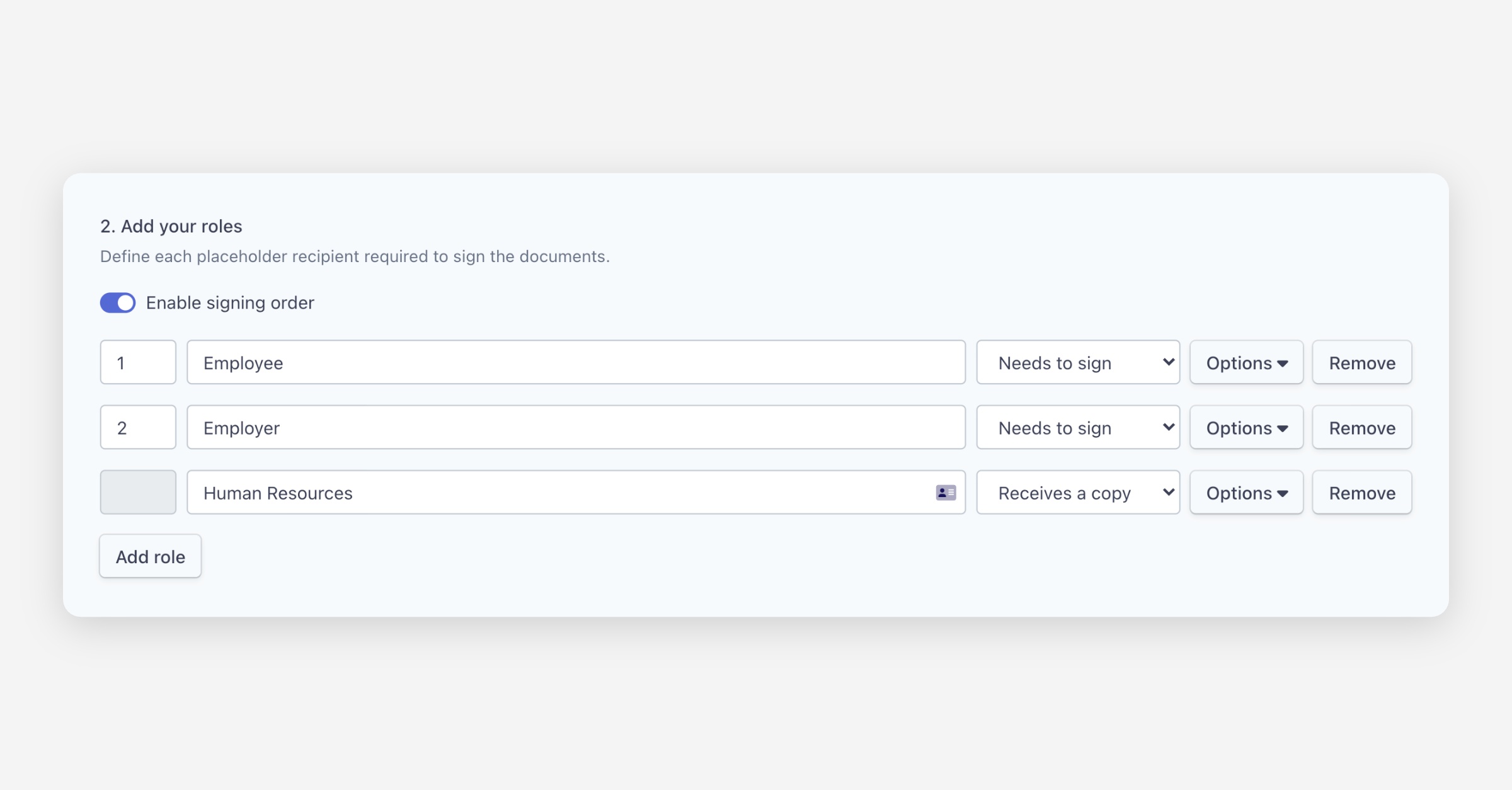
Click Options next to any role to access additional settings:
Add name and email — Pre-fill a specific name and email for this role, useful for roles that are always assigned to the same person, for example; Human Resources.
Require password — Require the recipient to enter a password before accessing the envelope.
Redirect endpoints — Redirect the recipient to a specific URL after completing or declining the envelope.
Advanced settings — Access additional configuration options for the role.
Click Add role to add additional roles.
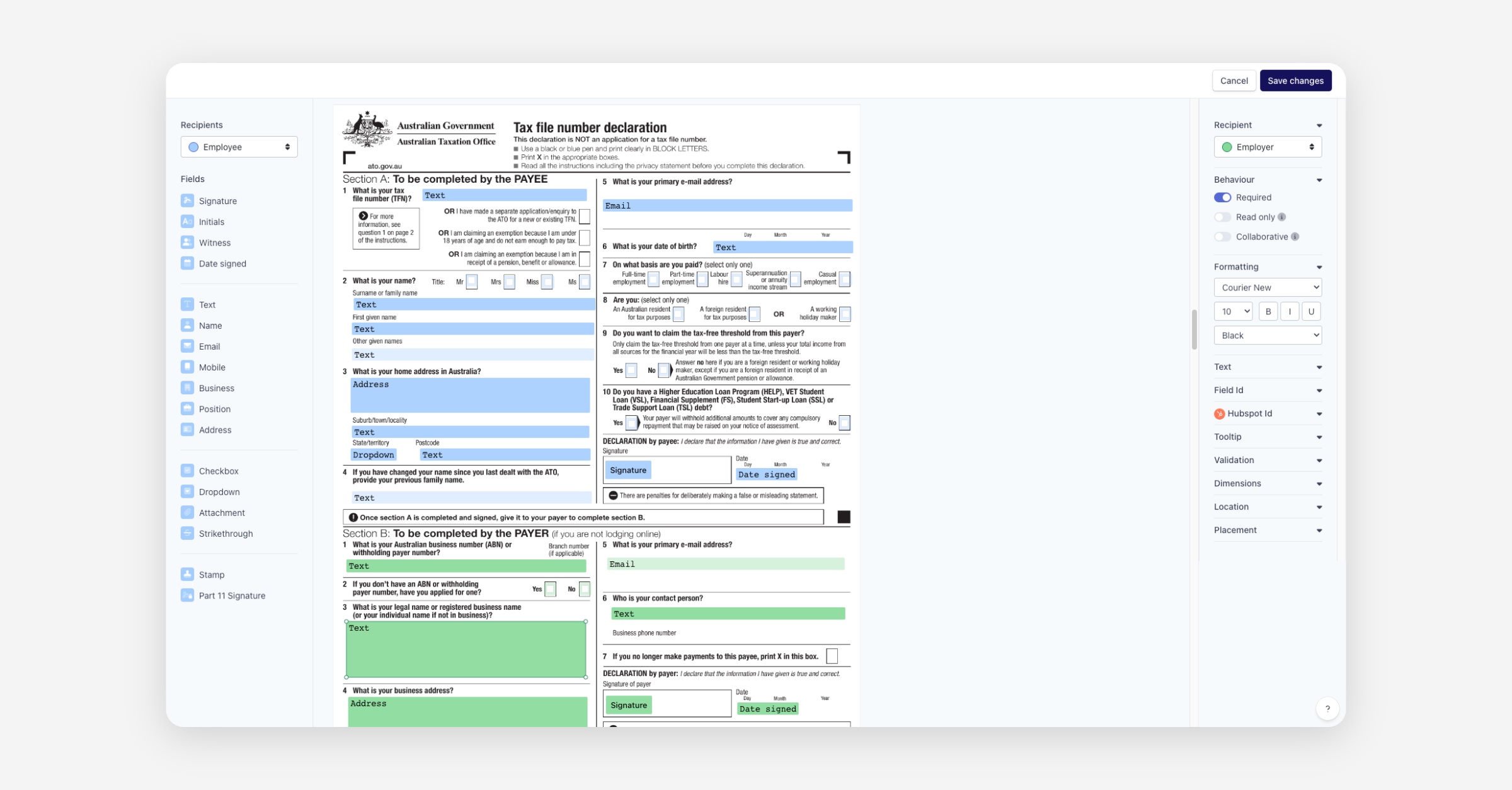
Step 3: Prepare Documents
Click Prepare documents to open the document preparation view. Select a role from the dropdown, then drag and drop fields onto the documents to define where each role needs to sign or provide information.
Step 4: Template Details
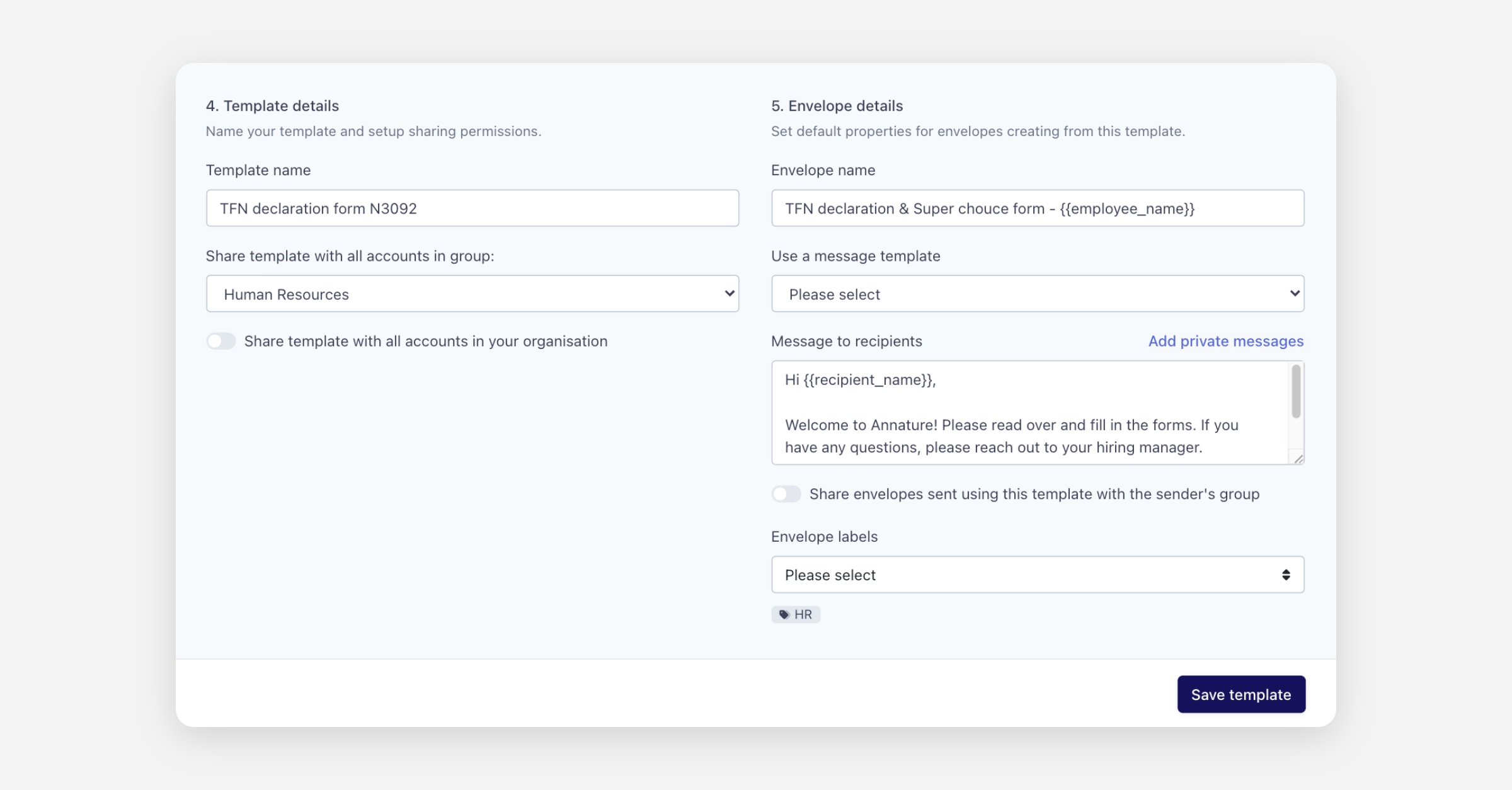
Configure the template's sharing settings:
Template name — Give the template a name for easy identification.
Share template with all accounts in group — Select a group from the dropdown to make the template available to all accounts in that group.
Share template with all accounts in your organisation — Toggle this on to make the template available to everyone in your organisation.
Step 5: Envelope Details
Set default properties that will be applied to envelopes created from this template:
Envelope name — The default name for envelopes sent using this template. You can use placeholders based on role names (e.g.
{{employee_name}}) to automatically include the recipient's name. The placeholder format is{{rolename_name}}where the role name is lowercase with no spaces.Use a message template — Select a message template to pre-populate the envelope message.
Message to recipients — Write a default message for recipients. You can also click Add private messages to set role-specific messages.
Share envelopes sent using this template with the sender's group — Toggle this on to automatically share envelopes created from this template with the sender's group.
Envelope labels — Select default labels to apply to envelopes created from this template.
Click Save template to save.
Editing a Template
To edit an existing template, navigate to Templates and click Open next to the template. Make your changes and click Save template.
Duplicating a Template
To duplicate a template, open it and click Actions in the upper right corner, then select Make a copy. A new tab will open with the duplicated template. Modify it as needed and click Save template.
Deleting a Template
To delete a template, open it and click Actions in the upper right corner, then select Delete template.
Was this helpful?