
Google Chrome Extension
Create envelopes directly from your browser when viewing a PDF, without leaving Chrome.
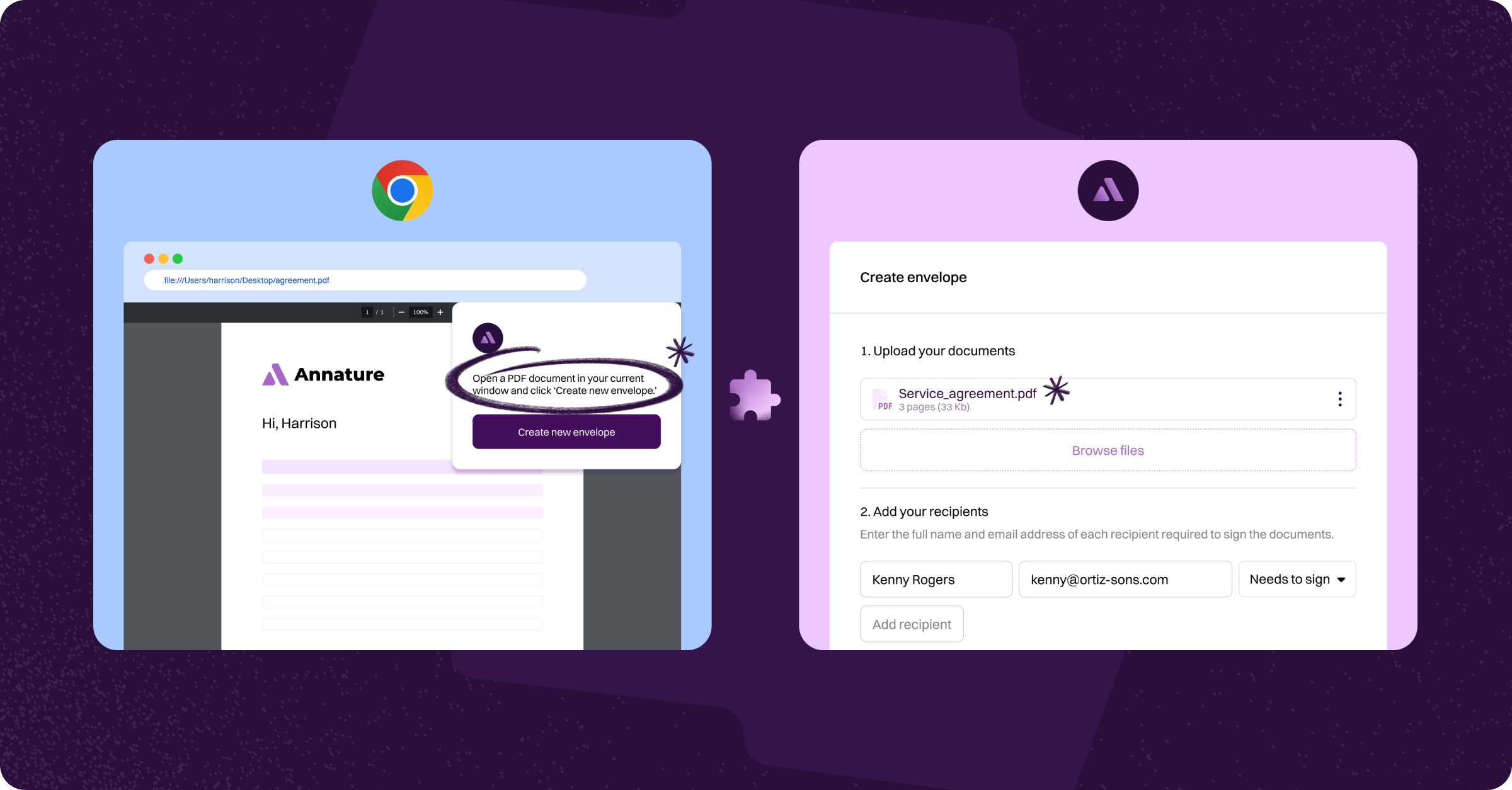
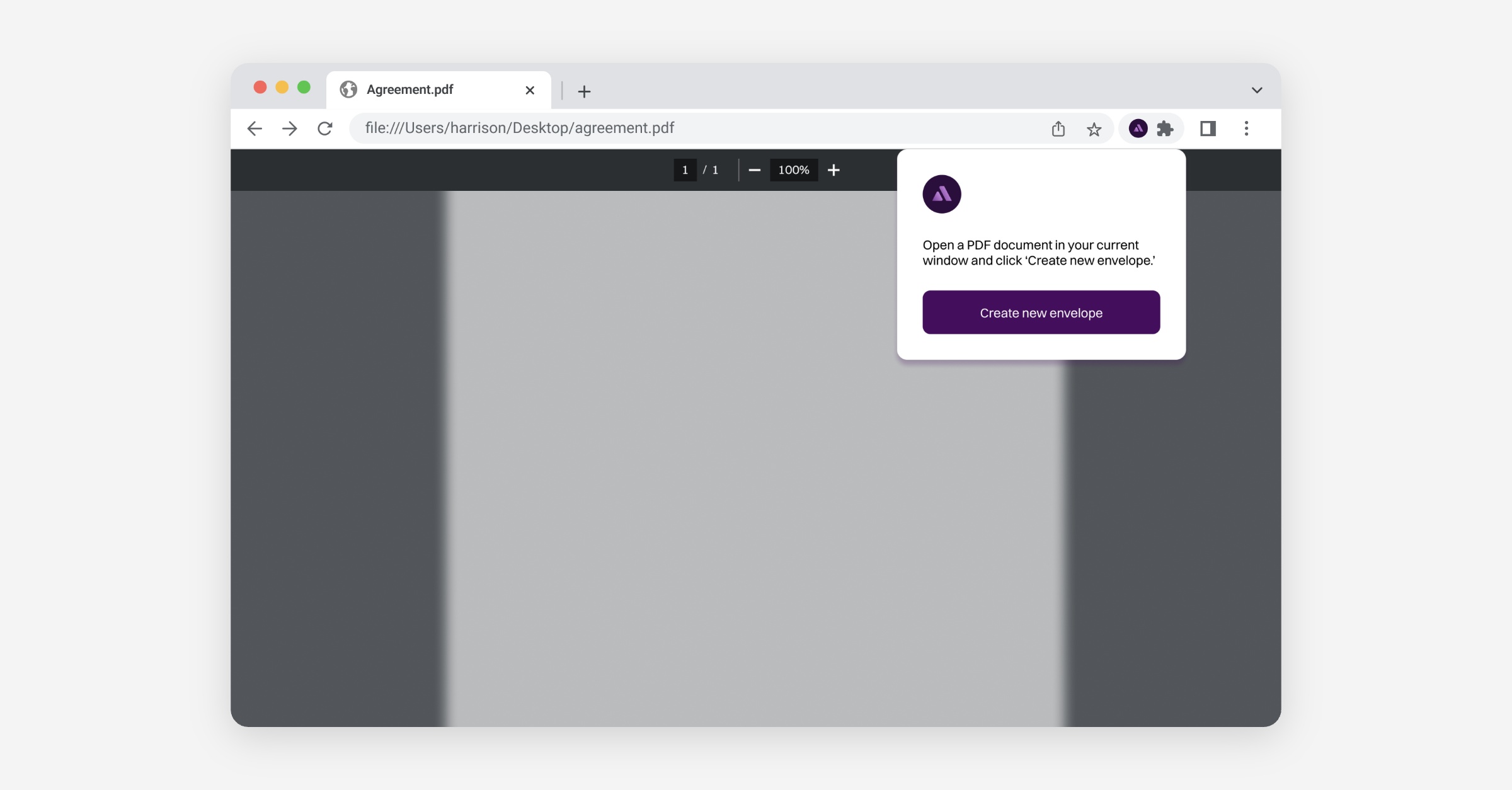
Annature's Google Chrome extension allows you to create envelopes and send documents directly to Annature from your browser. When viewing a PDF in Chrome, click Create new envelope to start the envelope process without leaving your browser.
Installing the extension
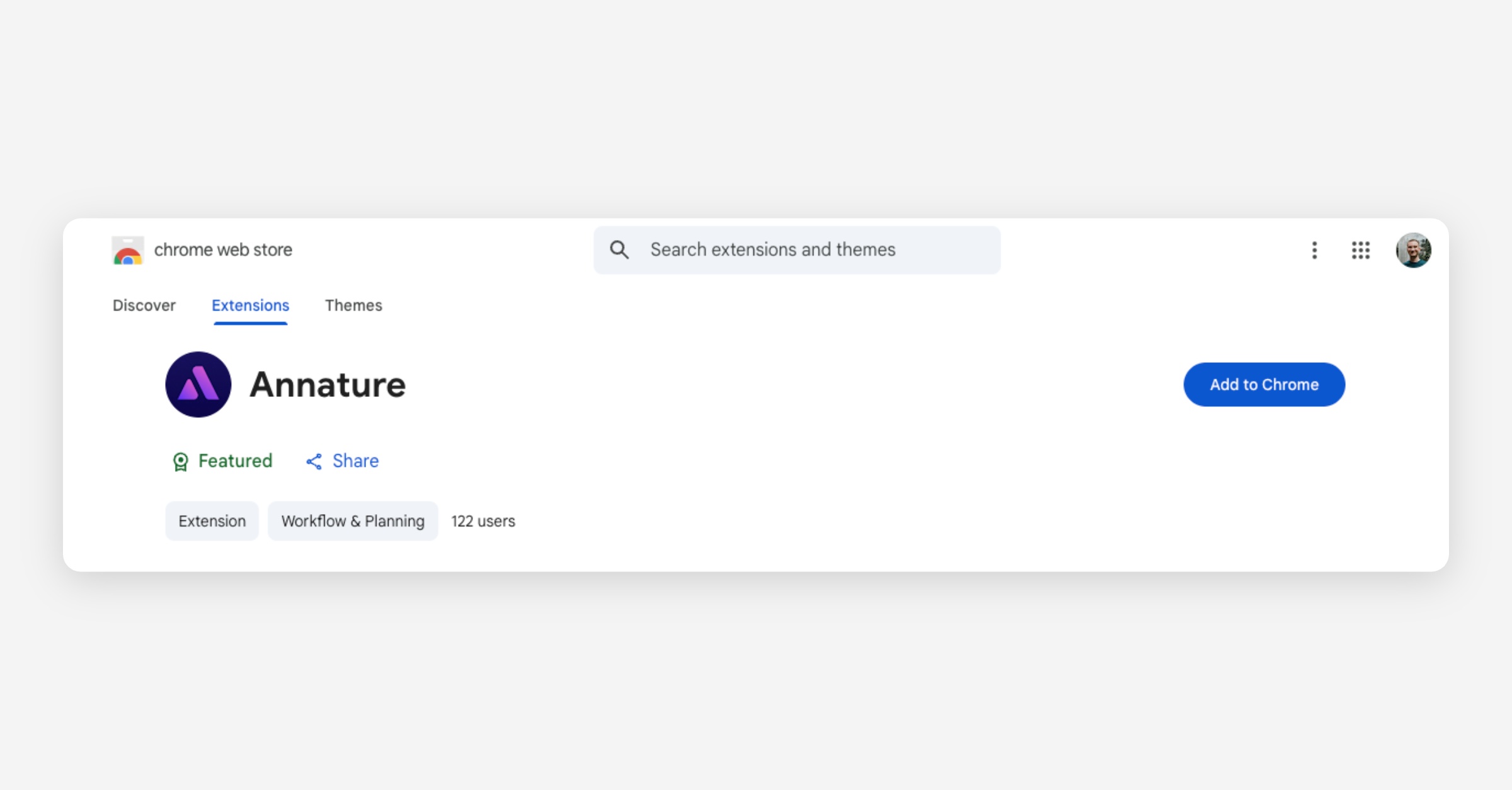
Navigate to Annature's Chrome Web Store listing.
Click Add to Chrome.
Setting up the extension
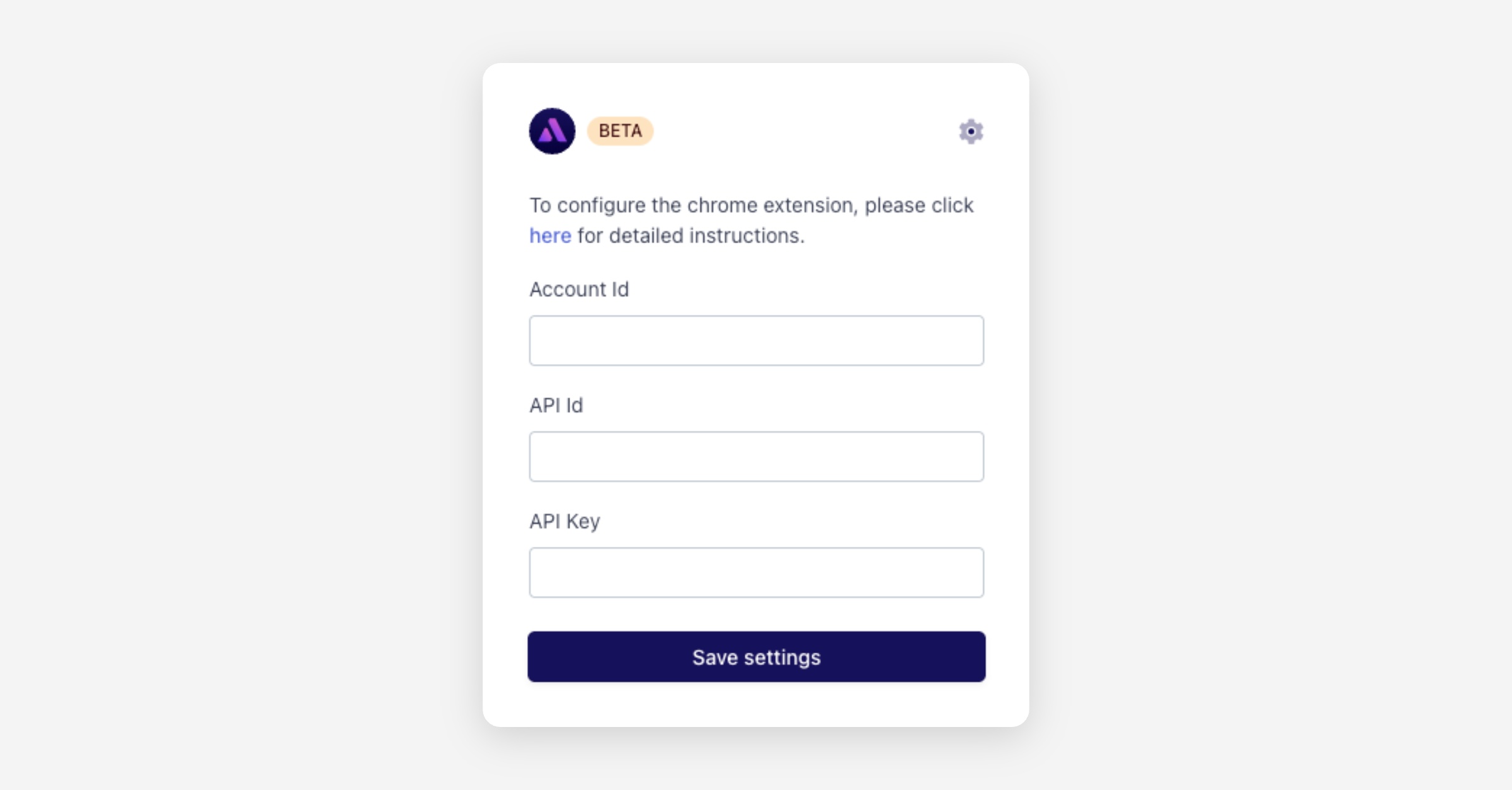
Before using the extension, you need to connect it to your Annature account using your Account ID and API keys.
Gather your Account ID:
In Annature, click the Profile icon at the top right and select My account.
Copy your Account ID and paste into a sticky note.
Generate API keys:
Go to Settings > Developers.
Click Create Key and enter a name (e.g. "Chrome extension").
Click Create and copy the generated API ID and API Key into a sticky note.
A video guide can be found here.
Configure the extension:
Click the extensions icon in Chrome's toolbar and open the Annature extension.
Enter your API ID, API Key, and Account ID, then click Save settings.
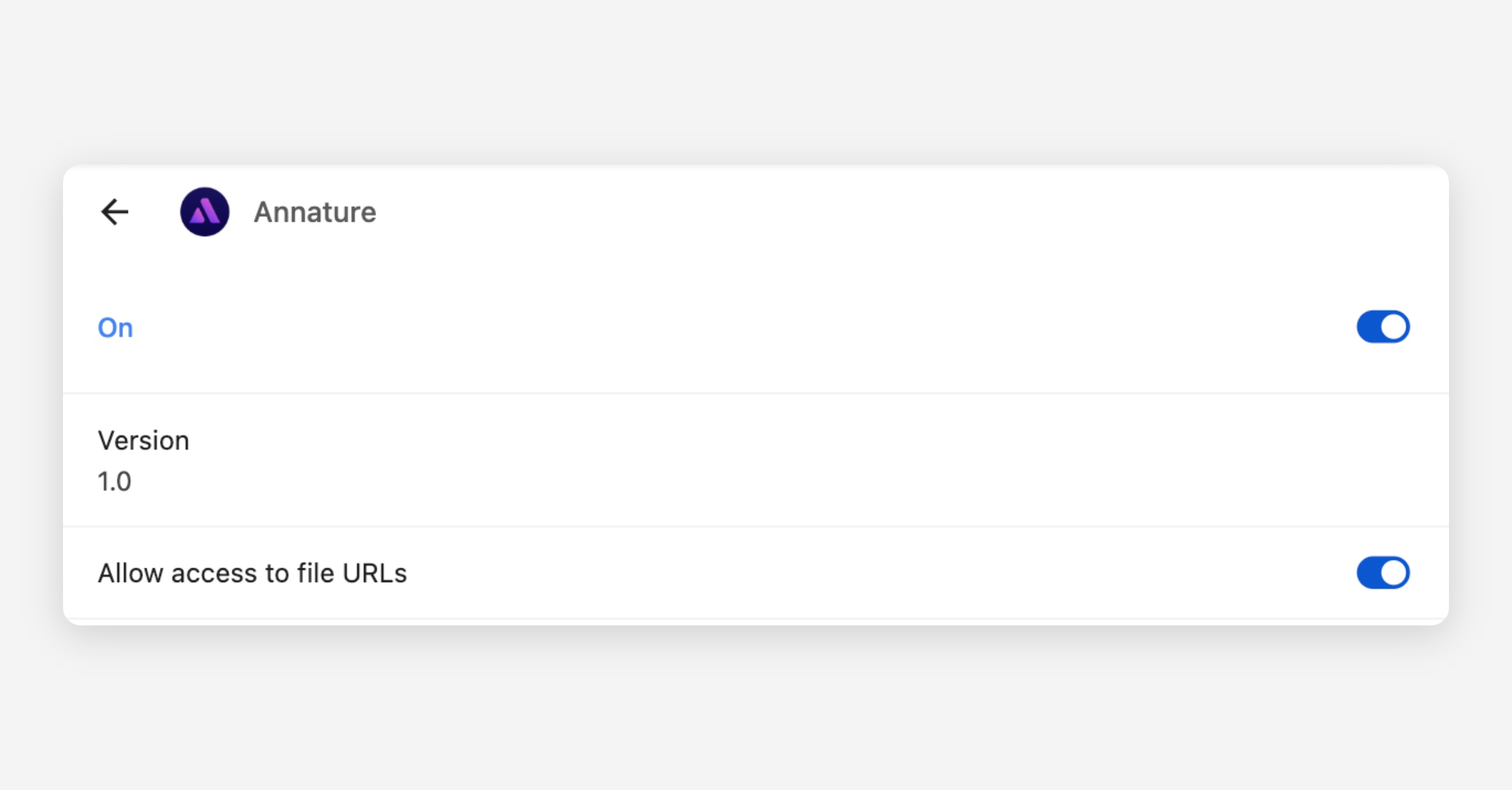
Navigate to
chrome://extensions, find the Annature extension, and click Details.Toggle Allow access to file URLs to ON.
Using the extension
When viewing a PDF in your browser, open the Annature extension and click Create new envelope. This opens a new window where you can prepare and send the envelope as usual.
Was this helpful?