
Worksorted
View Worksorted clients in Annature, send envelopes with pre-filled details, and sync completed documents back as notes.

Annature's integration with Worksorted connects your CRM client data directly with Annature. View and manage envelopes from a dedicated dashboard, with client details pre-filled automatically and completed documents synced back to Worksorted as notes.
Prerequisites
Only the organisation owner can connect integrations.
Connecting Worksorted
Go to Settings > Integrations.
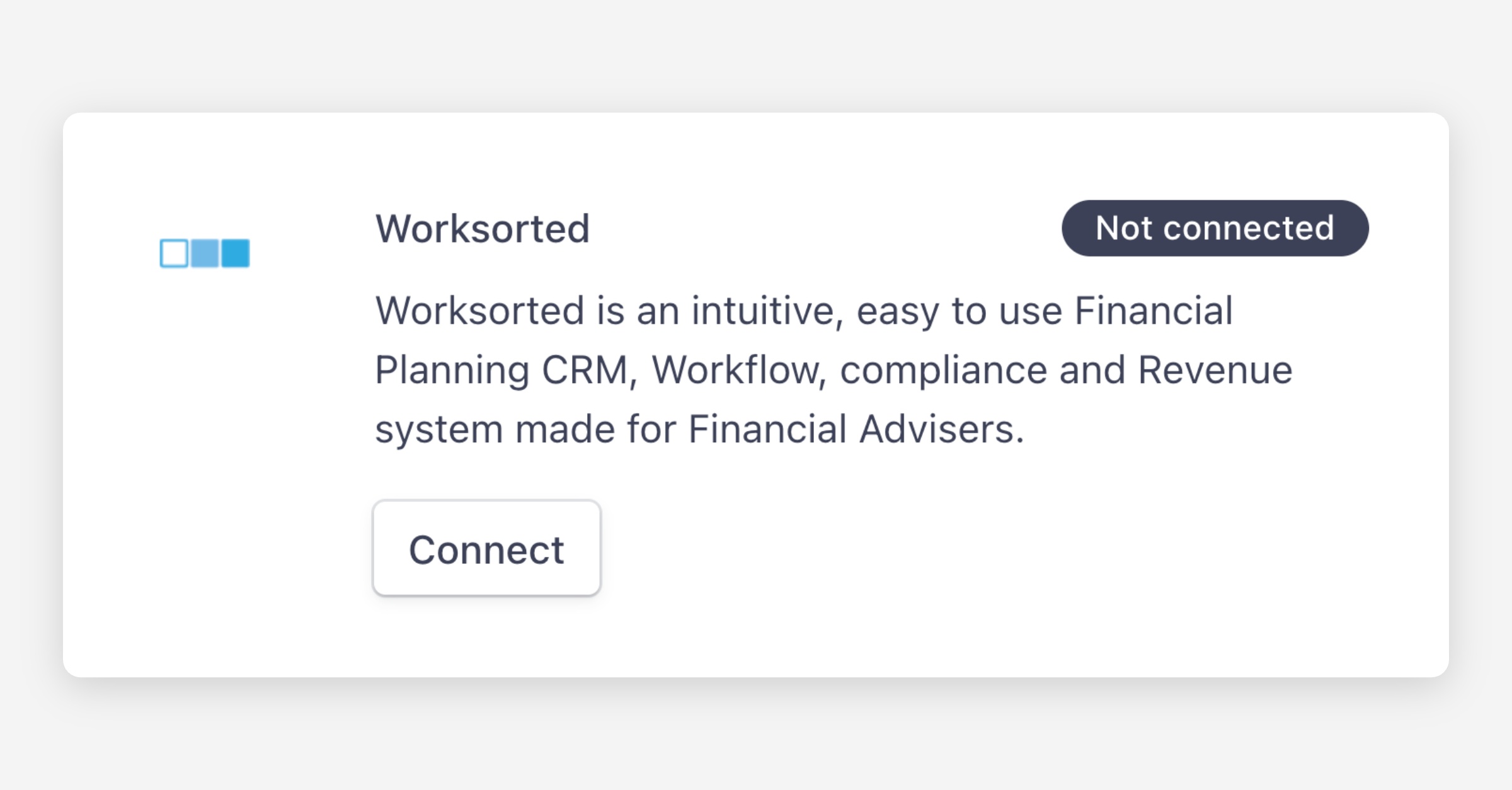
Click Connect under Worksorted.
Enter your Worksorted login details on the sign-in page and click Login.
Verify the connection on the Integrations page.
Once enabled, Worksorted will appear in your left-hand dashboard menu where you can access all your Worksorted clients.
Sending envelopes to Worksorted clients
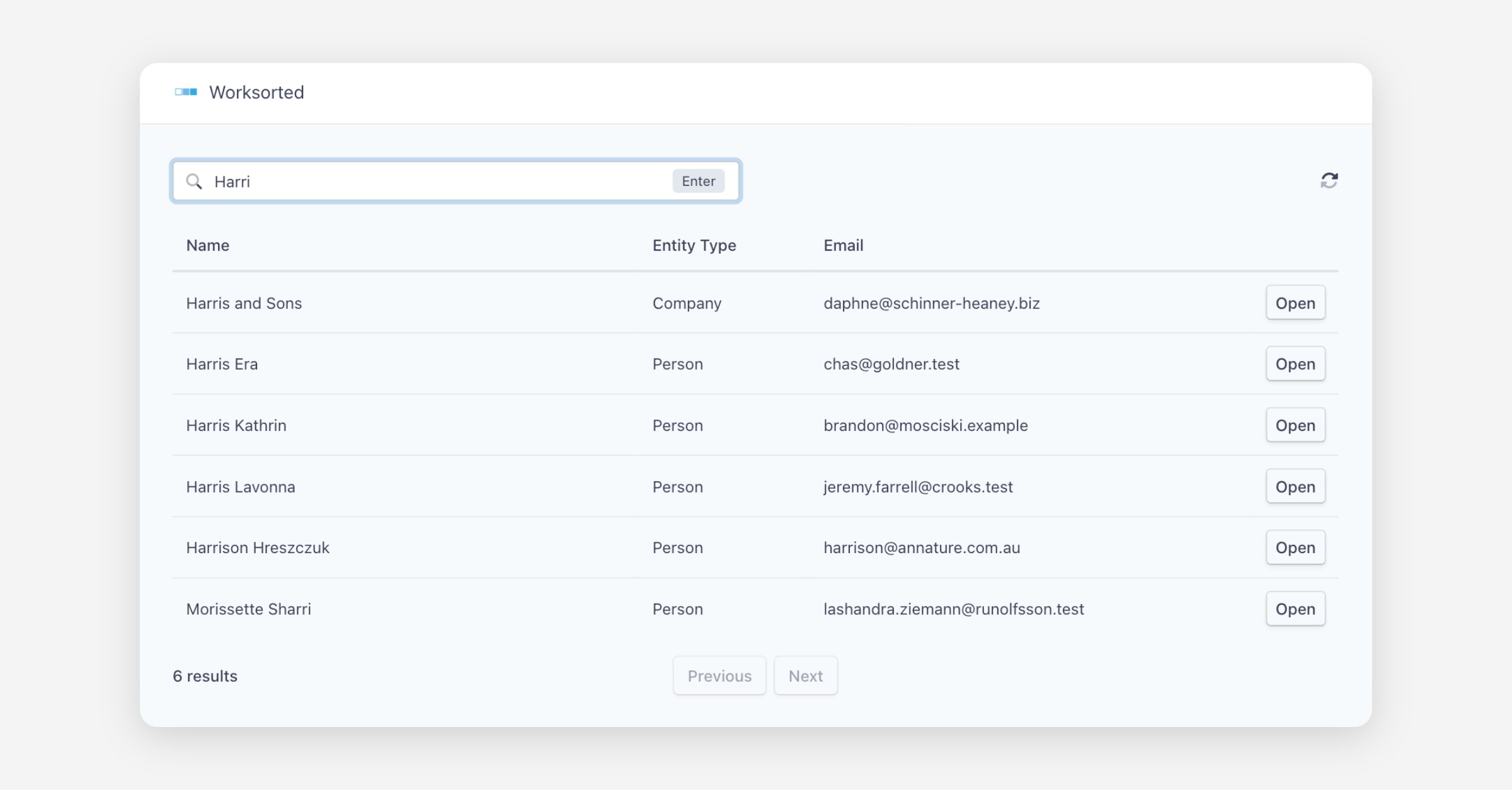
Select Worksorted from the left-hand menu.
Click Open beside the client you want to send an envelope to. You'll see their basic details synced from Worksorted, with the option to open the contact directly in your CRM.
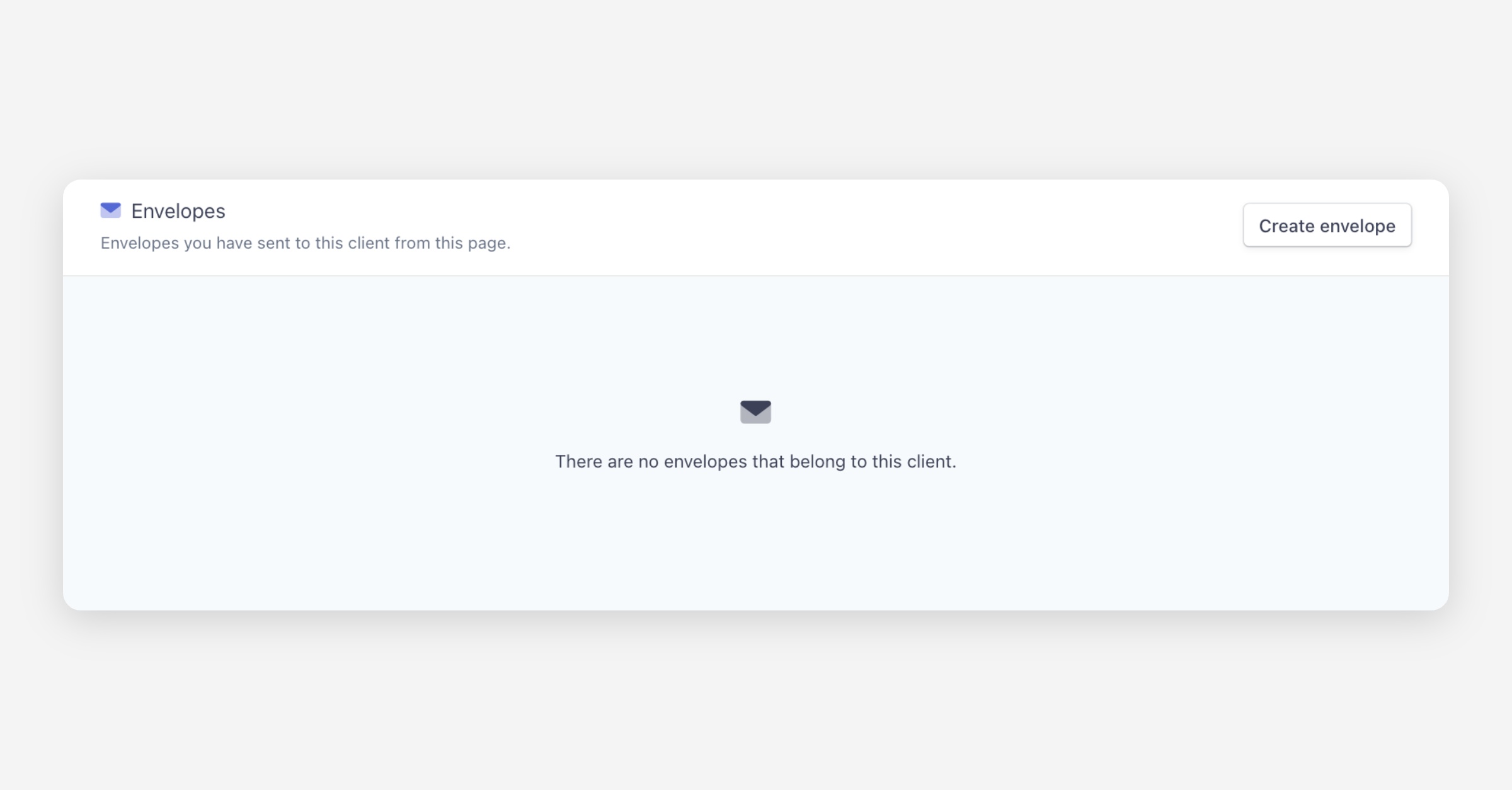
Under Envelopes, click Create envelope. The recipient's name, email, and mobile number are pre-filled automatically.
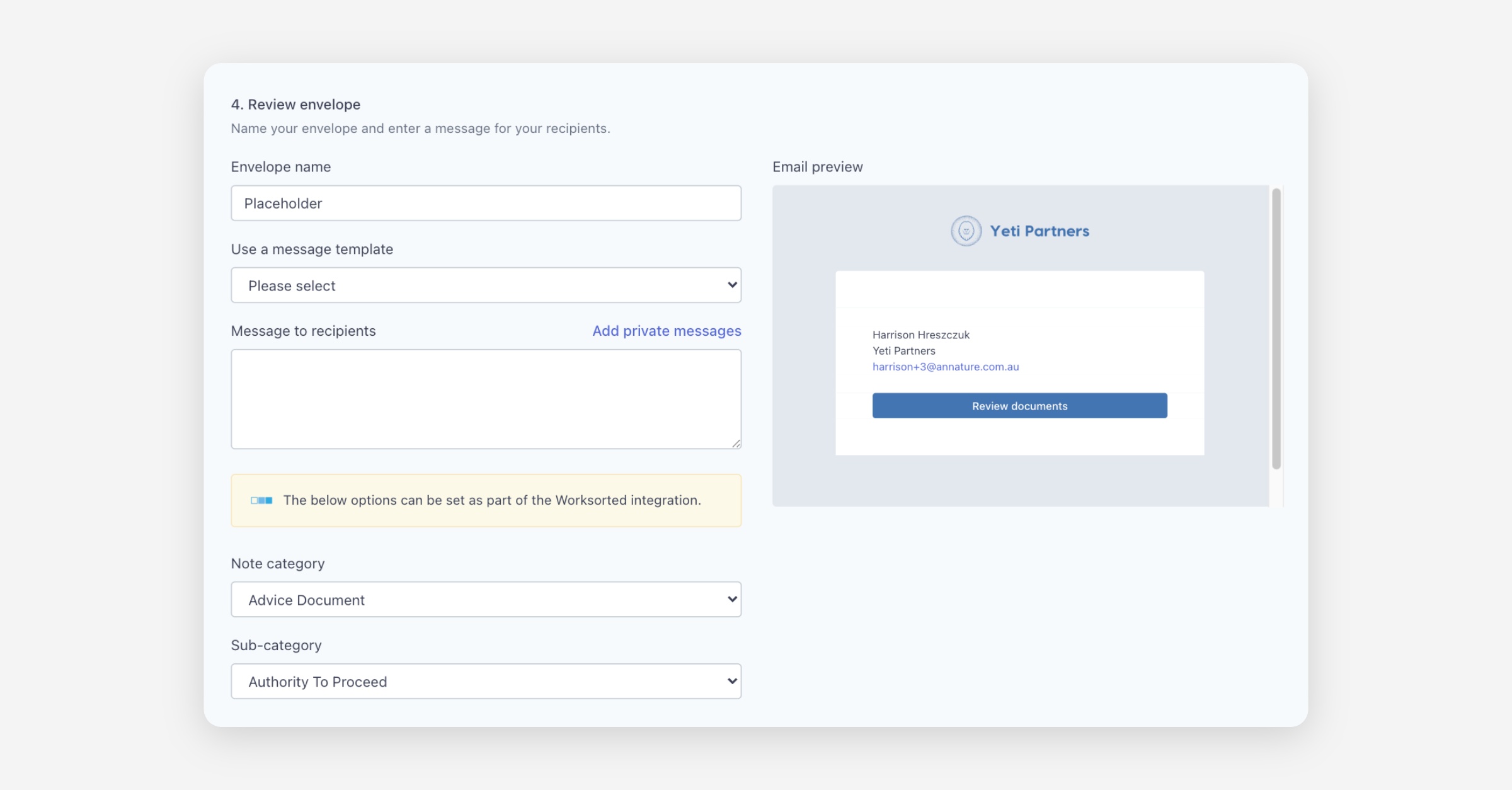
In the Review envelope section, select the Worksorted note category and sub-category.
Complete and send the envelope as usual.
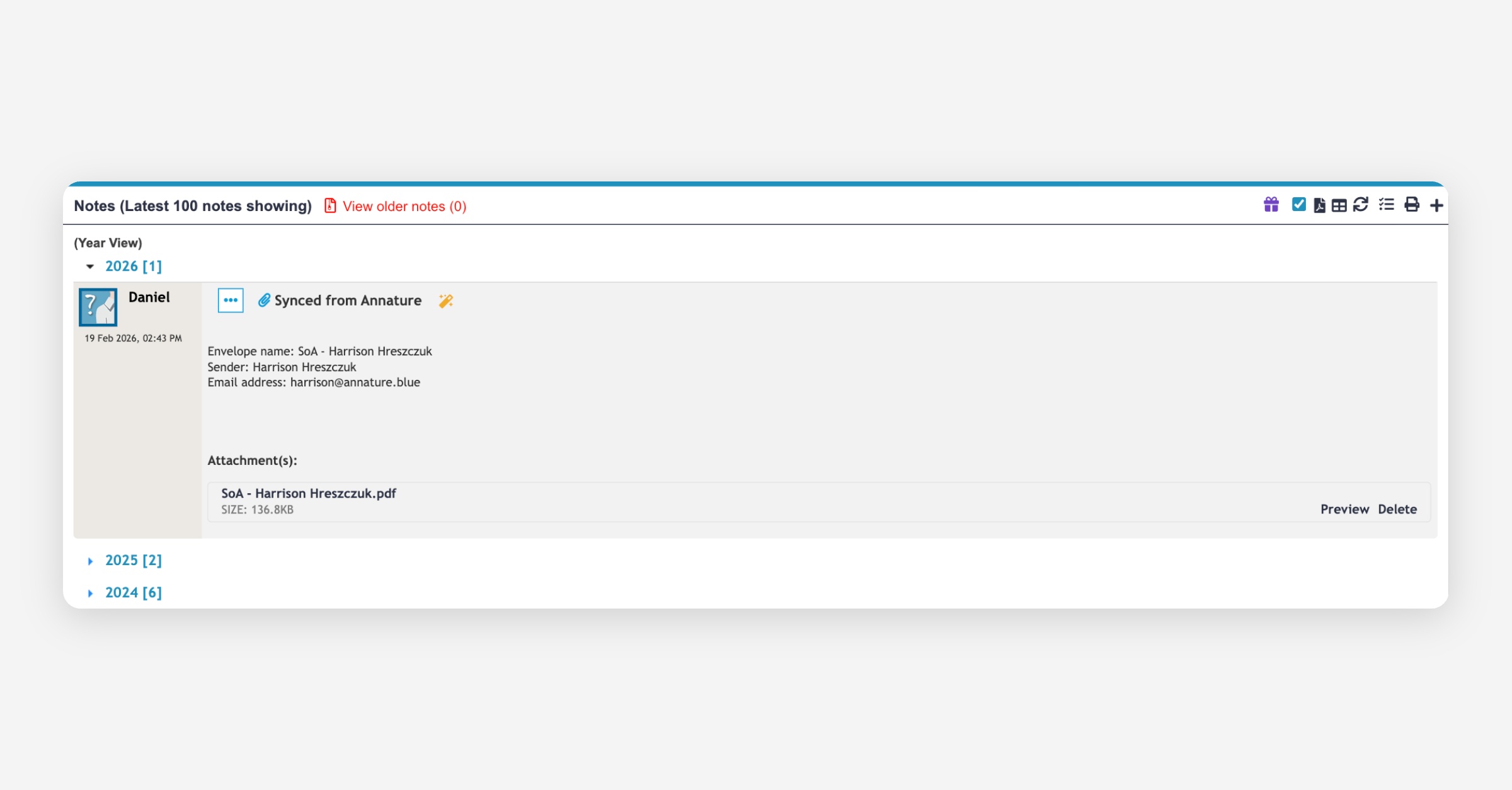
After the client completes the envelope, a copy of the signed documents is automatically pushed to Worksorted and added to the client's notes.
Data sync
When an envelope created via the Worksorted integration is completed, it is added as a note against the contact in Worksorted. You can preview and download it directly from within Worksorted.
Viewing sync status:
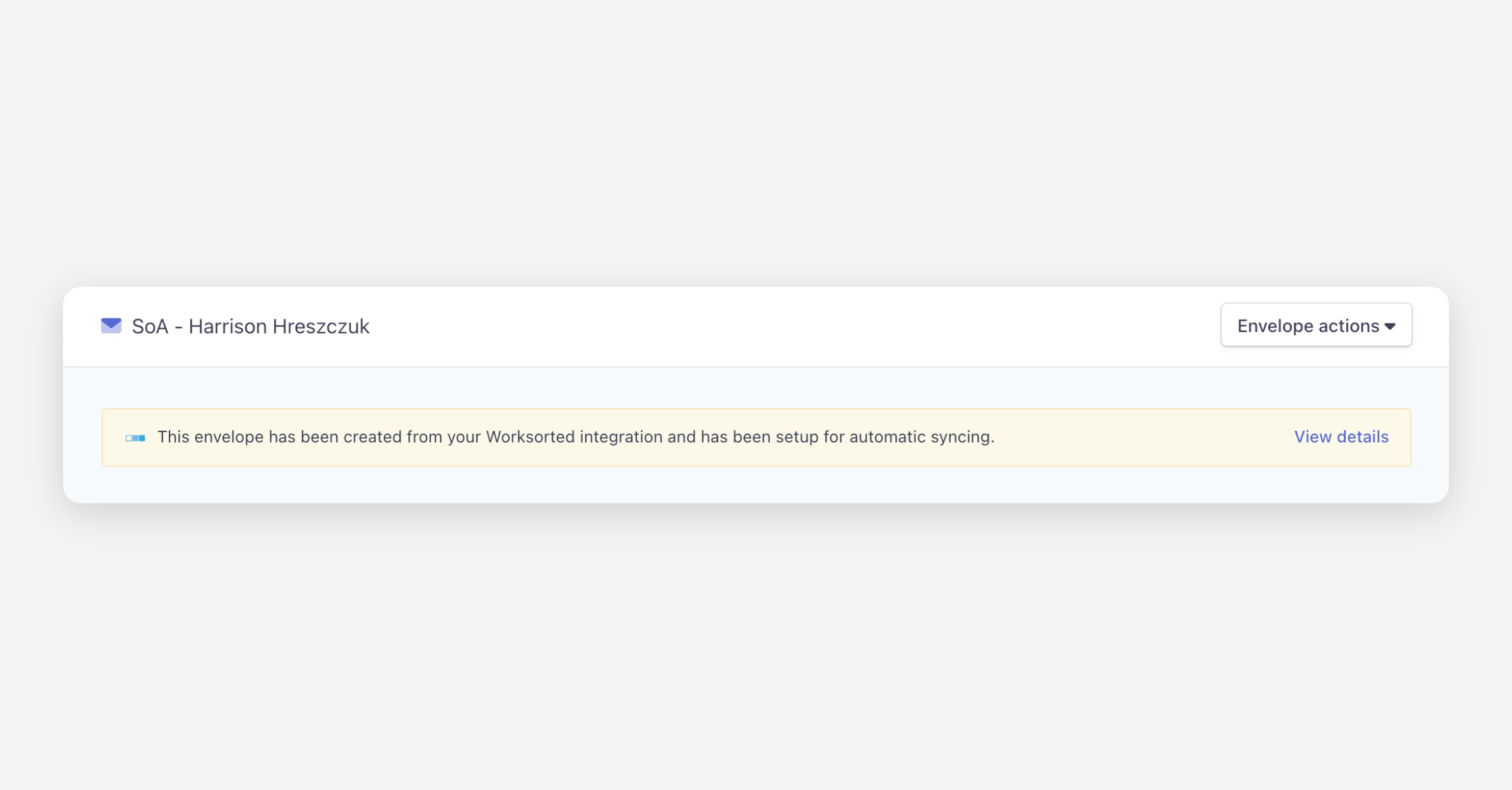
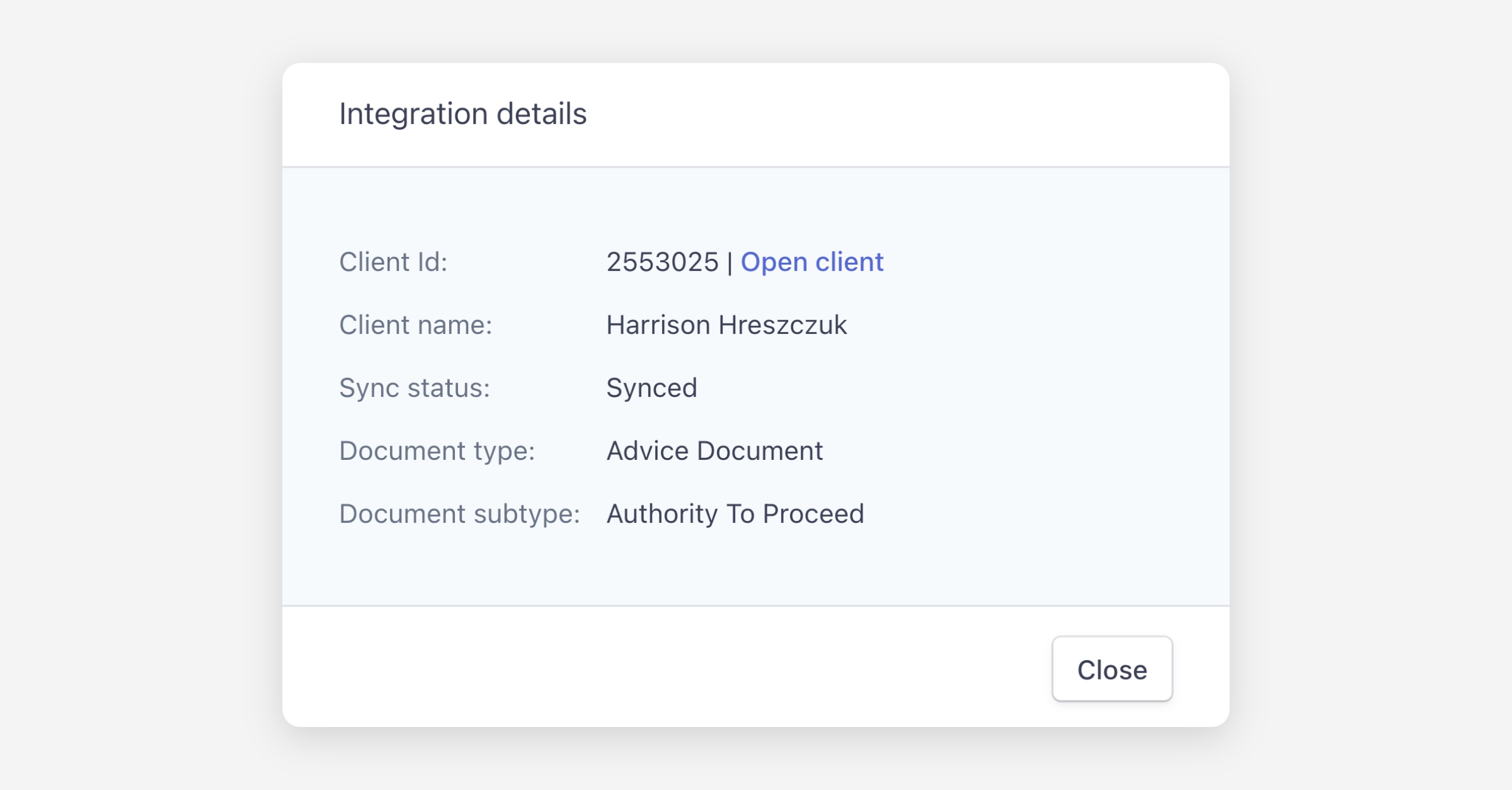
Envelopes created via the Worksorted dashboard display a banner with a View details option. This shows the client ID, a link to open the contact in Worksorted, document details, and the current sync status.
If the note in Worksorted has been deleted or there was a sync issue, you can force sync the envelope from Annature to recreate the note.
Was this helpful?