
Change your password
Update your Annature password to keep your account and documents secure.
Keeping your password up to date helps protect your account and the documents you send. Changing your password is a good step if you think someone else might know your password, if you reuse passwords across sites, or if you haven’t updated it in a long time.
Below, we explain what happens when you change your password, how to do it, and what to watch for.
What this does and why it matters
A strong, unique password makes it much harder for attackers to access your account.
When you change your password, any device or browser that is currently signed in may be affected — you may be required to sign in again.
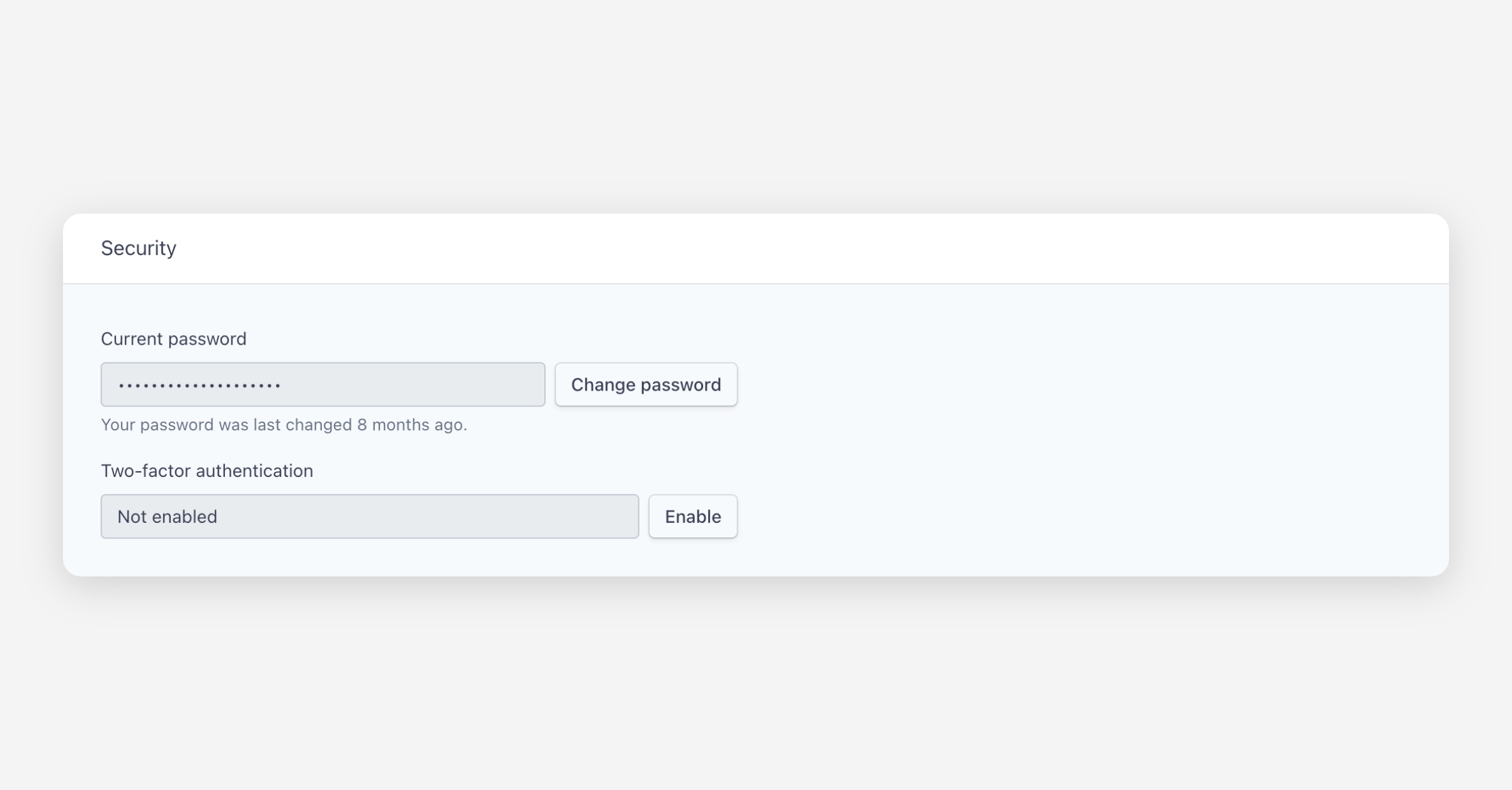
We record when your password was last changed so you can tell whether the account has been updated recently.
How to change your password
Click the profile icon at the top-right of the dashboard and select My account.
Scroll to the Security section and click Change password.
A dialog box appears asking for your current password, then your new password. Enter the details and click Confirm to complete the change.
You will usually be asked to type your current password to confirm it’s really you before we accept a new password. Choose a strong password you don’t use on other websites — a long passphrase or a combination of letters, numbers and symbols works best.
Troubleshooting
I don’t remember my current password. Use the standard “Forgot password” flow on the sign-in page to reset it. If your organisation uses single sign-on (SSO) or a central directory, you may need to reset your password with your identity provider or administrator.
My new password was rejected. Some accounts or organisations enforce password rules (minimum length, complexity). If a password is rejected, try a longer passphrase or include a mix of letters, numbers and symbols. If the account is managed centrally, contact your administrator.
I changed my password but remain signed in somewhere else. For security, sign out of other devices (or change sessions) and sign back in with the new password. If you believe your account was compromised, contact our support team.
Was this helpful?