
PDF processing
Control how PDFs are optimised and how form fields and metadata are handled before documents are sent for signing.
PDF Processing settings allow you to control how Annature handles PDF documents before they are sent for digital signing. Not all PDFs follow standard specifications. Some may be encrypted or malformed, which can cause issues during processing. These settings help address those challenges by adjusting how documents are optimised and prepared.
The PDF Processing page can be accessed by any Annature Admin by navigating to Settings > PDF processing.
PDF Optimisation Settings
Choose how your PDFs are optimised when uploaded to Annature:
Default — Keep your PDF as is, without any alterations or compression. Use this if you want to preserve the original file exactly as uploaded.
Web (Recommended) — Optimise your PDF for quick loading and easy viewing on the web. This is the recommended setting for most use cases, as it ensures recipients can view documents quickly in their browser.
Print — Prepare your PDF for high-quality printing with optimised graphics and fonts. Use this if recipients are likely to print the documents and you need to maintain print quality.
Max — Squeeze your PDF to the smallest possible size for efficient storage and sharing. Use this if file size is a priority, though some quality may be reduced.
Form Fields and Metadata Settings
Choose how form fields and other metadata are treated when processing PDFs:
Strip all (Recommended) — Remove all metadata, form fields, and thumbnails, and flatten hyperlinks. This provides the cleanest document for signing and removes any existing interactive elements that could interfere with the signing process.
Strip forms — Keep hyperlinks intact, but strip form fields and related metadata. Use this if your documents contain hyperlinks that recipients need to access.
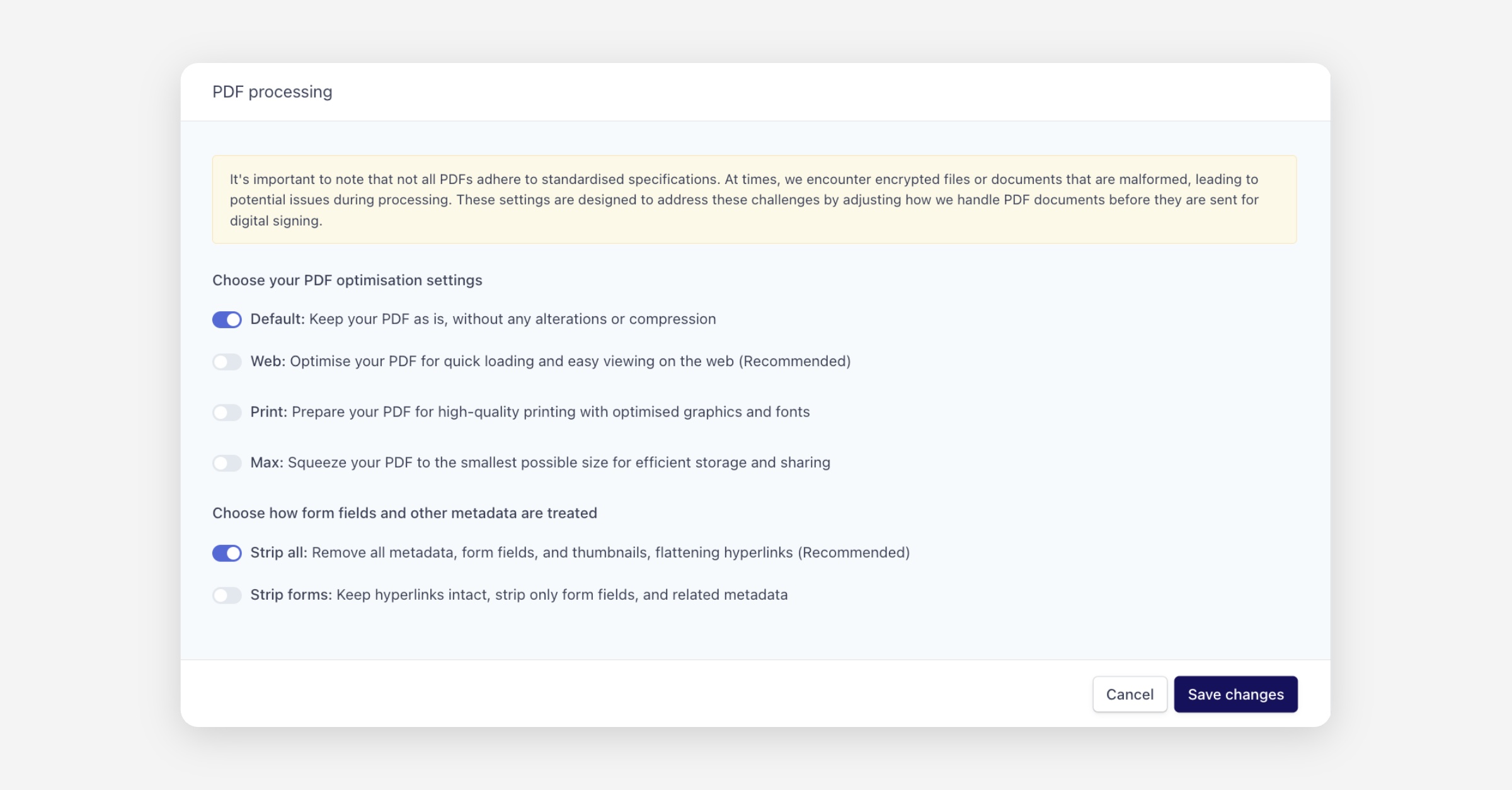
Once you have configured your preferences, click Save changes to apply them, or Cancel to discard.
Was this helpful?