
Organisation & Branding
Update your business details and apply your logo, brand colour, and sending domain across all outgoing envelopes.
The Organisation & Branding page can be accessed by any Annature admin by navigating to Settings > Organisation. This page allows you to manage your business details and customise the branding that recipients see when they receive envelopes from your organisation.
Public Information
The Public Information section contains the contact details that help recipients identify your business when they receive envelopes.
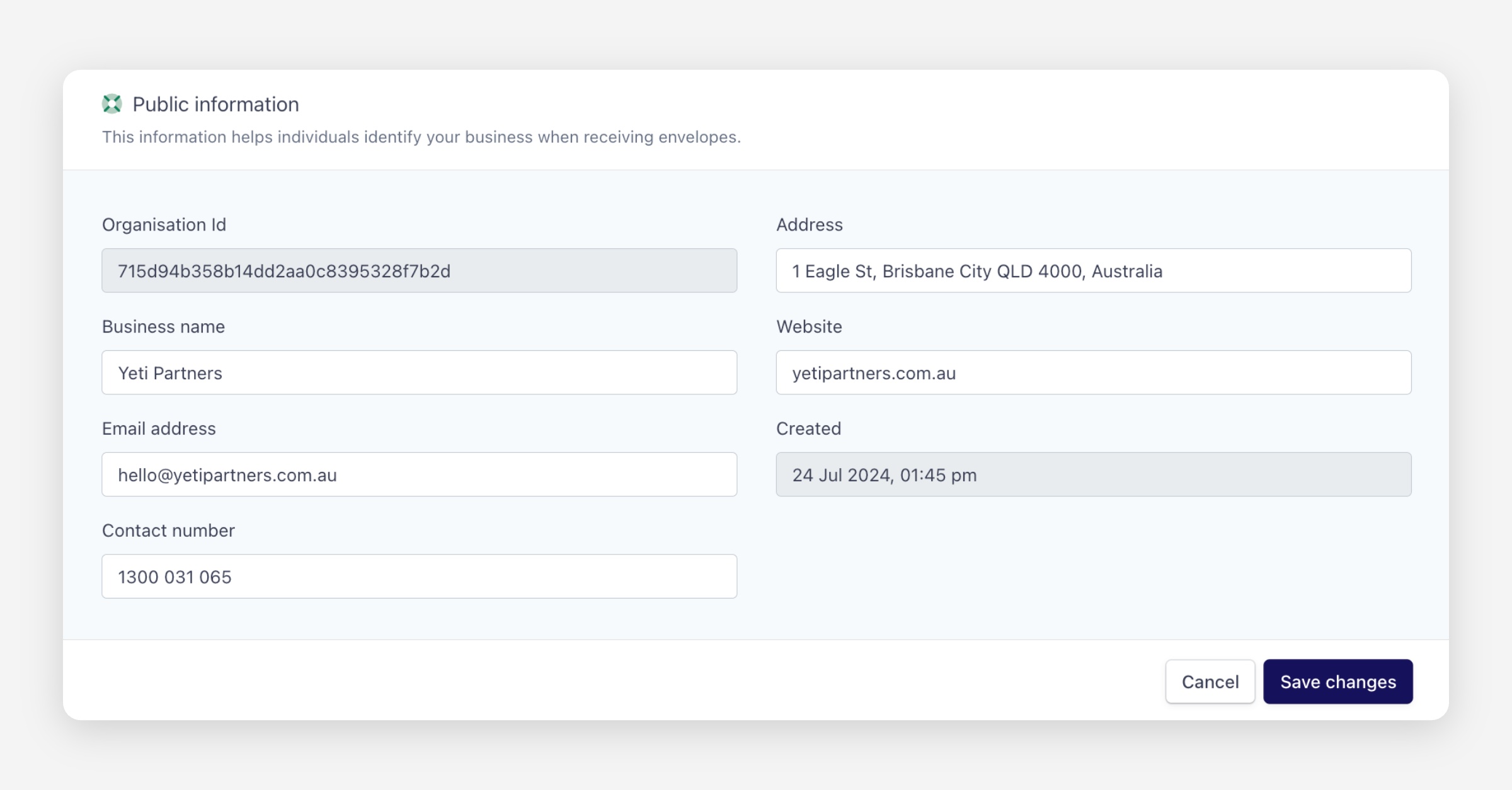
You can update the following fields:
Business name — The name of your organisation as it appears to recipients.
Email address — Your organisation's contact email.
Contact number — A phone number for your organisation.
Address — Your business address.
Website — Your organisation's website URL.
The Organisation Id and Created date are read-only fields displayed for reference and cannot be edited.
Once you've made your changes, click Save changes to apply them, or Cancel to discard.
Branding Options
The Branding Options section lets you customise the look and feel of envelopes sent by your organisation. Any branding you set here will be applied to all envelopes sent by accounts within your organisation.
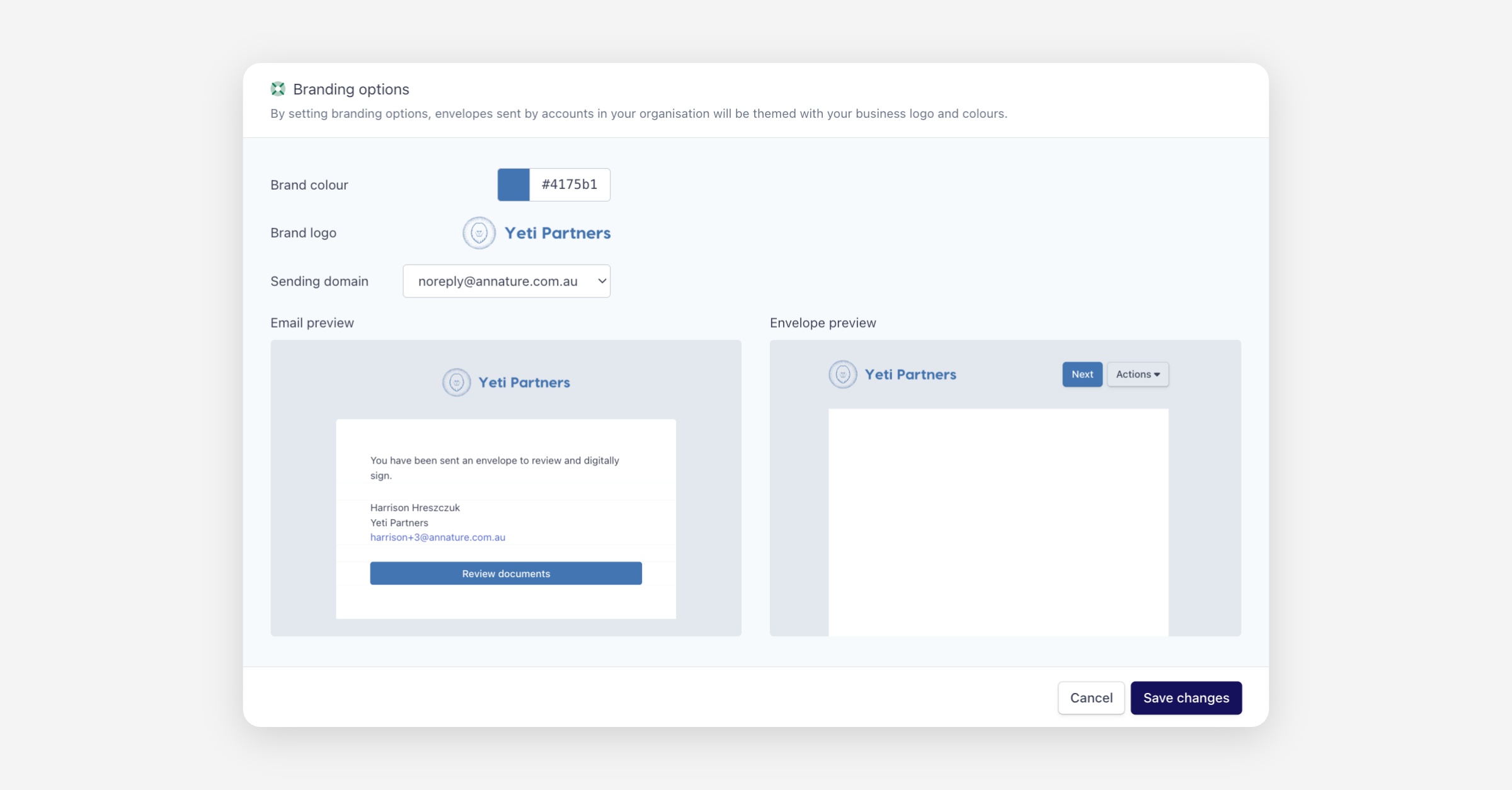
You can configure the following:
Brand colour — Select your brand colour using the colour picker or enter a hex code (e.g.
#ff5a00) directly. This colour is applied to buttons and accents in your envelope emails and signing pages.Brand logo — Upload your organisation's logo by clicking Browse files. Accepted formats are GIF, JPEG, and PNG. Your logo will appear at the top of envelope emails and the signing experience.
Sending domain — Choose which email address envelopes are sent from. By default, envelopes are sent from
[email protected]. If your organisation has configured custom sending domains, they will appear in this dropdown for selection. Custom sending domains must first be set up on the Sending Domains settings page, and their DNS records must be verified before they become available for assignment here.
Previewing Your Branding
Below the branding settings, two live previews are displayed so you can see how your branding will look before saving:
Email preview — Shows how the envelope notification email will appear to recipients, including your logo, brand colour on the call-to-action button, and sender details.
Envelope preview — Shows how the signing experience header will appear, including your logo and branded button styling.
Once you're happy with your branding, click Save changes to apply, or Cancel to discard.
Was this helpful?