
Message templates
Create and manage reusable message templates with dynamic placeholders for consistent envelope communication.
Message templates help your team save time, stay consistent, and deliver clear communication every time you send an envelope. Whether you're welcoming a new client, sharing financial documents, or onboarding a new employee, templates ensure your messages are professional, on-brand, and ready to use.
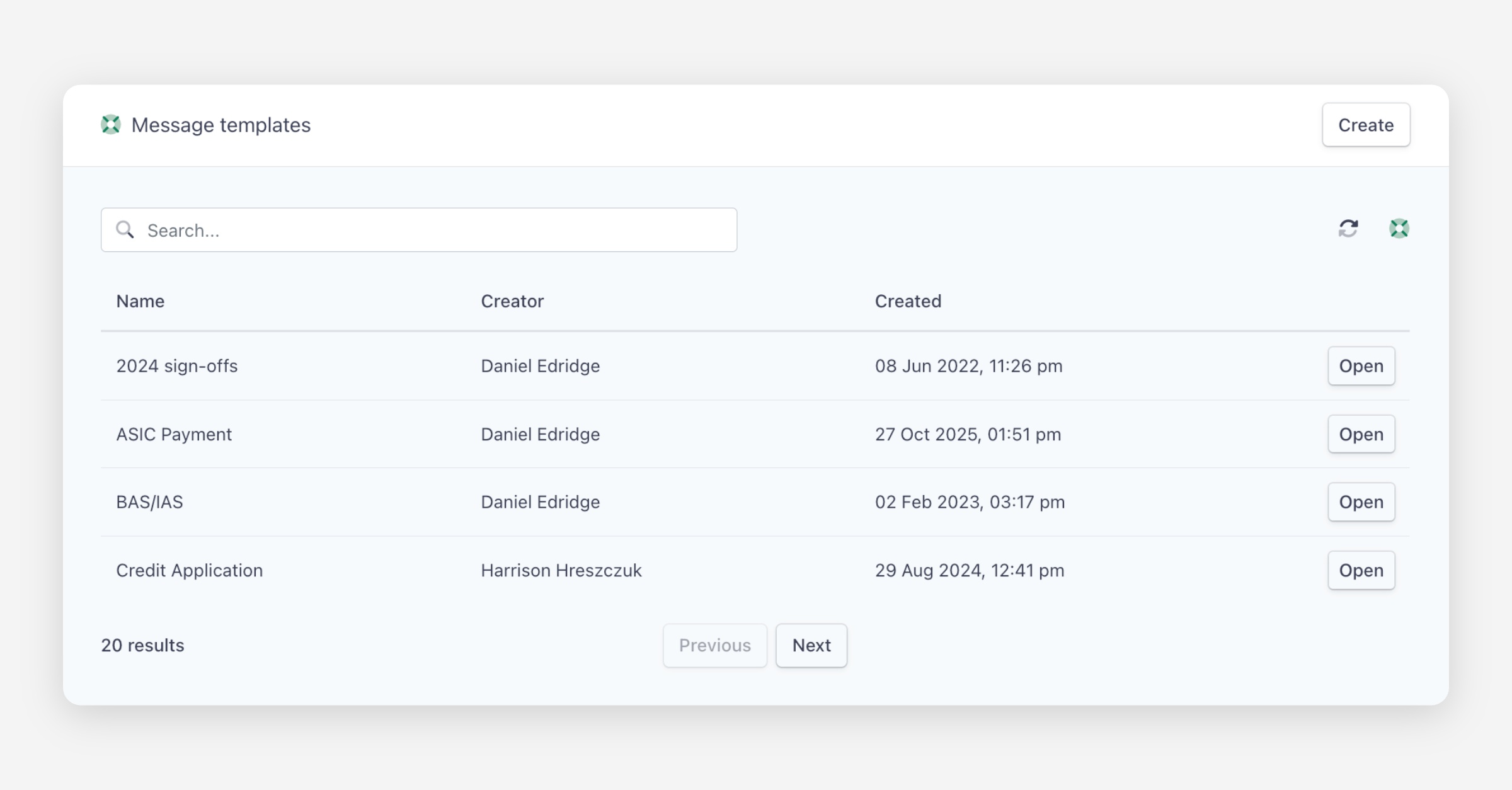
The Message Templates page can be accessed by navigating to Settings > Message Templates. The page displays a table of all templates in your organisation, showing:
Name — The template name.
Creator — The team member who created the template.
Created — The date the template was created.
You can search for templates using the search bar at the top of the page, and each template has an Open button to view or edit its details.
Creating a Message Template
To create a new template:
Navigate to Settings > Message Templates and click Create.
Give your template a name, hit create and write your message.
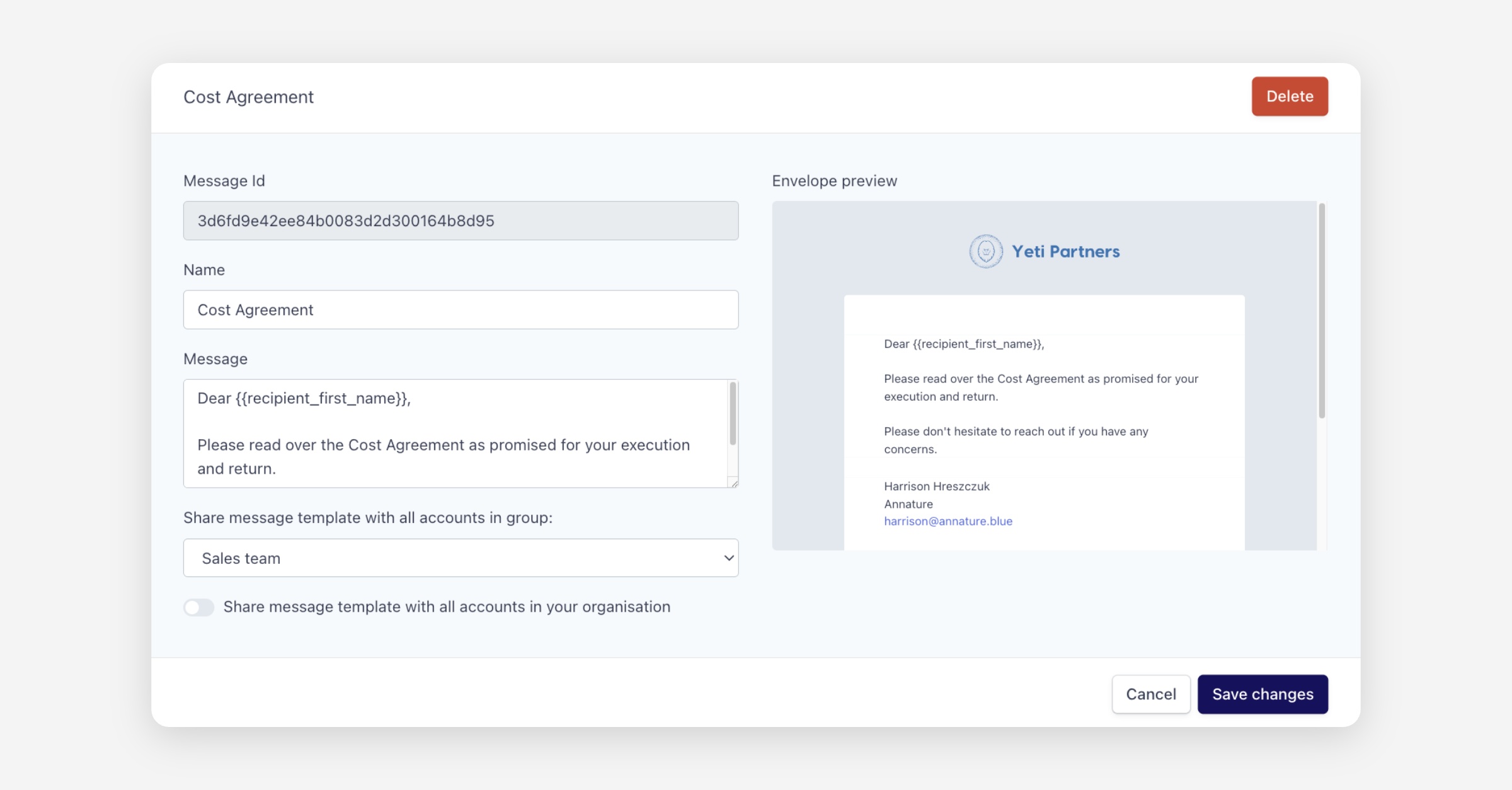
If your organisation uses groups, choose whether to share the template with a specific group.
Preview your message on the right-hand side.
Click Save.
Your new template will now appear in the list of available message templates.
Editing or Deleting a Template
To update or remove a template:
Navigate to Settings > Message Templates.
Click Open on the template you want to edit.
Make your changes and adjust sharing options if needed.
Click Save changes to apply your updates.
To permanently delete a template, click Delete from the template detail view.
Using a Template When Sending an Envelope
Once your envelope is ready — documents uploaded, recipients added, and fields placed — scroll to Step 4: Review envelope.
From here:
Select a saved template from the Use a message template dropdown.
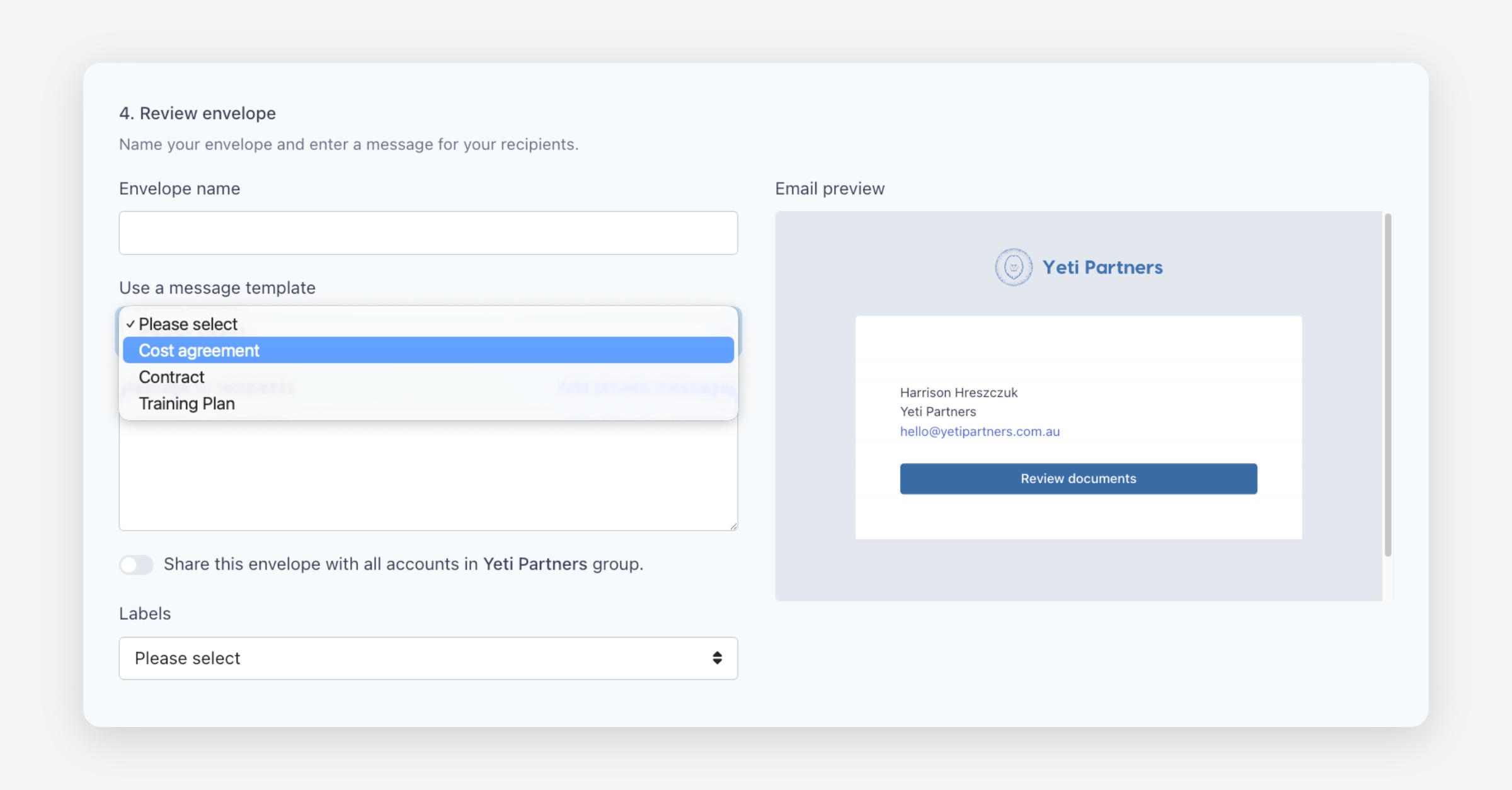
The template content will populate the Message to recipients field.
Review your message in the Email preview panel on the right.
When everything looks right, click Send envelope.
Placeholders
You can personalise your templates with dynamic placeholders (also known as merge fields). These automatically insert recipient and sender details into your message when the envelope is sent.
Supported placeholders:
{{recipient_name}}{{recipient_first_name}}{{recipient_email}}{{sender_name}}{{sender_email}}{{sender_number}}
Placeholders work in both message templates and envelope messages. They allow you to write one template that feels personalised to every recipient without any manual editing.
Formatting
You can format the text in your messages using HTML tags. This works in both message templates and the envelope message field when sending.
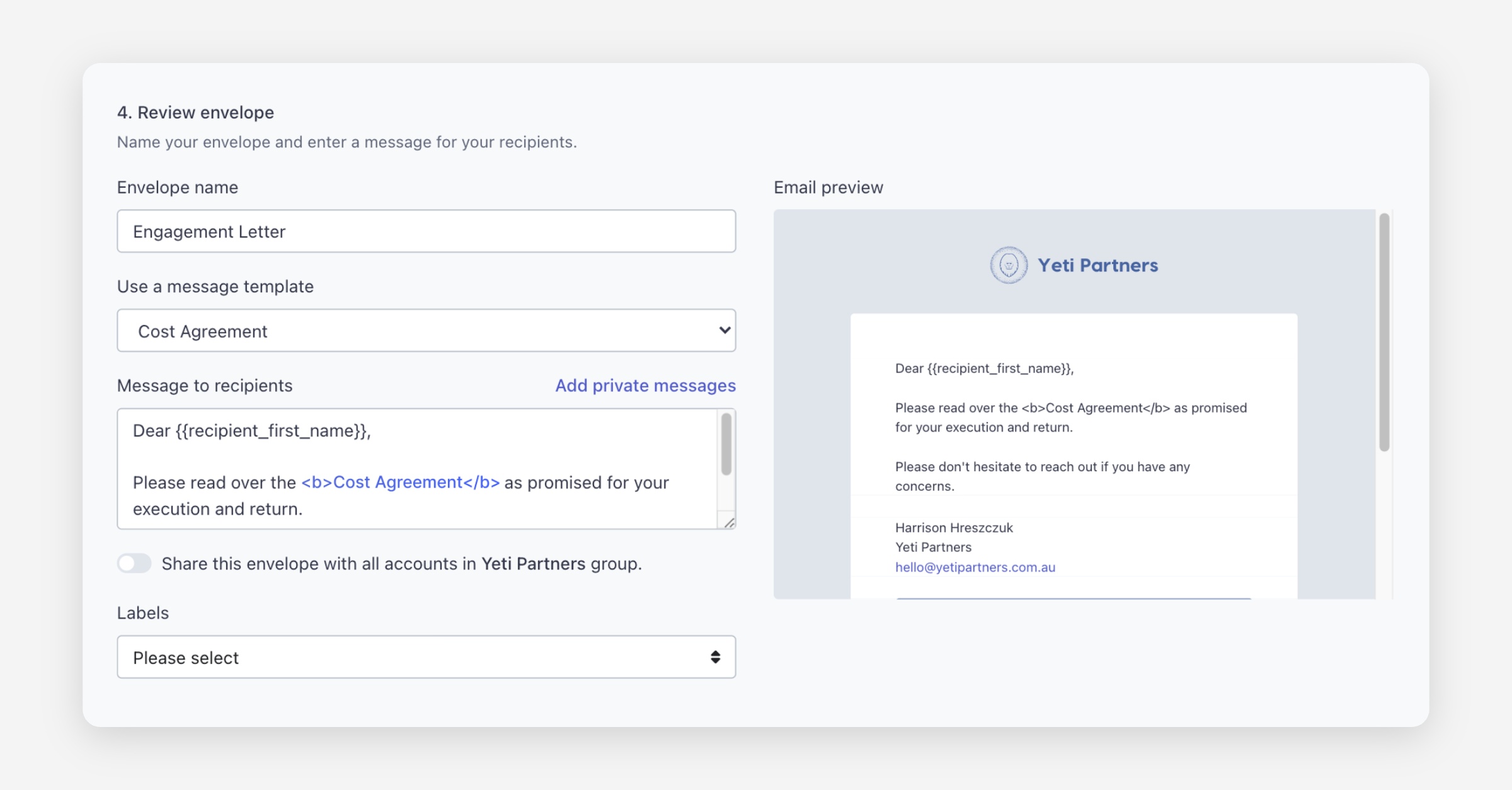
Supported tags:
Bold —
<b>your text</b>Italic —
<i>your text</i>Underline —
<u>your text</u>Highlight —
<mark>your text</mark>
For example, wrapping a word in <b> tags will make it appear bold in the email sent to your recipient.
Just take note, that the ending tag usually container a backslash ‘/’ as above.
Was this helpful?