

Verify an XPM client's identity from their page in Annature, with their details pre-filled from XPM. When your client completes the verification, the certificate and reports are filed back to XPM and the client's custom fields are updated, so your records show who's been verified without any manual data entry.
How to create a verification
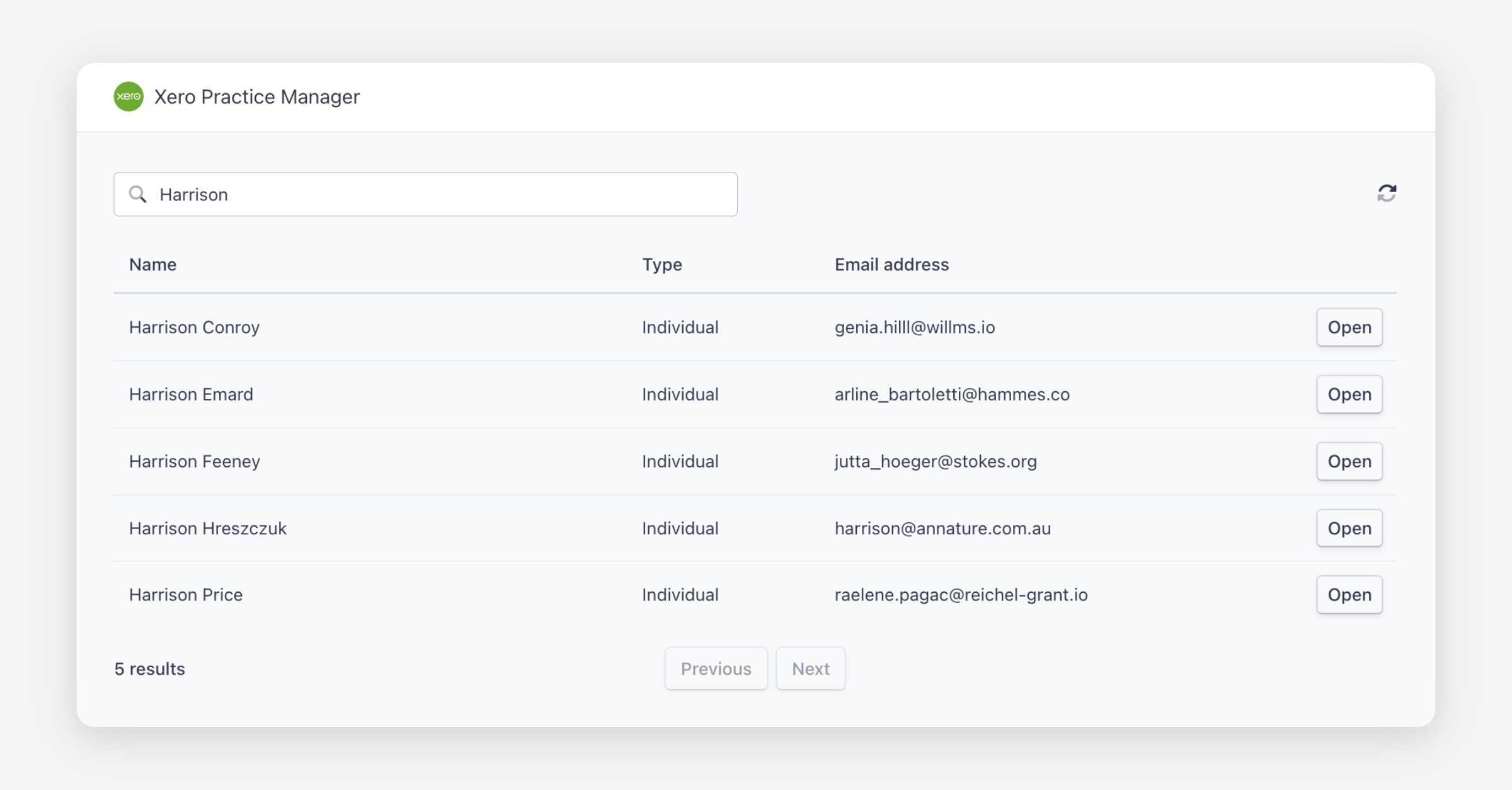
Select Xero Practice Manager from the left-hand menu, search for the client and click Open.
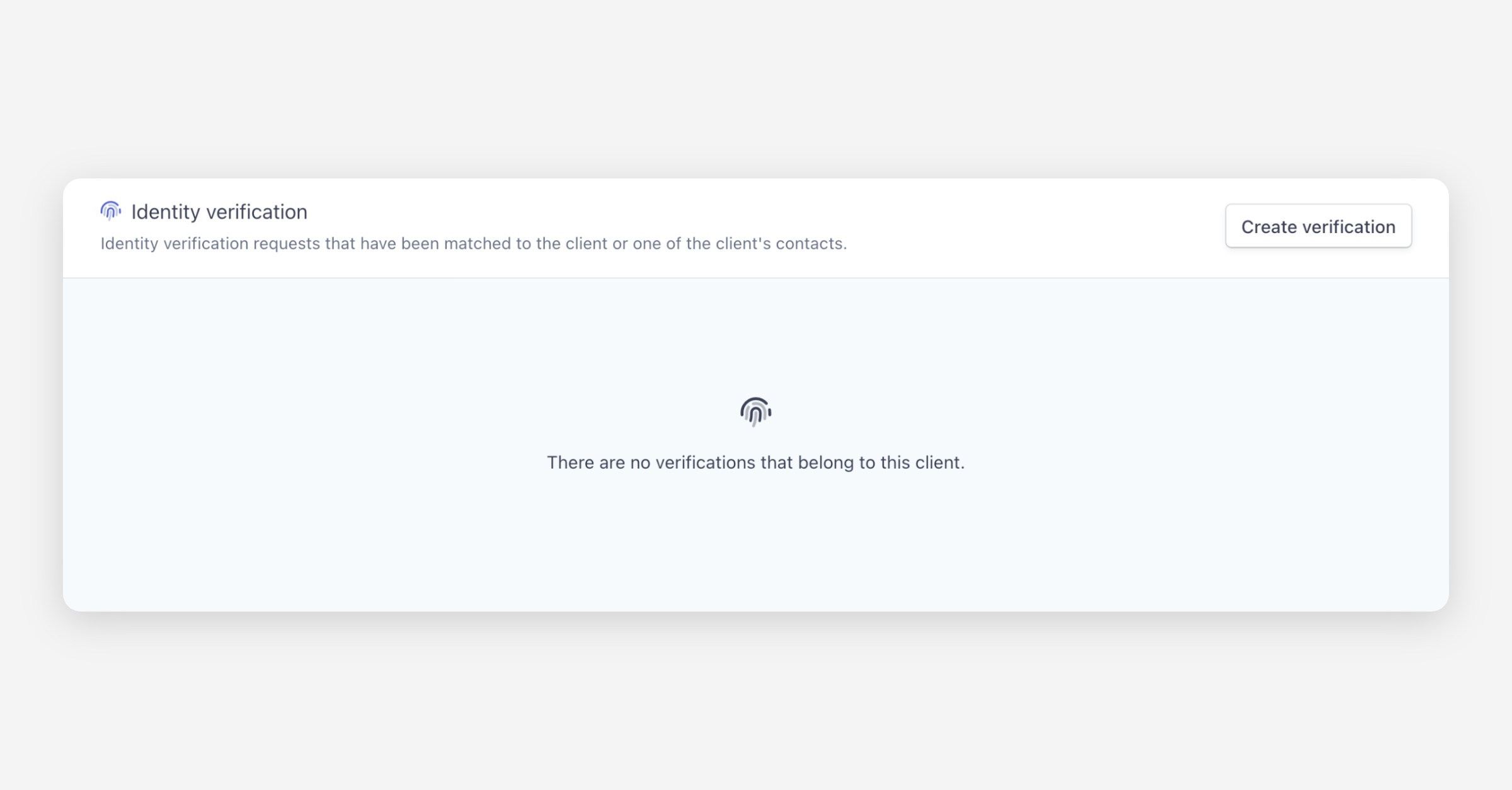
Under Identity verification, click Create verification.
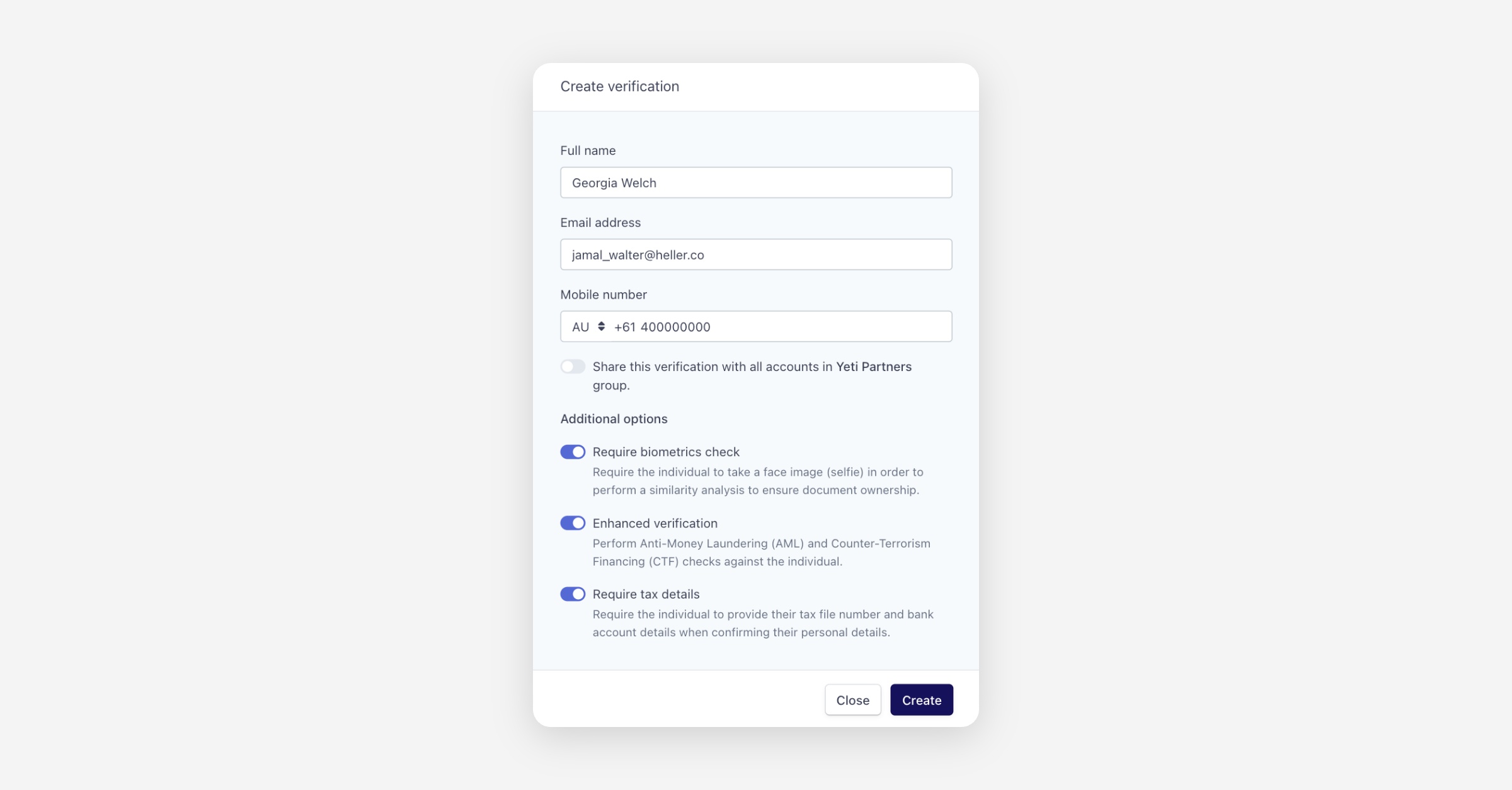
Check the pre-filled client details and click Create.
Your client receives the verification request and completes it as usual. See Sending an identity verification for the rest of the process.
After the verification is completed
When your client finishes, Annature automatically:
Files the certificate of verification under the client's Documents tab in XPM. If AML & CTF screening or a multi-bureau check was included, those reports are filed too.
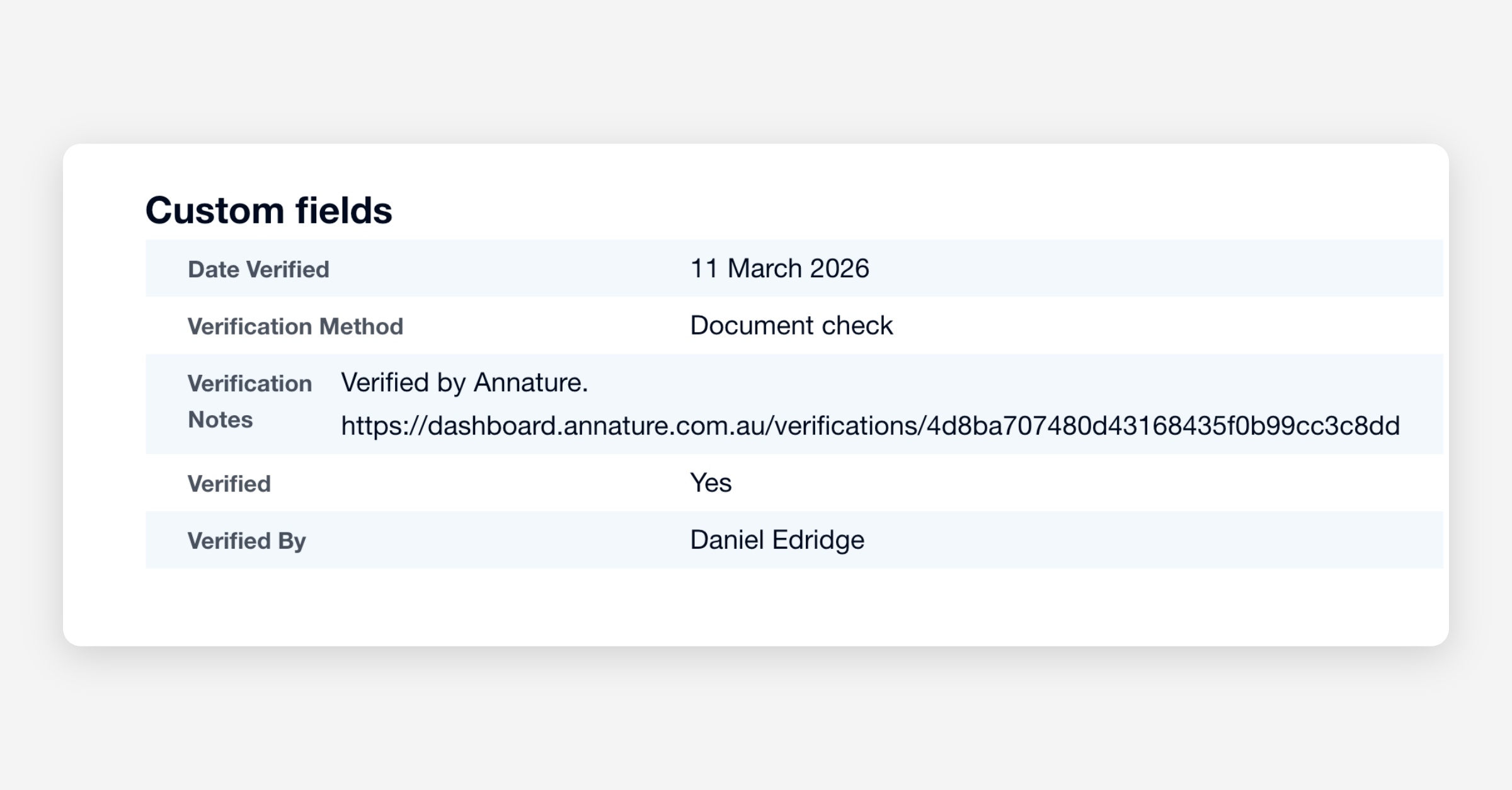
Fills in the [A] custom fields on the client record, such as [A] Verified and [A] AML & CTF Outcome.
When you open the verification or screening in Annature, a banner at the top links straight to the client in XPM.
See What syncs to Xero Practice Manager for exactly what each field shows.