
Sending a template
Send an envelope from a template using Quick Send for speed, or Use Template for full customisation before sending.
There are two ways to send an envelope using a template: Quick send for a streamlined experience, and Use template for full control over the envelope before sending. You can also apply a template to an envelope you are creating from scratch.
Quick Send
Quick send is the fastest way to send a template. It opens a simplified view where you enter recipient details, review the message, and send immediately — without needing to modify documents or fields.
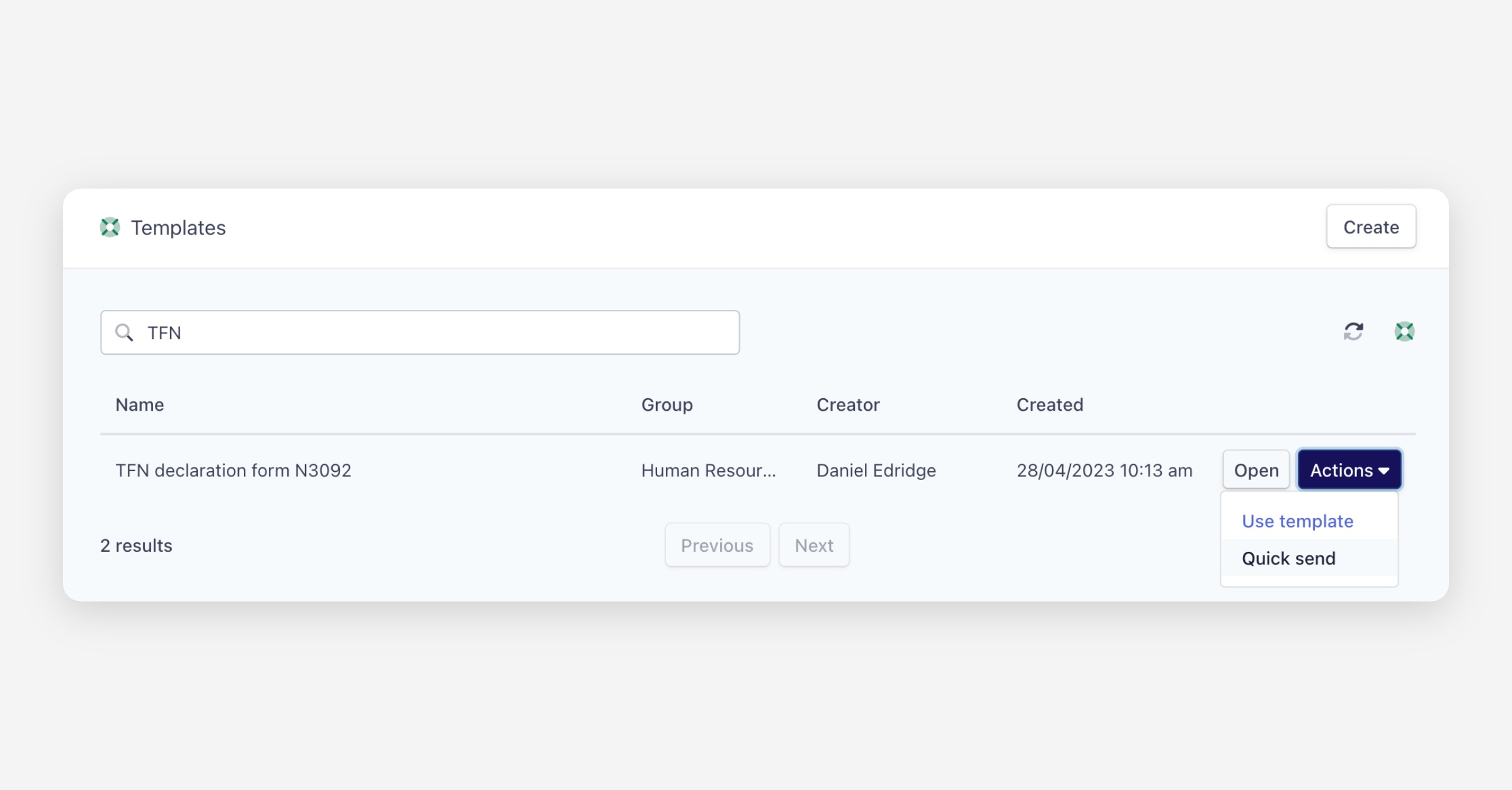
Navigate to Templates and find the template you want to send.
Click Actions next to the template and select Quick send.
Enter the name and email address for each role defined in the template.
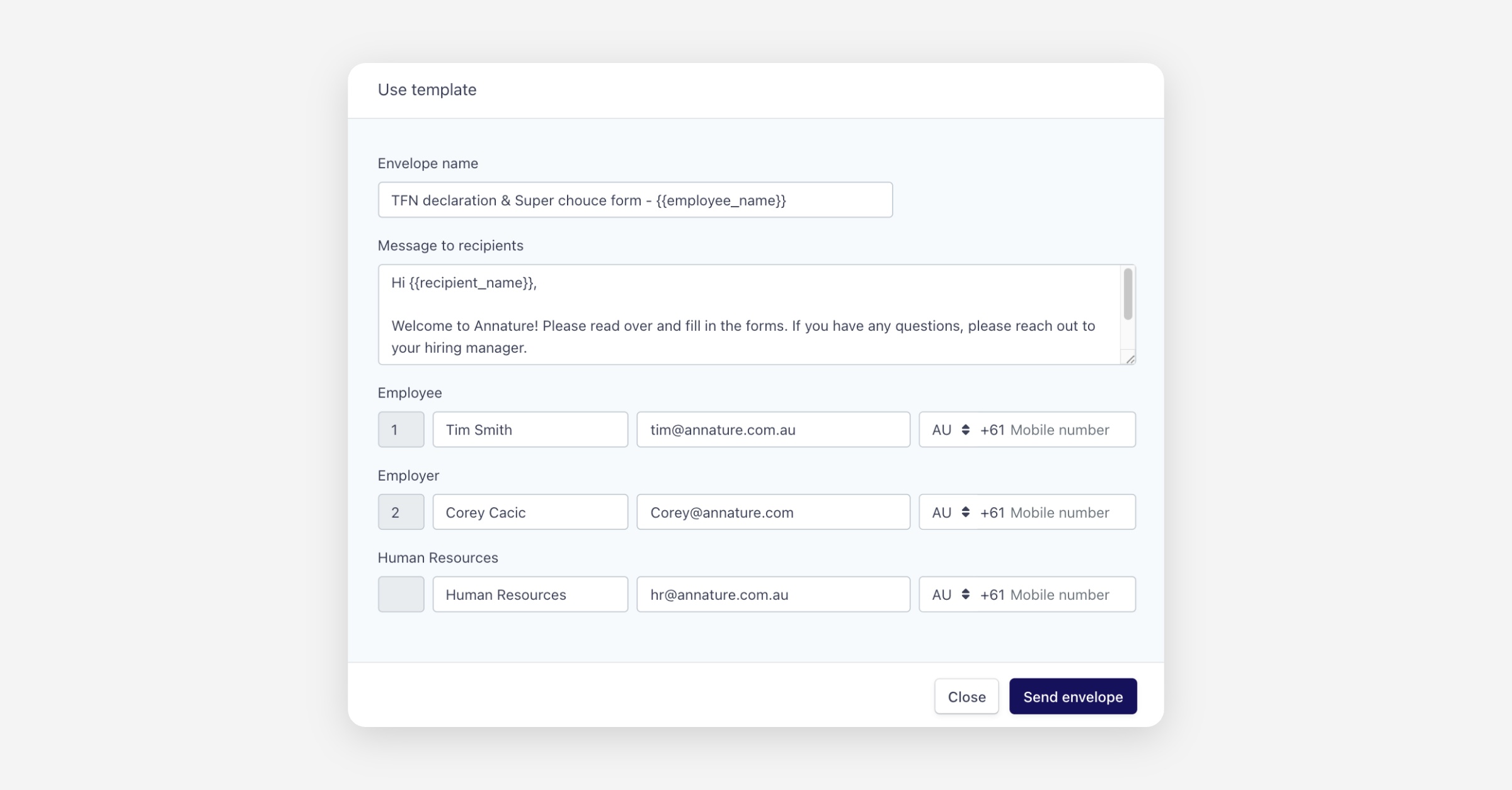
Review and modify the envelope name and message if needed.
Click Send envelope.
Quick send is best suited for templates that do not need any modifications before sending.
Use Template
Use template opens the full envelope creation view with the template pre-applied, allowing you to customise documents, fields, recipients, and settings before sending.
In my example, I have a template for a TFN & Super Choice form. I may select the ‘Use Template’ option if I’d like to attach additional documents, like an employment contract.
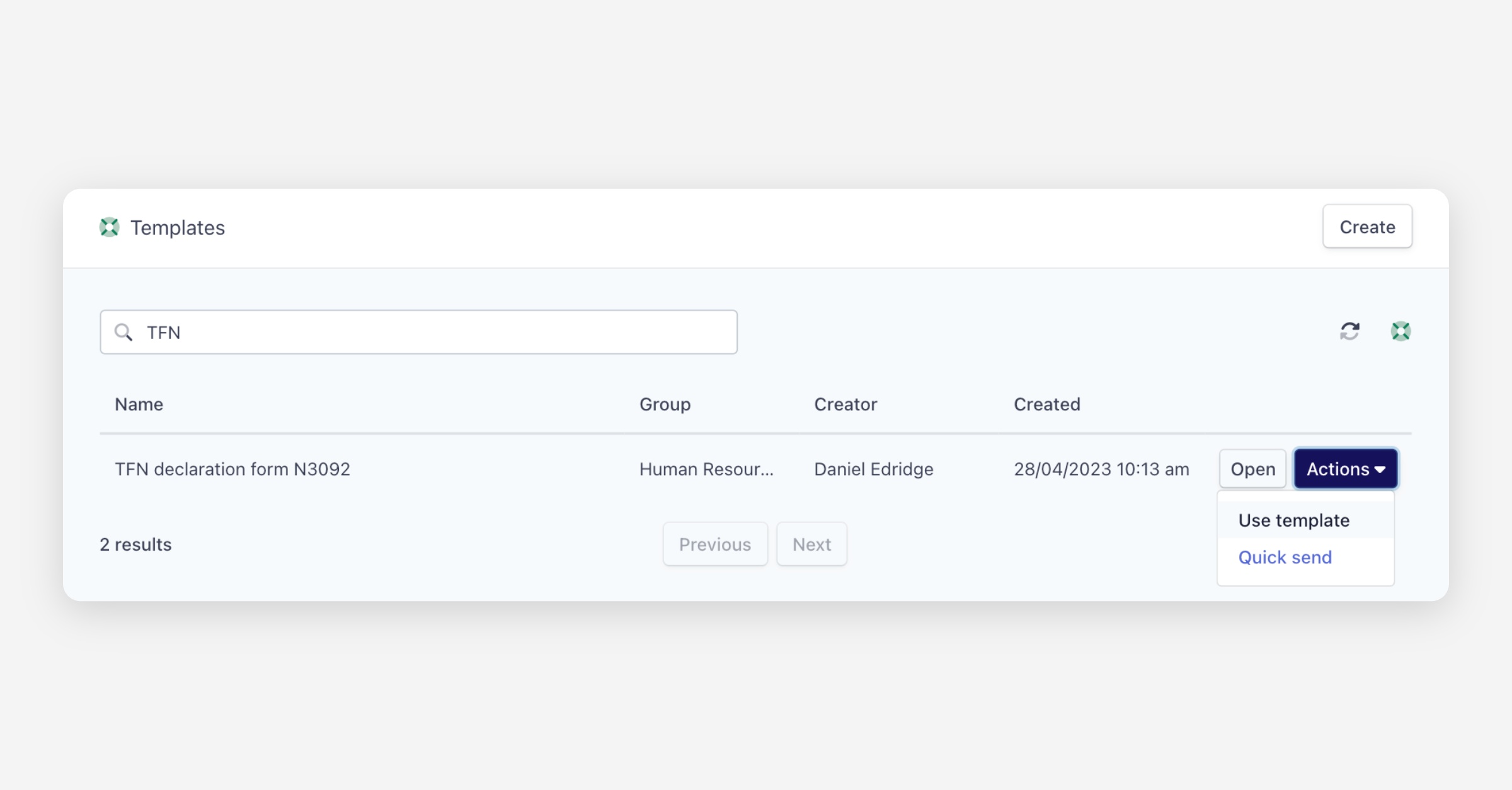
Navigate to Templates and find the template you want to send.
Click Actions next to the template and select Use template.
You will be redirected to the envelope creation page with the template's documents, fields, and settings already applied.
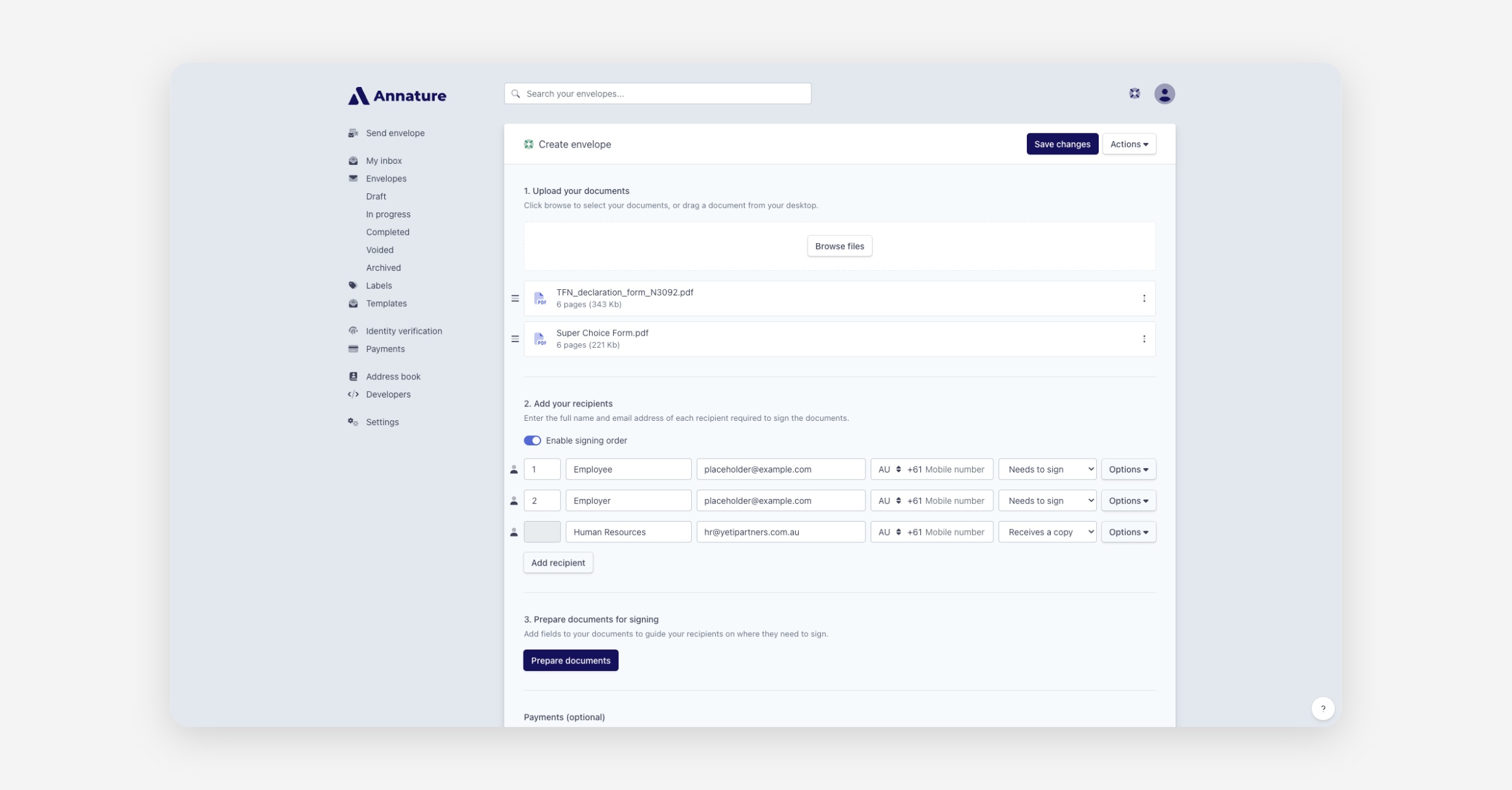
Make any modifications as needed — you can edit fields, update recipient details, change the message, or adjust any other settings.
Click Send envelope when ready.
Use template is best suited when you need to make changes to the envelope before sending, such as adjusting fields or adding additional documents.
Applying a Template to an Existing Envelope
You can also apply a template when creating an envelope from scratch. This is useful when you have uploaded a document that is similar to one used in a template and want to apply the same fields automatically.
Create an envelope and upload your documents.
Click the Actions button on the right side of the document, then select Apply template.
Annature will scan your available templates and display those that match the uploaded document. Select the template you want to use and click Continue.
Choose how the roles and fields from the template should be mapped to the recipients in your envelope, then click Confirm.
Continue with the envelope creation process as normal.
Was this helpful?