
Update your account name and email address
Keep your display name, email, and time zone accurate so recipients and notifications stay correct.
Keeping your account name, contact details, and time zone up to date helps your customers trust the messages they receive from you and ensures notifications and timestamps are correct. Your account name appears on envelopes and emails we send on your behalf, and your email address is used for logging in and for important account notifications. So it's worth checking these details are accurate.
Below we explain what changing each field means, how to make the change, and what to do if something goes wrong.
What this does and why it matters
Full name — appears when you send envelopes and helps recipients recognise who the message is from. Use the name you want your clients to see.
Email address — this is the email you use to sign in and to receive important messages from us. Because your email is the key to access the account, any change to it requires you to confirm the new email before it becomes active.
Contact number — used for your organisation’s contact details and for any phone-based communications.
Time zone — controls how we display and stamp dates and times (for example, signature times). Choose your local time zone so timestamps match your expectations
How to update your details
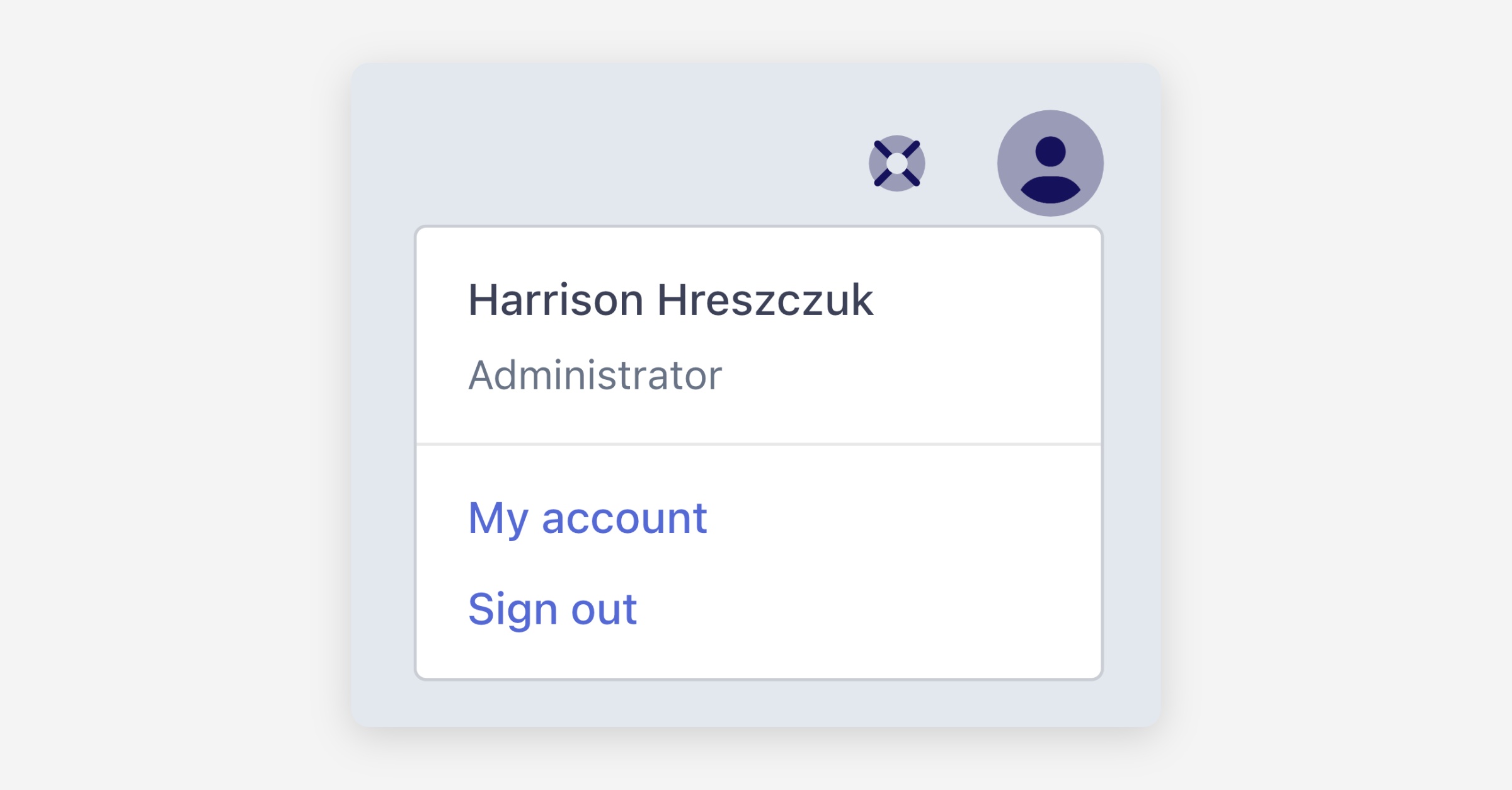
Click the user icon in the top right of the dashboard, then choose My account.
In Your account, update the fields you want: full name, email address, contact number, and time zone.
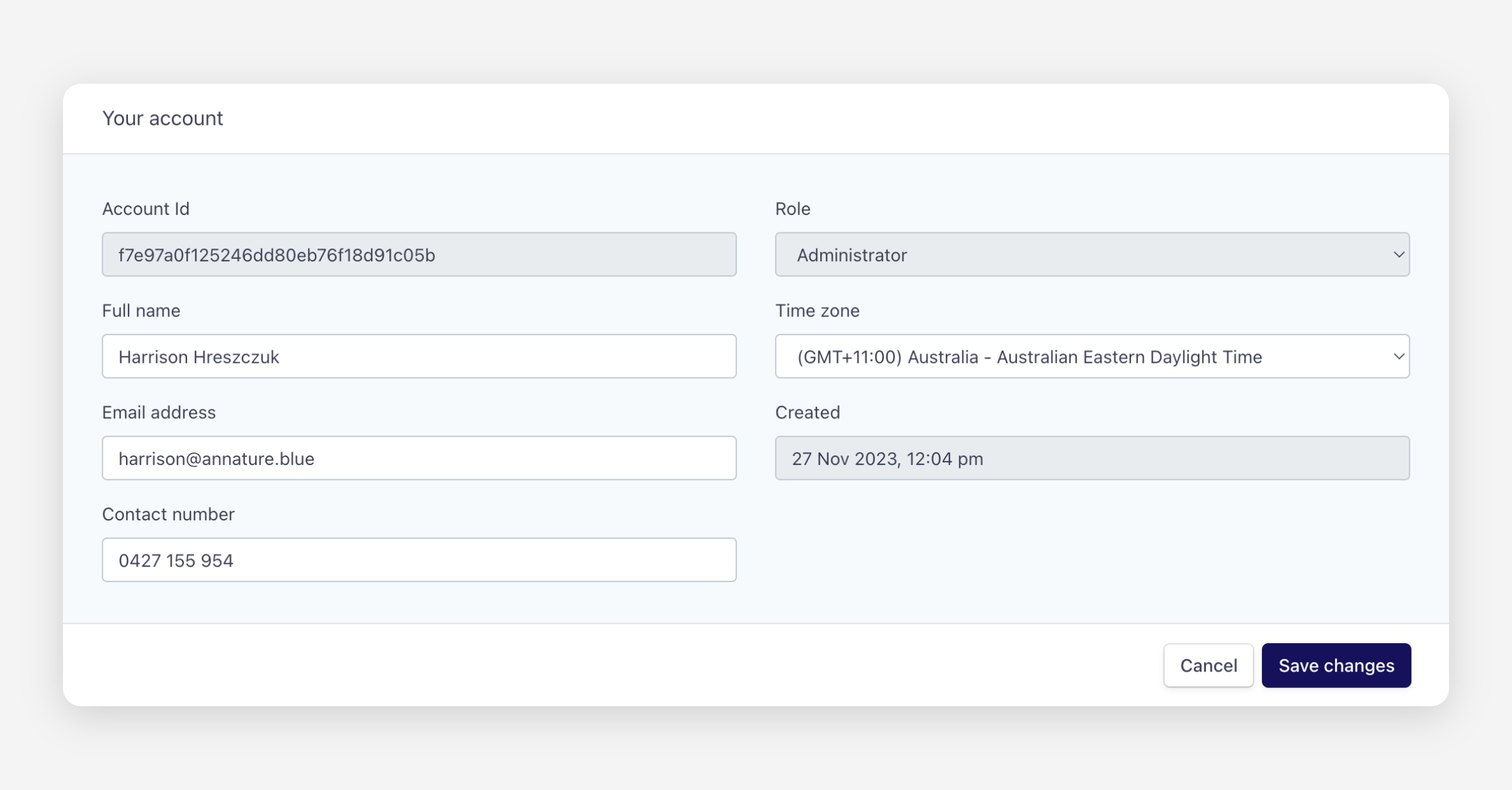
When you're done, click Save changes.
If the email field is disabled it usually means the organisation or your sign-in method controls the address — contact your administrator if you need it changed.
When you change your email address
If you change the email address we will not make the change immediately. After you click Save changes:
We’ll send a confirmation email to the new address you entered.
You must open that confirmation email and click the confirmation link to complete the change.
Until you confirm, your old email address remains your login address and the new address is shown as “pending”.
This prevents unauthorised changes and helps keep your account secure.
Cancelling a pending email change
If you change your mind before confirming the new email, the account page will show a message telling you the pending email address and provide an option to cancel the change. Use that link to cancel the pending update, then repeat the change if required.
Troubleshooting
I didn’t receive the confirmation email. Check your junk/spam folder and any email rules. If you still can’t find it, cancel the pending change on the account page and try again (make sure you typed the new address correctly).
The email field is greyed out / disabled. This can happen if your account is managed by your organisation or uses a central sign-on method. Contact your administrator for help.
I clicked the confirmation link but I’m still not signed in with the new address. Make sure you completed the confirmation link in the email. If problems continue, contact our support team via the help centre.
Was this helpful?