
Sign & Pay
Get paid as your client signs — no follow-up required.
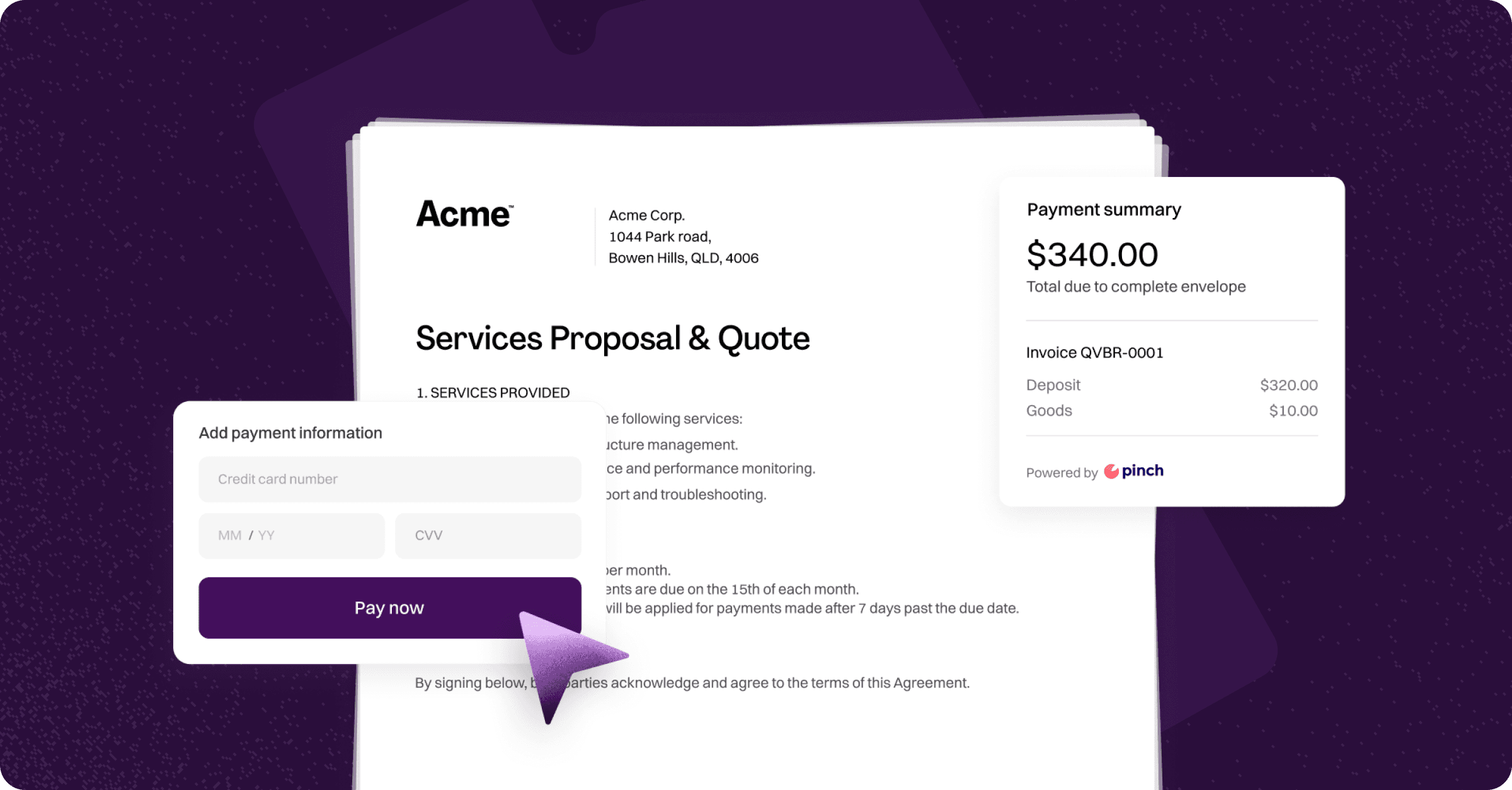
Sign & Pay lets you attach a payment request to an envelope so your client pays when they finish signing. You can enter payment details manually, or if Xero is connected, pull them directly from a Xero invoice.
Sign & Pay supports both card and BECS direct debit payments. You can choose which methods a client is allowed to use when adding the payment.
Notes: BECS direct debit payments can potentially dishonour up to 3 business days after the payment is initiated. This means you may receive a signed envelope back before the funds have fully cleared. For time-sensitive workflows where you need instant confirmation of payment, we generally recommend card only, as card payments are approved and confirmed at the time of signing.
Prerequisites
Your organisation must complete the Payments Registration process before payments become available. Once approved, Add payment will appear when creating an envelope.
Sending an envelope with a payment
Create your envelope as normal — upload your documents and add at least one recipient. Both are required before you can add a payment.
Click Add payment.
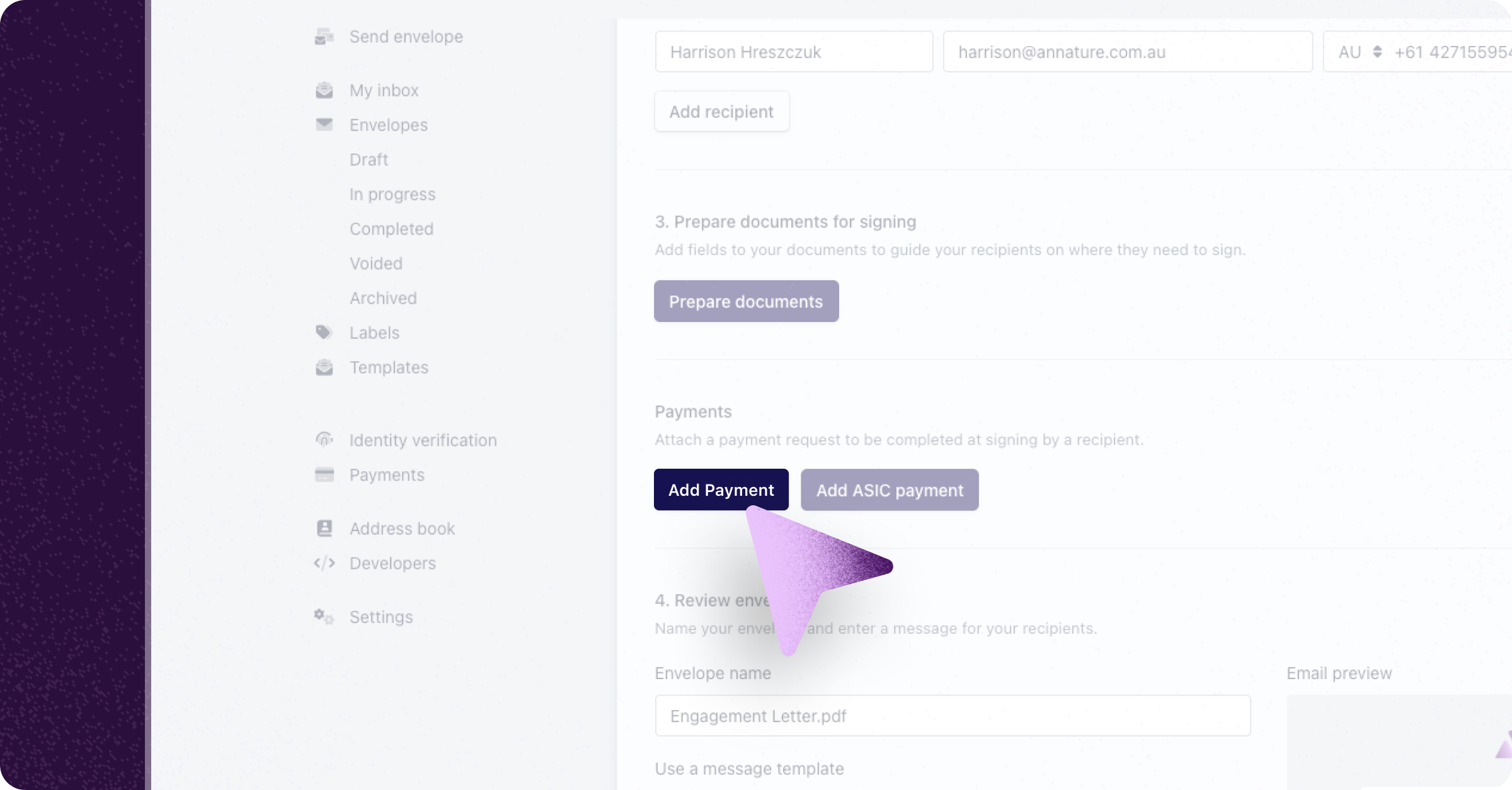
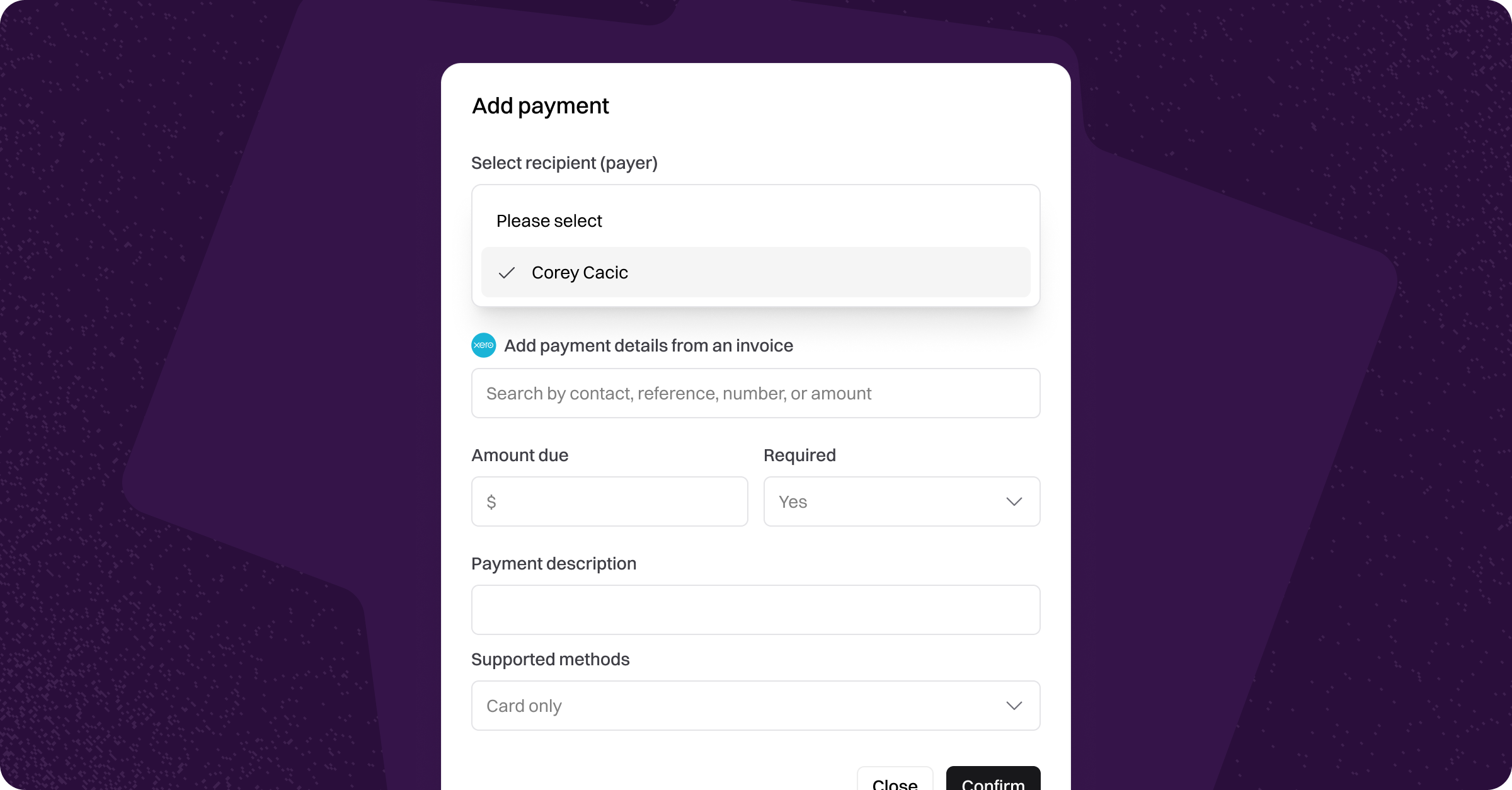
Select the recipient (payer) who will be responsible for paying.
Using a Xero invoice
If your Xero account is connected, you can pull invoice details directly into the payment:
Search for an invoice by contact name, reference, number, or amount. Select the invoice from the dropdown — the amount due and payment description will be pre-filled automatically.
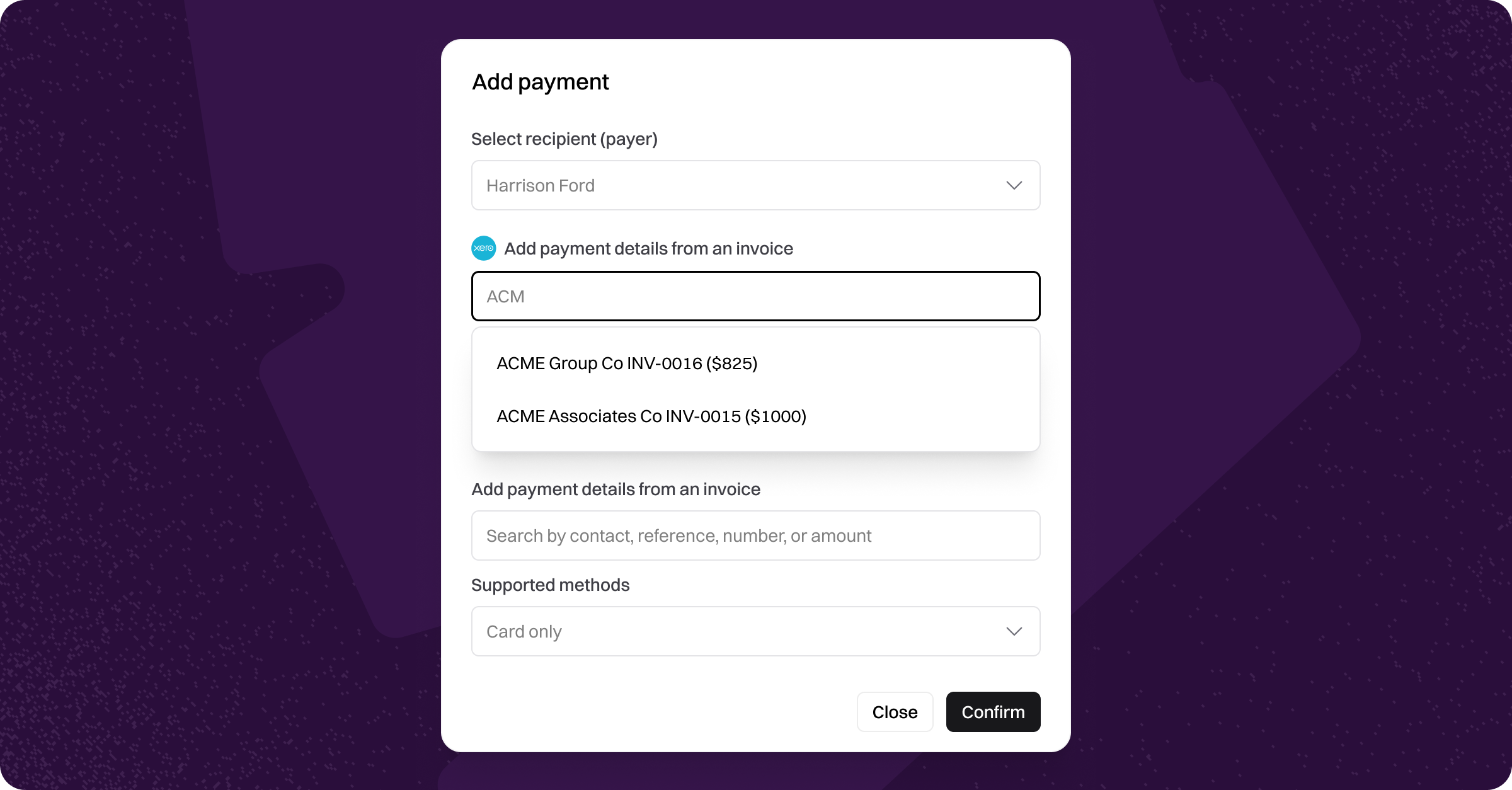
Once you’ve selected a Xero invoice, review the details. You can open the invoice in Xero, and also Attach the invoice as a document to the envelope to include a copy of the invoice for the recipient.
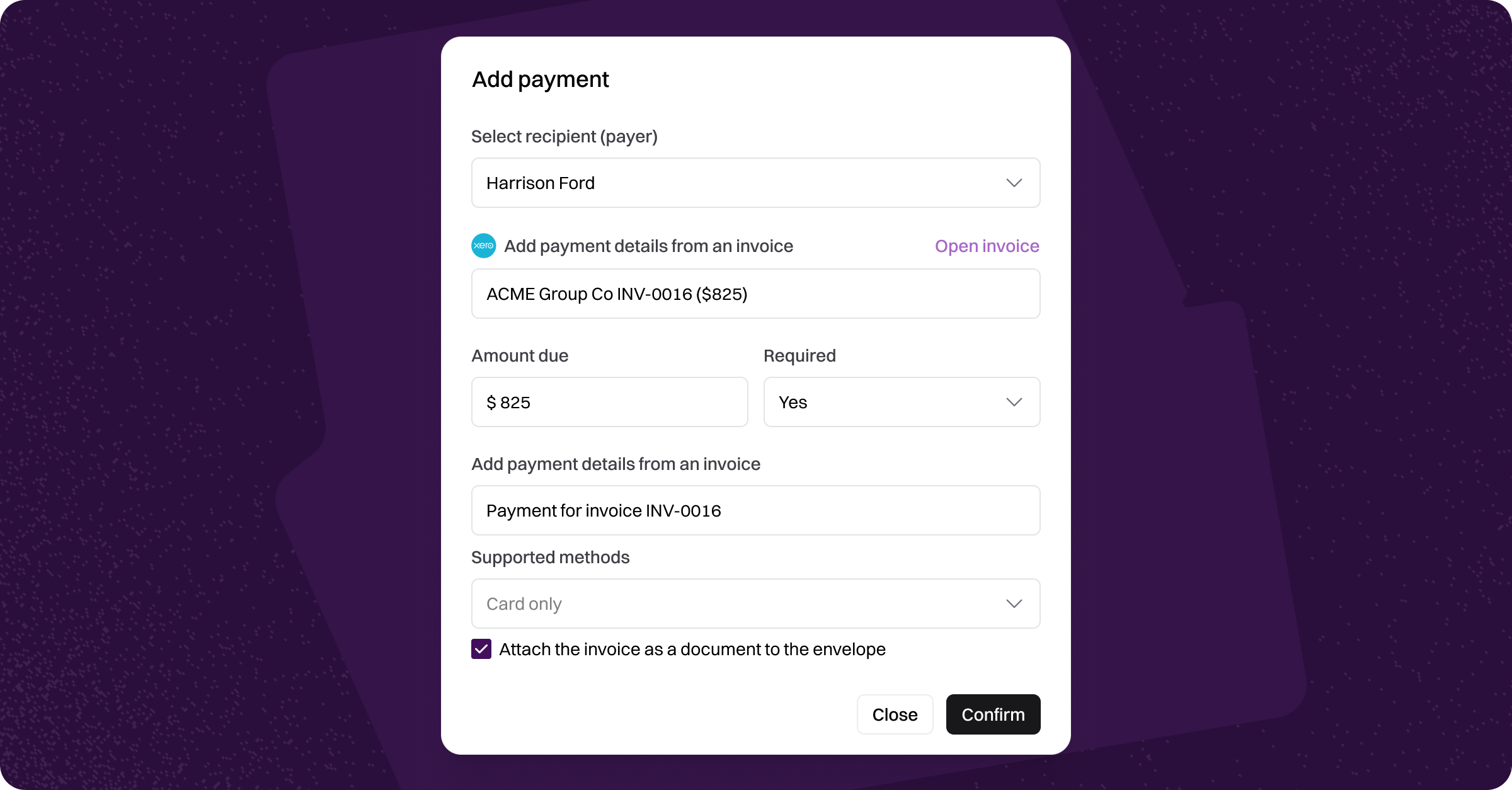
Assigning a Xero invoice ensures duplicates aren't created upon payment, and the invoice is automatically marked as paid in Xero once payment is completed.
Entering details manually
If Xero is not connected, or the invoice hasn't been raised in Xero:
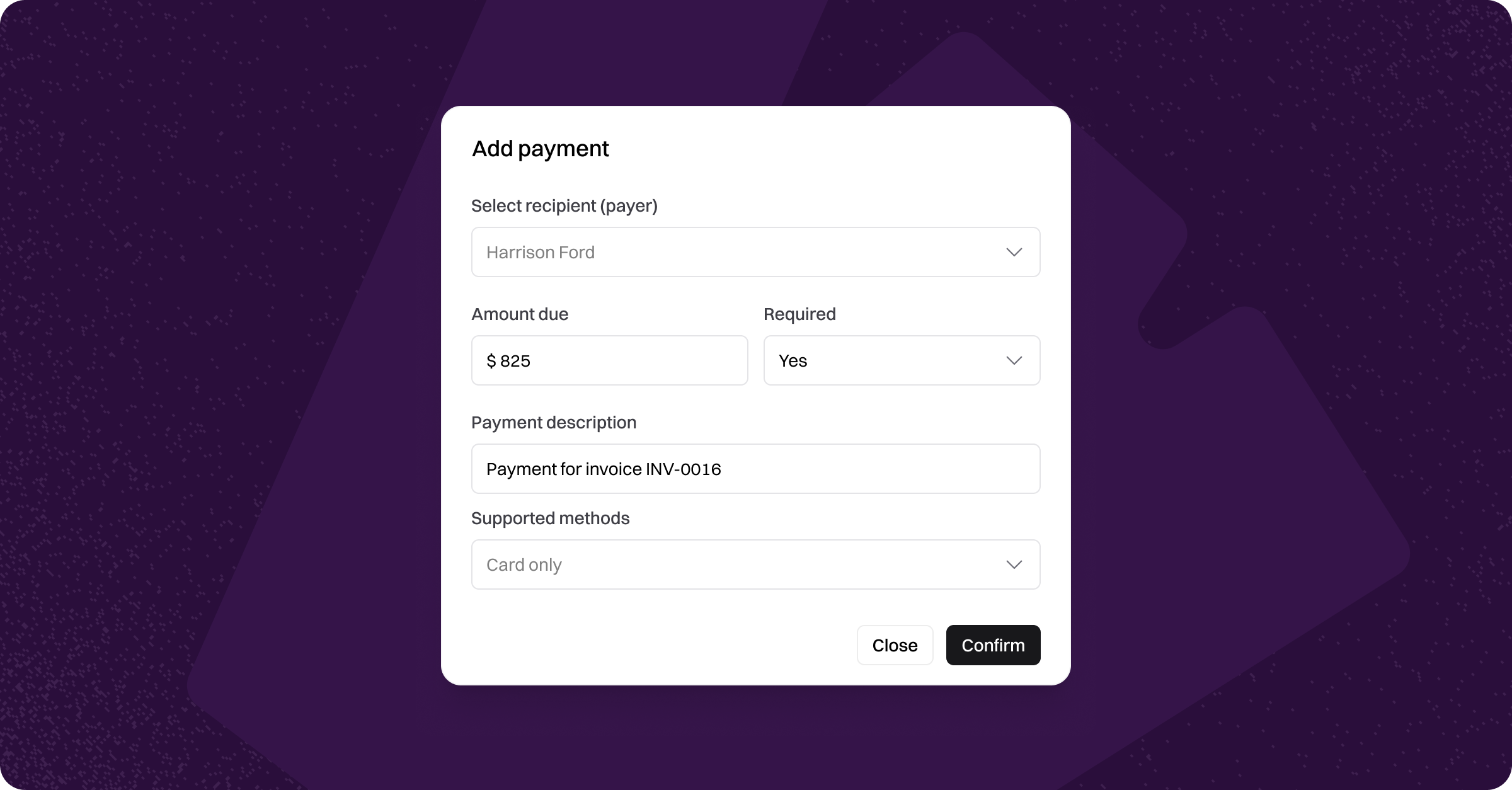
Enter the payment details:
Amount due (AUD) — The amount to charge.
Payment description — What the payment is for (e.g. "Mowing services").
Choosing supported payment methods
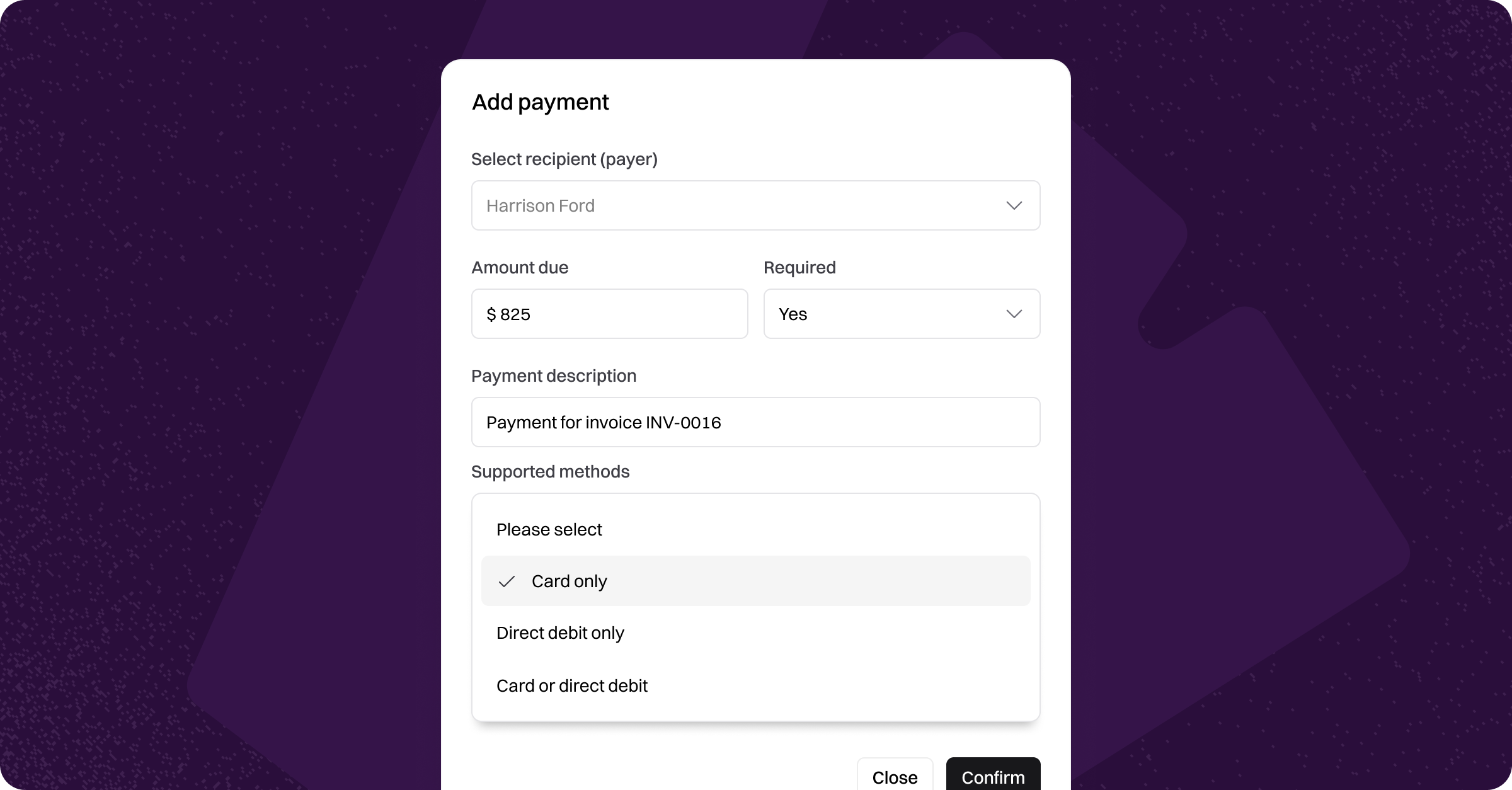
Under Supported methods, choose which payment methods the recipient is allowed to use:
Card only (default) — the recipient can only pay by credit or debit card. Payment is confirmed at the time of signing.
Direct debit only — the recipient can only pay by BECS direct debit, entering their name on account, BSB, and account number.
Card or direct debit — the recipient chooses between card or direct debit at the checkout.
We generally recommend Card only for workflows where you need instant confirmation that payment has cleared. Direct debit is best suited to trusted, ongoing customer relationships where a short settlement window isn't a problem.
Finalising the payment
Choose whether the payment is Required (the client must pay to complete the envelope) or not required (the client can pay later outside of Annature).
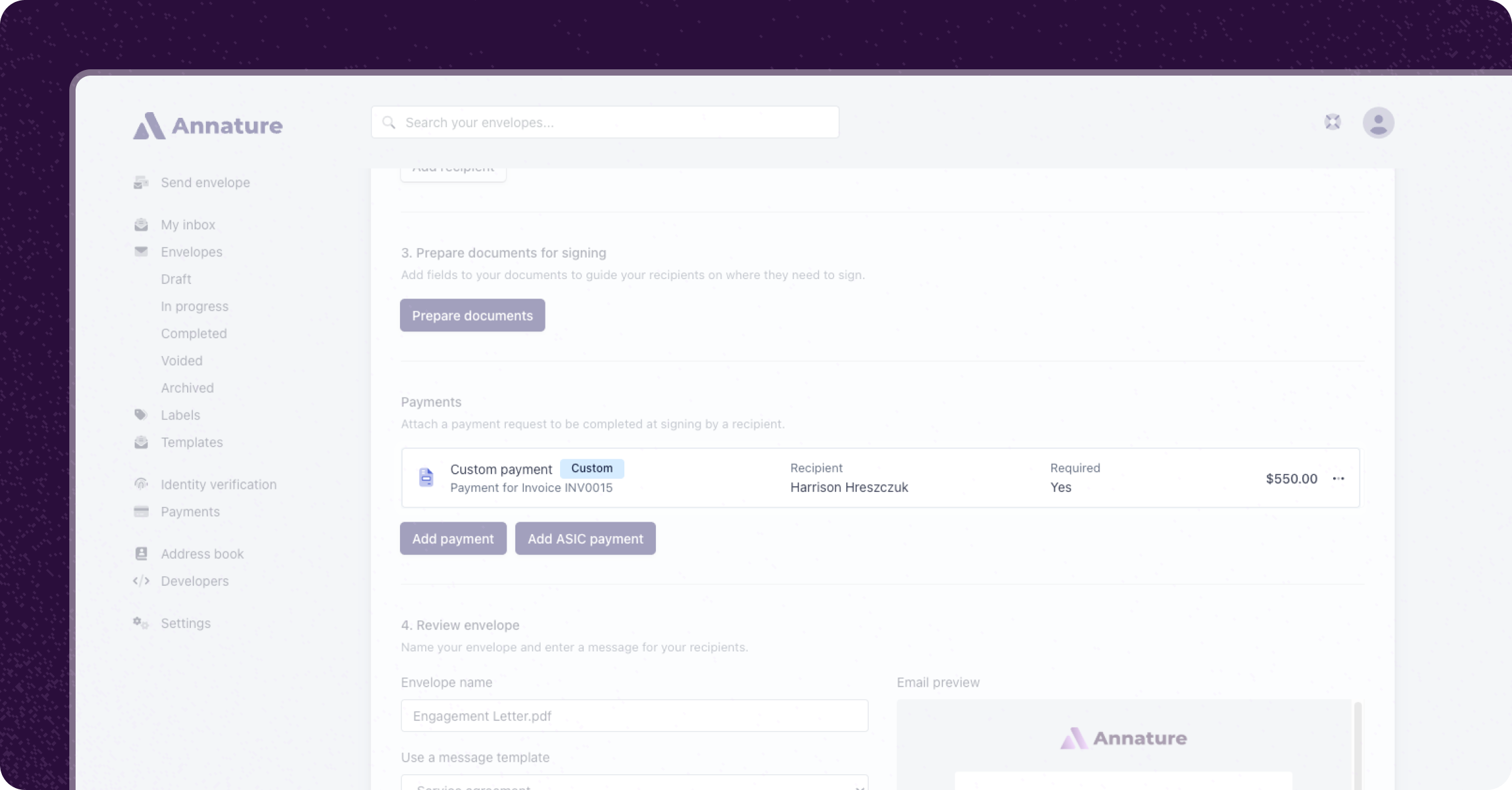
Click Confirm. The payment details will be displayed on the envelope creation page.
Send the envelope as usual.
Completing an envelope with a payment
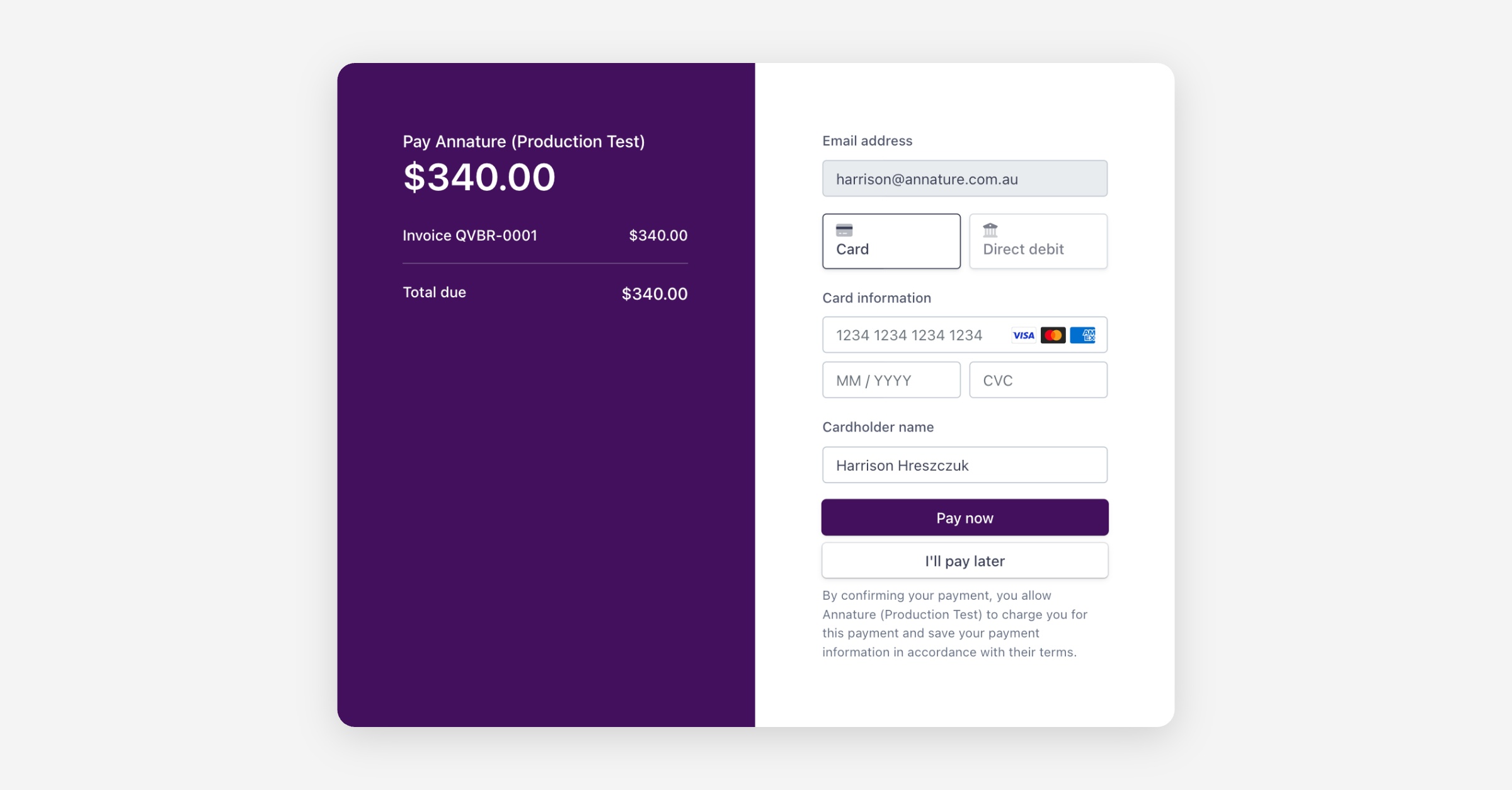
When the recipient opens the envelope, they review and sign the documents as usual. After clicking Finish signing, they are prompted to pay. The payment amount and description are displayed so they know exactly what they're paying for.
What they see next depends on the Supported methods you selected:
Card only — the recipient enters their card details (card number, expiry, CVC, cardholder name) and pays.
Direct debit only — the recipient enters their bank details (name on account, BSB, account number) and authorises the payment.
Card or direct debit — the recipient chooses between Card and Direct debit at the top of the checkout, and enters the details for their chosen method.
If payment is required, they cannot submit the envelope until payment is made. If payment is optional, they can click Pay later and complete the envelope without paying.
Once payment is made (or authorised, in the case of direct debit), both the sender and recipient receive confirmation of the signing and payment.
Was this helpful?