
In-person signing
In-person signing allows a recipient to host a signing session for another person on the same device. This is useful when an adviser, representative or other team member is meeting with a signer in person and needs to guide them through the signing process.
In-person signing lets a host — for example, an advisor — run a signing session on their own device for a client sitting with them. The envelope is sent to the host, and when they reach the signing stage, the device is handed to the client to sign in person.
This is ideal for face-to-face meetings where documents need to be signed on the spot, without waiting for the client to open an email on their own device.
Enabling in-person signing
In-person signing is an add-on and needs to be enabled before it appears as an option:
In Annature, go to Settings in the left-hand navigation.
Select Add-ons.
Toggle on In-person signing.
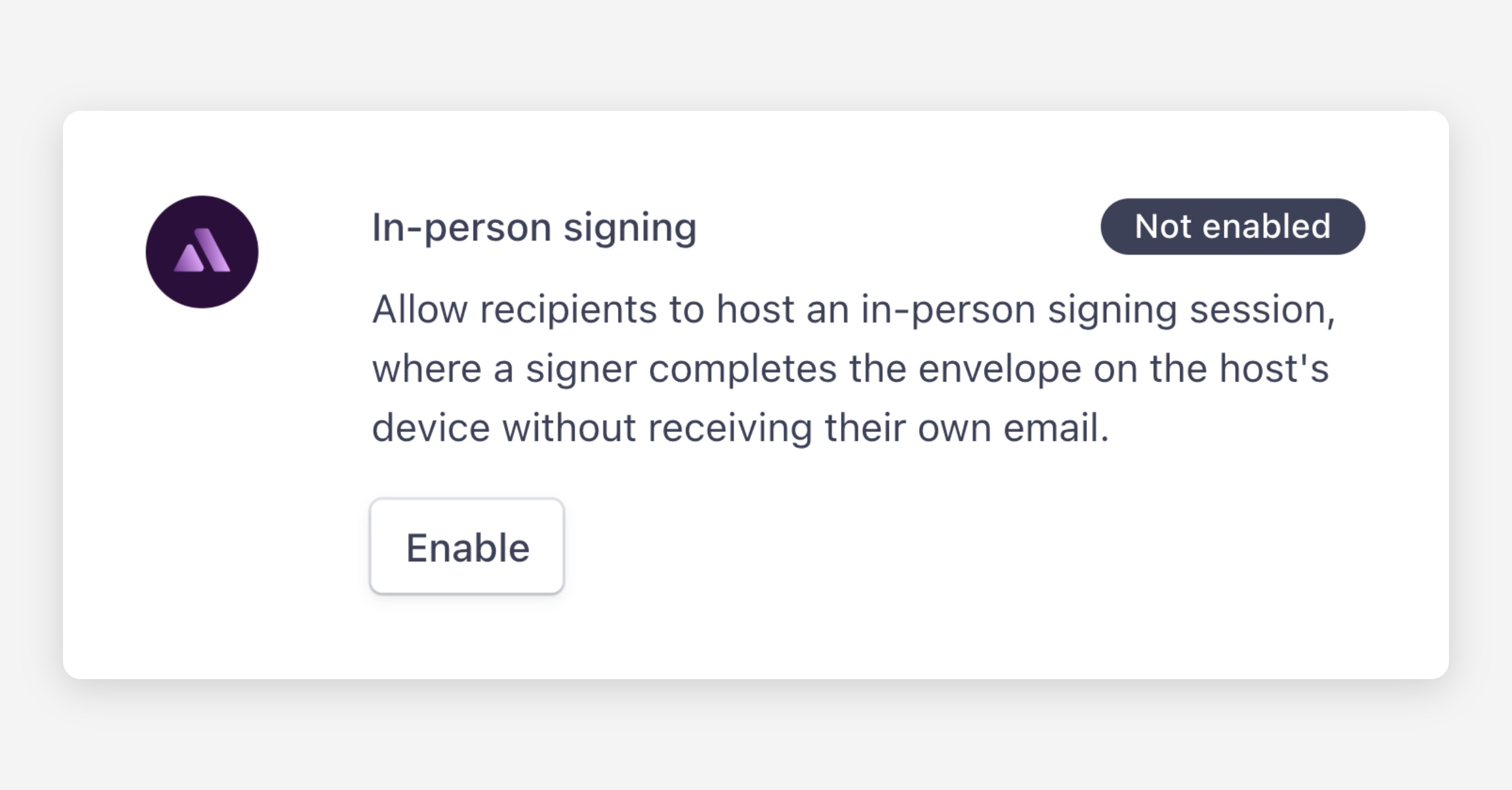
Once enabled, the in-person signing options are available when creating an envelope.
Sending an envelope for in-person signing
Create your envelope as normal and upload your documents. The key difference is in how you set up the recipient:
Recipient details — enter the host's information (for example, the advisor's name and email). This is the person who will receive the envelope and run the signing session on their device.
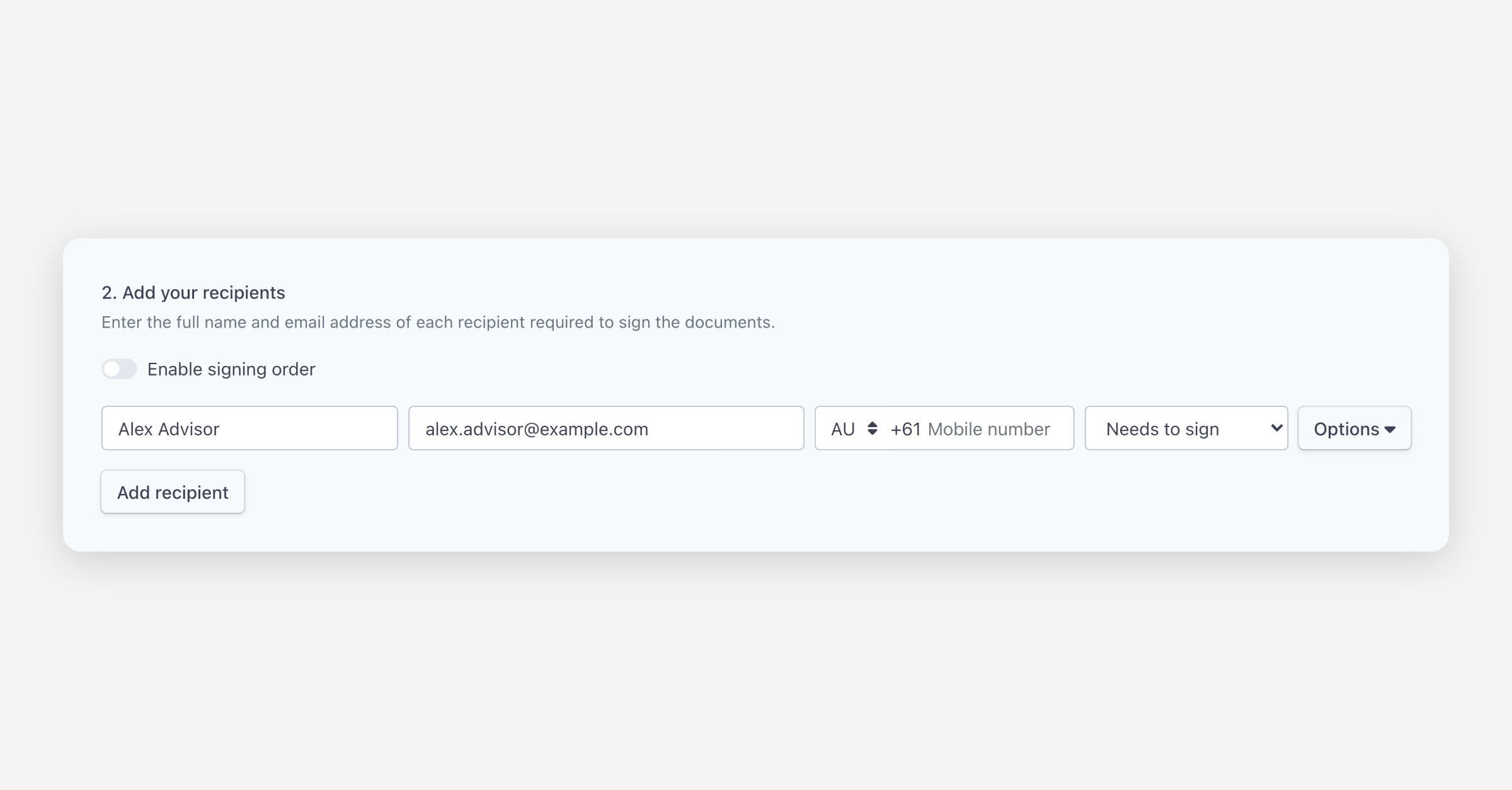
Signer details — click Options next to the recipient and enter the details (name & email) of the person who will actually sign (for example, your client).
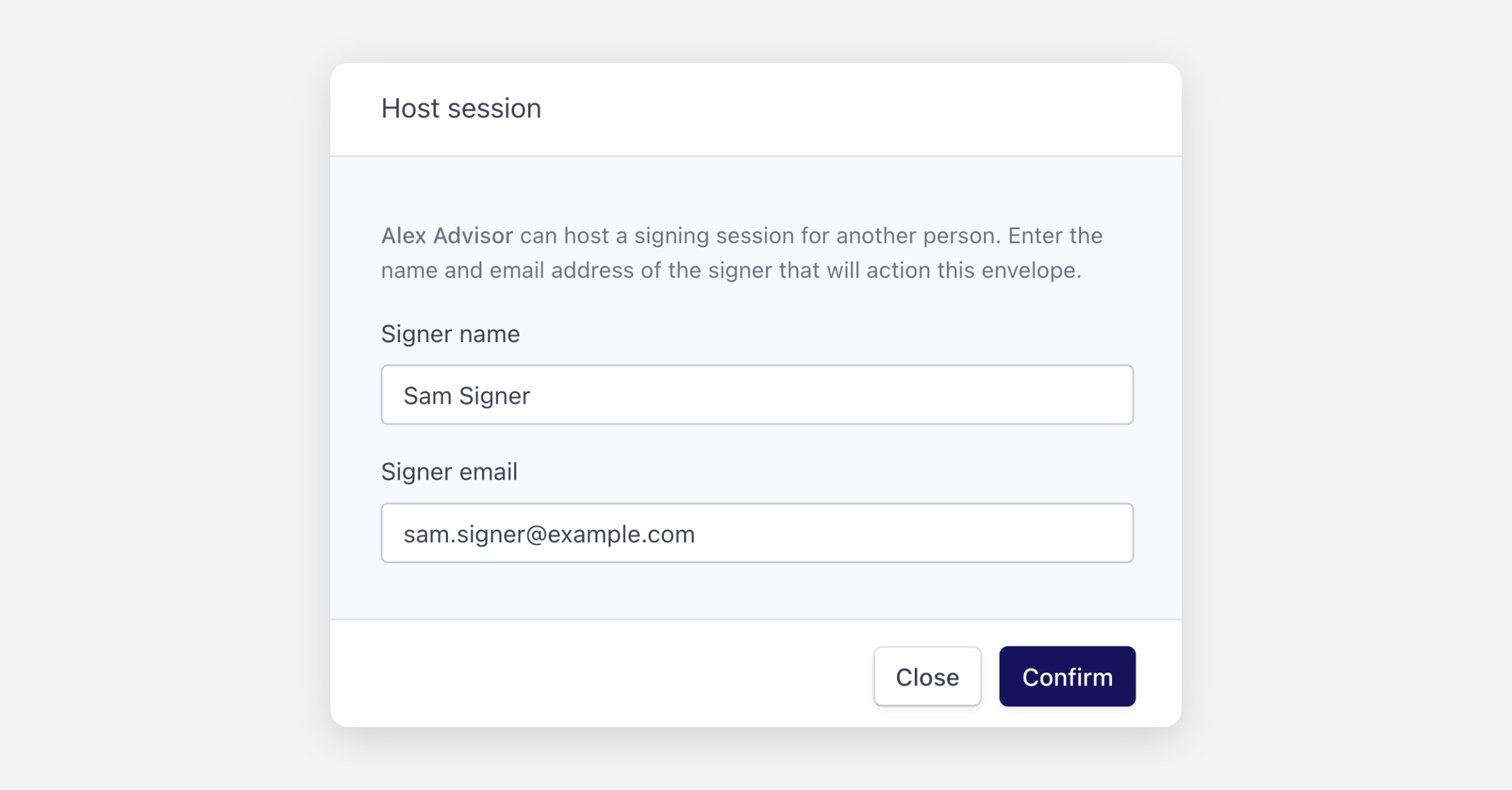
Note: We recommend adding the signer's mobile number for two-factor authentication. You can do this via the options dropdown. The authentication code is sent to the signer's phone — not the host's — which confirms the right person is present in the room before signing begins.
Hosting multiple signers
One host can run signing sessions for multiple people on the same envelope. Add a recipient for each signer, following the same pattern:
Each recipient needs a unique name, but they can all share the same host email address.
Enter each signer's details under Options for their respective recipient.
Preparing documents
Preparing documents works exactly as it does for any envelope — drag and drop signature, date, name, and any other fields onto the document for each signer.
Give the envelope a name, add a message if needed, and send.
How the signing session works
The host receives the envelope and opens it on their device.
If two-factor authentication is enabled, the code is sent to the signer's mobile. The signer, sitting with the host, provides the code to unlock the session.
The signer is prompted to take over the device. They acknowledge that they are the nominated signer, that they are physically present with the host, and that the host has handed them access to the device.
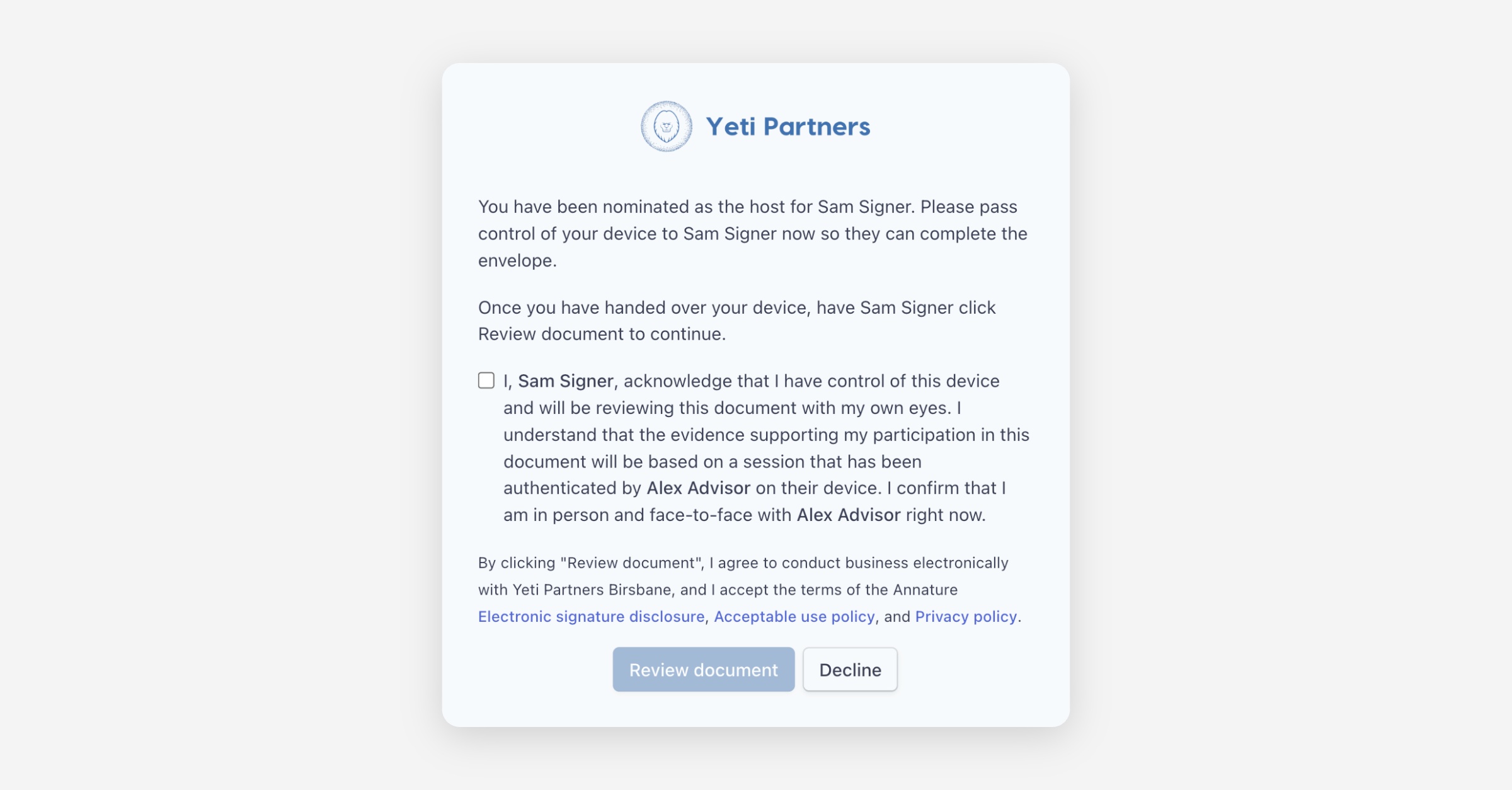
The signer reviews the documents and completes their fields — signatures, dates, and anything else assigned to them.
Once finished, the signer completes their signing session and hands the device back to the host.
Certificate of completion
The certificate of completion looks the same as any other envelope, with one addition — it records who hosted the signing session, giving you a clear audit record that the signing was completed in person and who facilitated it.
Related articles
Was this helpful?