
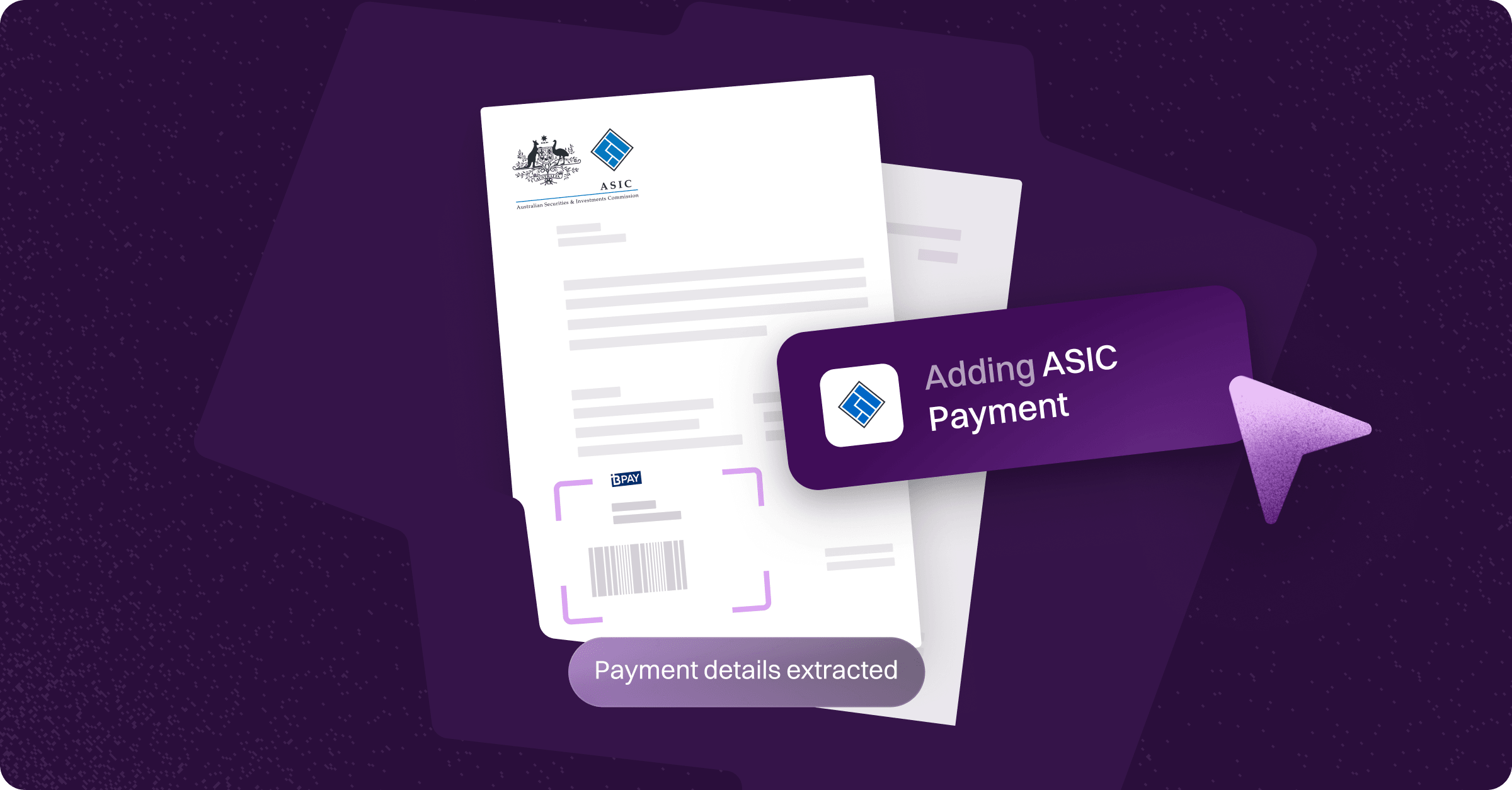
ASIC Payments lets your client pay their ASIC annual review fee in the same envelope they sign their annual statement in. No separate invoices, no chasing.
How ASIC annual statements work
Every Australian company must lodge an annual statement with ASIC. This includes confirming company details and paying the annual review fee. Traditionally this has been clunky for accountants and their clients. Invoices go back and forth, clients forget to pay, late fees pile up and compliance deadlines are easily missed.
With Annature, the whole process becomes one simple flow. You send the ASIC annual statement as part of an envelope. The client reviews the statement, confirms their details and securely pays in the same sitting. The client's card is charged straight away, and the payment is then sent to ASIC in line with the settlement times in the Fund settlement section. There's no need to manually collect or reconcile funds.
This means:
No more sending invoices and waiting for transfers.
No double-handling. The ASIC fee is linked directly to the envelope.
A smoother experience for clients, who can sign and pay in one go.
Prerequisites
You need both of these before ASIC Payments become available:
Payments Registration Required: Your organisation must complete the Payments Registration process. This is needed even if you already have your own Pinch account. Learn more here.
ASIC Payments add-on Required: Turn on the ASIC Payments add-on under
Settings > Add-ons. See Add-ons.
Once both are in place, an Add ASIC payment button appears when you create an envelope.
ASIC payments are card only. Card only
Sending an envelope with an ASIC payment
Create your envelope as normal and upload the ASIC annual statement as one of the documents.
Add at least one recipient.
Click Add ASIC payment.


Under Select recipient (payer), choose the recipient responsible for paying. Under Select an ASIC document, choose the document that contains the ASIC invoice, then click Scan. Annature uses OCROCROptical character recognition. Software reads the text in a document so details like the amount can be filled in automatically. to extract the company name (ACN), amount due and due date.

Review the extracted payment details. Choose whether the payment is required (the client must pay to complete the envelope) or optional (the client can pay later).

Click Confirm, then send the envelope as usual.
Only documents that have finished processing can be selected. If your ASIC statement isn't in the list yet, wait a moment for it to finish processing.
Completing an envelope with an ASIC payment
Here's what your client sees:
They open the envelope via the secure email or SMS link.
They review and sign the documents as usual.
After signing, they see the Pay ASIC (via Annature) checkout and enter their card details. If payment is required, they can't complete the envelope without paying. If it's optional, they can click I'll pay later (next to Pay now) and pay outside of Annature.

Both parties receive confirmation of the signing and payment.
Fund settlement
ASIC payments are settled on a T+1T+1Transaction day plus one business day. Funds are settled no later than the next business day. business day cycle, with cut-off times that determine when the payment is forwarded to ASIC.
Payments made before 4:00 pm (AEST) are guaranteed to be settled to ASIC by 5:00 pm on the same business day.
Payments made at 4:01 pm or later are processed on the next business day, with settlement to ASIC by 5:00 pm that day.
| Payment made | Processed | Settled to ASIC by |
|---|---|---|
| 4:00 am Monday | Same day | 5:00 pm Monday |
| 3:59 pm Monday | Same day | 5:00 pm Monday |
| 6:00 pm Friday | Next business day | 5:00 pm Monday |
| 1:00 am Sunday | Monday | 5:00 pm Monday |
This gives you and your clients certainty about when ASIC will receive funds, reducing the risk of late fees or compliance issues.
Payments dashboard
Annature has a dedicated Payments dashboard to track every payment request. Here you can see:
The recipient and the associated envelope
The type of payment (e.g. ASIC payment)
The payment amount
The current status

Learn more in Payments dashboard.