
Power Automate
Build custom workflows connecting Annature with SharePoint, Teams, Outlook, and hundreds of other apps using Microsoft's drag-and-drop builder — no code required.
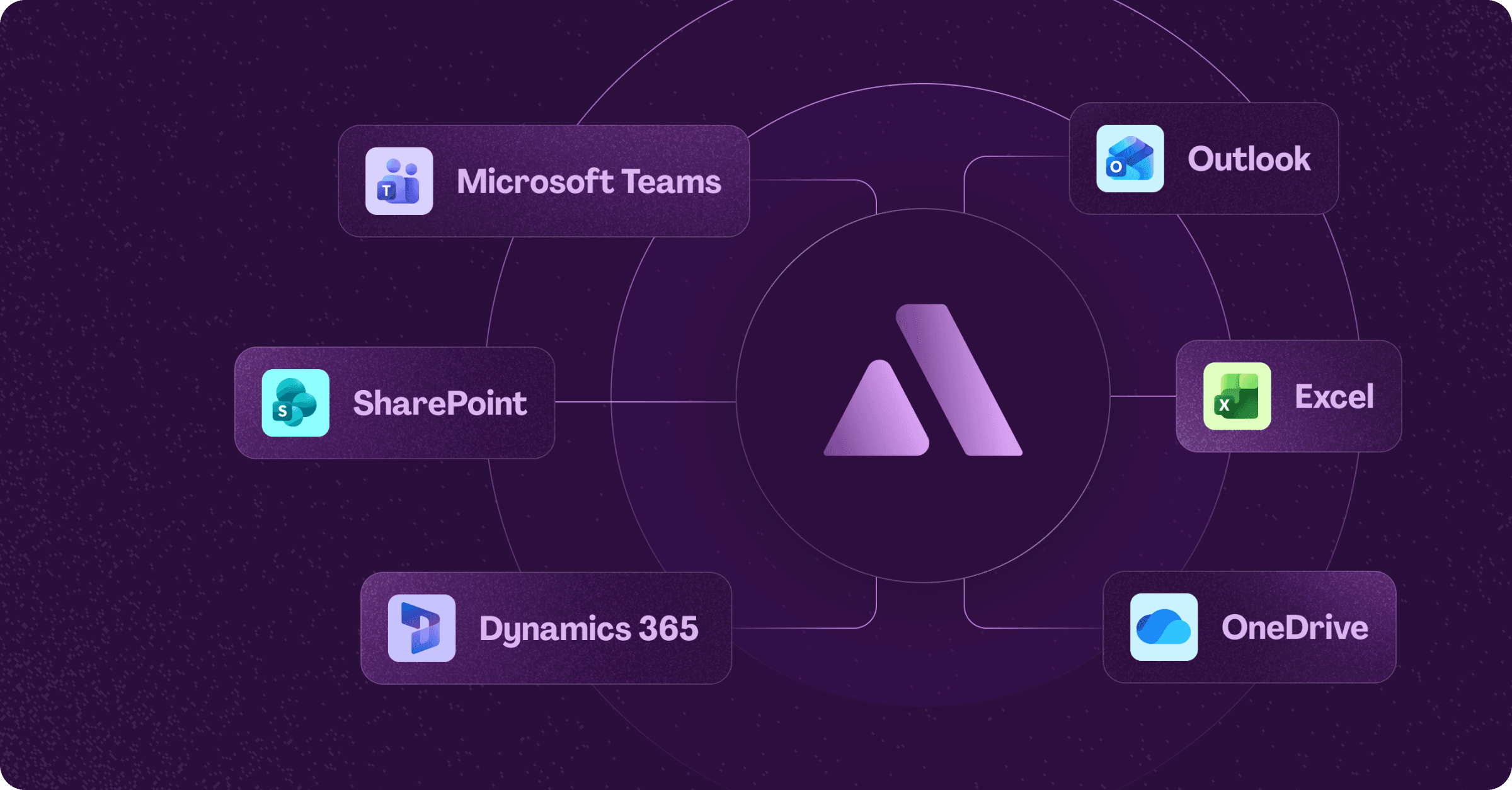
Annature has a connector for Microsoft Power Automate, allowing you to build custom workflows that connect Annature with hundreds of Microsoft and third-party apps using a drag-and-drop builder — no code required.
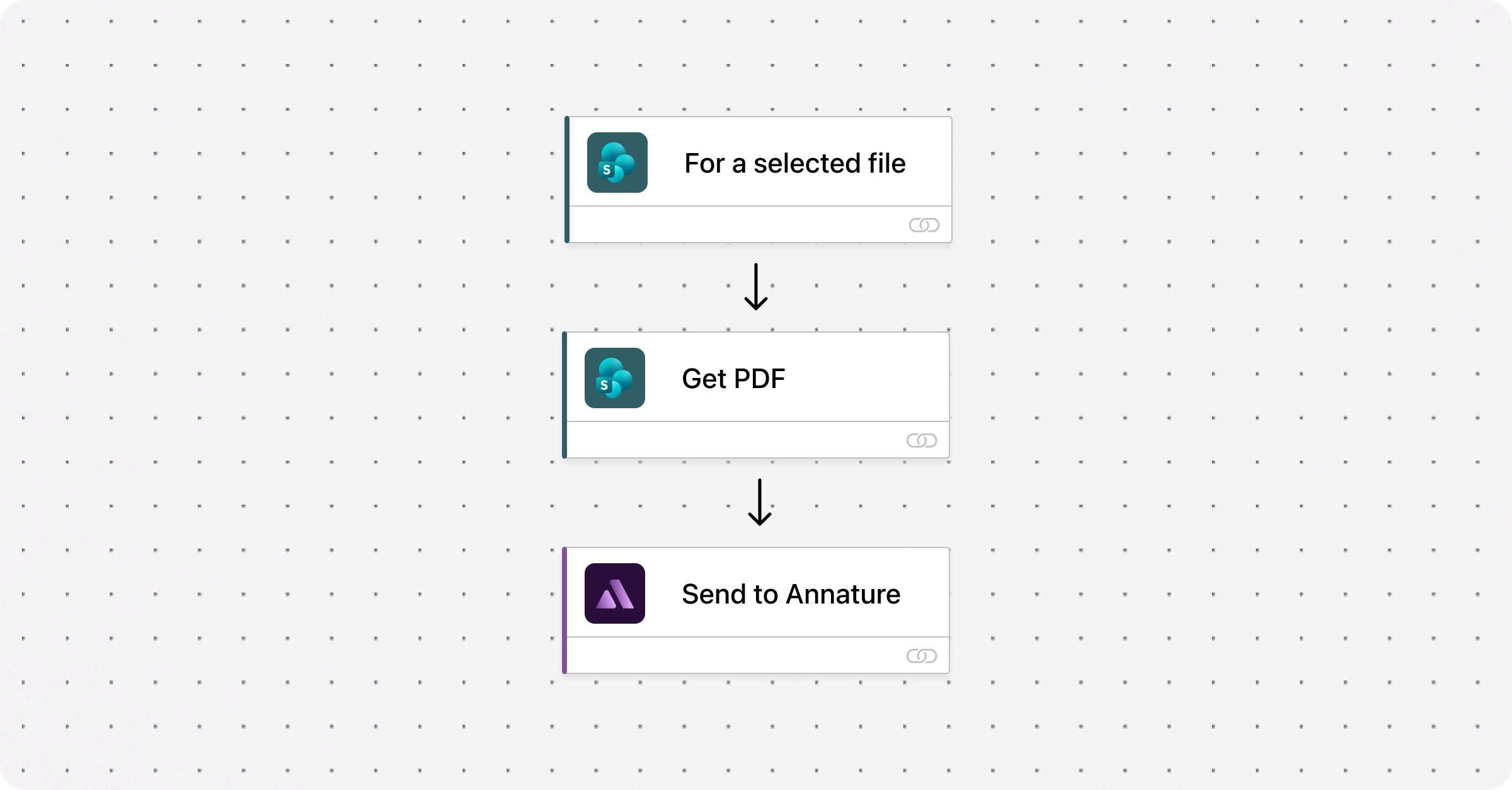
Instead of being limited to a fixed integration, Power Automate lets you design exactly how your workflow behaves. For example, pull documents from SharePoint, send them to Annature for signing, and automatically file the completed documents back — all without manual intervention.
What you can build
The possibilities are broad. Here are some common examples:
SharePoint — Automatically send a document from a SharePoint folder to Annature for signing, then save the completed document back to SharePoint.
Microsoft Teams — Get a Teams notification when an envelope is completed, declined, or viewed.
Outlook — Trigger an envelope when you receive a specific email, or send a follow-up email once signing is complete.
Dynamics 365 — Create envelopes from CRM records and sync completed documents back to the contact.
Excel / OneDrive — Log completed envelope details to an Excel spreadsheet on OneDrive for tracking and reporting.
Approvals — Combine Annature signing with Microsoft's Approvals flow for multi-step review and sign-off processes.
These are just a few examples — Power Automate connects to hundreds of apps, so you can tailor workflows to match how your business operates.
Available actions and triggers
The Annature connector supports the following:
Trigger:
Envelope and recipient events — Fires when an envelope is completed, a recipient views, signs, or declines an envelope.
Actions:
Create an envelope (from scratch or from a template)
Send, void, or delete an envelope
Retrieve envelope, recipient, document, and field details
Get organisation and account information
Retrieve file attachments from fields
For the full connector reference, see the Annature connector on Microsoft Learn.
Connecting Annature to Power Automate
To connect, you'll need your Annature API ID and API Key. Generate these from Settings > Developers in your Annature dashboard. See the Creating API Keys article for instructions.
When setting up the connection in Power Automate, enter your API ID and API Key when prompted.
Need help building your flow?
Our success team are happy to jump on a call and explore how Power Automate can work best for your business. Whether you need help designing a flow or want advice on the best approach, reach out to us at [email protected].
Was this helpful?