

Connecting takes a few minutes. Once it's done, your XPM clients are available in Annature, and the results of your envelopes and verifications sync straight back to XPM.
Only the Owner of your Annature organisation can connect an integration. If you don't see Integrations in Settings, contact your account owner.
How to connect
In Annature, go to Settings and select Integrations.
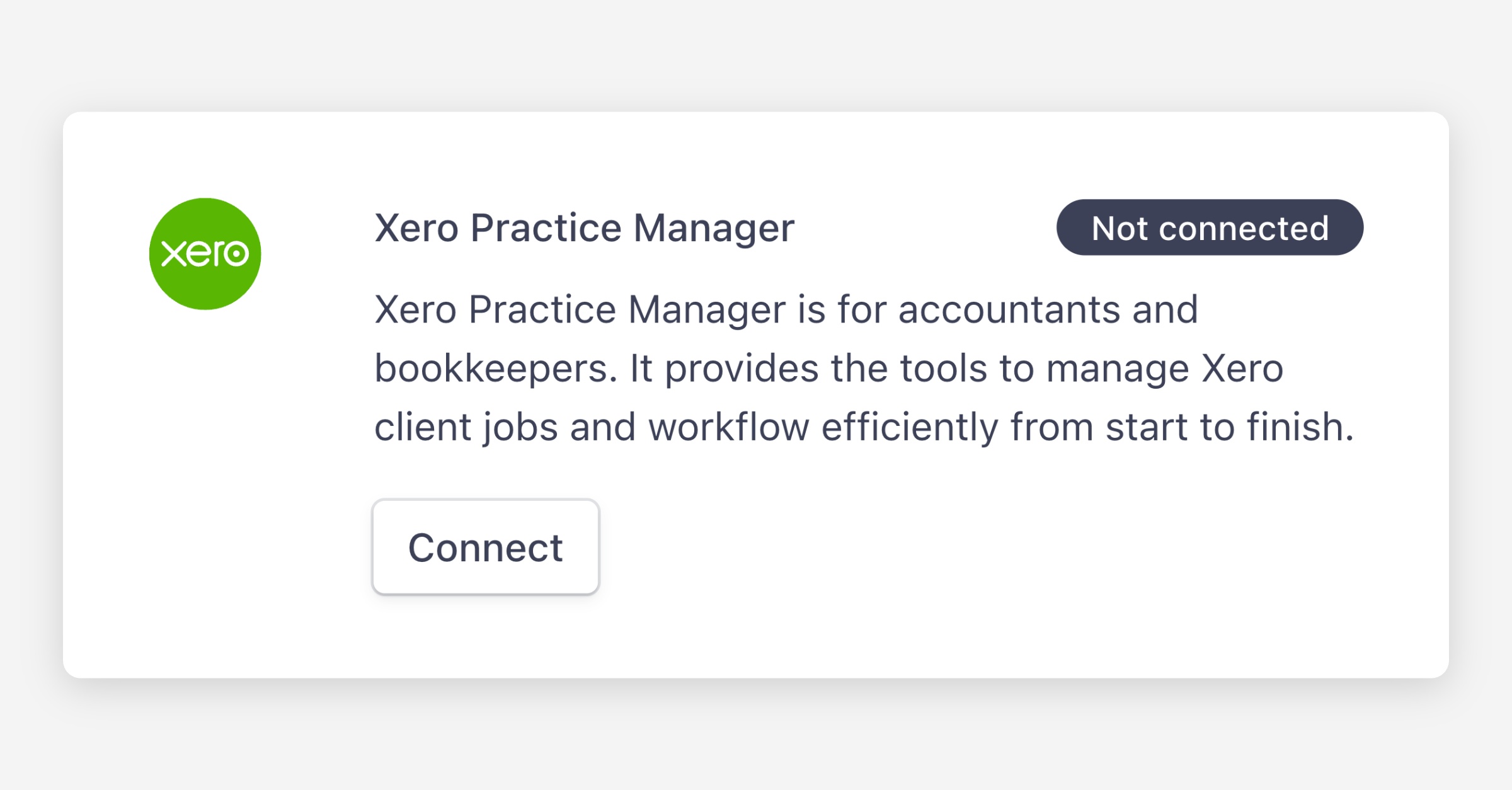
Find Xero Practice Manager and click Connect.
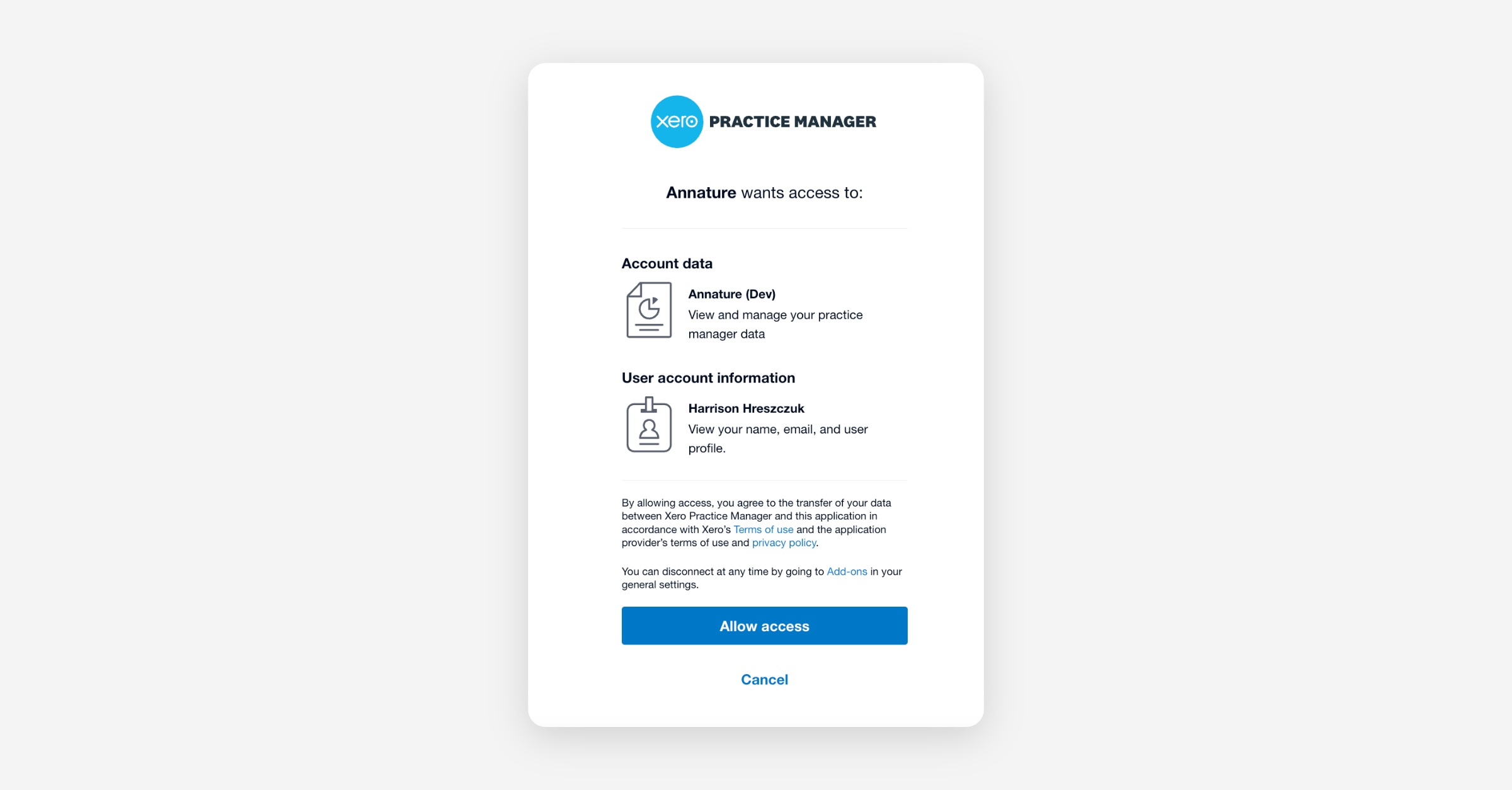
Sign in to your Xero Practice Manager account when prompted.
Click Allow access.
You'll be taken back to Annature, and Xero Practice Manager will appear in your left-hand menu.
What happens when you connect
When you connect, Annature adds a set of custom fields to your XPM clients. Their names all start with [A], for example [A] Verified, and they're filled in automatically when a verification or AML & CTF screening is completed. You don't need to set them up yourself.
If you already have fields with the same names from an earlier connection, Annature reuses them instead of adding new ones.
See What syncs to Xero Practice Manager for the full list of fields.
Next steps
To bring your XPM clients into your Annature address book, see Importing and syncing XPM clients.
"You don't have access to connect any Xero Practice Manager accounts"
This error means the XPM staff member you signed in as doesn't have permission to connect add-ons. To fix it:
In XPM, open the Business menu and select Settings.
Go to Staff.
Find the staff member connecting Annature and click Edit staff details.
Under Permissions > Practice Administration, turn on Connect third-party add-ons.
Go back to Annature and try connecting again.
For other issues, see Troubleshooting Xero Practice Manager.