
Create and manage Contacts
Add, edit, and organise contacts manually or let them sync automatically through integrations.
Your address book holds all your contacts, including names, emails, and mobile numbers, for quick and easy sending. You can add contacts manually, or they can be added automatically through integrations as you send envelopes.
Create a New Contact
To create a new contact:
Navigate to the Address Book in the left-hand menu.
Click Create in the top right corner of the page.
Enter the contact’s full name, email address, and mobile number. You can also toggle down to add additional information. Adding details like a Date of birth here, will allow Annature to suggest passwords when enabling security features on an envelope.
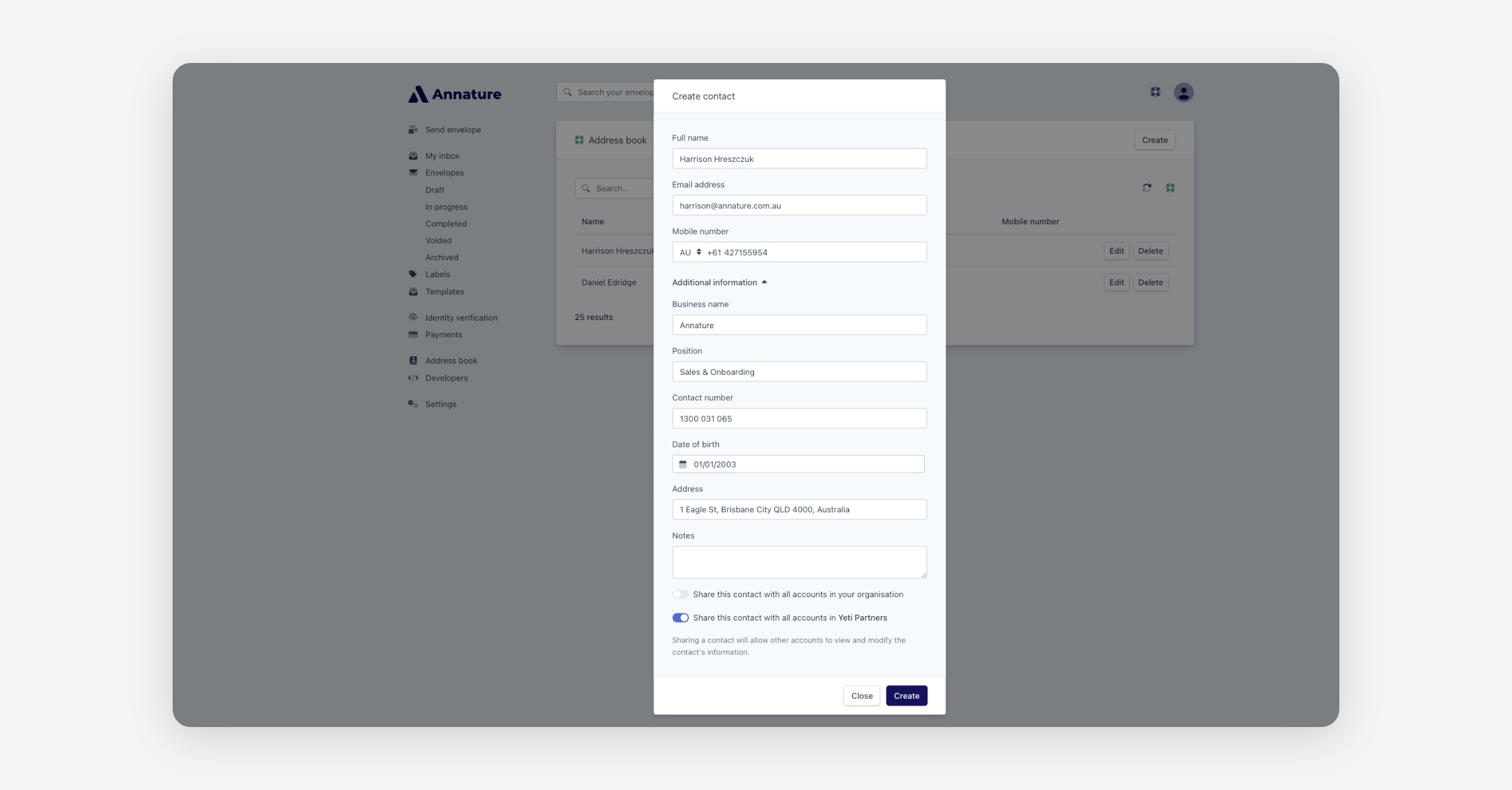
Choose whether to share this contact with all accounts in your organisation.
If toggled on, all team members can view and edit this contact.
If toggled off, the contact will remain private to your account.
Click Create to save the contact.
Editing or Deleting Contacts
From the Address Book, you can manage your contacts at any time.
Use the Edit button to update details, or the Delete button to remove a contact from your list.
Using Contacts When Sending Envelopes
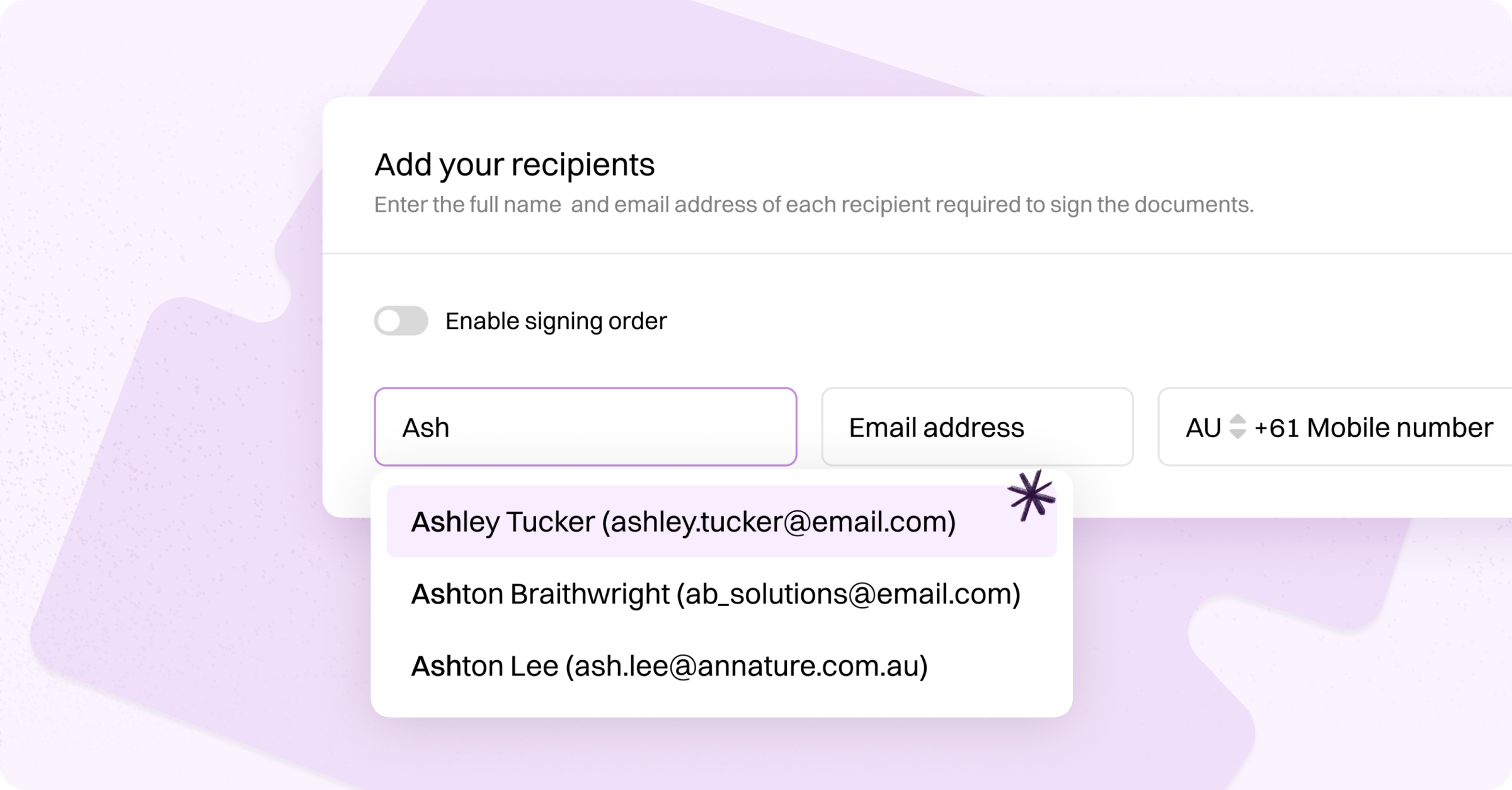
Once a contact has been added, you can easily select them as a recipient when creating envelopes.
Simply start typing their name — Annature will automatically suggest matching contacts from your address book, making sending faster and more accurate.
Was this helpful?