
Team members
Invite team members, assign roles and groups, manage permissions, and deactivate accounts when needed.
Annature includes unlimited team members on all plans. It is best practice for each person in your organisation to have their own individual account, rather than sharing login credentials. This ensures a clear audit trail, supports compliance requirements, and keeps your account secure.
The Team Members page can be accessed by any Annature Admin by navigating to Settings > Team Members.
Team Members List
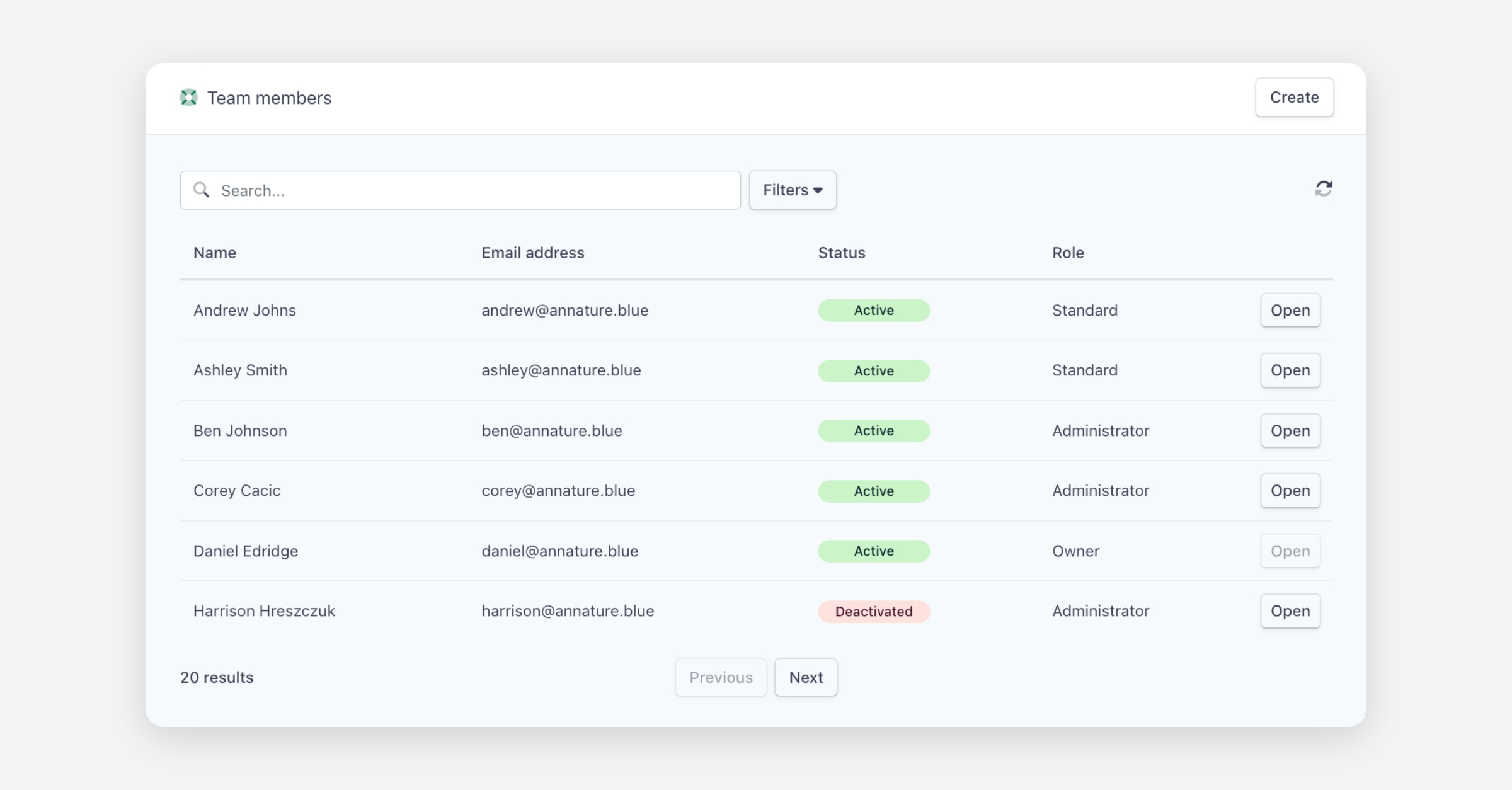
The Team Members page displays a table of all users in your organisation, showing:
Name — The team member's full name.
Email address — The email associated with their account.
Status — The current status of the account: Active, Not verified, or Deactivated.
Role — The team member's assigned role (Owner, Administrator, Standard, or Read only).
Each team member has an Open button to view or edit their account details. You can search for team members using the search bar at the top of the page.
Filtering Team Members
Click the Filters button to narrow down the team members list. You can filter by:
Role — Standard, Administrator, or any other available role.
Group — Filter by a specific group within your organisation.
Status — Active, Not verified, or Deactivated.
Click Apply to update the results, or Reset to clear all filters.
Inviting a New Team Member
To invite a new team member, go to Settings > Team Members and click the Create button in the upper right corner.
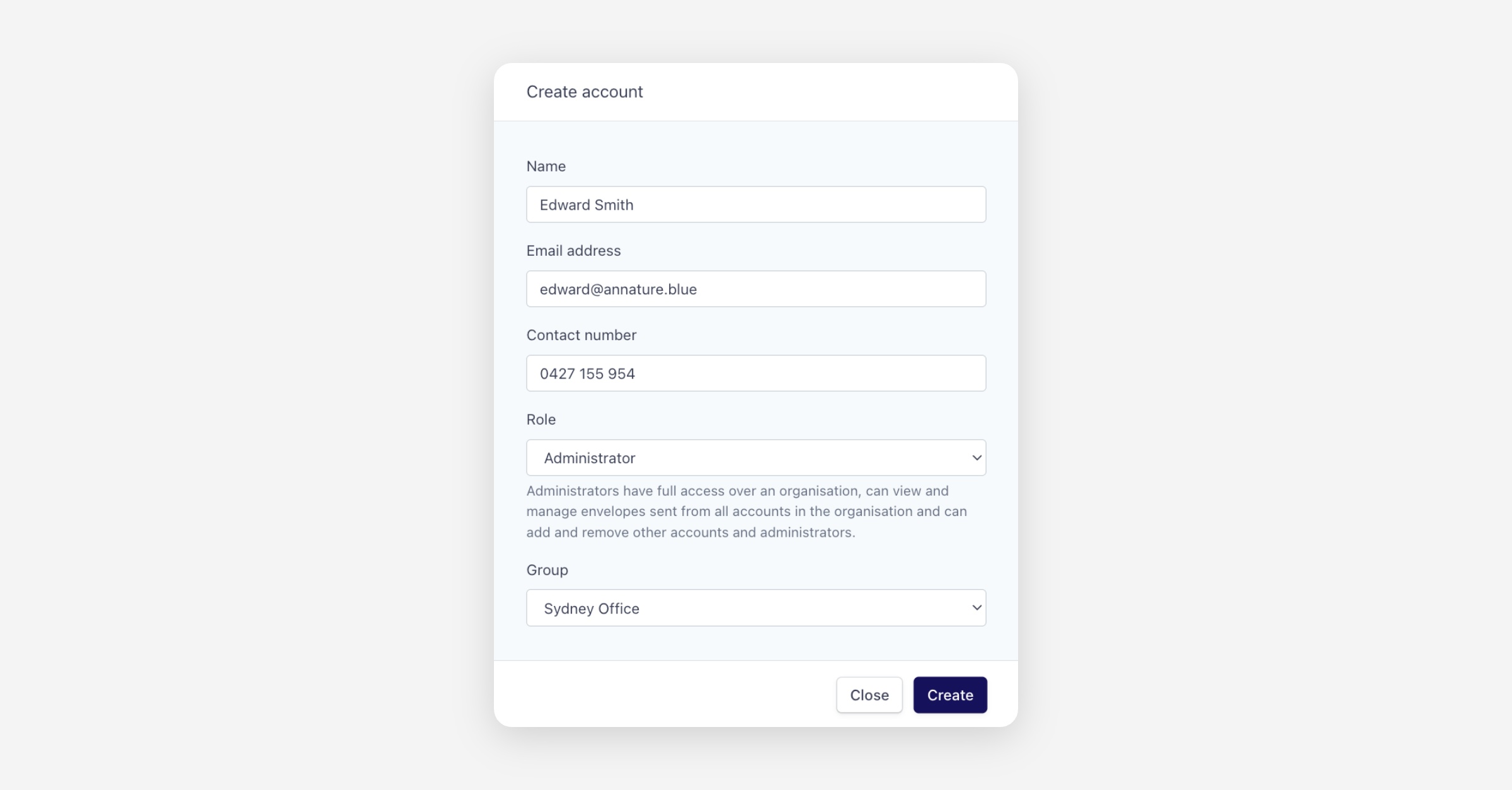
You will be prompted to enter the following:
Full name — The team member's name.
Email address — The email they will use to log in and receive notifications.
Contact number — Their phone number.
Role — The role to assign to this team member. Learn more about roles in the Roles types article.
Group — Optionally assign the team member to a group. Learn more in the Groups article.
Click Create to send the invitation. An activation email will be sent to the team member. Once they confirm their email address, they will be able to access your Annature account and start sending envelopes.
Editing a Team Member
To edit a team member's account, navigate to Settings > Team Members and click Open next to the team member you want to update.
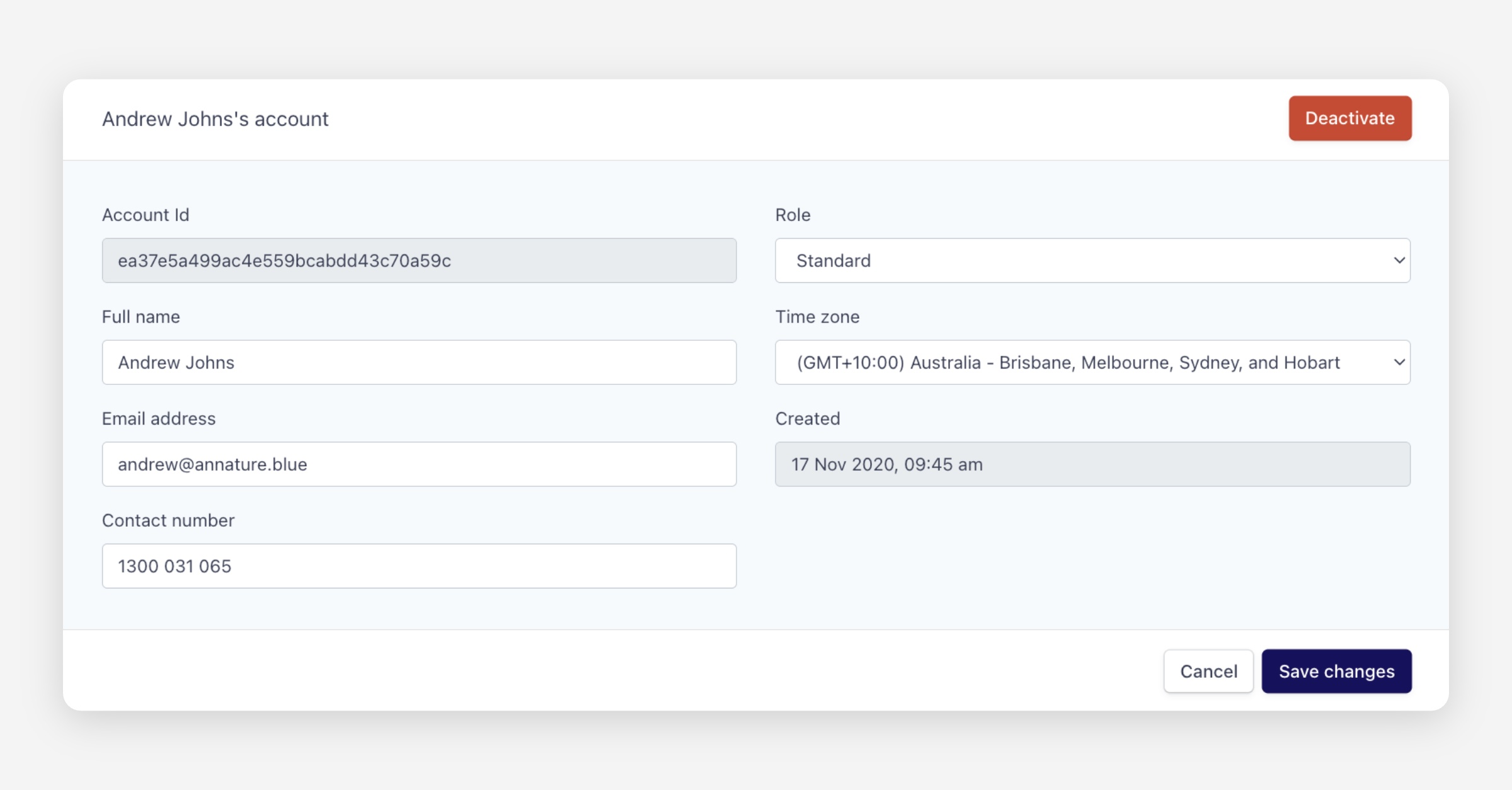
From the account detail view, you can update the following:
Full name — The team member's display name.
Email address — Their login and notification email.
Contact number — Their phone number.
Role — Change between Standard, Read-only, and Administrator.
Time zone — Set the team member's local time zone, which affects how dates and times are displayed.
If you update a team member's email address, they will need to confirm their new email before the change is saved. Their email will not be updated until the new address has been verified.
Click Save changes to apply your updates, or Cancel to discard.
Groups and Branding
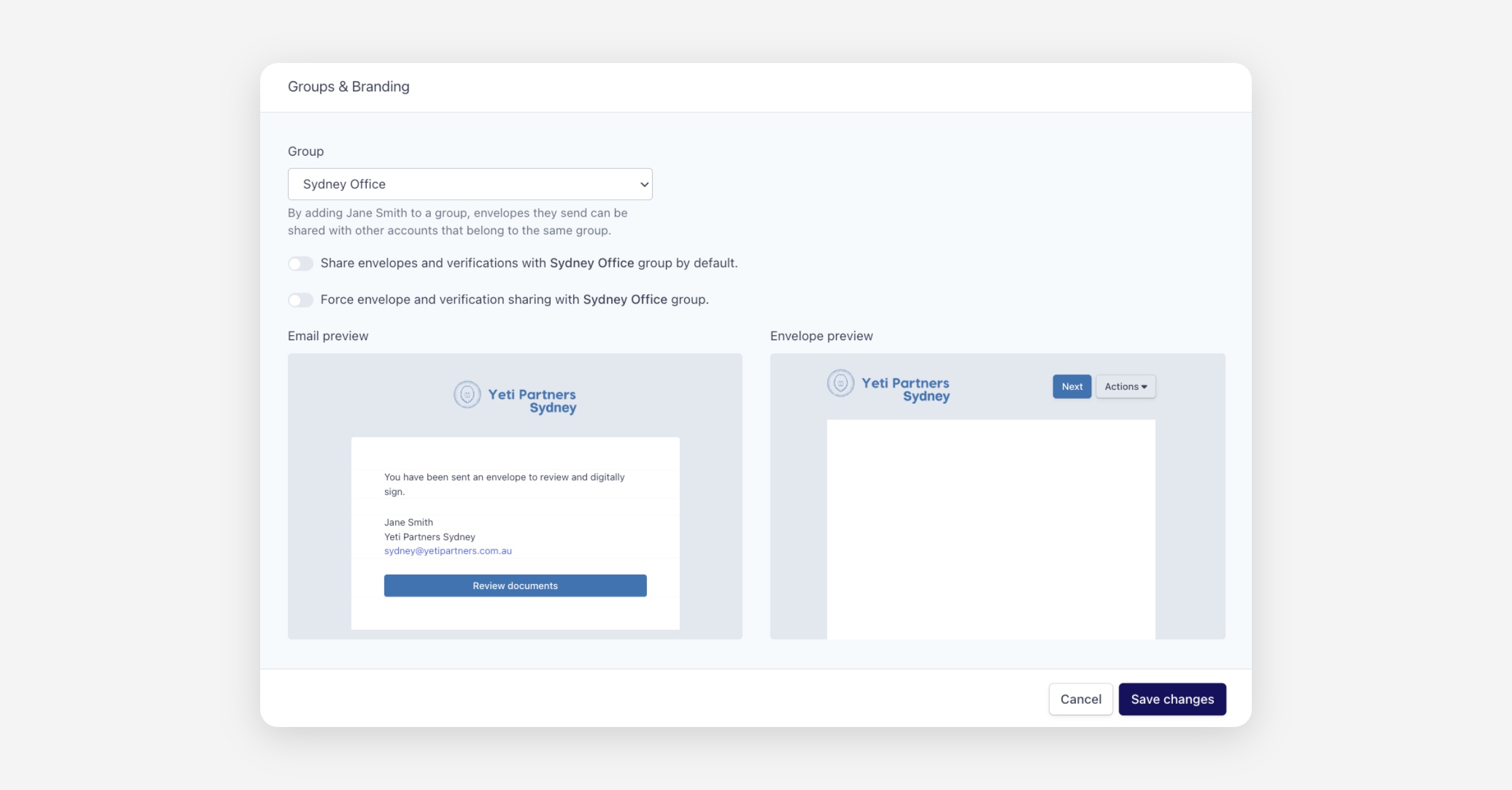
Below the account details, the Groups & Branding section allows you to assign the team member to a group. Select a group from the Group dropdown to associate them with that group.
When a team member is added to a group, the envelopes they send can be shared with other accounts in the same group. The email and envelope previews below the dropdown will update to show how the team member's outgoing envelopes will appear with the group's branding applied.
Click Save changes to apply the group assignment.
Security
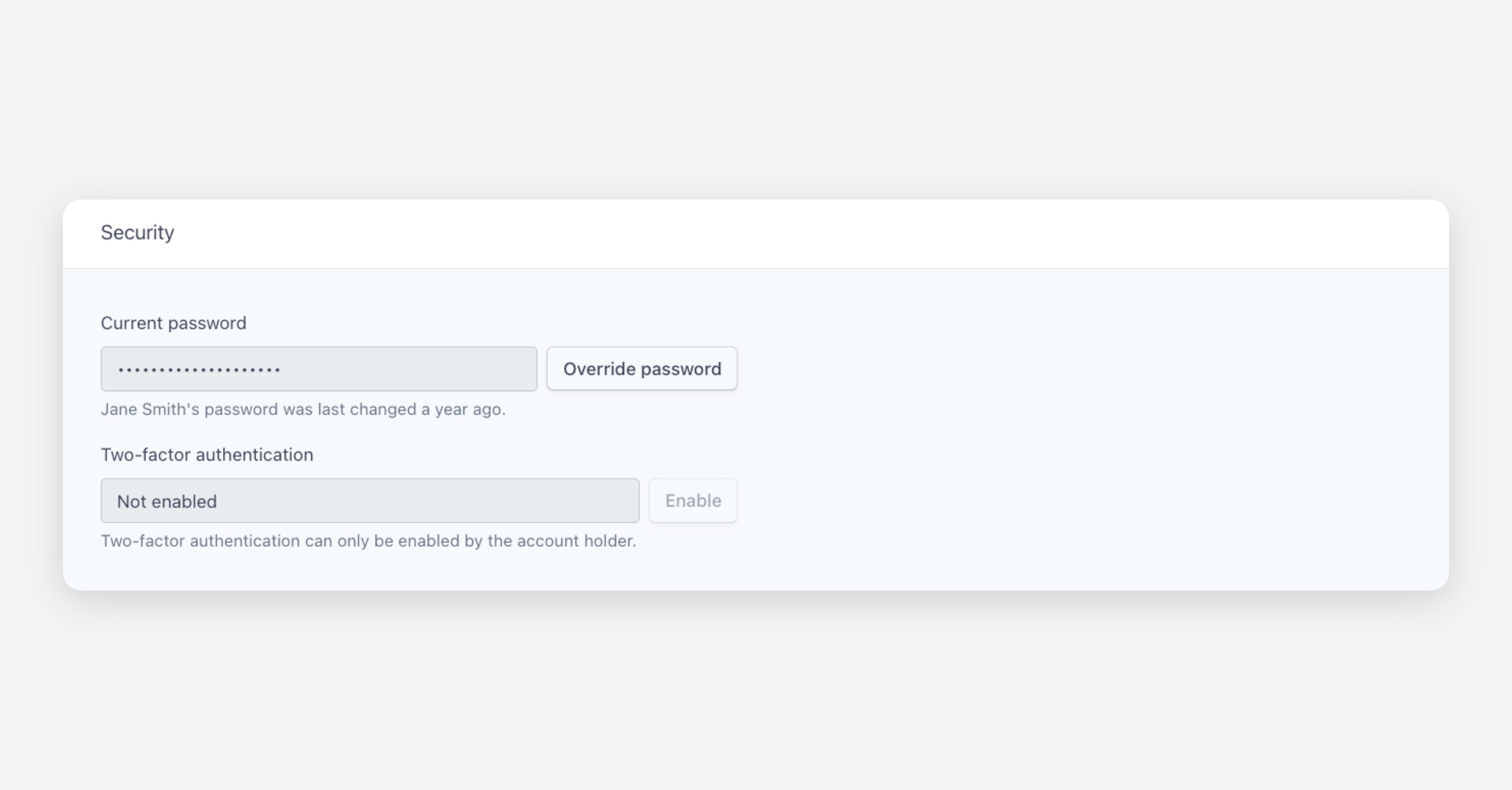
The Security section on the team member detail view provides the following:
Override password — Administrators can override a team member's password if needed. The page also displays whether the team member has ever changed their password.
Two-factor authentication — View whether two-factor authentication is enabled on the account. Two-factor authentication can only be enabled by the account holder themselves.
Deactivating a Team Member
Team members cannot be permanently deleted from Annature for audit and compliance purposes. However, you can deactivate a team member's account at any time, which will immediately suspend their access.
To deactivate a team member, navigate to Settings > Team Members and click Open next to the account you want to deactivate. Then click Deactivate in the upper right corner and confirm when prompted.
Envelopes sent by a deactivated account that are currently in progress can still be completed by recipients.
Restoring a Deactivated Team Member
To restore a deactivated team member, navigate to Settings > Team Members and click Open next to the deactivated account. Then click Restore in the upper right corner.
Once restored, the team member will regain access to your Annature account immediately.
Was this helpful?