
Email history
Track every email sent from your Annature account with full visibility over delivery, opens, clicks, and failures.
The Email History feature in settings gives you a detailed view of all emails sent from your organisation’s Annature account.It’s a powerful tool for monitoring recipient engagement, troubleshooting delivery issues, and ensuring important documents reach the right people.
With just a glance, you can see whether an email was:
Successfully delivered
Opened by the recipient
Clicked, such as selecting “Review documents”
Failed or bounced due to delivery issues
This level of transparency helps you quickly identify problems and take action when needed.
Accessing Email History
To get started:
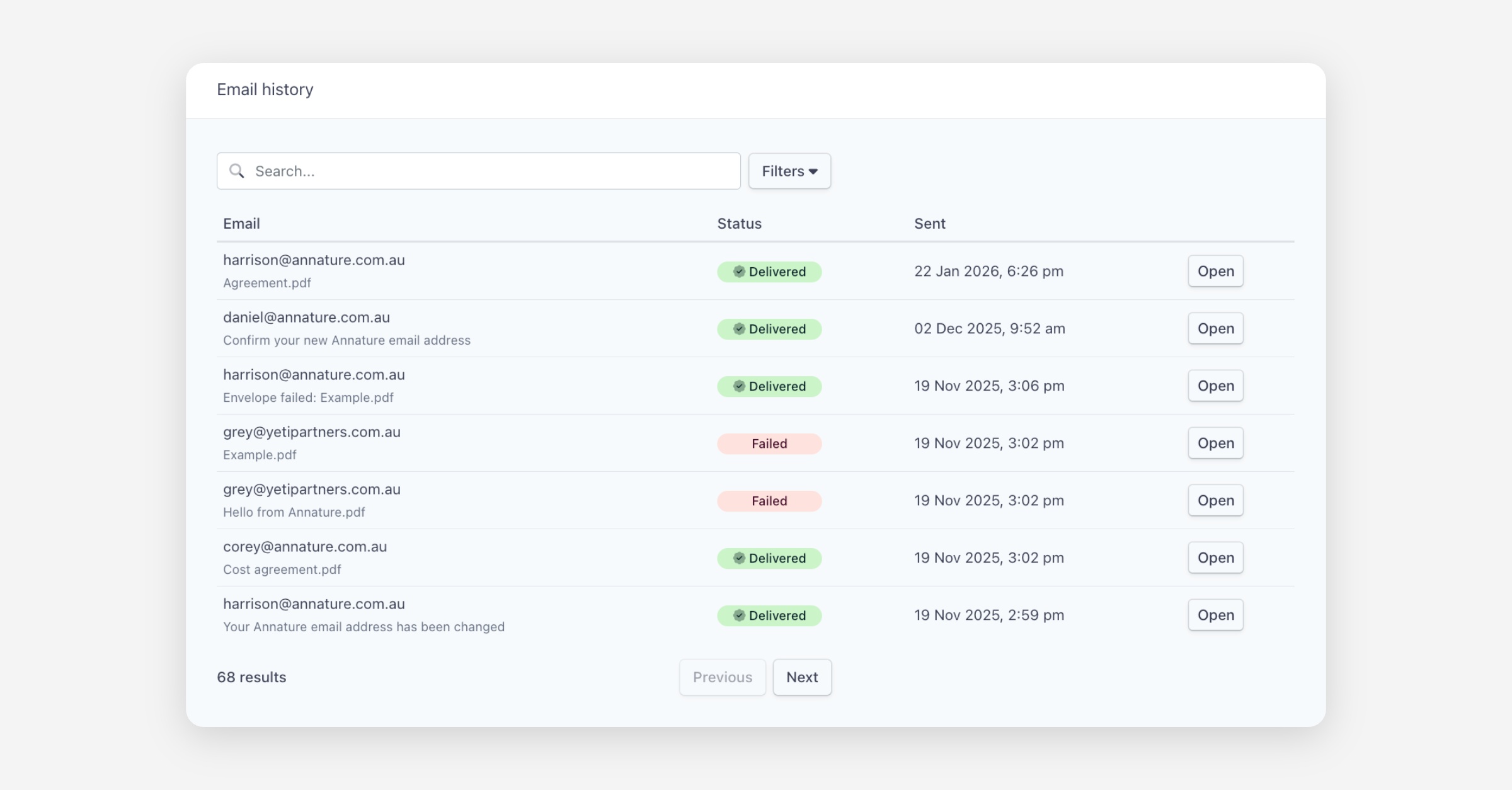
Navigate to Settings → Email History
You'll see a chronological list of client email addresses, each showing:
The status of the email (Delivered or Failed)
The timestamp of when it was sent
The envelope associated with the email
View Detailed Email Activity
For deeper insights:
Click Open on any email record.
In the detailed view, you can see:
Delivery confirmation
Open events
Click activity
Failure reasons (if applicable)
A full timeline showing exactly what happened and when
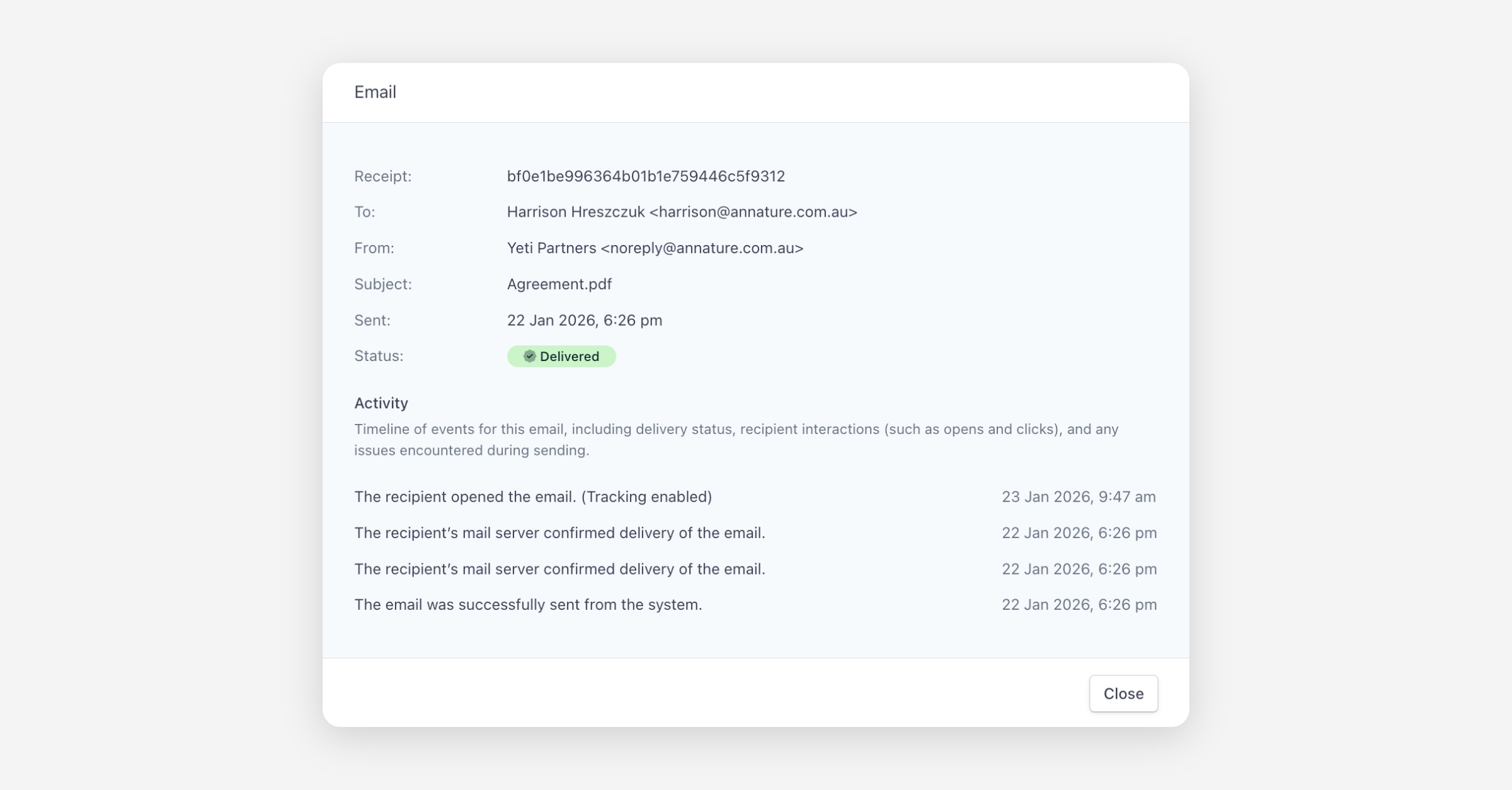
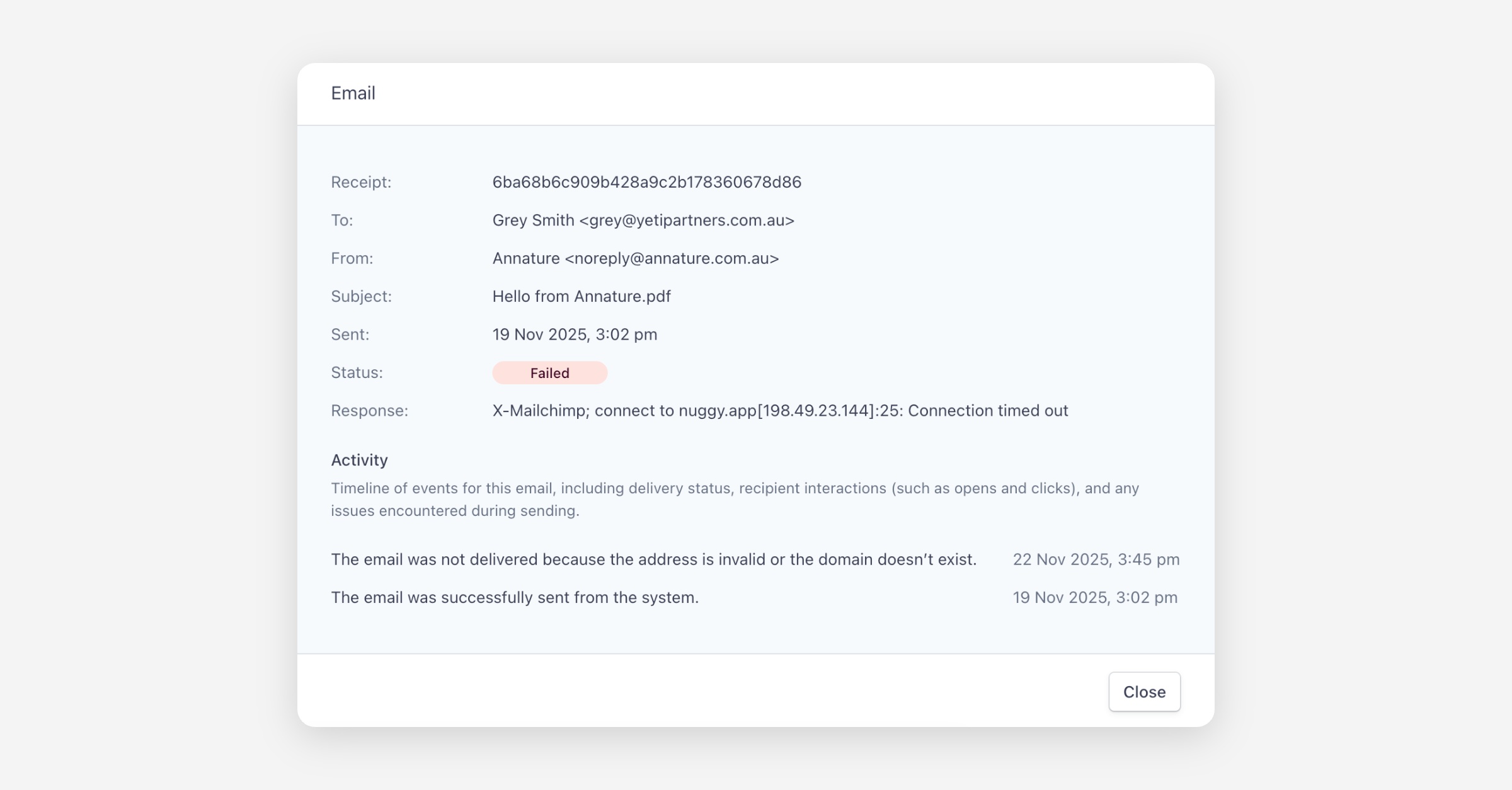
This helps you quickly understand whether the recipient interacted with the email or if an issue prevented delivery.
Search for a Specific Recipient
Use the Search bar to locate emails sent to a specific address.
Just type the email address and press Enter.
Filter Your Email Records
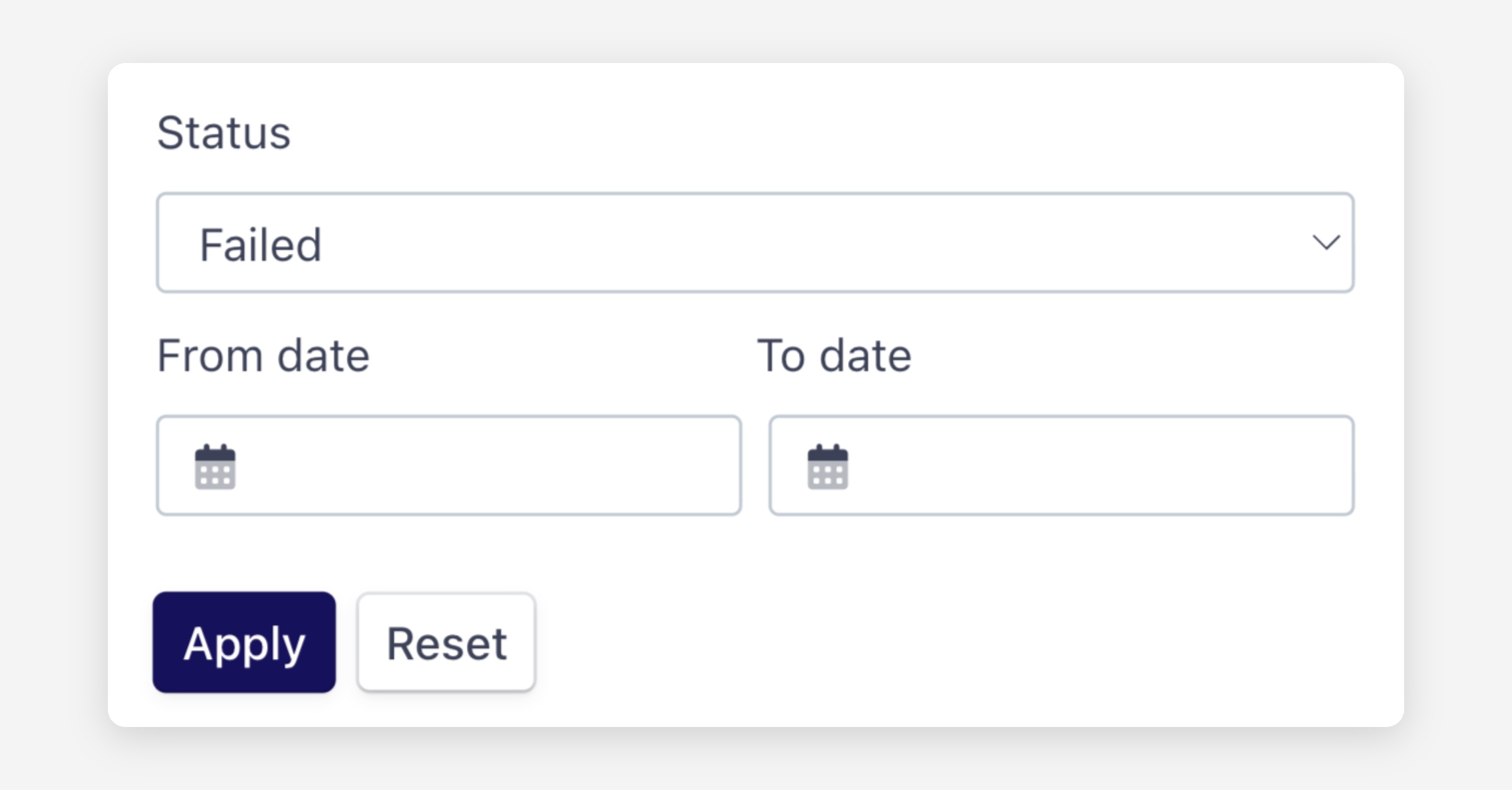
Use the Filters dropdown to refine the results by:
Status: Delivered or Failed
Date range: Using From Date and To Date fields
Filtering helps you easily track performance over time or investigate issues within a specific period.
Email History provides clear, actionable insight into your email communication — ensuring your team always knows what happened, when, and why. If you spot repeated failures or bounces, consider checking the email address, reaching out to the recipient, or reviewing our guide on email deliverability troubleshooting.
Was this helpful?