
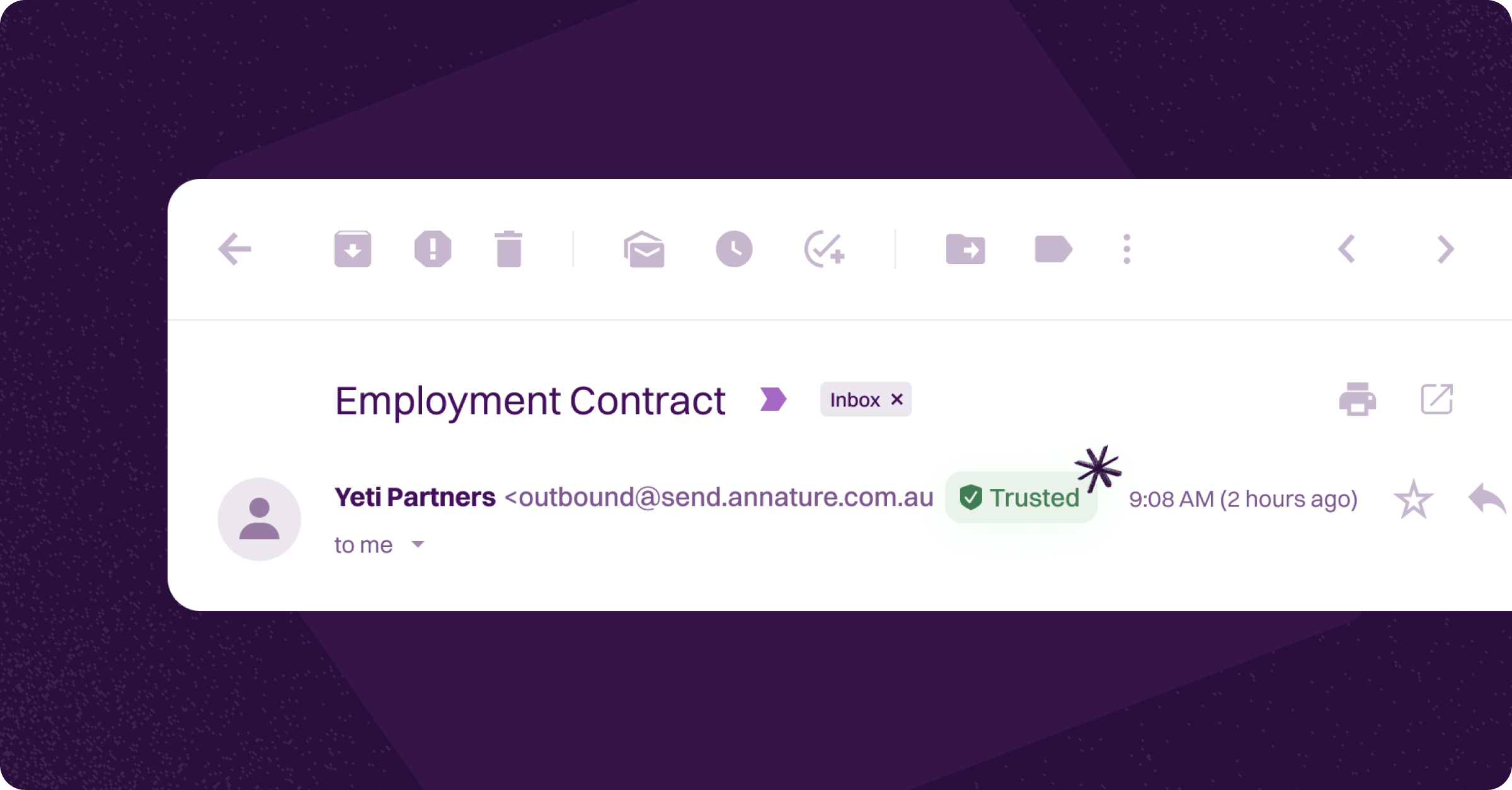
If you’re not receiving signing requests or notification emails from Annature, it’s likely your email provider is filtering them into Spam or Junk.
Whitelisting Annature’s sending address helps ensure important messages arrive directly in your inbox — without delays or missed actions.
Annature emails are sent from: [email protected] and [email protected]
Below are step-by-step instructions for the most common email providers.
Gmail
Gmail doesn’t have a traditional “whitelist”, but you can achieve the same result by adding Annature as a contact and creating a filter.
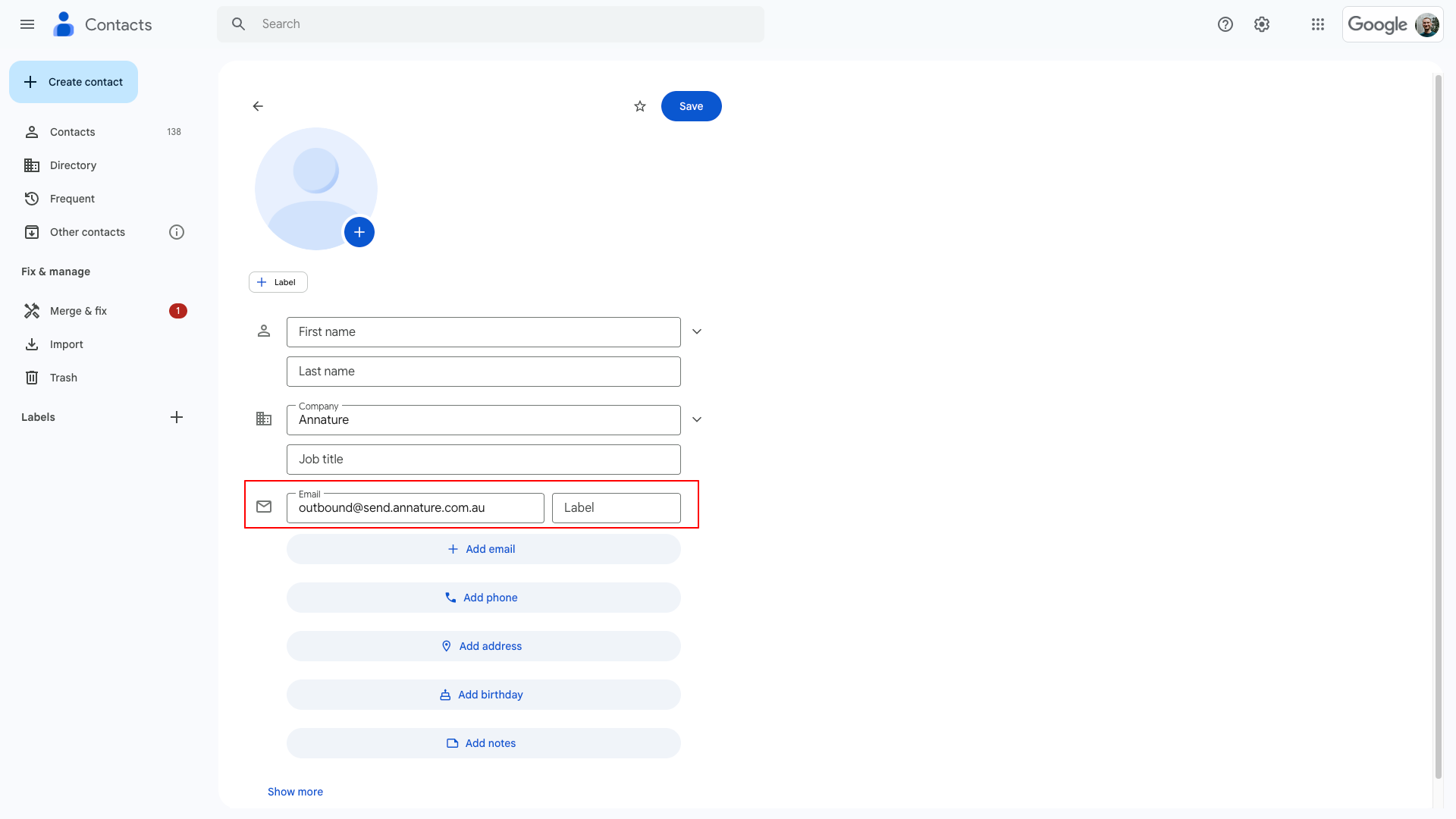
Option 1: Add to Contacts
Go directly to Google Contacts: https://contacts.google.com
Click Create contact.
Enter [email protected] as the email address.
Save the contact.
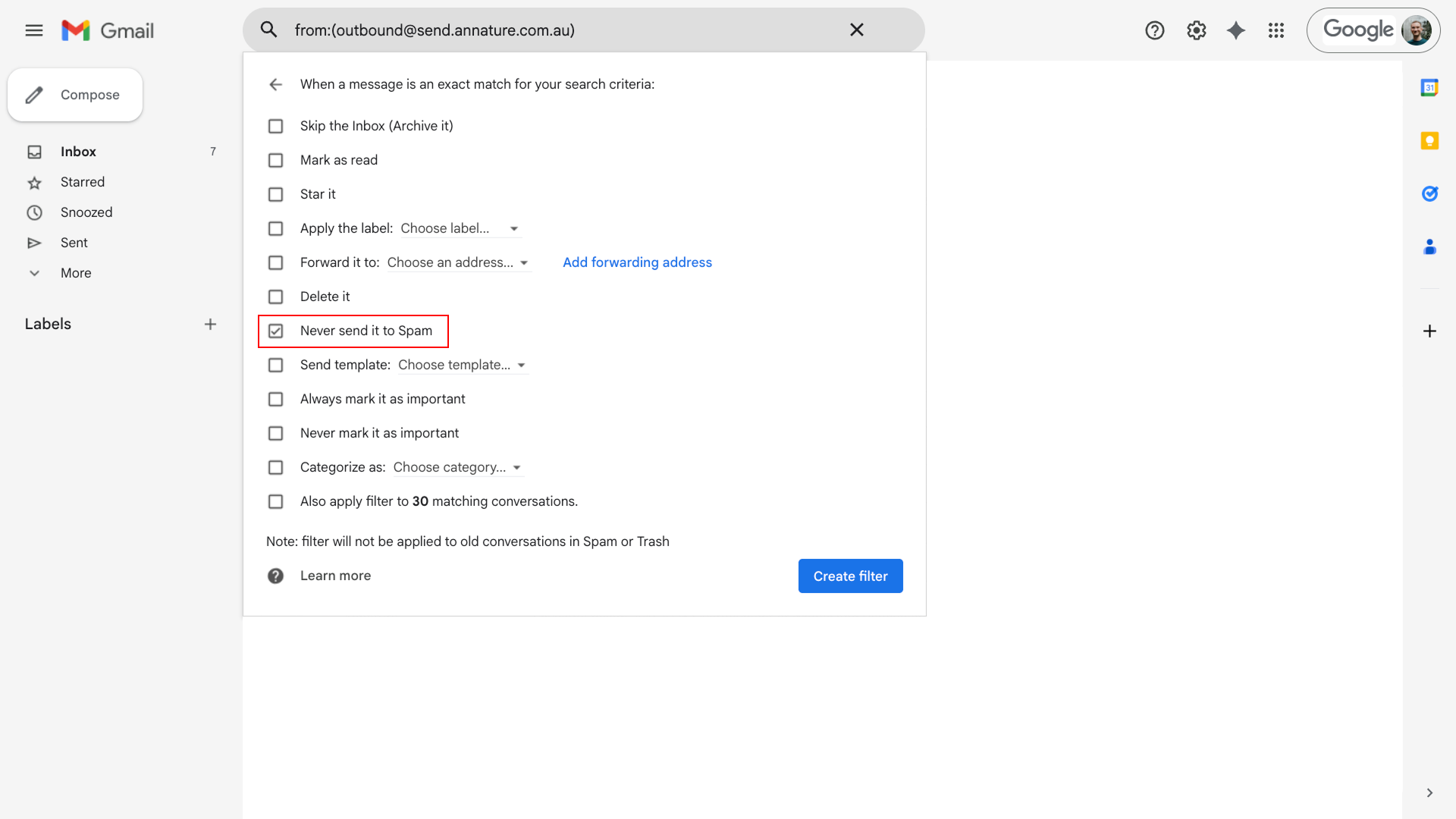
Option 2: Create a Filter
Click the Settings (gear icon) in Gmail.
Select See all settings.
Open the Filters and Blocked Addresses tab.
Click Create a new filter.
Enter [email protected] in the From field.
Click Create filter.
Tick Never send it to Spam.
Click Create filter.
Outlook (Outlook.com / Microsoft 365)
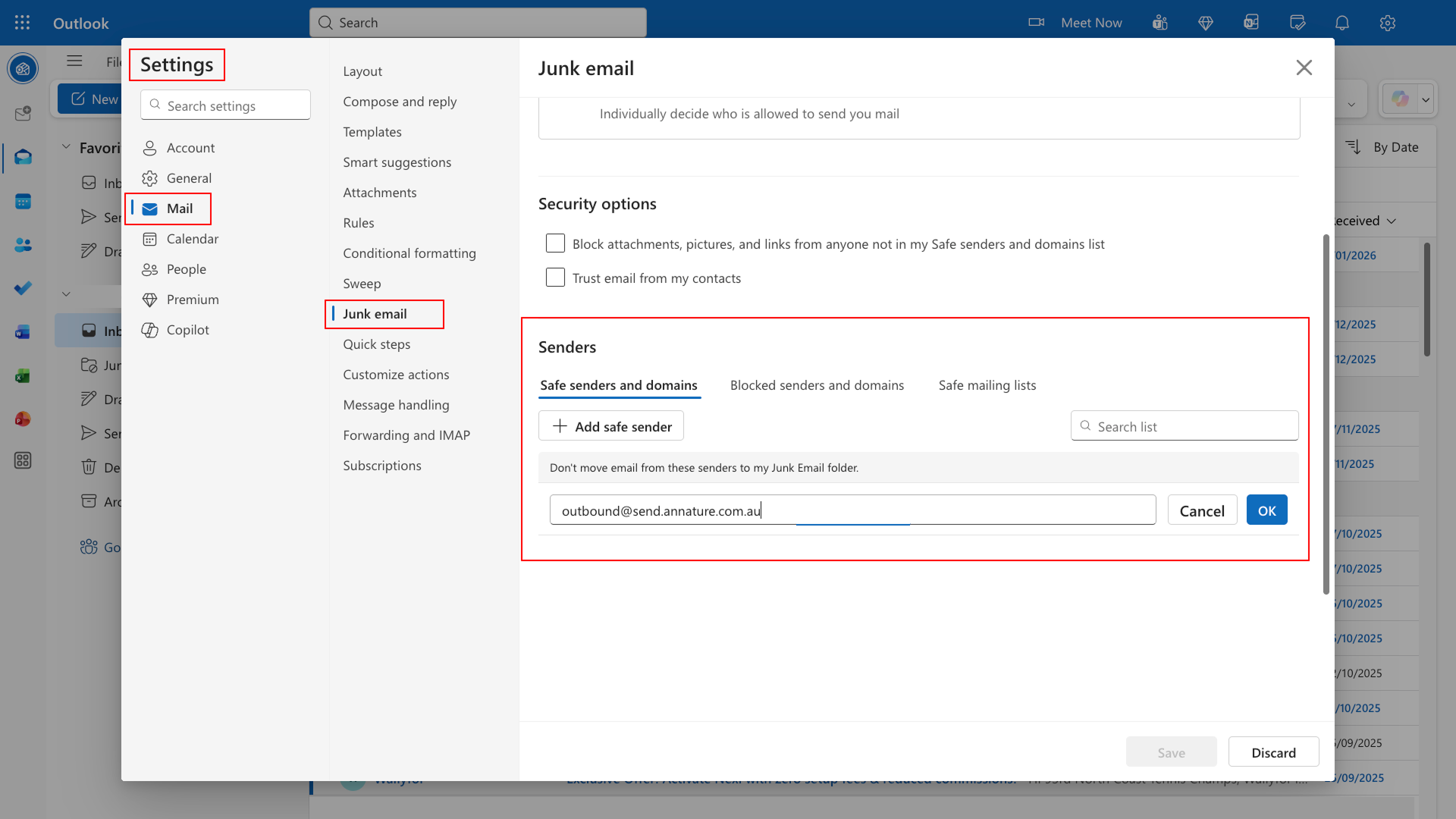
Add Annature as a Safe Sender
Sign in to Outlook.com or Office 365.
Click the Settings gear icon.
Select View all Outlook settings.
Go to Mail → Junk email.
Under Safe senders and domains, click Add.
Enter [email protected] and click Save.
Adding the address to your Contacts is also recommended for best results.
iCloud Mail
iCloud Mail doesn’t use a safe sender list. Instead, you’ll need to add Annature to your contacts.
Sign in to iCloud Mail.
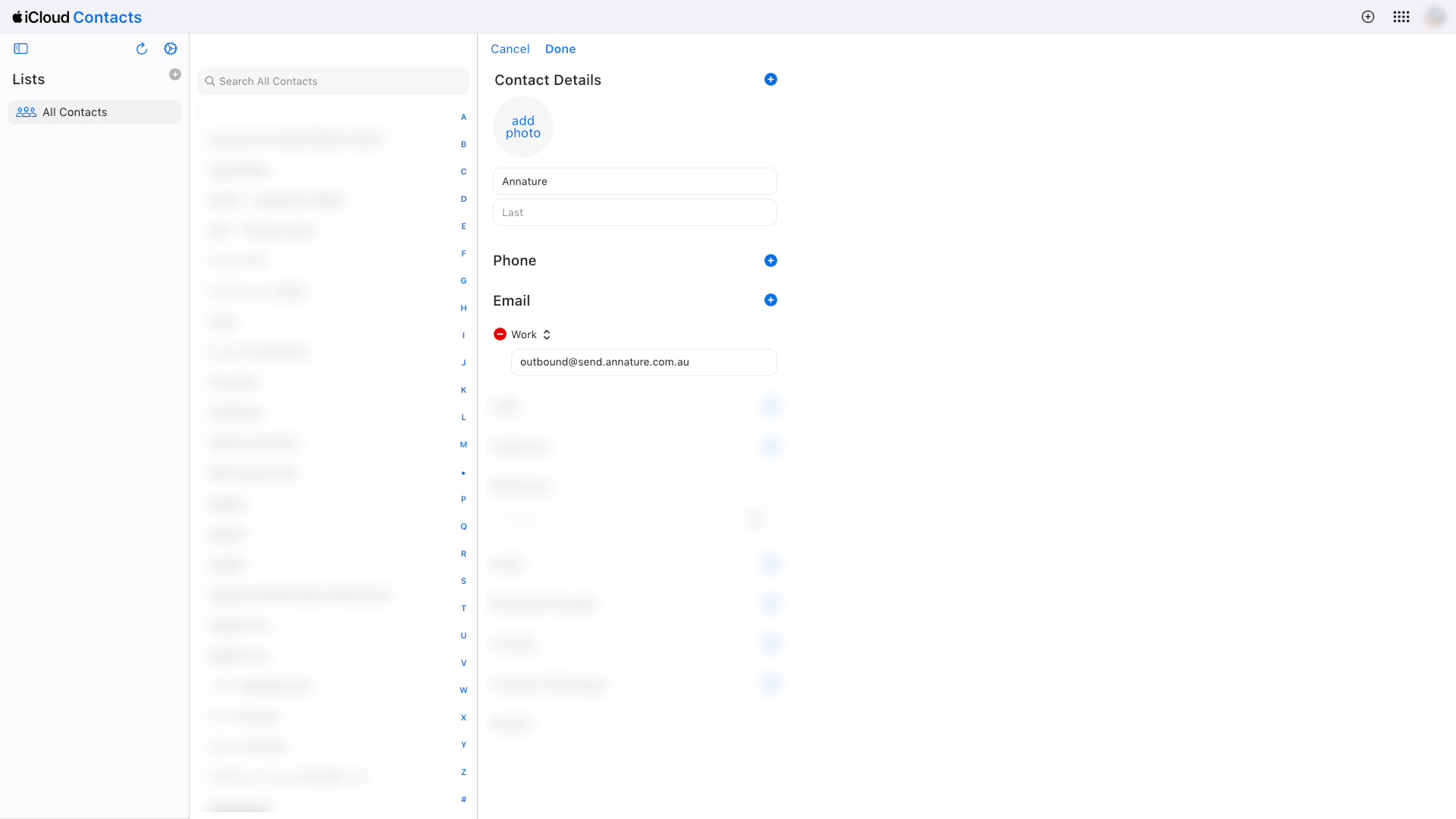
Open Contacts.
Click + → New Contact.
Enter [email protected].
Click Done.
If Messages Still Don’t Arrive
If you’ve followed the steps above and emails are still missing:
Check your Spam or Junk folder
Mark any Annature emails as Not spam
Confirm the email address was entered correctly
If issues persist, please contact our support team and we’ll be happy to assist.
Whitelisting Annature ensures you never miss an important signing request, reminder, or completion notification — helping your workflows run smoothly and on time.