

The Worksorted integration works in two directions. Client details come into Annature from Worksorted, and completed envelopes go back to Worksorted as notes. This page explains exactly what moves each way, and how to check an envelope has synced.
From Worksorted to Annature
- The Worksorted page shows your clients live from Worksorted.
- Your address book, if you've imported your clients, is kept up to date automatically with people's names, emails, mobile numbers and addresses. See Importing and syncing Worksorted clients.
Annature never changes client details in Worksorted.
From Annature to Worksorted
When an envelope created from the Worksorted page is completed, Annature adds a note to the client:
| Note detail | What's saved |
|---|---|
| Title | Synced from Annature |
| Text | The envelope name, and the sender's name and email |
| Category | The Note category and Sub-category chosen when sending, if any |
| Attachment | One PDF containing the signed documents and the certificate of completion |
You can preview and download the PDF from the note in Worksorted.
The Worksorted integration covers envelopes only. Identity verifications aren't synced to Worksorted.
Checking an envelope's sync status
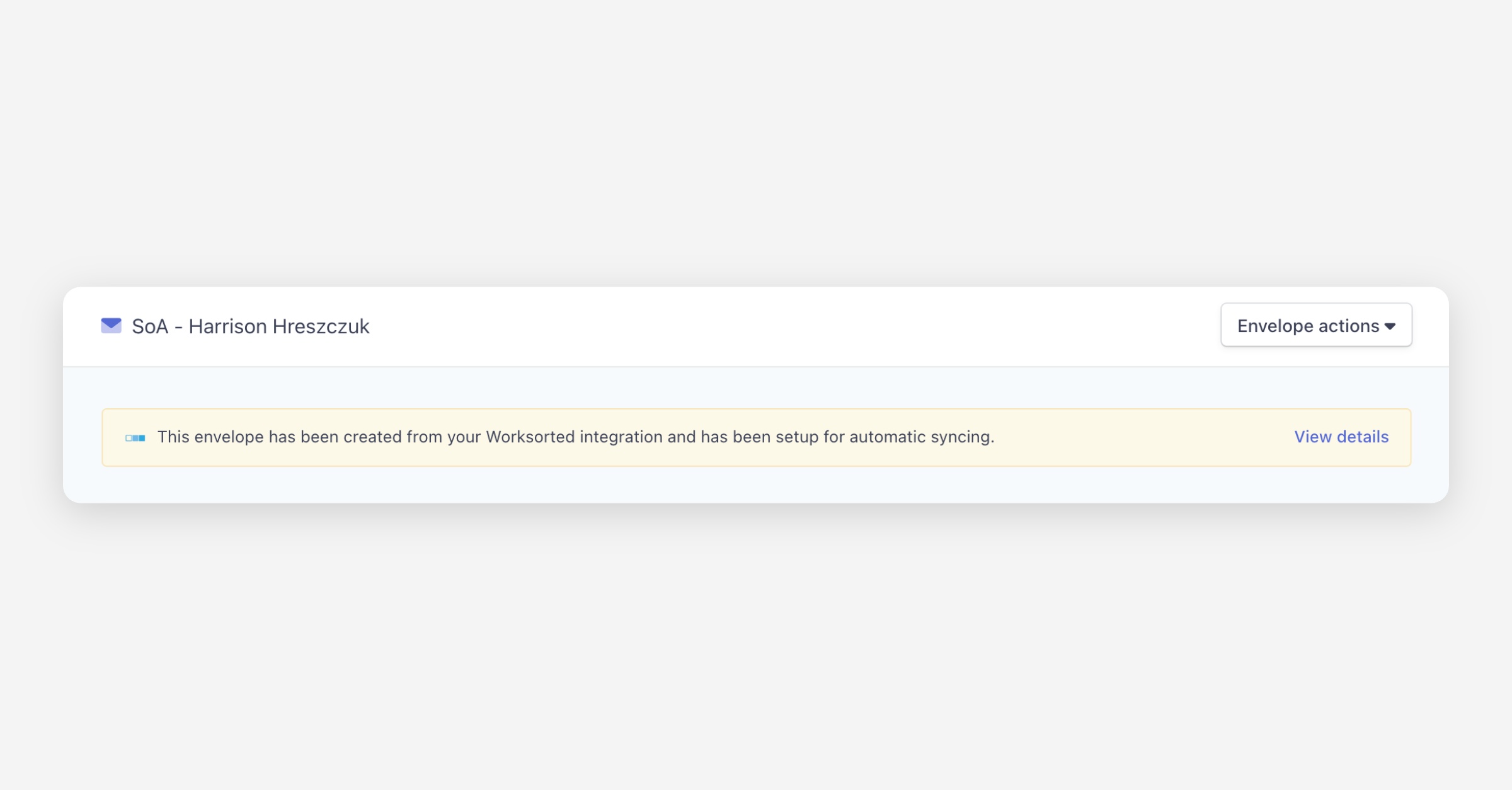
Envelopes created from the Worksorted page show a banner saying they've been set up for automatic syncing.
- Open the envelope and click View details on the banner.
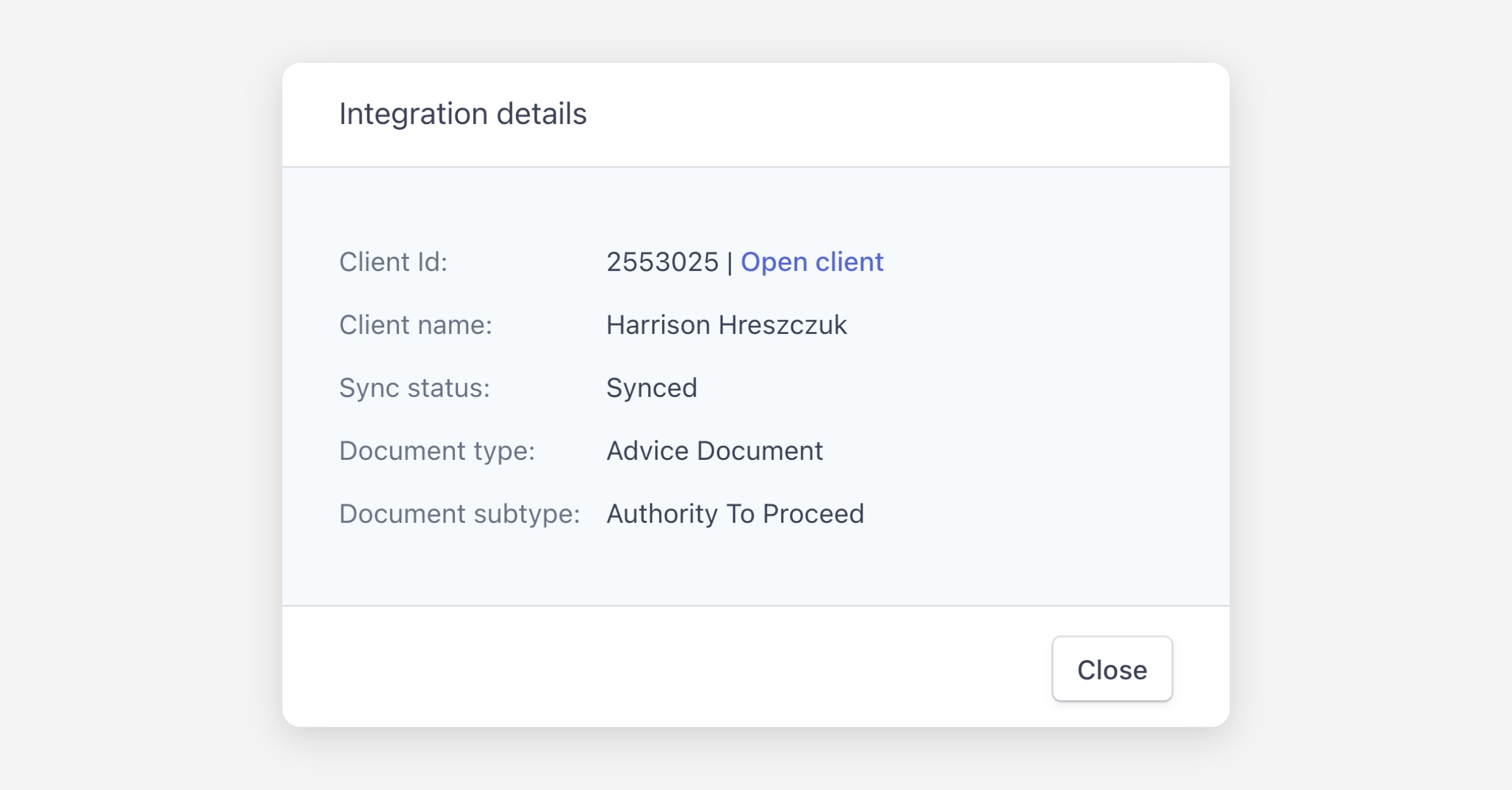
- You'll see the Client Id (with an Open client link), Client name, the note category and sub-category, and, once the envelope is completed, its Sync status:
- Synced: the note is in Worksorted.
- Not synced: the note isn't there, either because the sync failed or the note was deleted in Worksorted.
Force syncing an envelope
If a completed envelope shows Not synced, click Force sync. Annature creates the note again, with the signed PDF attached, and you'll see The envelope has been successfully synced to Worksorted.
Force sync is only available for completed envelopes that aren't synced.