
Reassign recipient
Control whether recipients can reassign their signing step to someone else.
The "Assign to someone else" feature lets a recipient hand off their signing responsibility to a different person during the signing session. The new recipient takes their place entirely — all fields, actions, and signing requirements are transferred automatically.
This feature is disabled by default. You need to turn it on before sending an envelope if you want recipients to have this option.
It's useful when you're not always sure exactly who within an organisation will sign, or when signatories sometimes delegate to colleagues. That said, keep in mind that enabling it means the person you originally sent the envelope to may not be the person who ends up signing.
Enabling the feature
Go to Settings > Envelope preferences and turn on Allow recipients to reassign envelopes to someone else.
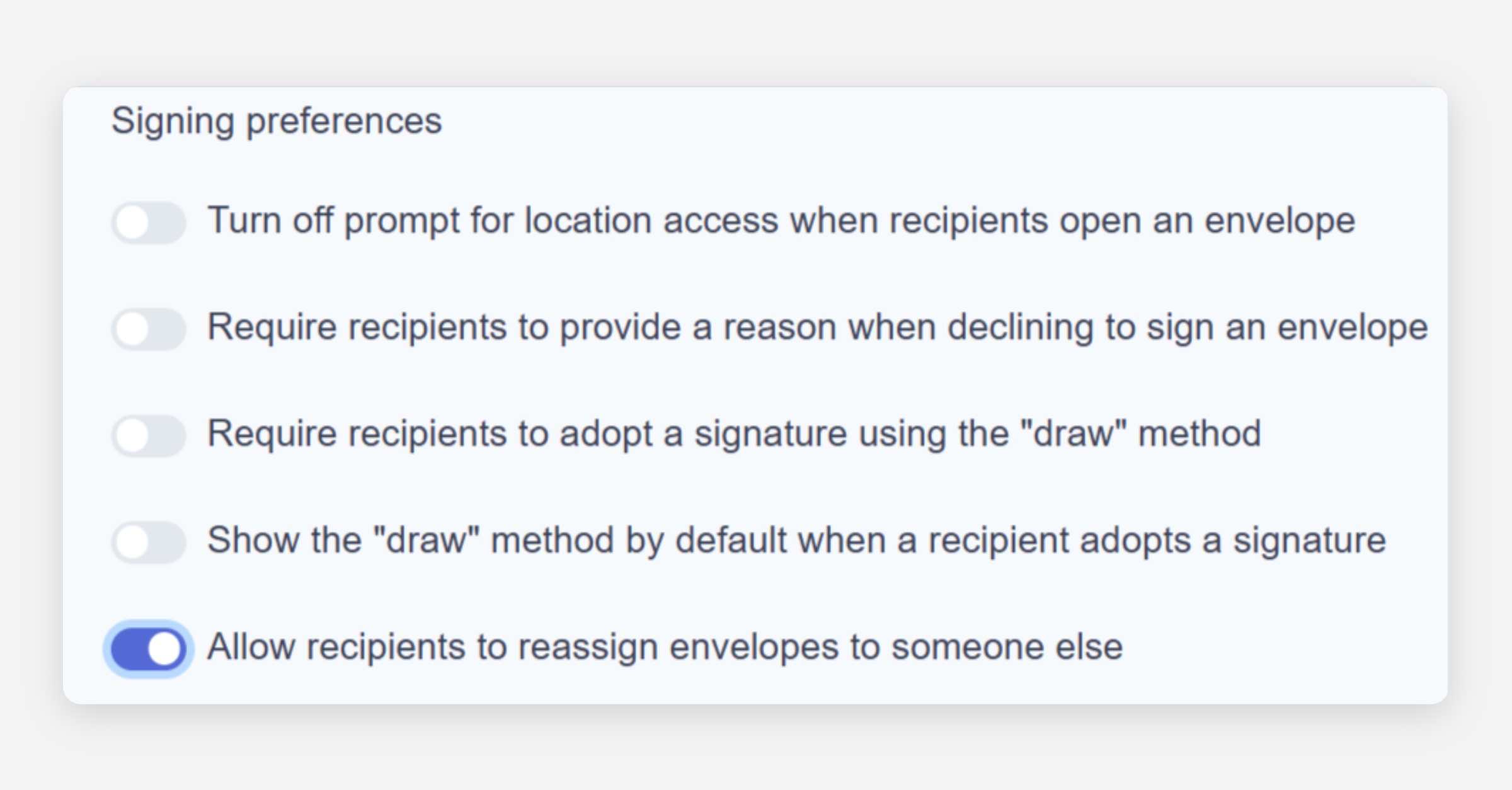
Once enabled, all recipients on envelopes you send will see the option to reassign during their signing session under the Actions menu.
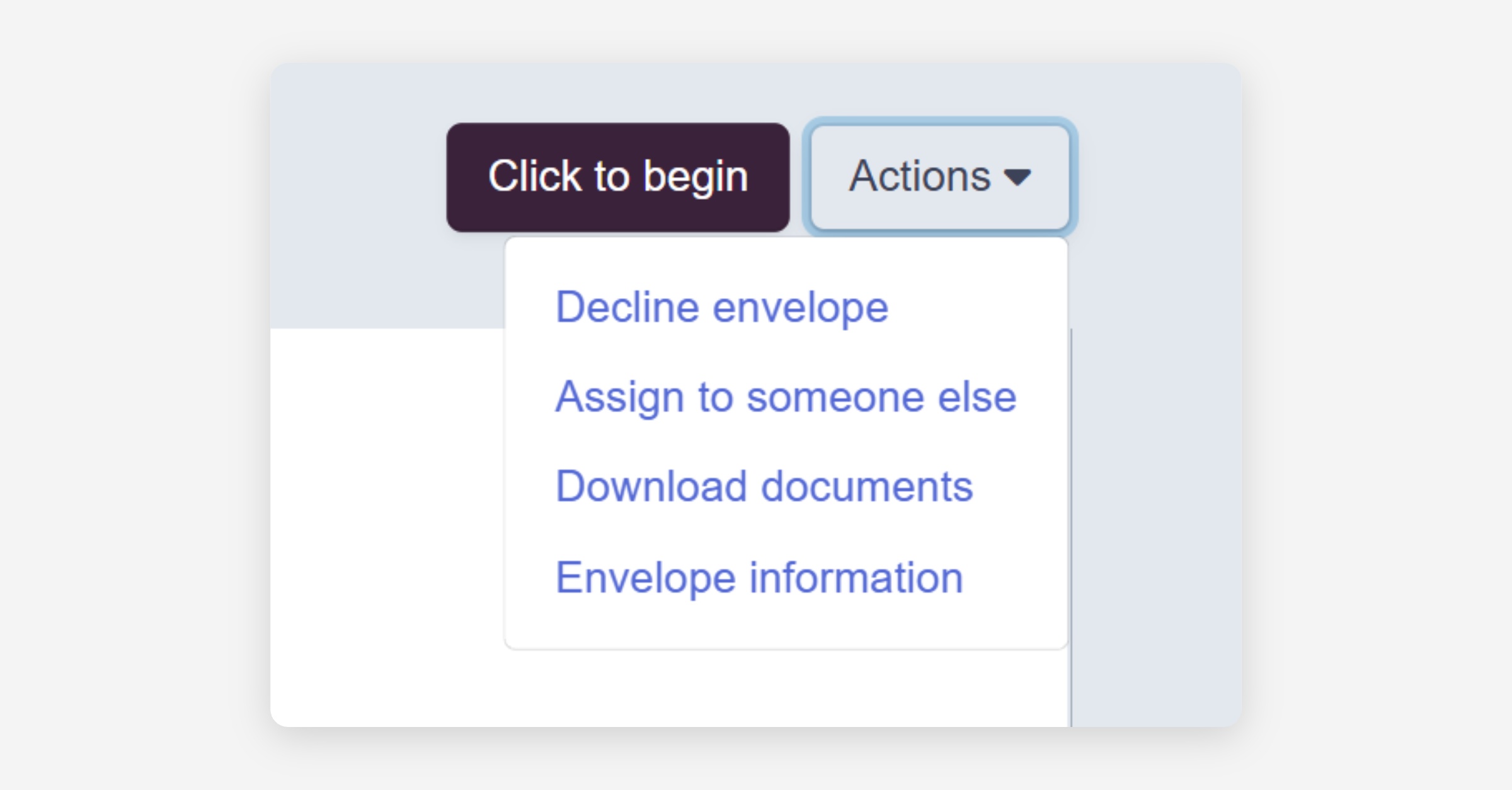
How security settings carry over
Any password or SMS two-factor authentication (2FA) you've applied to a recipient's signing step is preserved even if they reassign to someone else.
Password: If you set a password requirement for a recipient, whoever they assign to must also be given a password. The original recipient provides this during the reassignment — they can reuse the same password or set a new one.
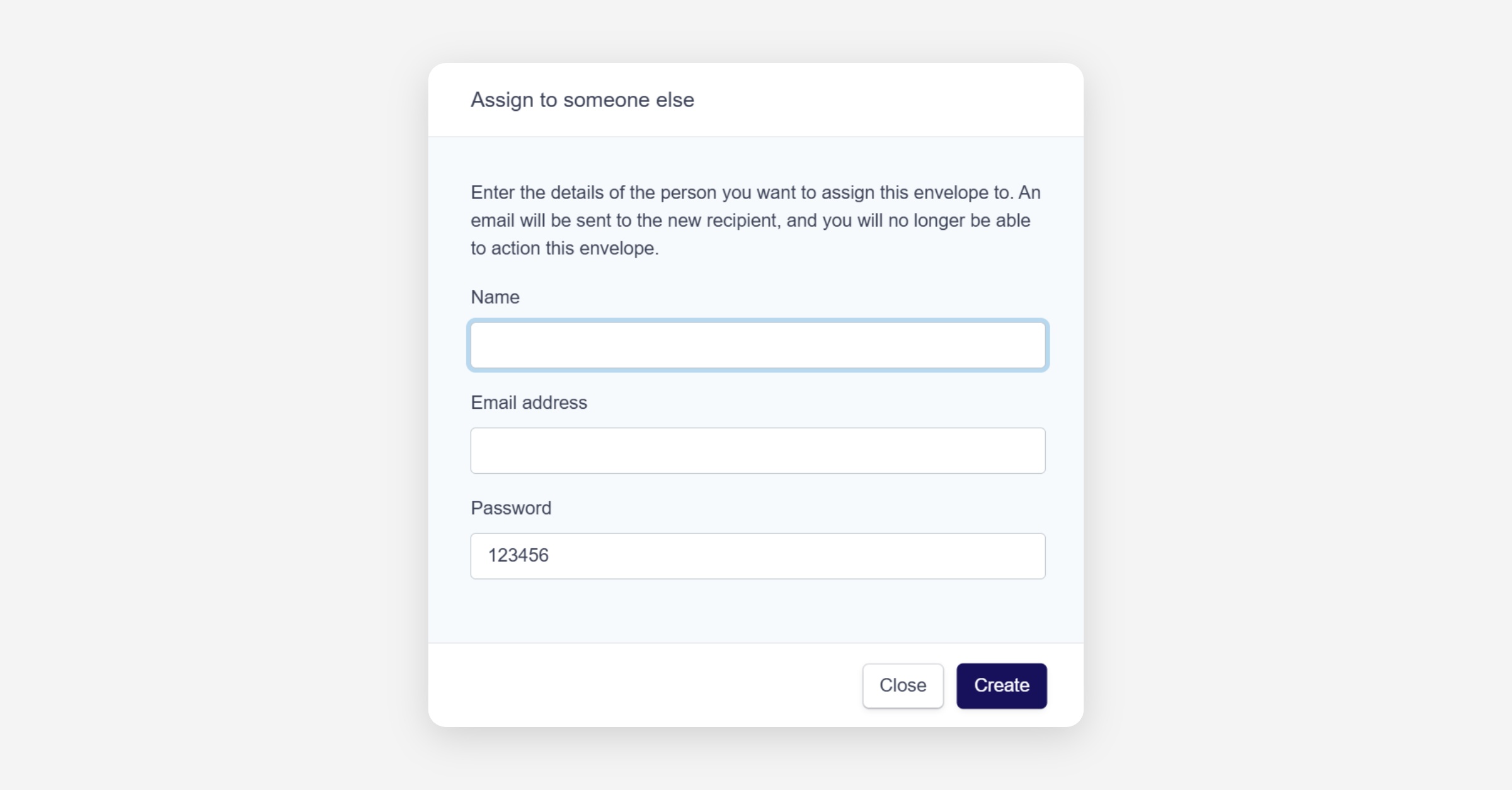
SMS two-factor authentication: If you enabled SMS 2FA for a recipient, the person they assign to must supply a mobile number so they can receive the verification code. Again, the original recipient provides this during the reassignment.
This means your security requirements follow the signing step, not the individual. Whoever ends up signing must meet the same authentication standards you originally set.
Was this helpful?