
Private Messages
Send a tailored message to a specific recipient on an envelope, replacing the main message for that recipient only.
Private messages allow you to send a different message to a specific recipient on an envelope. This is useful when an envelope is being sent to people across different teams or business units and you need to provide tailored instructions or context to individual recipients. When a private message is set for a recipient, it replaces the main envelope message for that recipient only. All other recipients will continue to receive the standard message.
Adding a Private Message
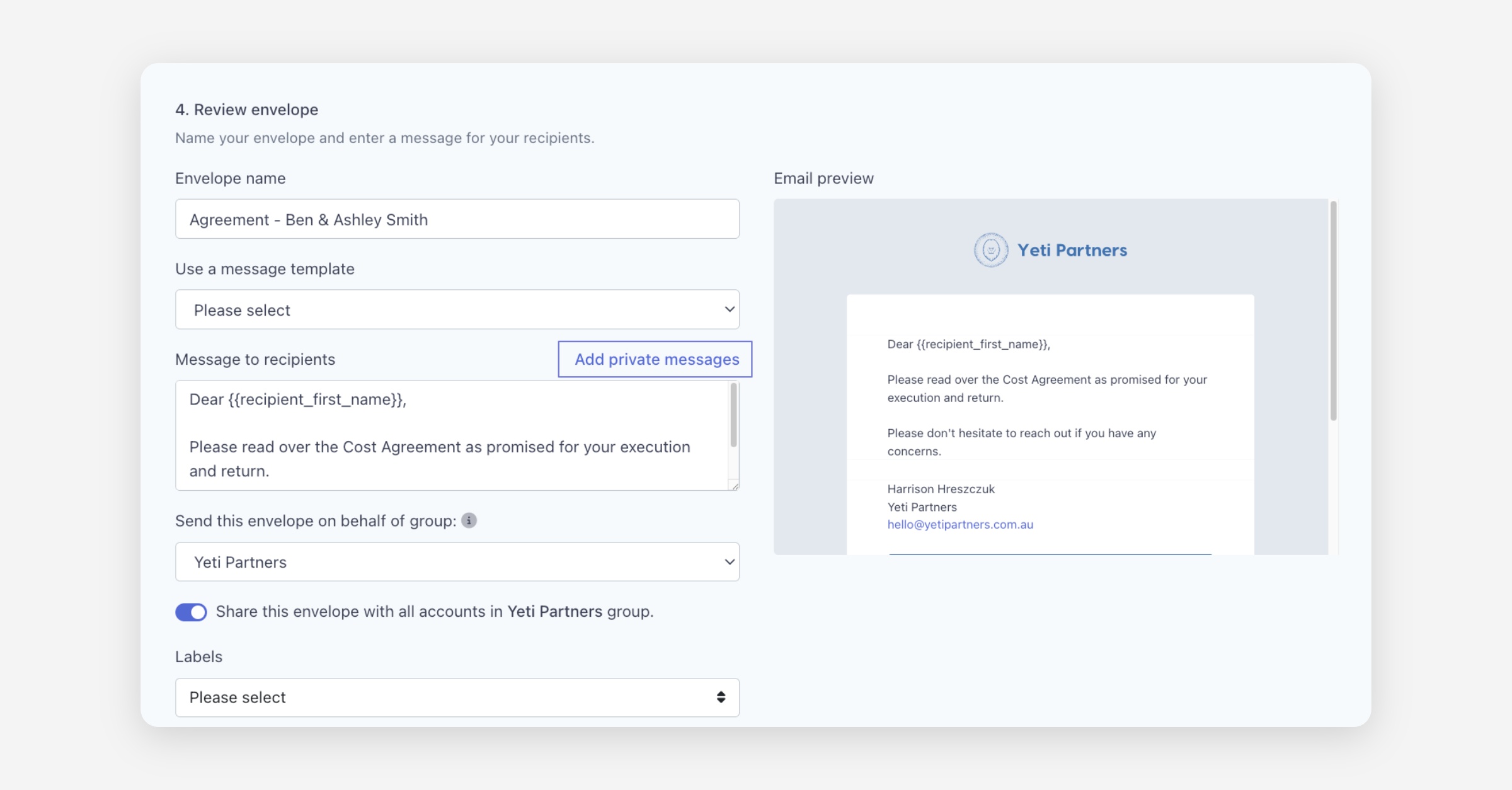
When creating an envelope, scroll down to Step 4: Review envelope.
Click Add private messages next to the Message to recipients label.
In the dialog that appears, select the Recipient you want to send a private message to from the dropdown.
Optionally select a saved template from the Use a message template dropdown to pre-populate the message.
Write your message in the Private message field.
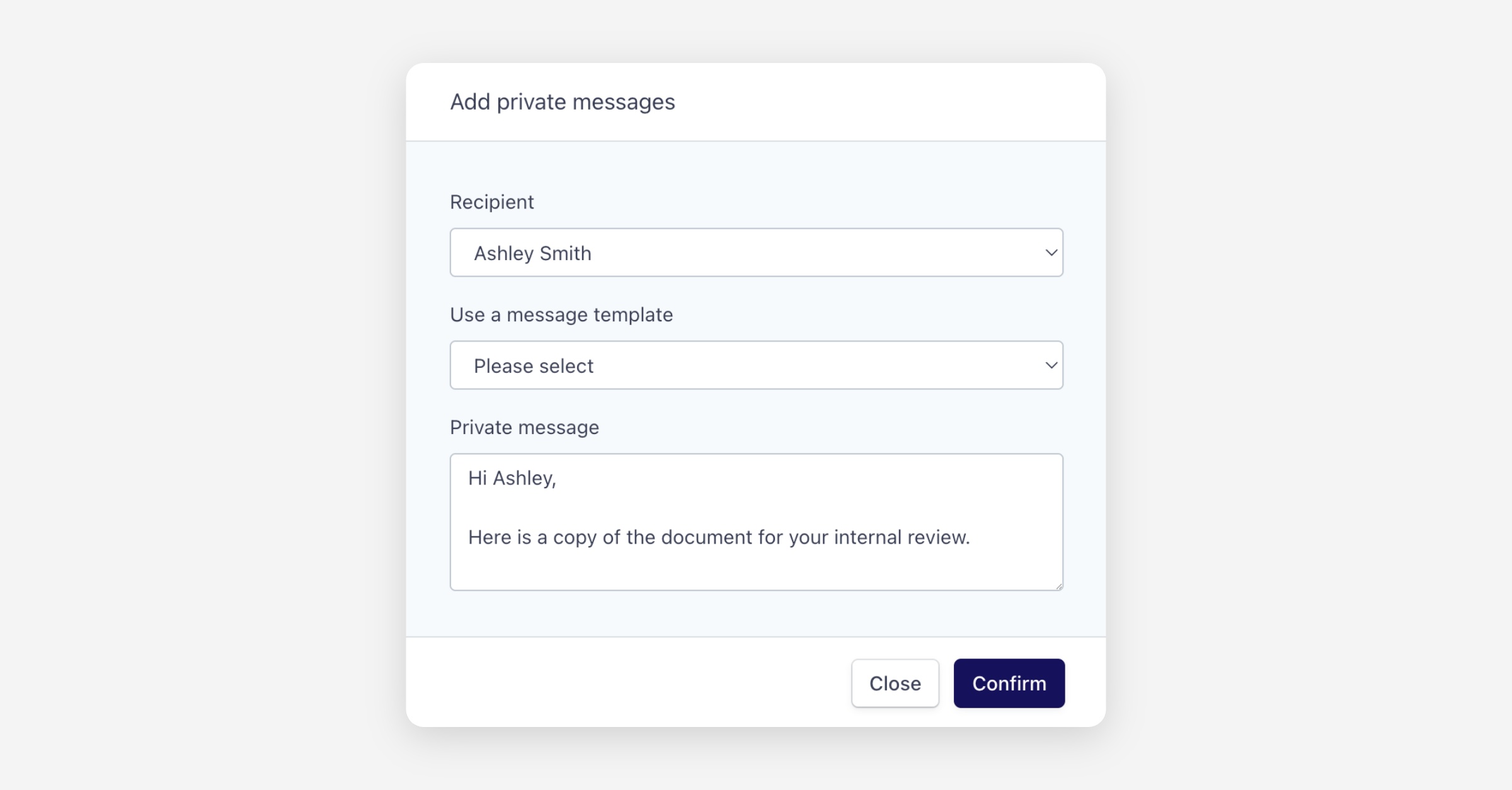
Click Confirm.
You can repeat this process to add private messages for multiple recipients. A notification banner will appear in the review section reminding you that private messages have been set and will be used in place of the main message for those recipients.
Was this helpful?