
Document Permissions
Document permissions allow you to control which documents each recipient can see within an envelope. This is useful when you need to bundle multiple documents for different recipients into a single envelope while ensuring each person only views the documents relevant to them.
Setting Up Document Permissions
It is recommended to set up document permissions after you have fully finished preparing the documents for signing. This ensures all fields have been placed before you configure which documents each recipient can access.
Upload your documents and add your recipients to the envelope.
Click Prepare documents and add the required fields for each recipient on their respective documents. For example, if Document A is intended for Recipient A, place Recipient A's signature field on Document A.
Return to the recipients section, click Options next to the recipient, and select Document permissions.
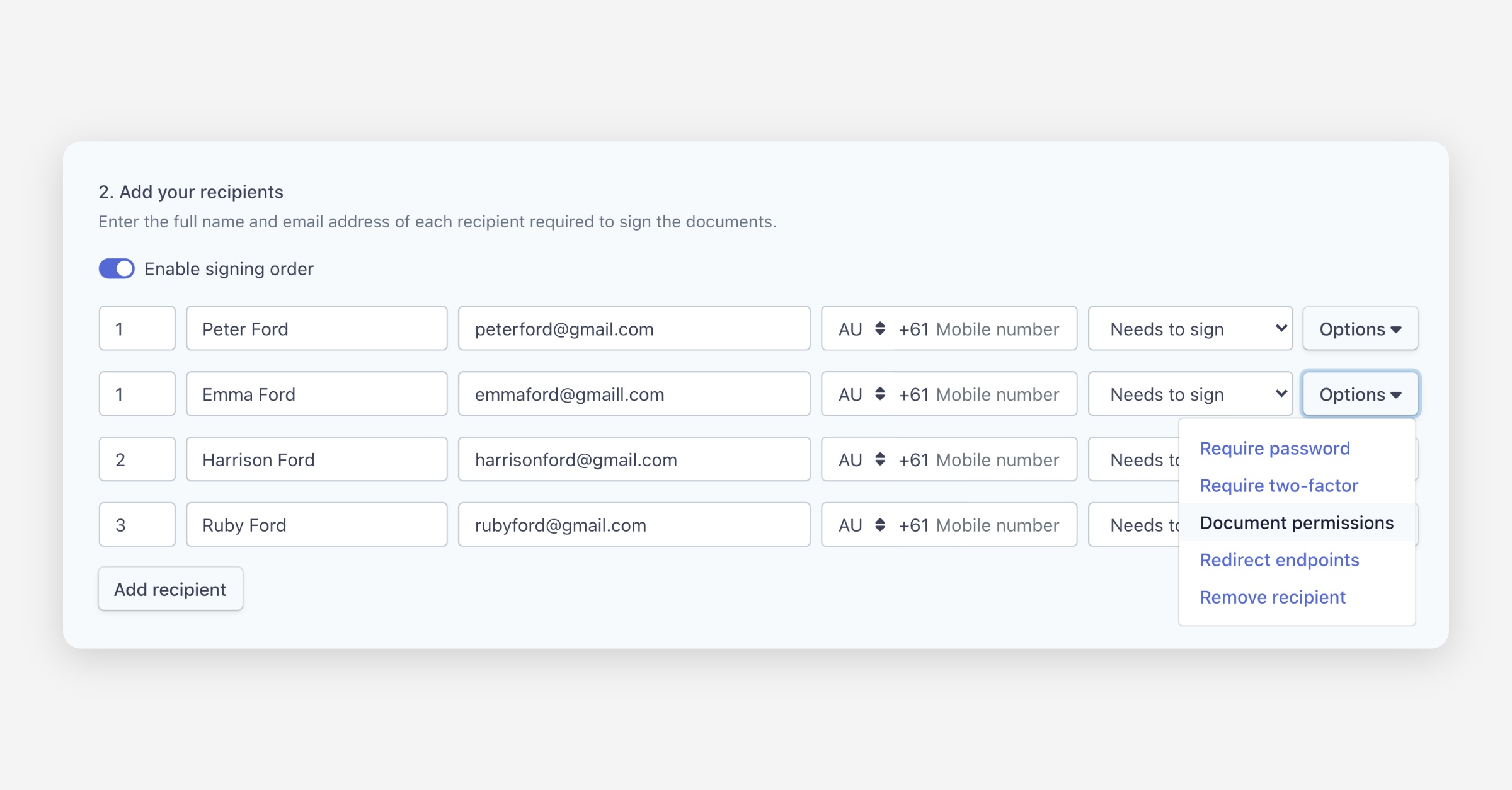
In the dialog that appears, deselect any documents the recipient should not have access to view.
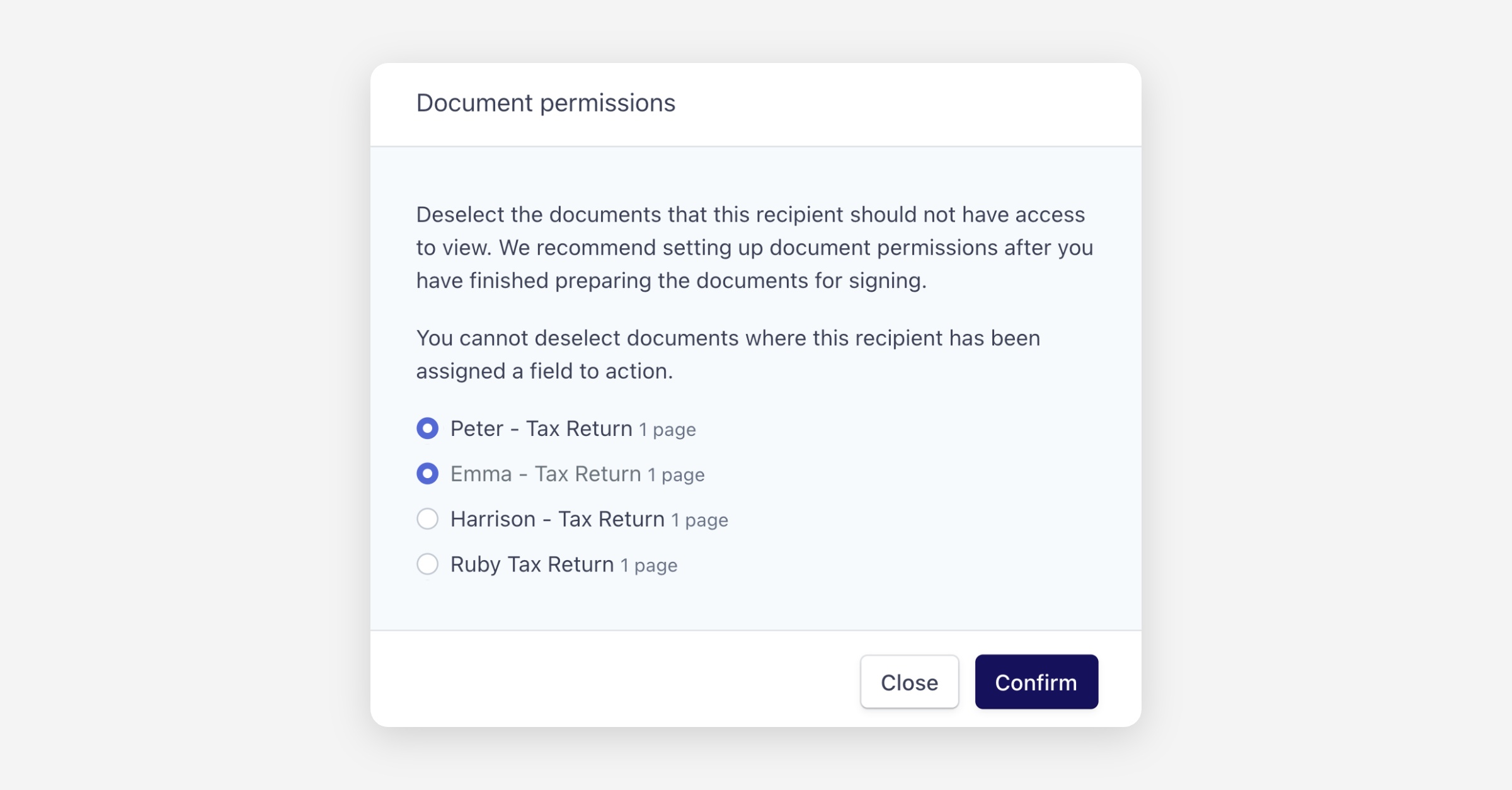
Click Confirm.
Important things to know
You cannot deselect a document if the recipient has been assigned a field on that document. If they have a field to complete, they will always have access to it.
Once permissions are configured, an icon will appear next to the recipient’s name to indicate that document permissions are active.
When the envelope is sent, each recipient will only see the documents they have been granted access to.
Every recipient receives a copy of the Certificate of Completion. This certificate relates to the entire envelope.
Recipients will be able to see the names & emails of other recipients in the envelope.
Document permissions should not be used to separate documents across different clients. They are best suited to related parties within the same transaction, such as family members.
Was this helpful?