
Identity Verification Message Templates
Create and manage reusable message templates for Identity Verification requests. Message templates help keep your verification communications consistent and save time when sending requests.
Note: The Settings page is only available to Owners and Admins.
Viewing Message Templates
Navigate to Settings > Message Templates.
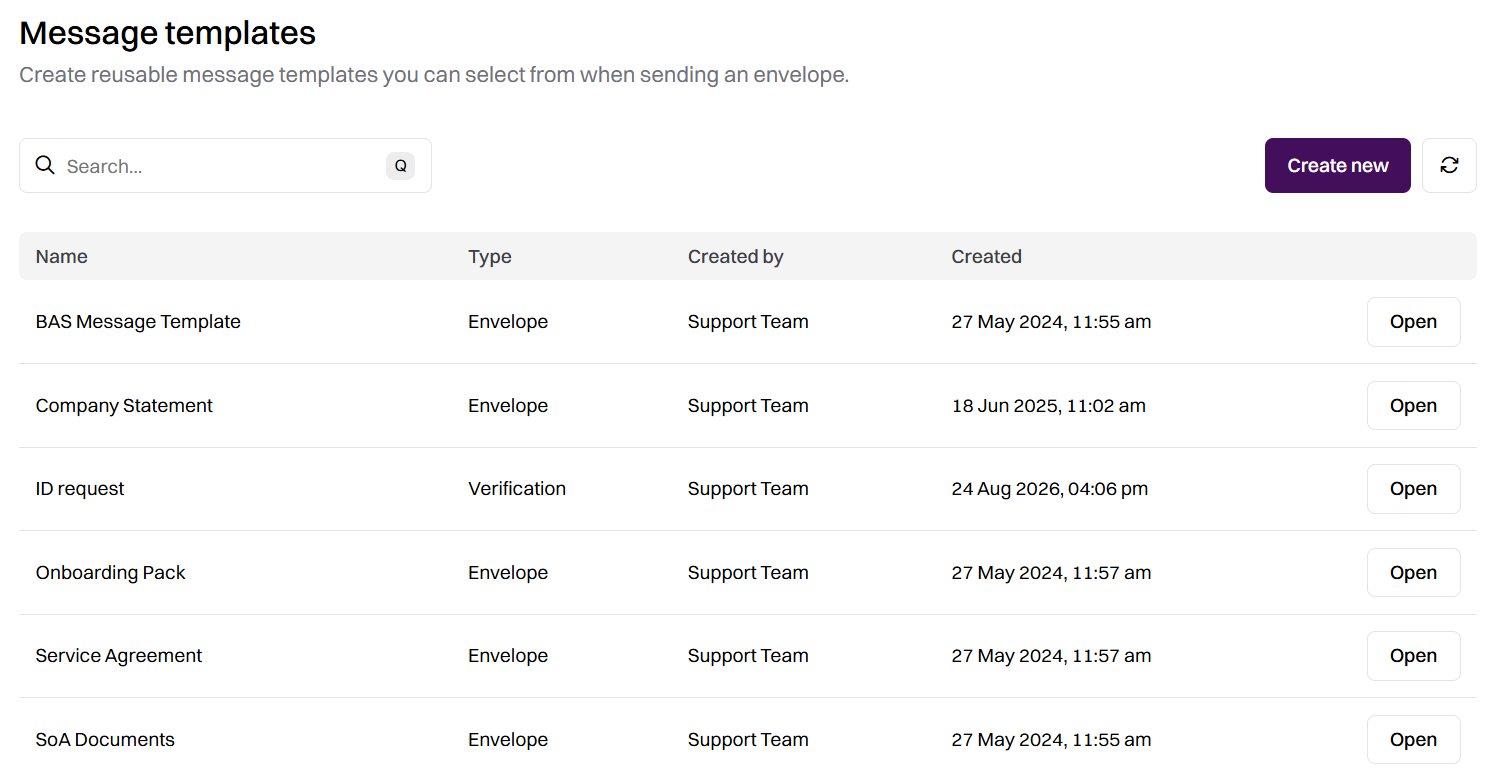
The page displays a table of all message templates in your organisation, showing:
Name — The template name.
Type — Whether the template is for an Envelope or Verification.
Created by — The team member who created the template.
Created — The date the template was created.
You can search for templates using the search bar at the top of the page. Each template has an Open button to view or edit its details.
Creating an Identity Verification Message Template
To create a new verification template:
Navigate to Settings > Message Templates.
Click Create New.
Enter a name for your template.
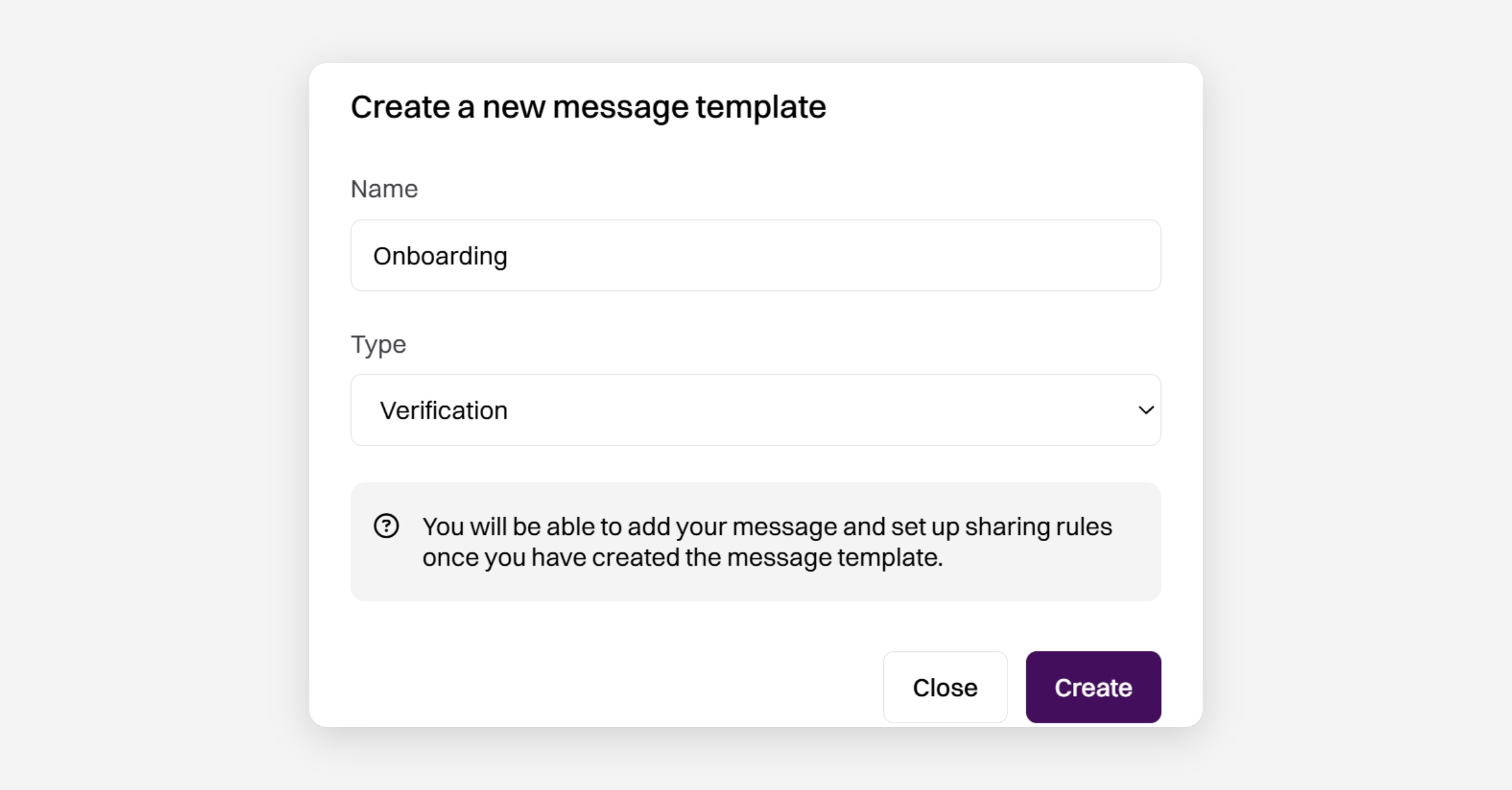
Select Verification from the Type dropdown.
Click Create.
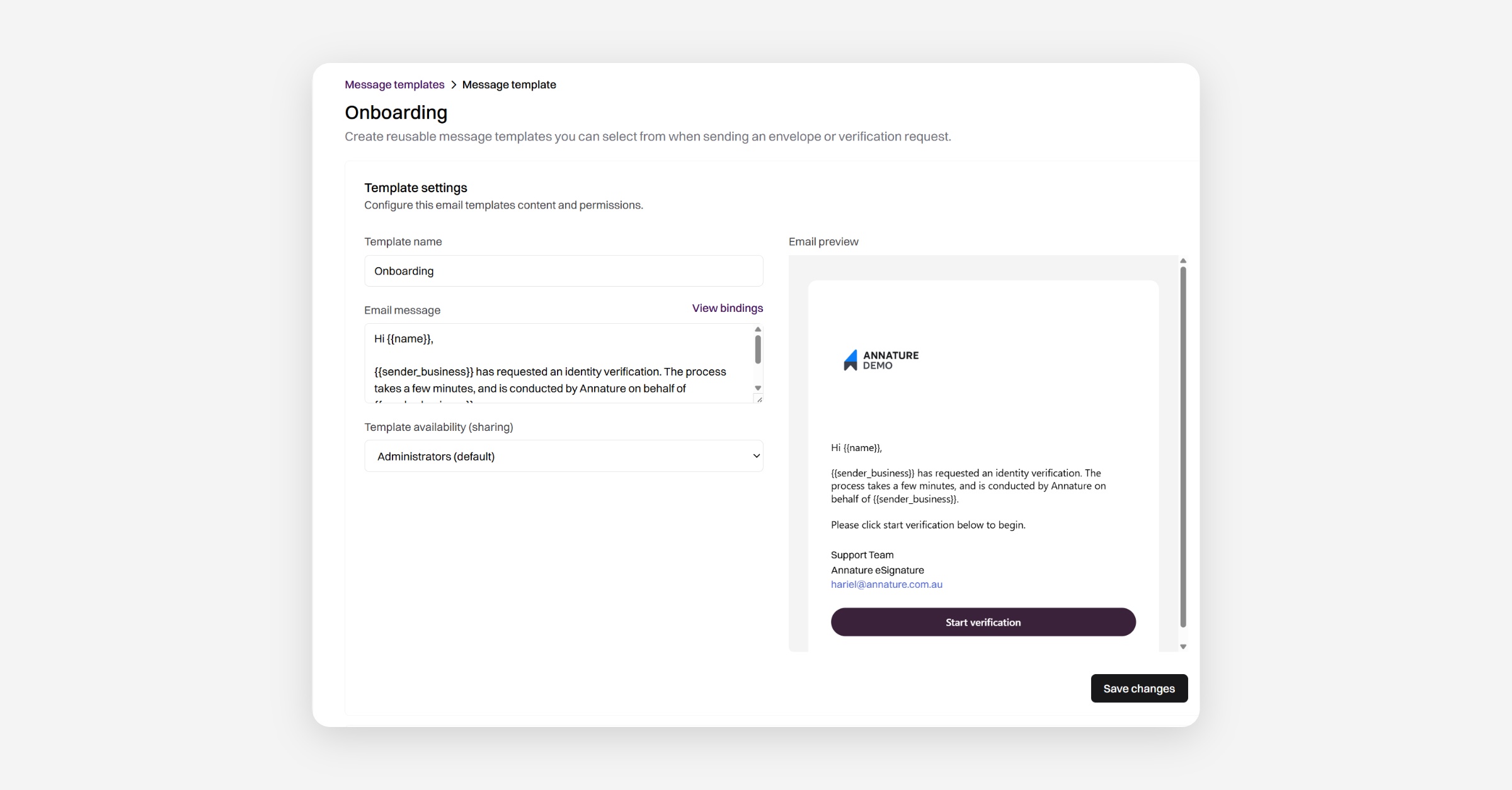
You can then configure the following template settings:
Template name
Email message
Template availability
Email message
A default email message is provided when you create a Verification template. You can edit or remove the default message as needed.
The default message is:
Hi {{name}},
{{sender_business}} has requested an identity verification. The process takes a few minutes, and is conducted by Annature on behalf of {{sender_business}}.
Please click start verification below to begin.
You can use message bindings to personalise your message with dynamic information.
For more information, see Verification Message Bindings.
Template availability
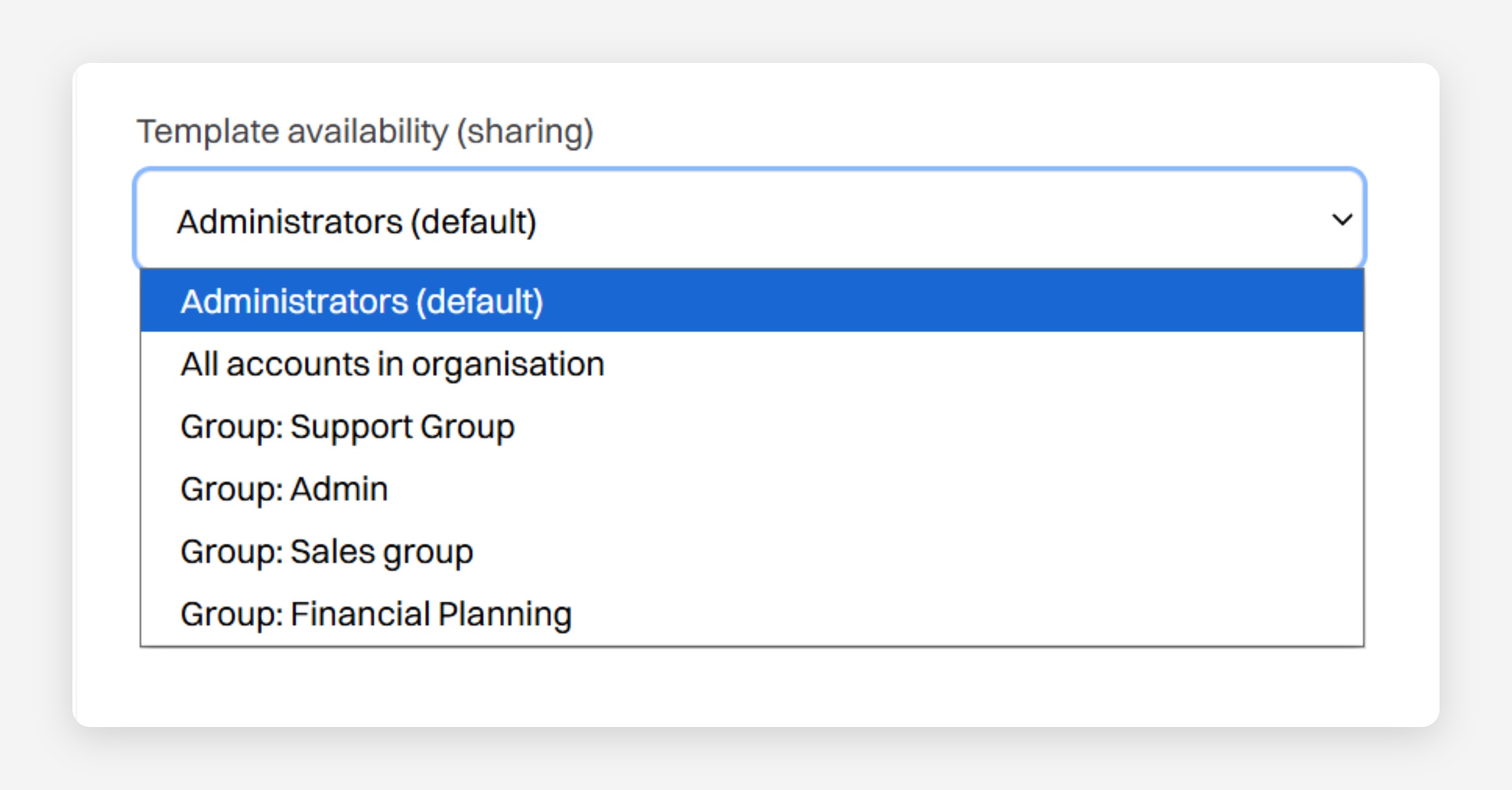
You can choose who can access the template:
Admins — Only Admins can use the template.
All accounts in organisation — All accounts in the organisation can use the template.
Specific group — Only accounts in the selected group can use the template.
Once you have finished configuring the template, click Save changes.
Using a Template When Creating an Identity Verification
When creating an Identity Verification request, you can select a saved message template after adding the recipient details, additional check details, and configuring the request.
Under Communication details:
Select a template from the Message template dropdown.
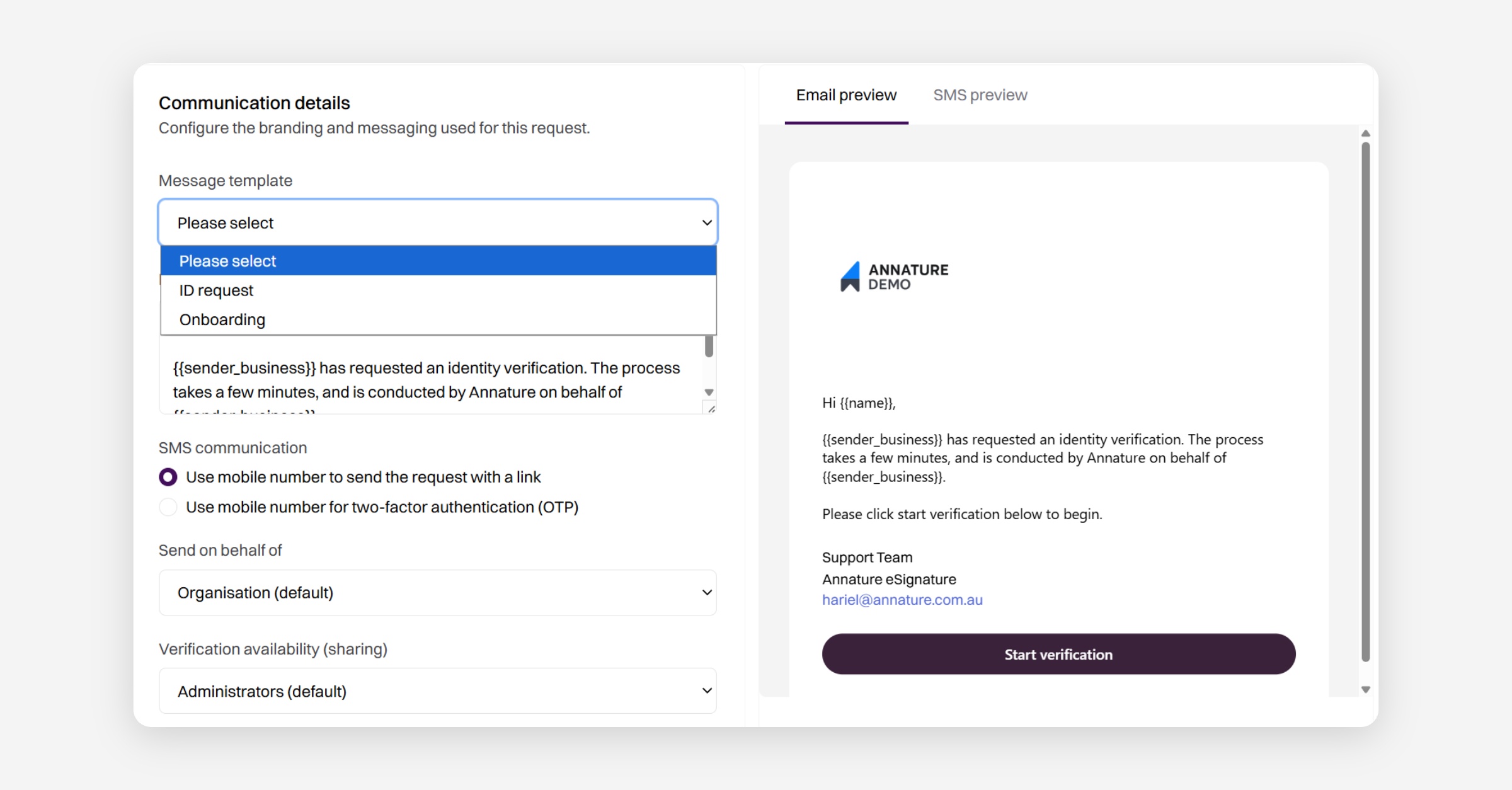
Review the populated Message to recipients field.
Review the message in the Email preview panel on the right.
Make any required changes.
Click Send request.
Editing or Deleting a Template
To update or remove a template:
Navigate to Settings > Message Templates.
Click Open on the template you want to edit.
Make your changes and adjust sharing options if needed.
Click Save changes to apply your updates.
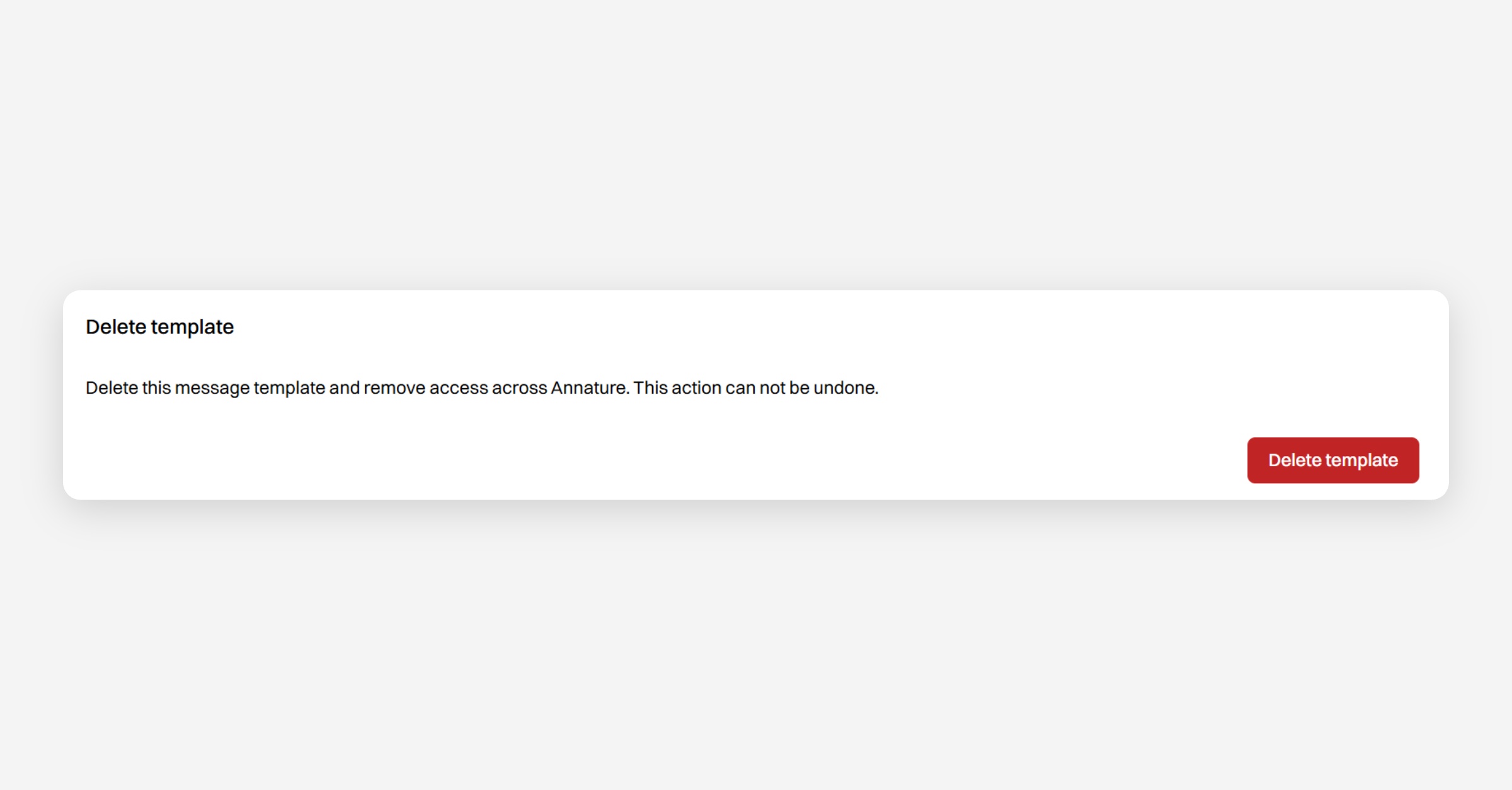
To permanently delete a template, click Delete from the template detail view.
Was this helpful?