
Reviewing a completed identity verification
View captured document data, biometrics, AML & CTF screening results, and sight your client's identity evidence from the verification detail view.
Once your client completes an identity verification, you'll receive an email notification containing a deep link to open the verification directly in Annature, along with the certificate of verification attached as a PDF.
For your client's security, the email won't contain any of their personal documents or captured data — the deep link takes you back into Annature where you can review everything in full.
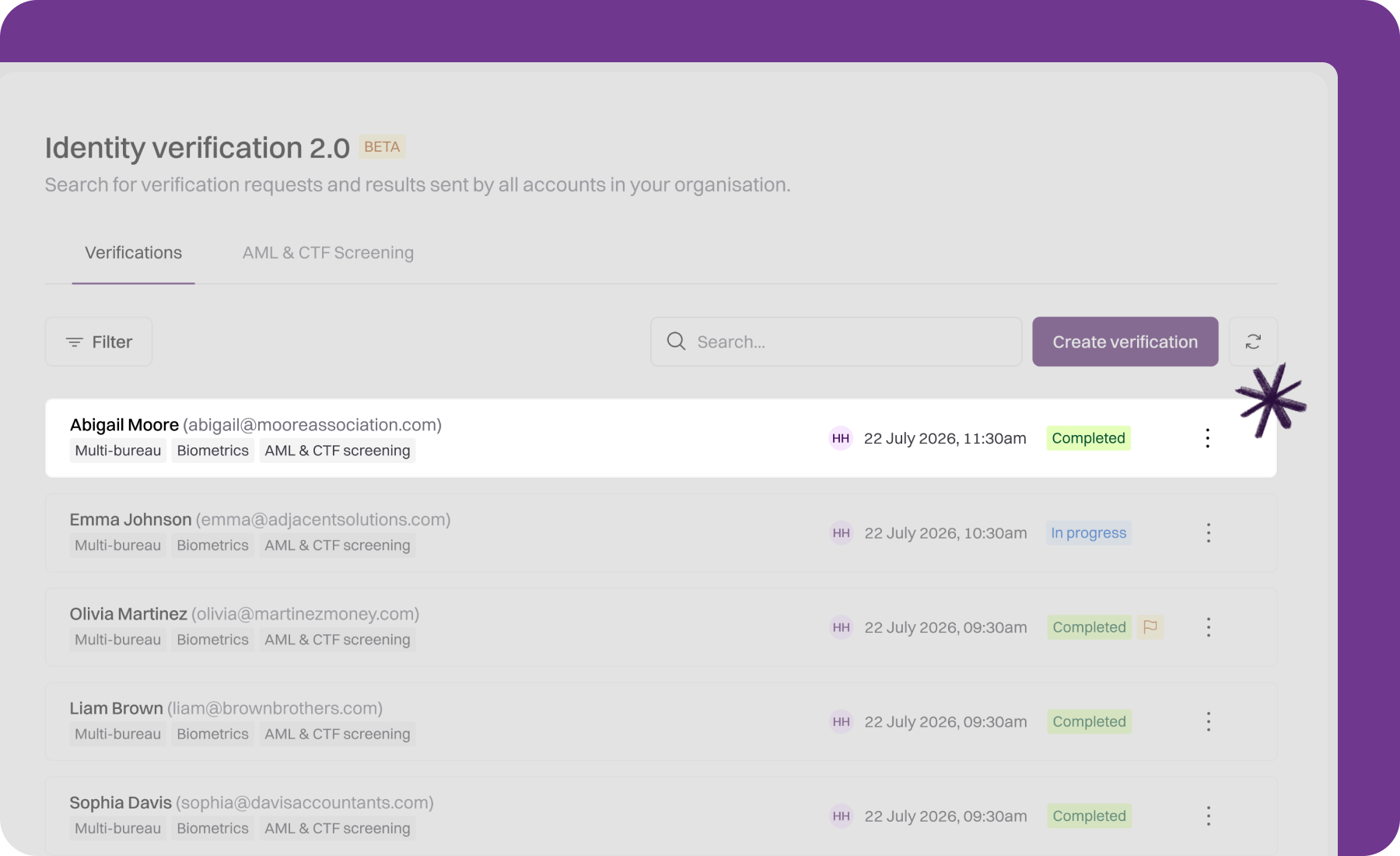
You can also access completed verifications at any time from the Verifications tab in Identity verification 2.0.
Opening a verification
From the Verifications tab, click the verification you want to review.
At the top of the detail view you'll see the client's name, email, and a Download reports button — click this to download the identity verification report and, if enabled, the AML & CTF screening report.
Next to Download reports is a three-dots menu with additional actions:
Edit details — update the client's contact details if they've changed.
Cancel request — cancel an in-progress verification.
Purge verification — permanently destroy the sensitive verification data. See Purging and destroying sensitive verification data for detail.
If the verification is linked to a client from an integration (for example, Xero Practice Manager), a banner near the top gives you a shortcut to open the client in that platform.
Request details
Displays the information entered when the request was created:
Verification Id — the unique identifier for the request.
Name, Email address, and Mobile number — the client's contact details.
Status — the current verification status.
Checks — the types of checks performed (Multi-bureau, Biometrics, AML & CTF screening).
Created and Completed — timestamps for when the request was created and when verification was completed.
Created by — the team member who created the request.
Sent on behalf of — the group or organisation the request was sent from.
Verification availability — who can see and manage the verification.
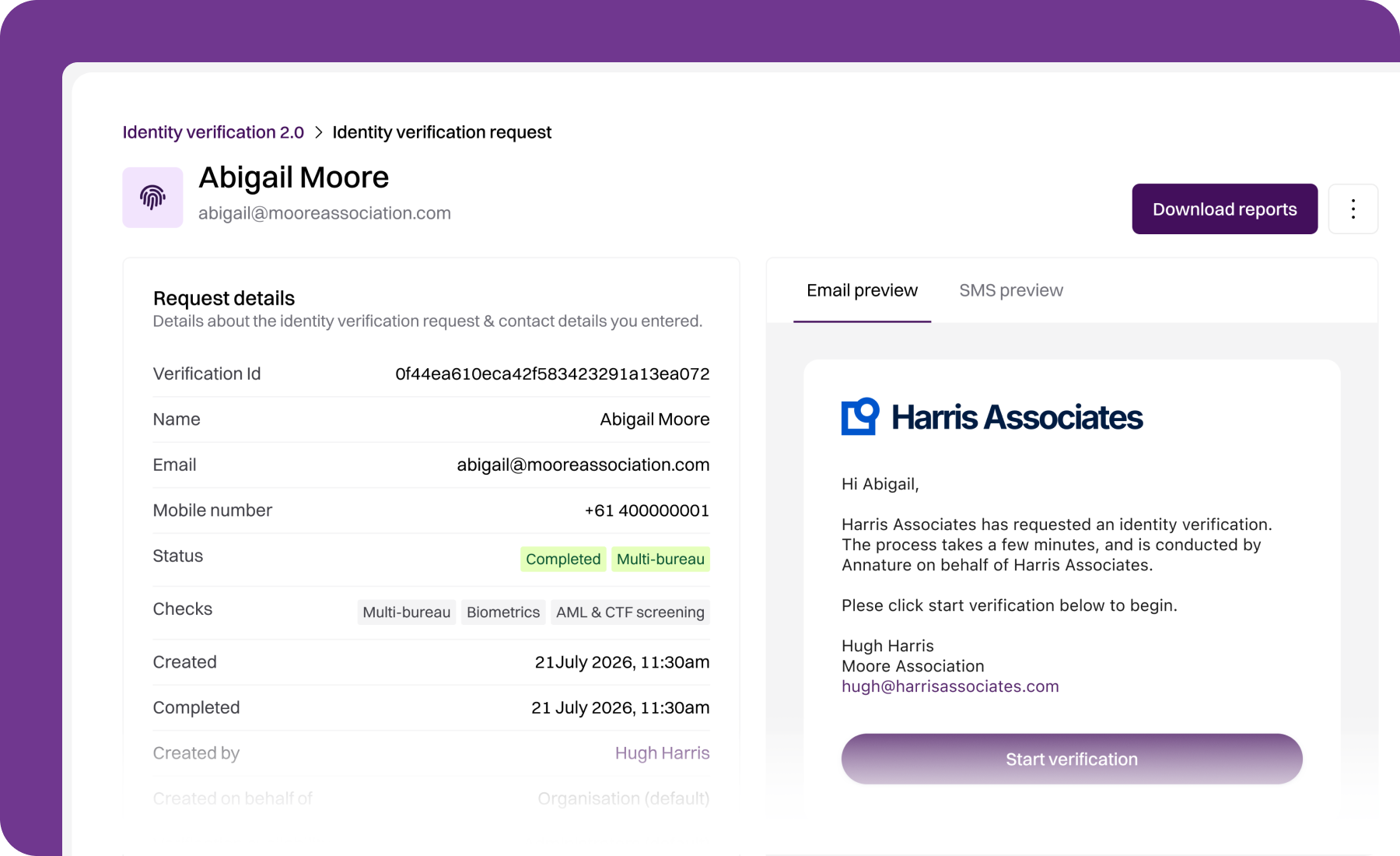
Email and SMS preview
The email and SMS the client received are shown, so you can confirm exactly what was sent — including any personalised message you added.
Verification evidence
Click Show evidence to view the document images and selfie captured during verification.
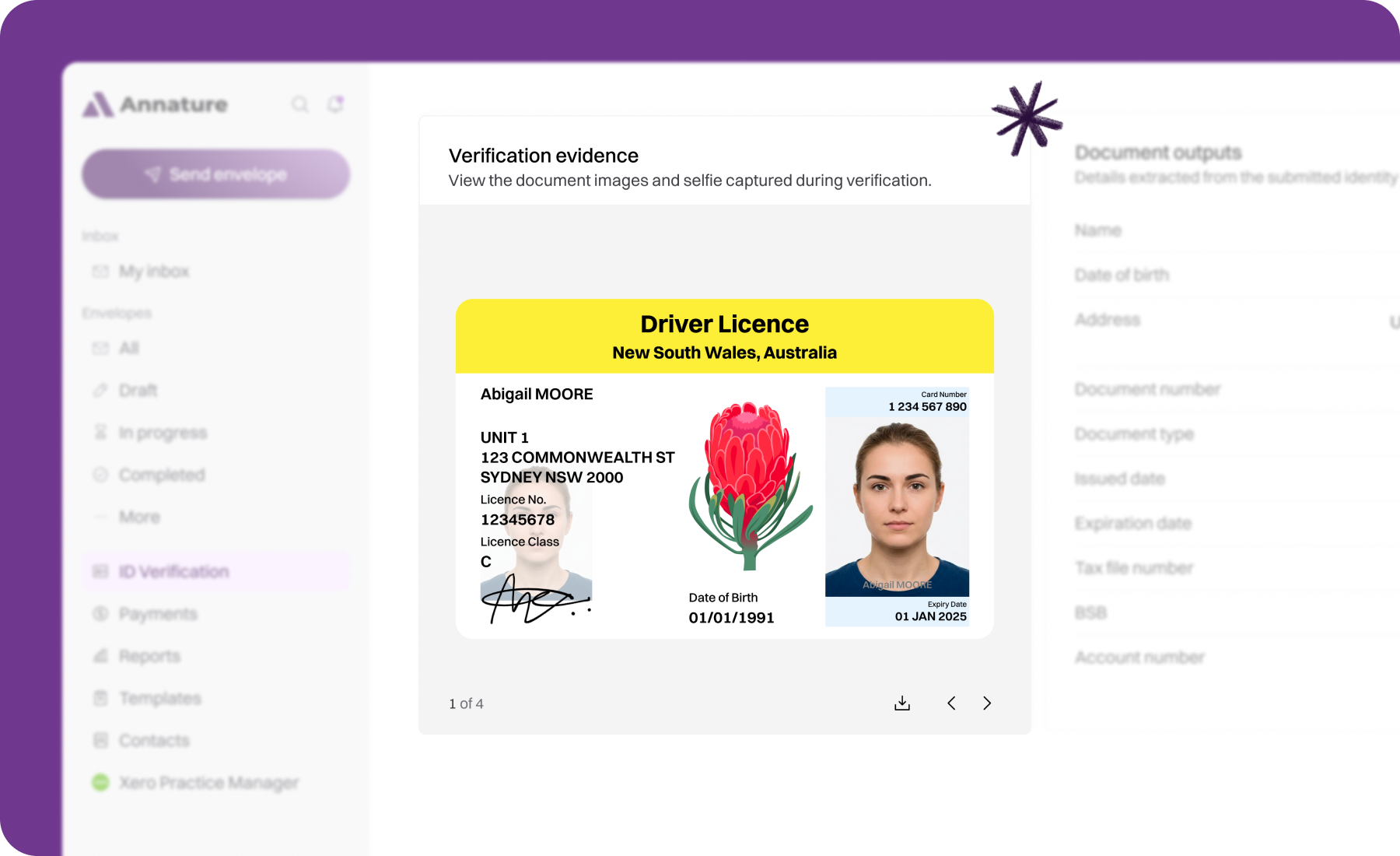
This action is recorded in the audit log as an electronic sighting of the client's identity documents.
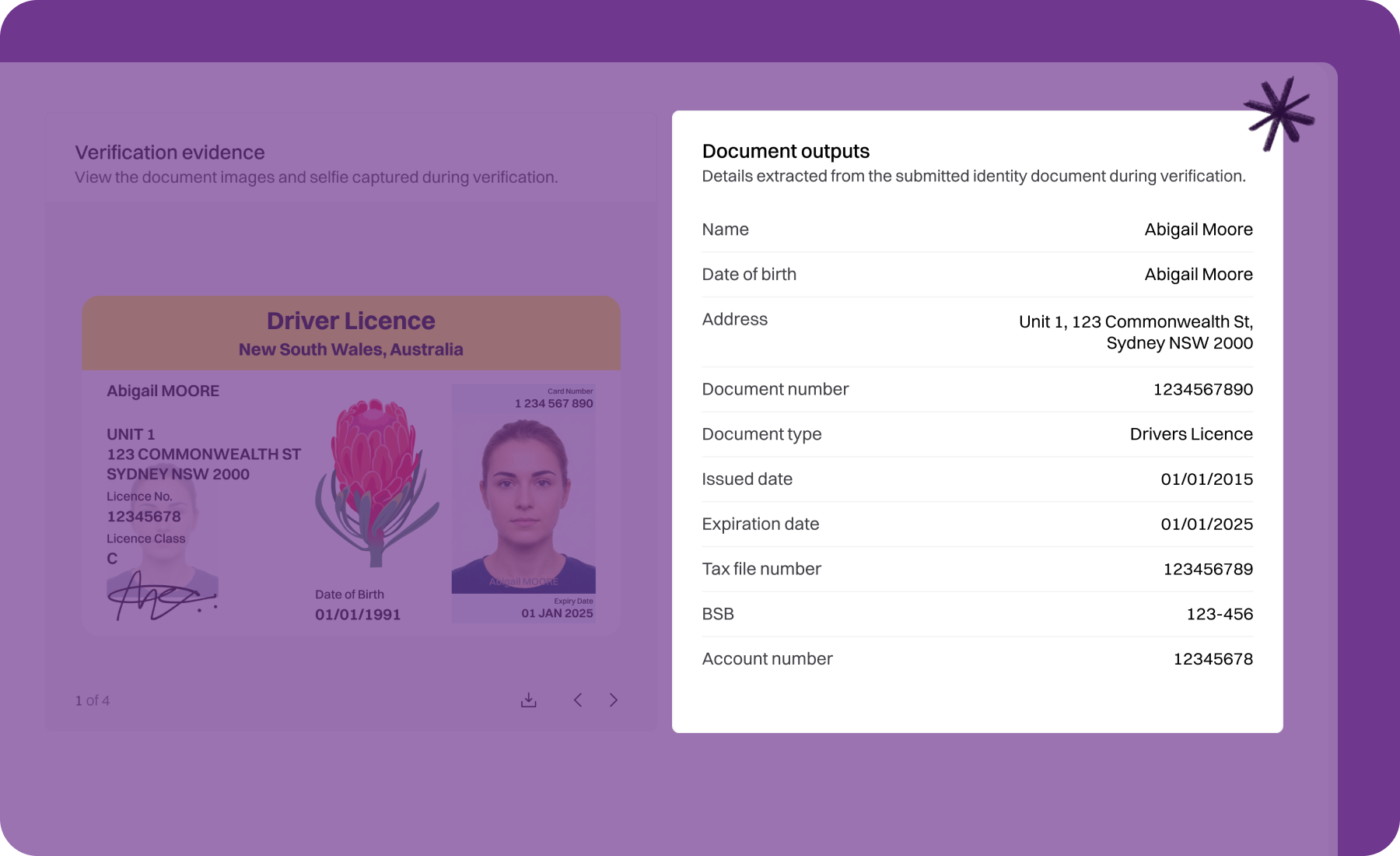
Document outputs
Details extracted from the submitted identity document:
Name
Date of birth
Address
Document number
Document type (e.g. Driver's License, Passport)
Issued date and Expiration date
Tax file number, BSB, and Account number — if tax details were requested.
AML & CTF screening
If AML & CTF screening was enabled, this section shows the outcome of screening checks across four categories:
Sanctions & watchlist — Sanctions lists, other official lists, war crimes, terror, other exclusion lists, and sanctions control.
Politically exposed persons — PEP levels 1 through 4.
Adverse media — Environment, social & labour, competitive & financial, and regulatory.
Other lists — Associated entity, organised crime, financial crime, tax crime, corruption, and trafficking.
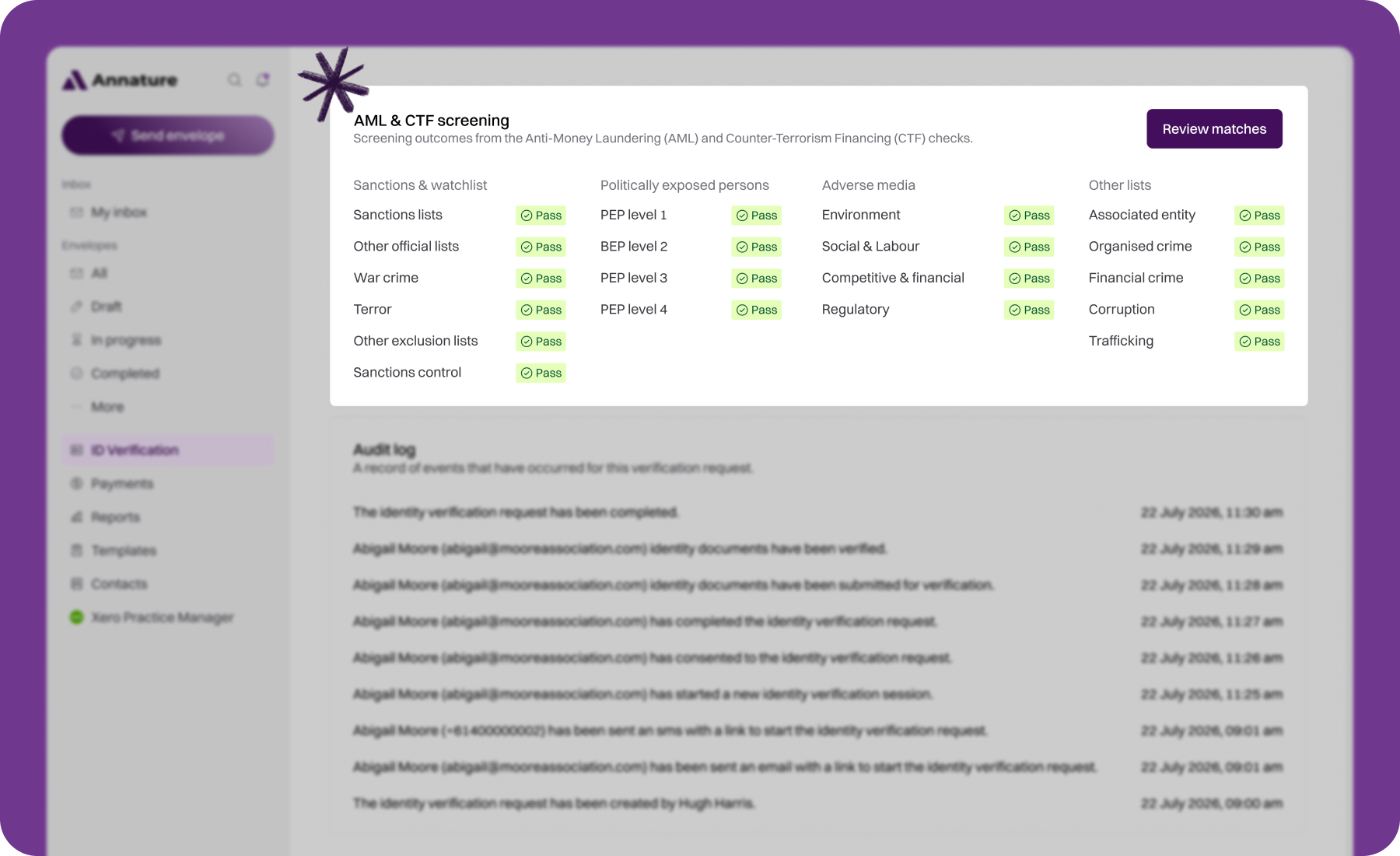
Each item shows a Pass or Flagged status.
If any item is flagged, click Open to review the matches in detail. See Reviewing a completed AML & CTF screening for detail on how to review matches.
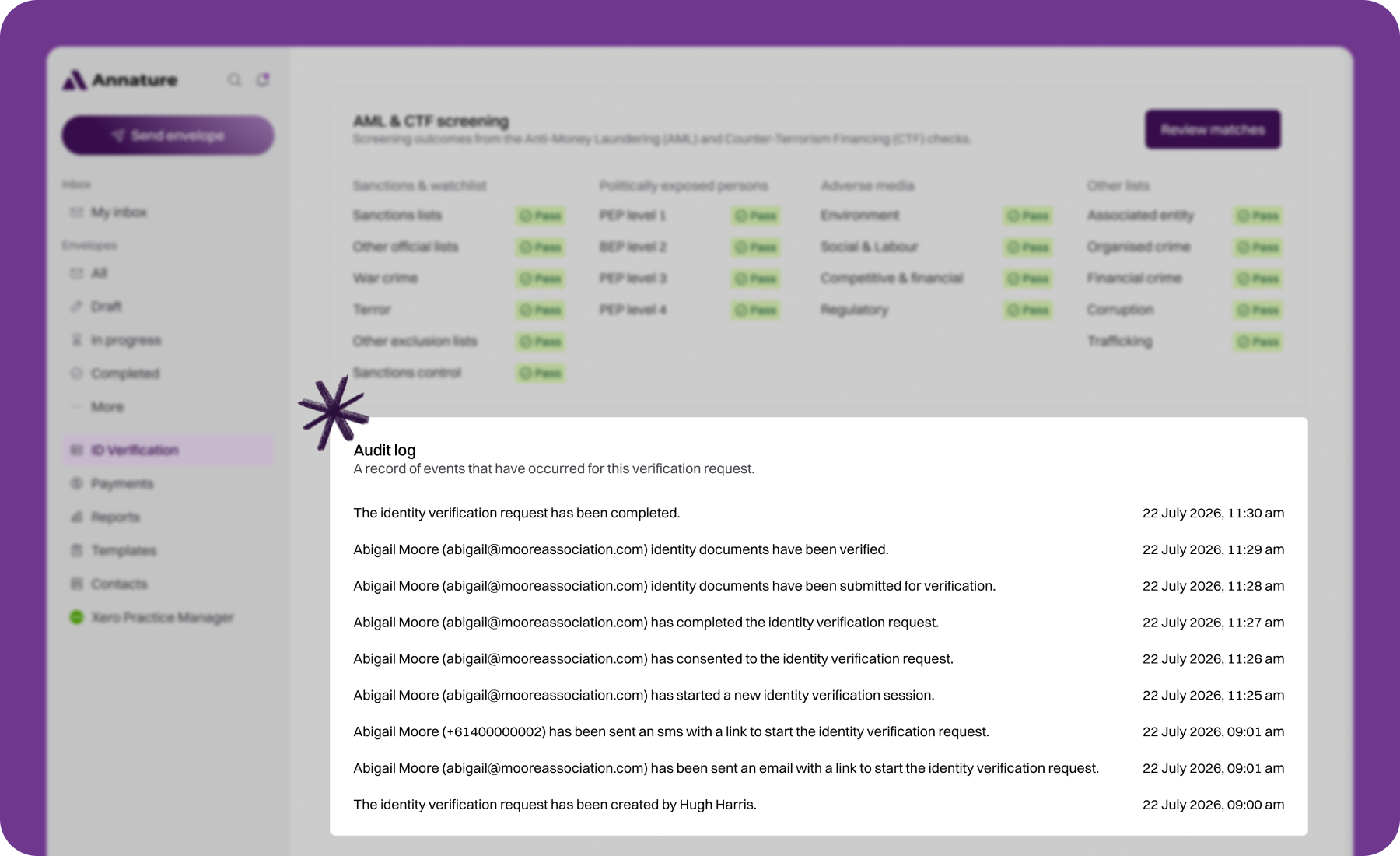
Audit log
At the bottom of the detail view, the audit log provides a chronological history of every event related to the verification — when the client was notified, when they started their session, when they consented, when they submitted documents, when verification was completed, and when evidence was sighted.
Related articles
Was this helpful?