
Completing a verification
A client-facing guide to completing an identity verification, from opening the request through to submitting your ID.
This guide walks you through completing an identity verification request sent to you via Annature. The process involves confirming your details, photographing your ID, and, if requested, taking a selfie — all from your phone.
We recommend completing this process on a mobile device for the best experience.
Steps to verify
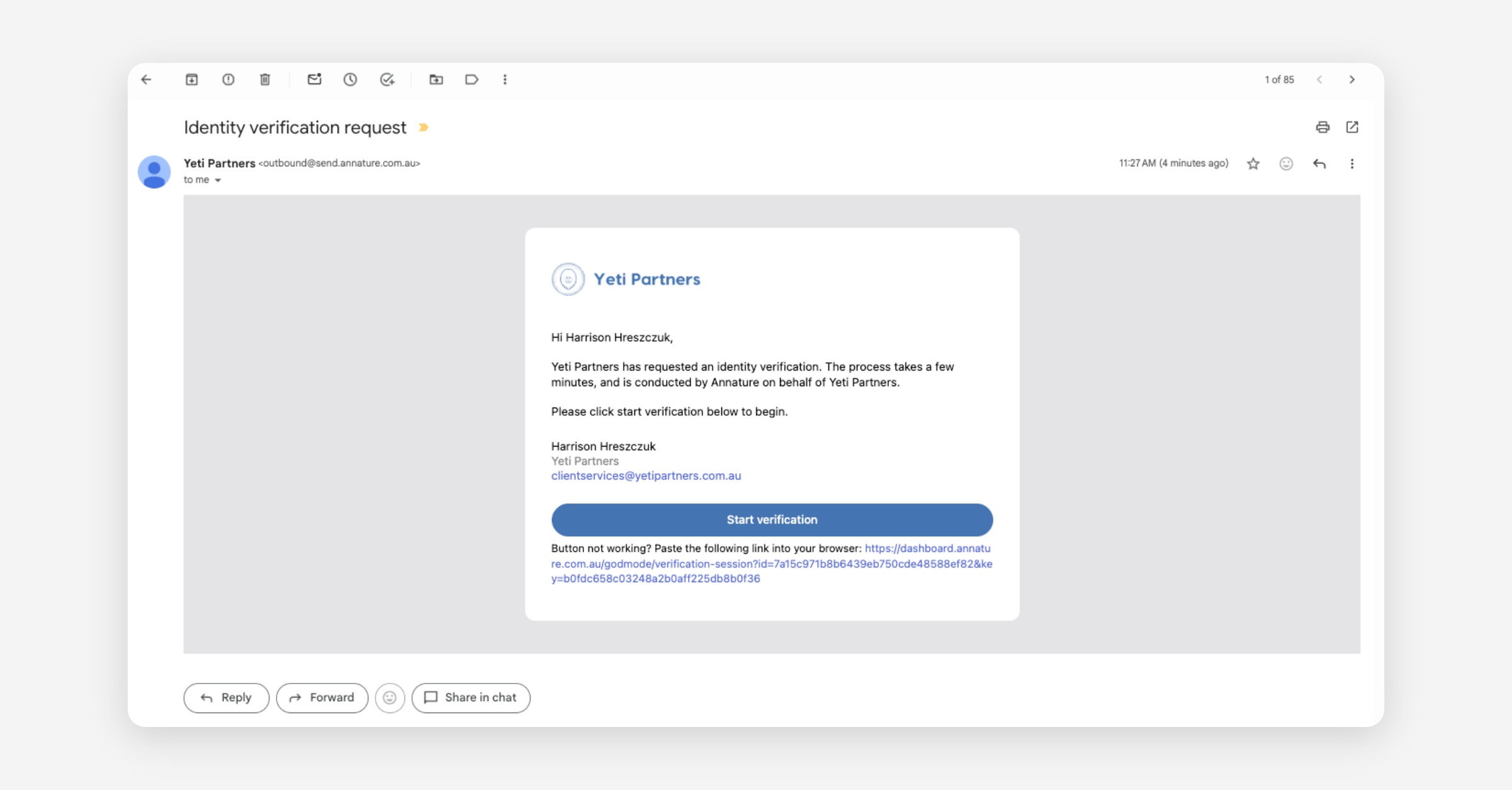
Open the SMS or email you received and tap Start verification (email) or the link in the SMS.
Both take you to the same place — the SMS is often the fastest way to get started on your phone.
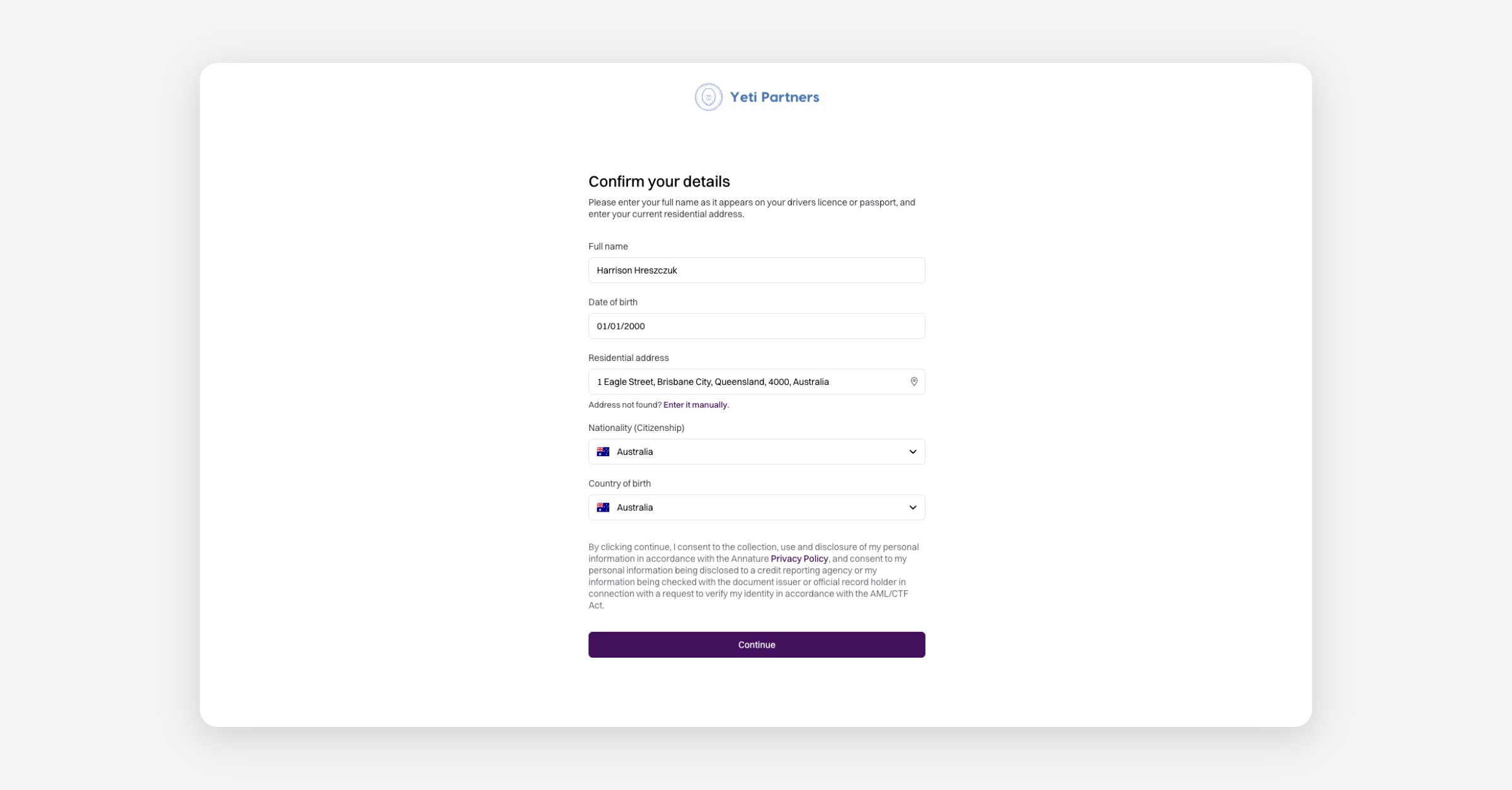
Review the Confirm your details page. Some of these will be pre-filled by the sender; complete the rest yourself:
Full name — as it appears on your driver's licence or passport.
Date of birth.
Residential address — start typing and select a match from the dropdown, or click Enter it manually if your address isn't found.
Nationality (Citizenship).
Country of birth.
If the sender has requested tax details, you'll also be asked to provide your Tax File Number (TFN), BSB, and account number.
Review the consent statement and click Continue to agree to the collection, use, and disclosure of your personal information in accordance with Annature's Privacy Policy and the AML/CTF Act.
A dialog will appear letting you know that Annature works with Stripe to verify your identity. Review the details and click Agree and continue to proceed.
If you're on a computer, scan the QR code with your mobile phone to continue the process on your device.
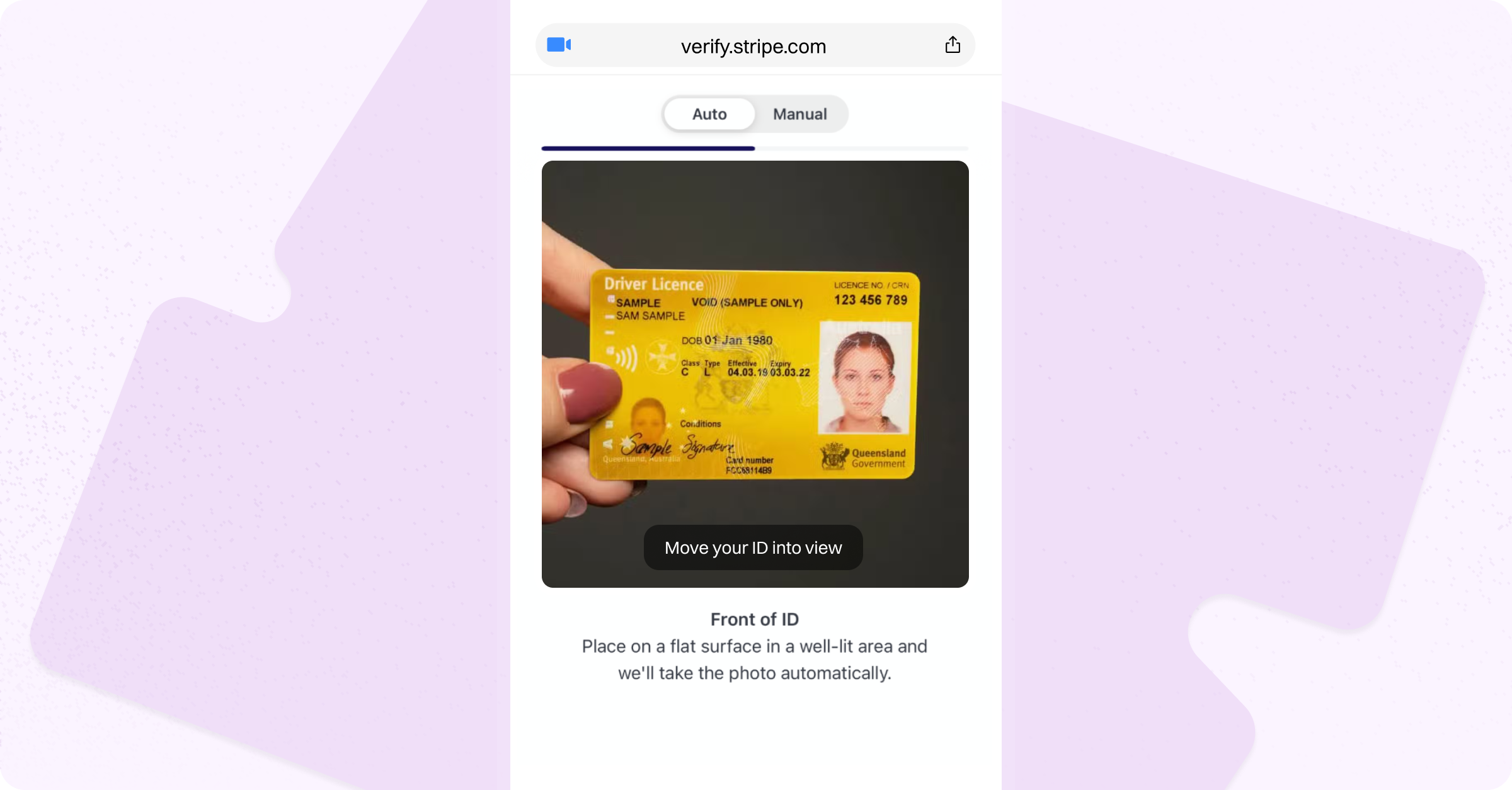
Select your ID type — passport or driver's licence — and tap Next.
Take a photo of the front and back of your ID by aligning it with the on-screen guide.
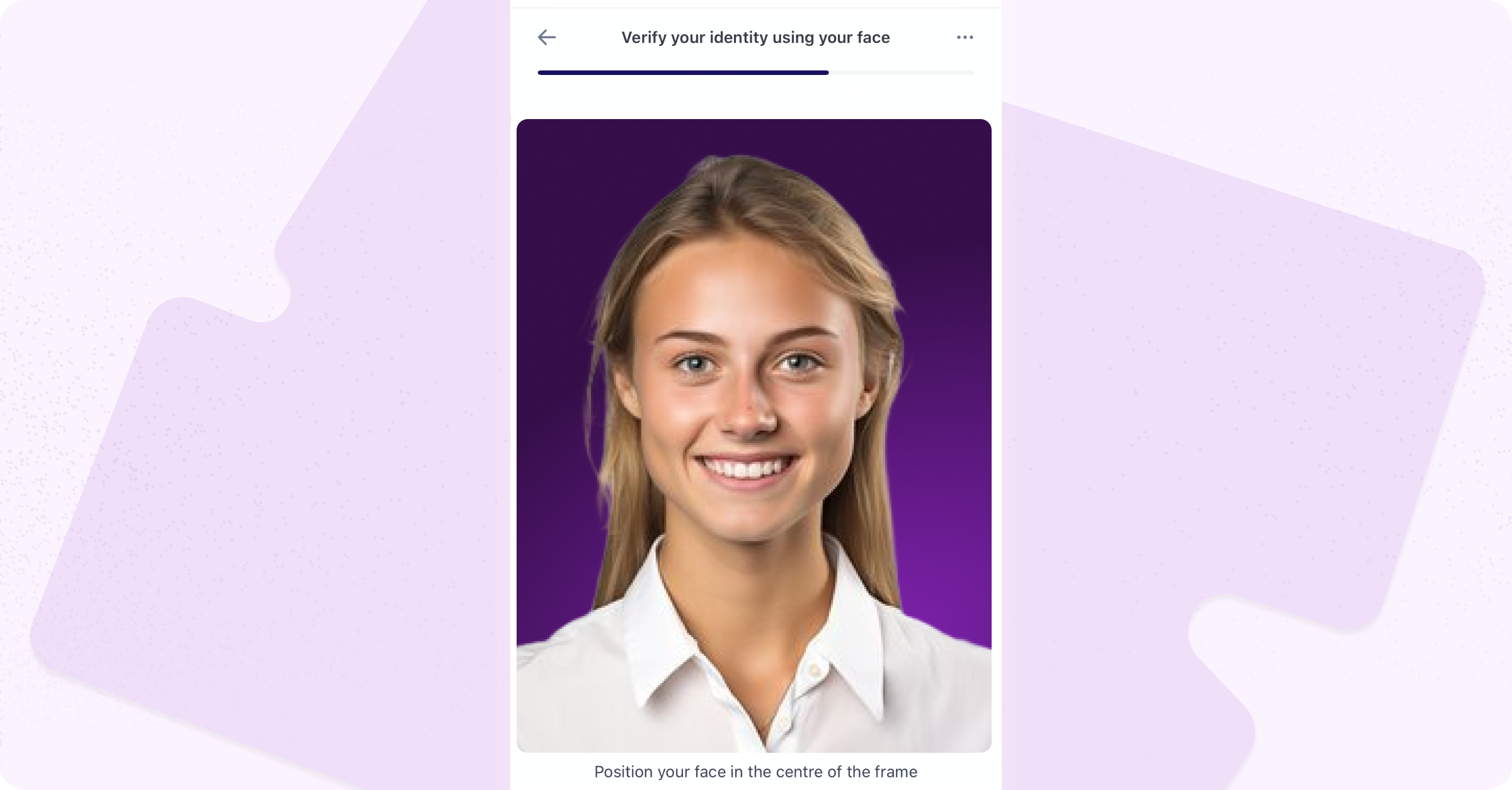
If a biometrics check has been requested, take a selfie when prompted.
Once submitted, your verification will be processed automatically and the sender will be notified — nothing else is required from you.
Make sure the details on your ID are clearly legible in the photos. If not, you'll be prompted to retake them.
Was this helpful?