
Verify your identity through Annature
A client-facing guide to completing an identity verification, from SMS authentication to ID capture.
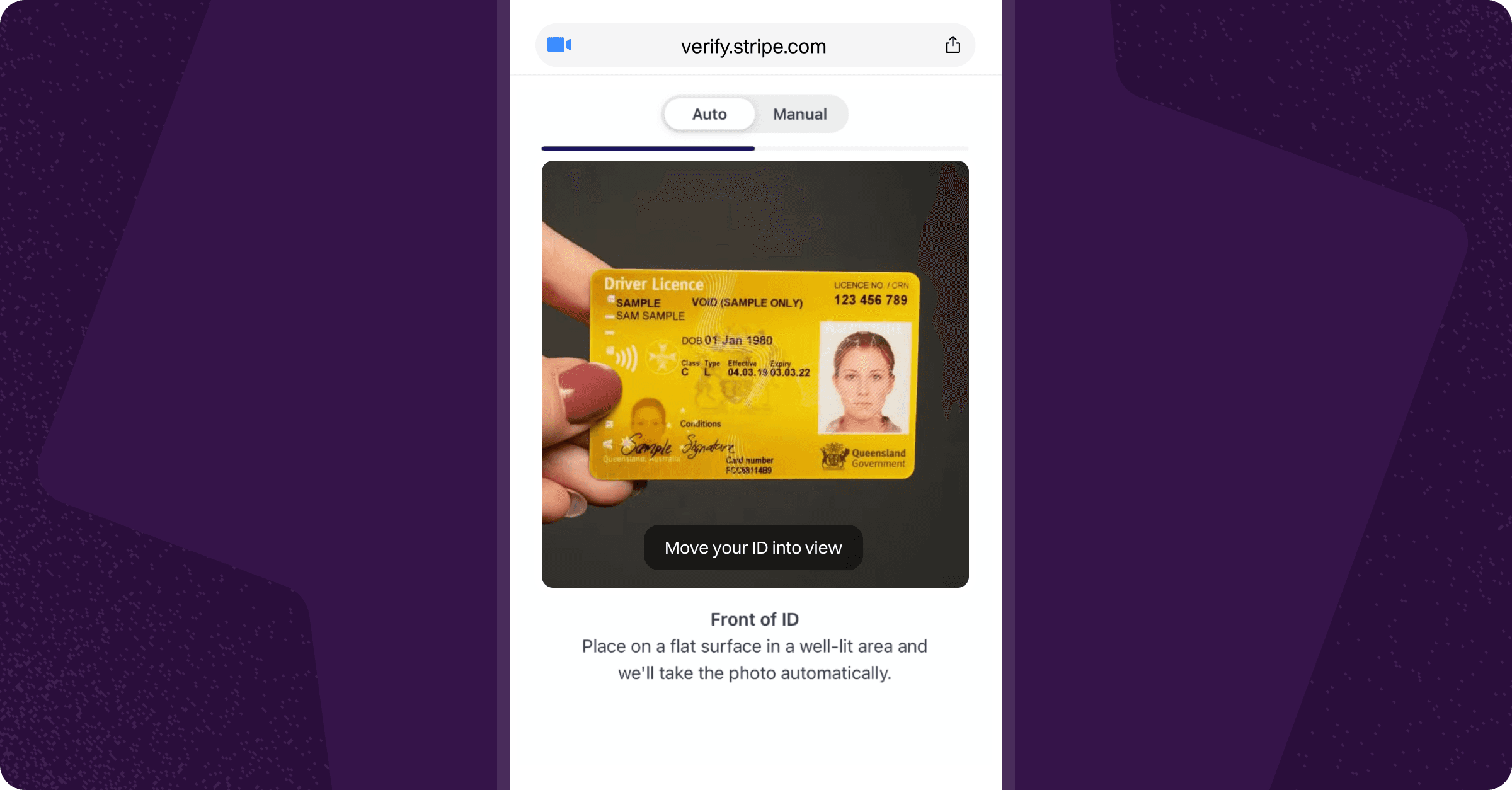
This guide walks you through completing an identity verification request sent to you via Annature. The process involves confirming your details, photographing your ID, and optionally taking a selfie — all from your phone.
We recommend completing this process on a mobile device for the best experience.
Steps to verify
Open the email you received and click Start verification.
Click Send code to receive an authentication code via SMS, then enter the code and click Continue.
Enter your full name and date of birth as they appear on your ID. Also enter your residential address by selecting a match from the dropdown as you type, then click Continue.
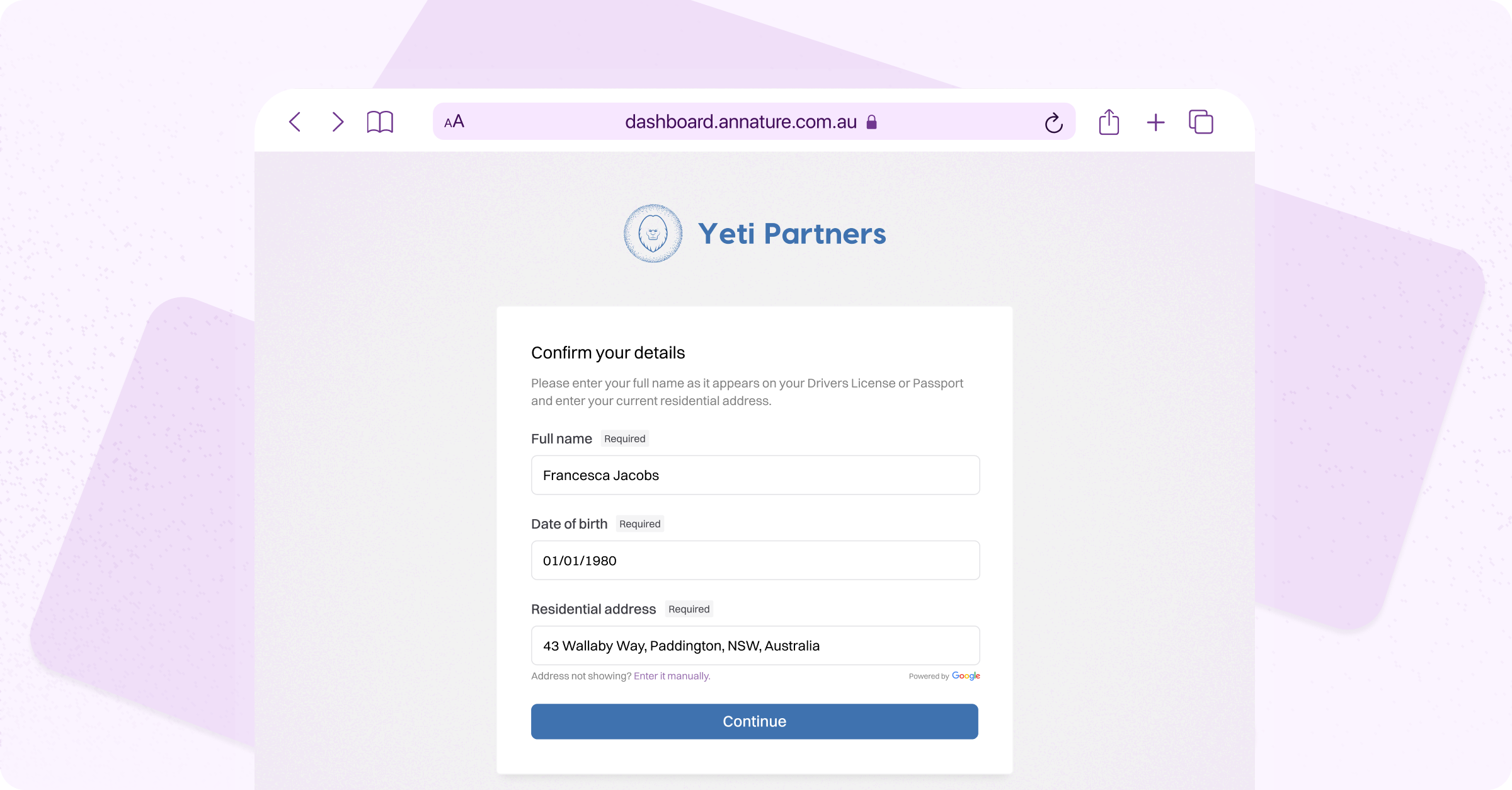
You may also be asked to provide additional details such as your TFN, BSB, and account number.
Review the terms and click Agree and continue.
If you are on a computer, scan the QR code with your mobile phone to continue the process on your device.
Select your ID type — passport or driver's licence — and tap Next.
Take a photo of the front and back of your ID by aligning it with the on-screen guide.
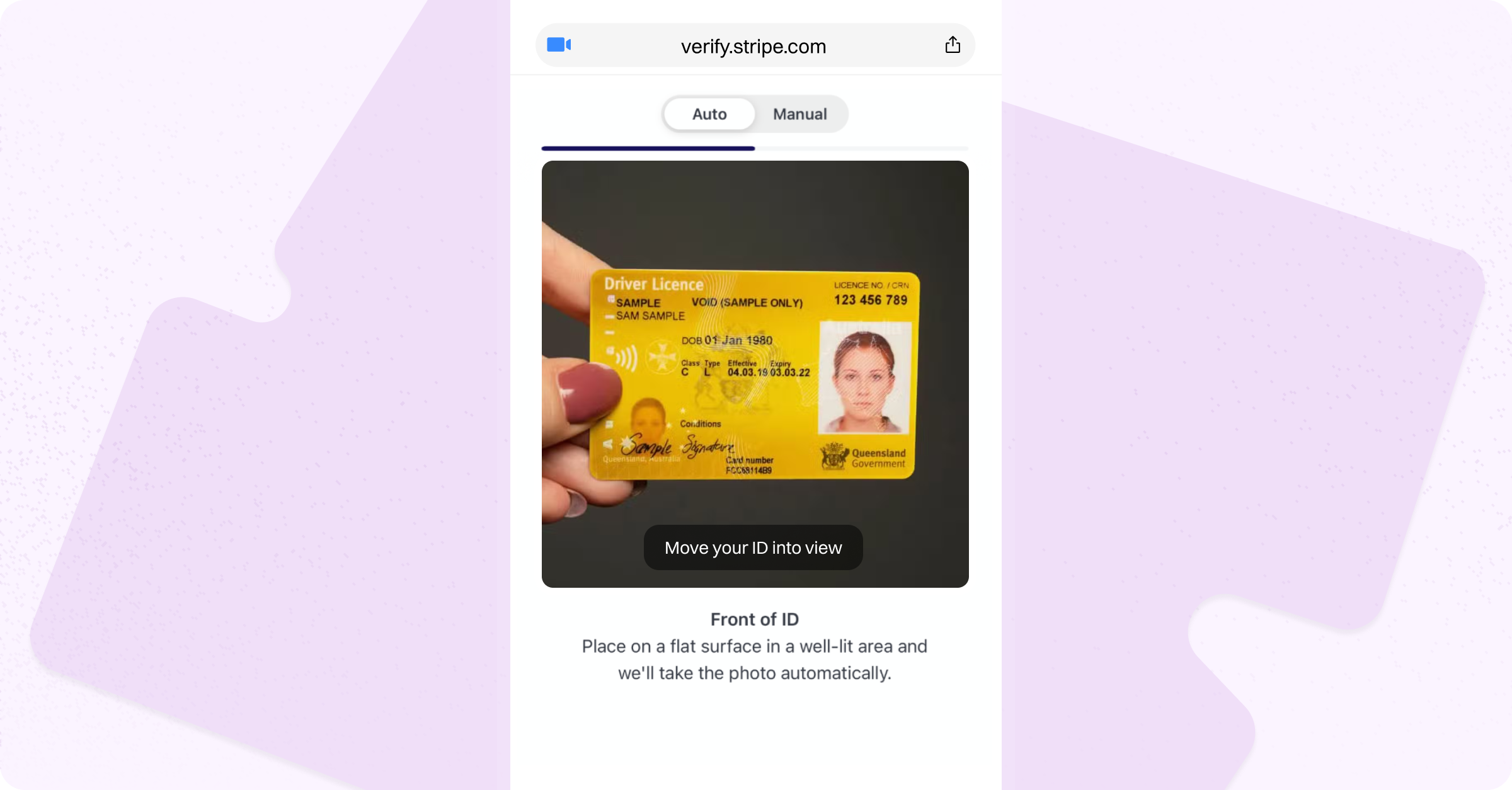
If a biometrics check is required by the sender, take a selfie when prompted.
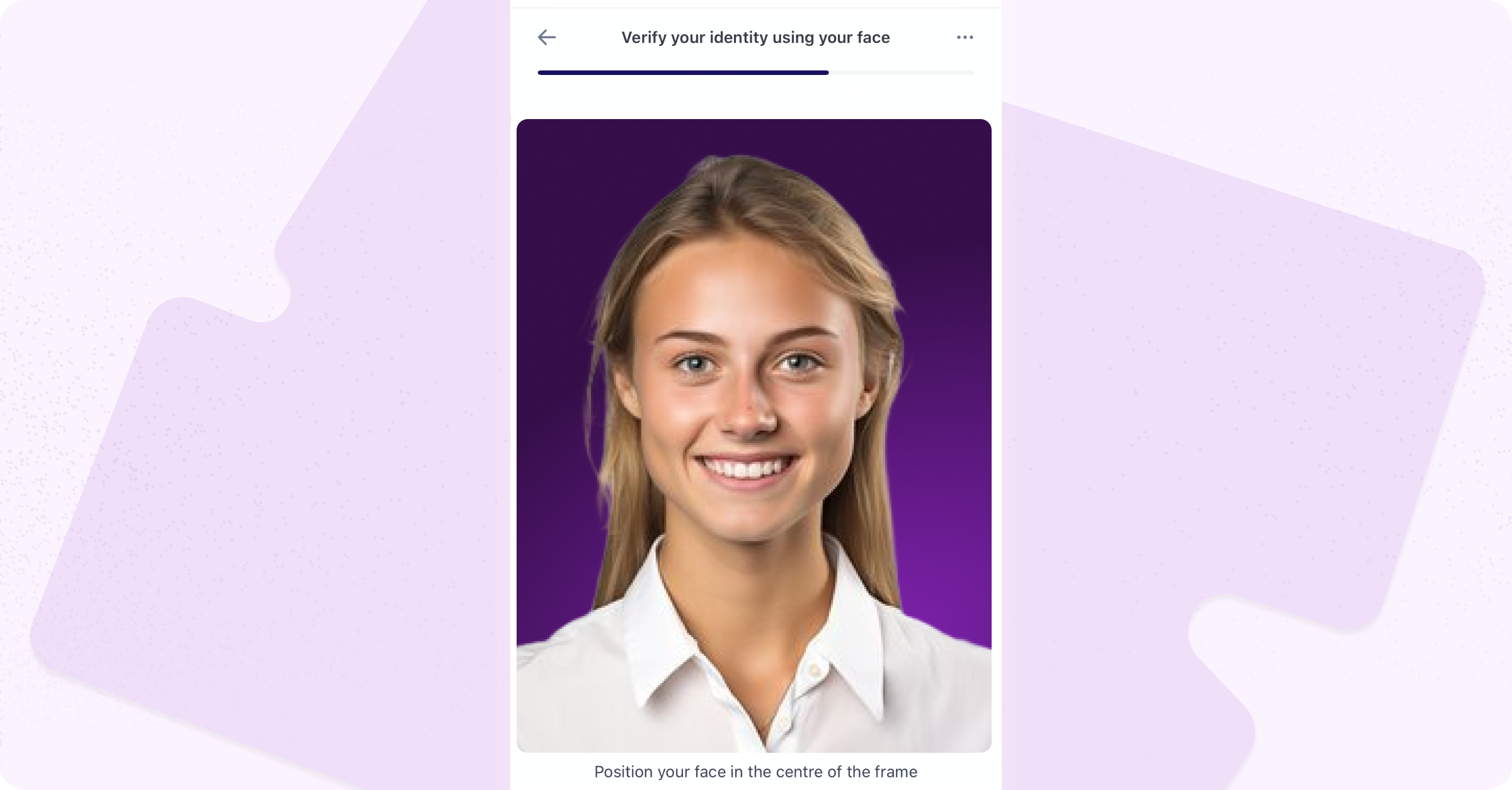
Once submitted, your verification will be processed automatically and the sender is notified - nothing else is required from you.
Make sure the details on your ID are clearly legible in the photos. If not, you'll be prompted to retake them.
Was this helpful?