
Reviewing Completed Identity Verifications
View captured document data, risk screening results, and sight your client's identity evidence from the verification detail view.
Once your client completes an identity verification request, you will receive an email notification. For your client's security, the email will not contain any personal documents or data — it will include a link to open the verification in Annature.
You can also access completed verifications at any time by navigating to Identity verification and clicking Open next to the request.
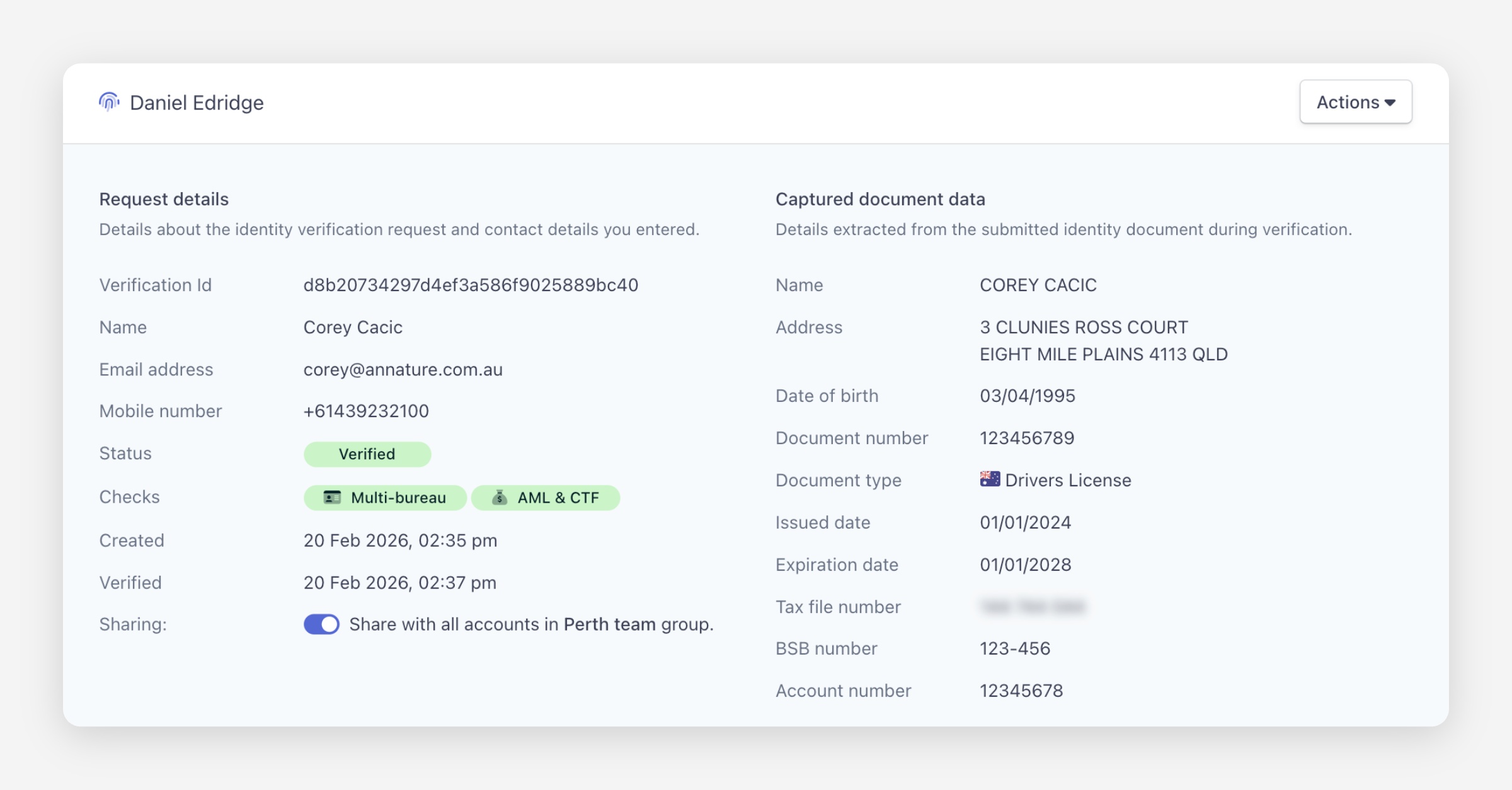
Request Details
The top of the detail view displays the information entered when the request was created:
Verification Id — The unique identifier for the request.
Name, Email address, and Mobile number — The client's contact details.
Status — The current verification status.
Checks — The types of checks performed (e.g. Multi-bureau, AML & CTF).
Created and Verified — Timestamps for when the request was created and when verification was completed.
Sharing — If the request is linked to a group, a toggle to share or unshare it with all accounts in that group.
Captured Document Data
This section displays the details extracted from the client's submitted identity document, including:
Name and Address
Date of birth
Document number, Document type, Issued date, and Expiration date
Tax file number, BSB number, and Account number (if tax details were requested)
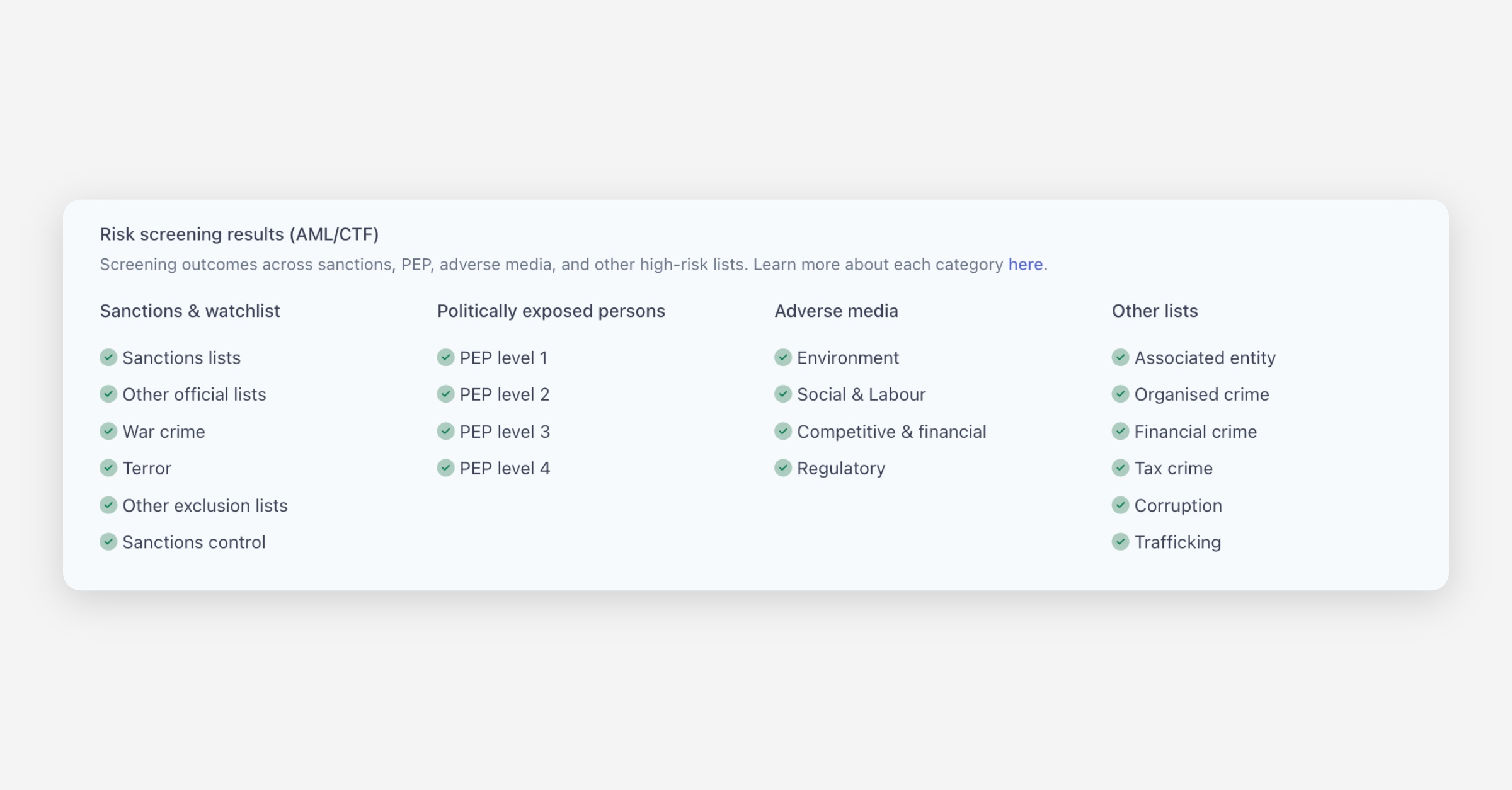
Risk Screening Results (AML/CTF)
If enhanced verification was enabled, this section displays screening outcomes across four categories:
Sanctions & watchlist — Sanctions lists, other official lists, war crimes, terror, other exclusion lists, and sanctions control.
Politically exposed persons — PEP levels 1 through 4.
Adverse media — Environment, social & labour, competitive & financial, and regulatory.
Other lists — Associated entity, organised crime, financial crime, tax crime, corruption, and trafficking.
Each item displays a clear or flagged status.
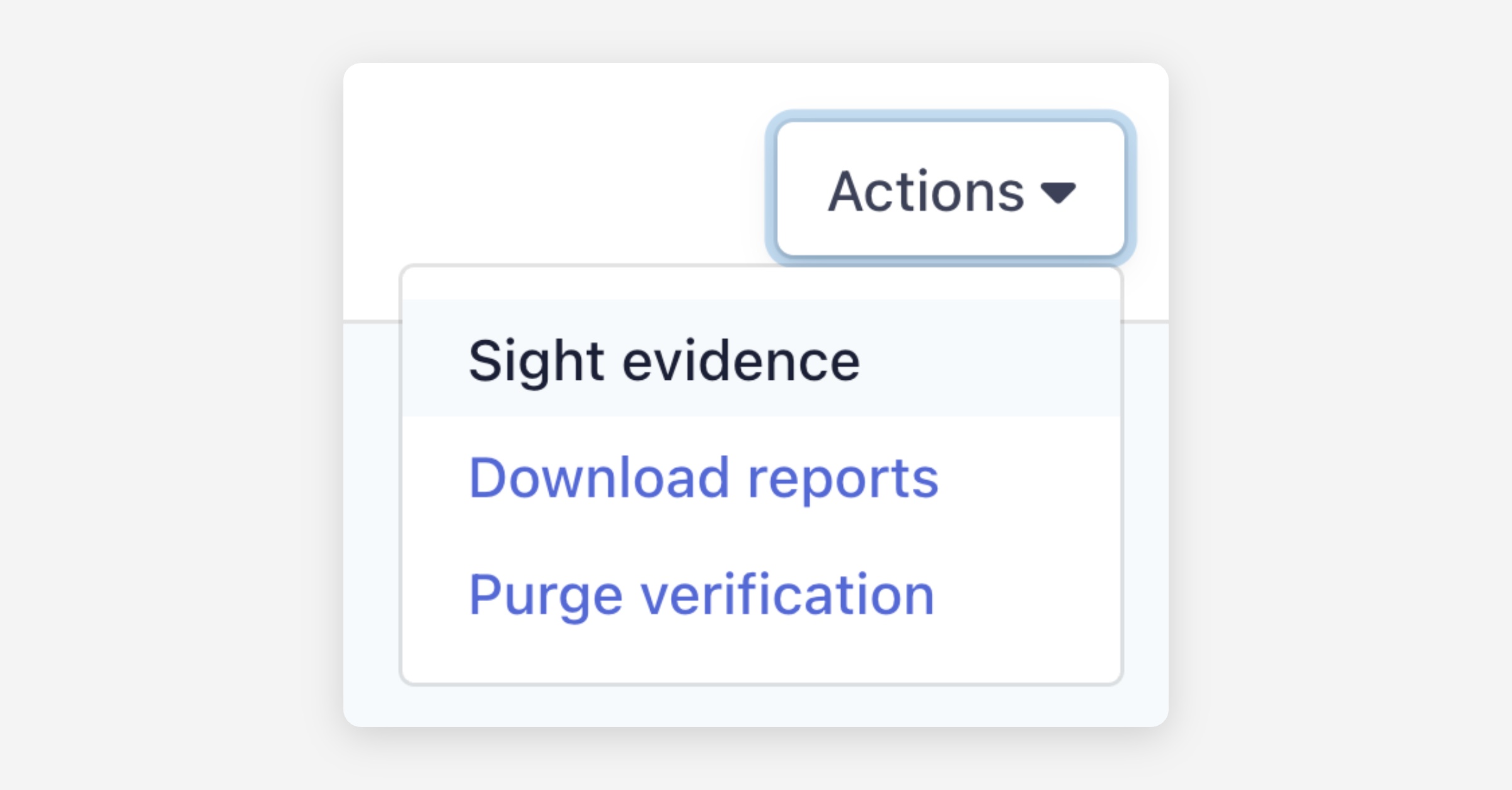
Sighting Evidence
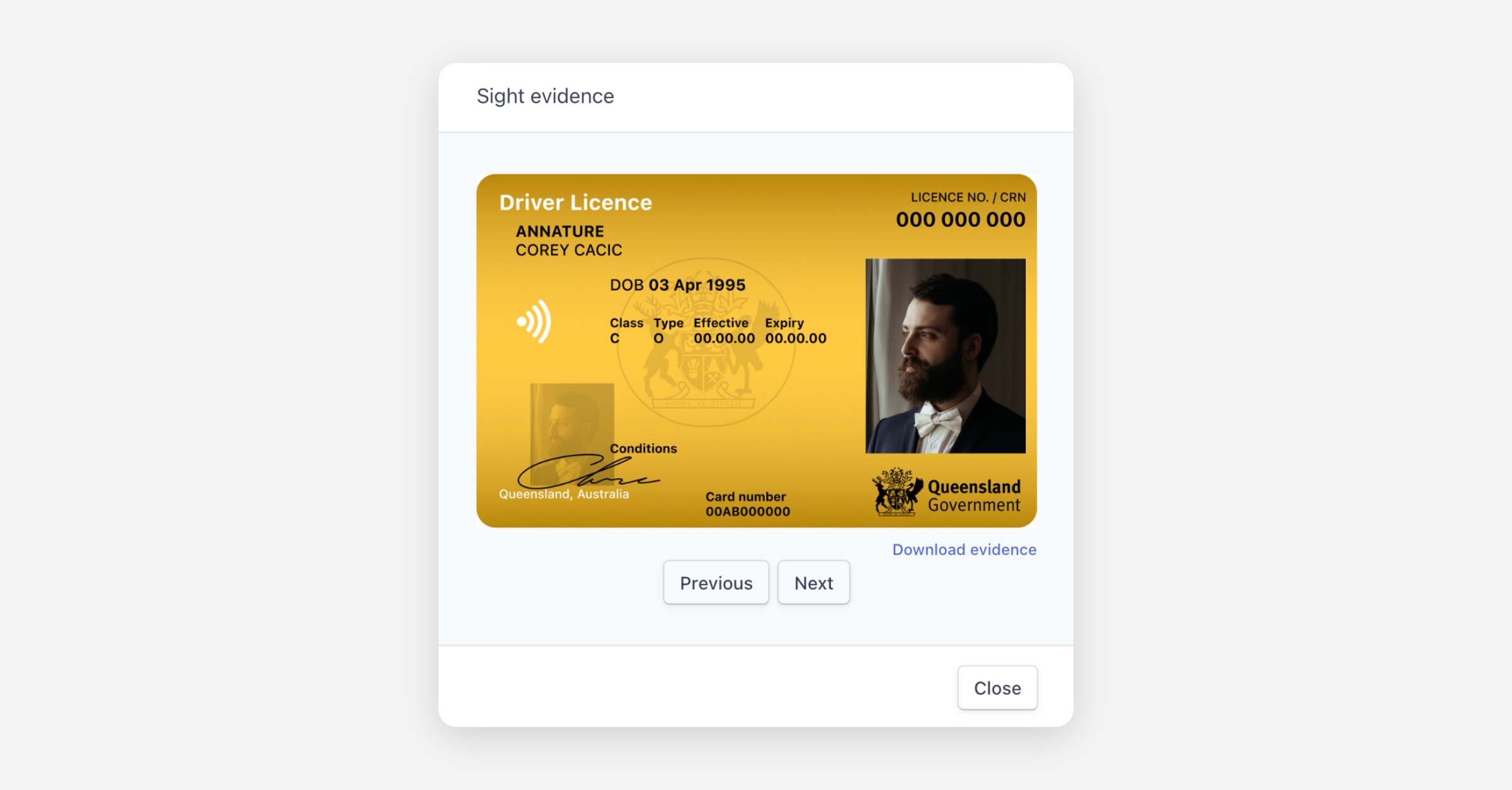
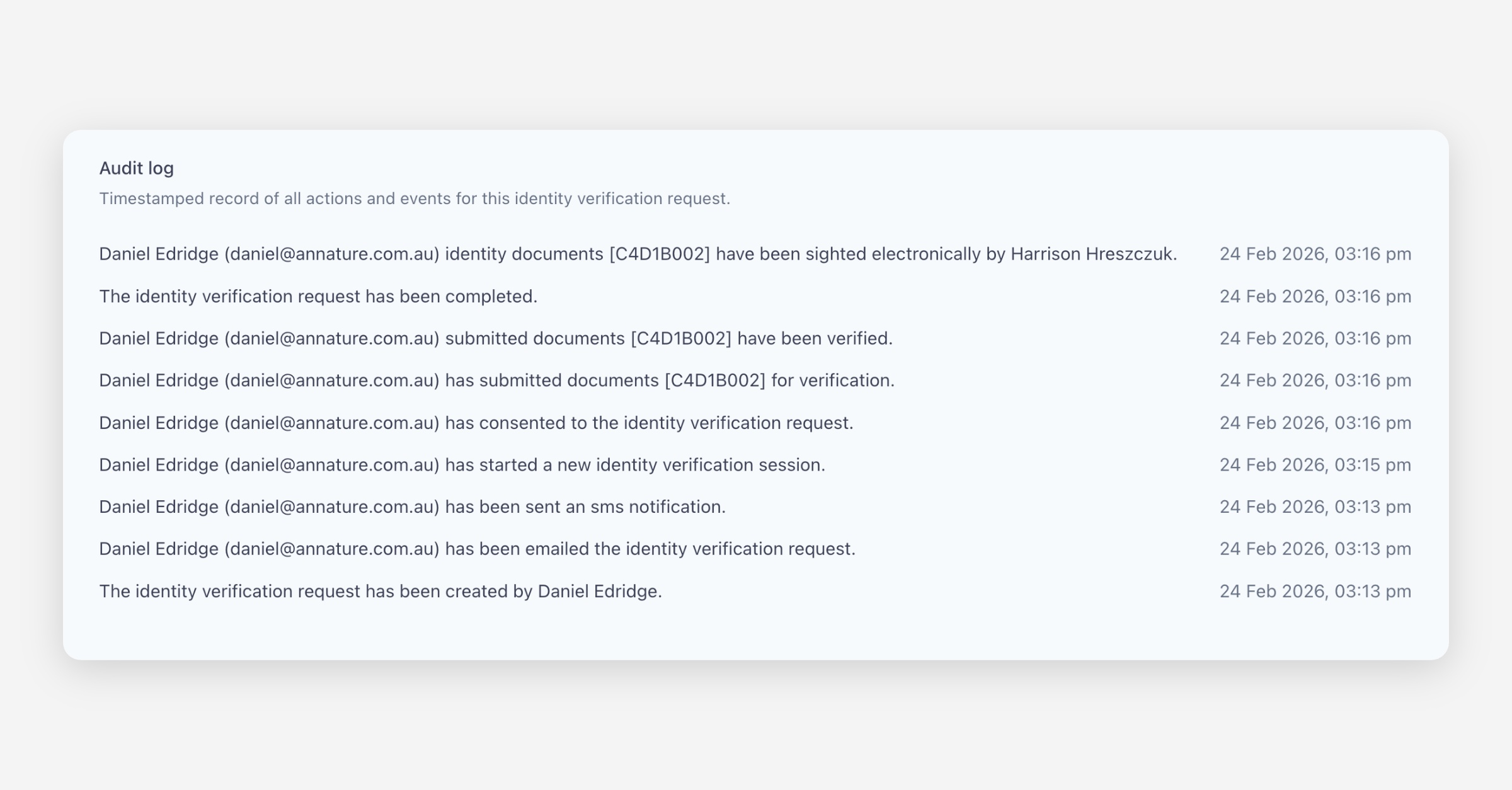
To record that you have electronically sighted the client's identity documents, click Actions in the upper right corner and select Sight evidence. You will be shown the document your client used to verify their identity, biometrics (if enabled) and an option to download it. This action is recorded in the audit log.
Audit Log
At the bottom of the detail view, the audit log provides a chronological history of all events related to the verification request, including when the client was notified, started their session, consented, submitted documents, completed verification, and when evidence was sighted.
Was this helpful?