
Xplan
Connect your Xplan client data to Annature for streamlined document handling and identity verification in financial services.

Annature's integration with Xplan streamlines client management and document handling for financial services. View and manage envelopes and identity verifications directly from within Annature, with client data synced automatically from Xplan.
Prerequisites
Only the organisation owner can connect integrations.
Connecting Xplan
Go to Settings > Integrations.
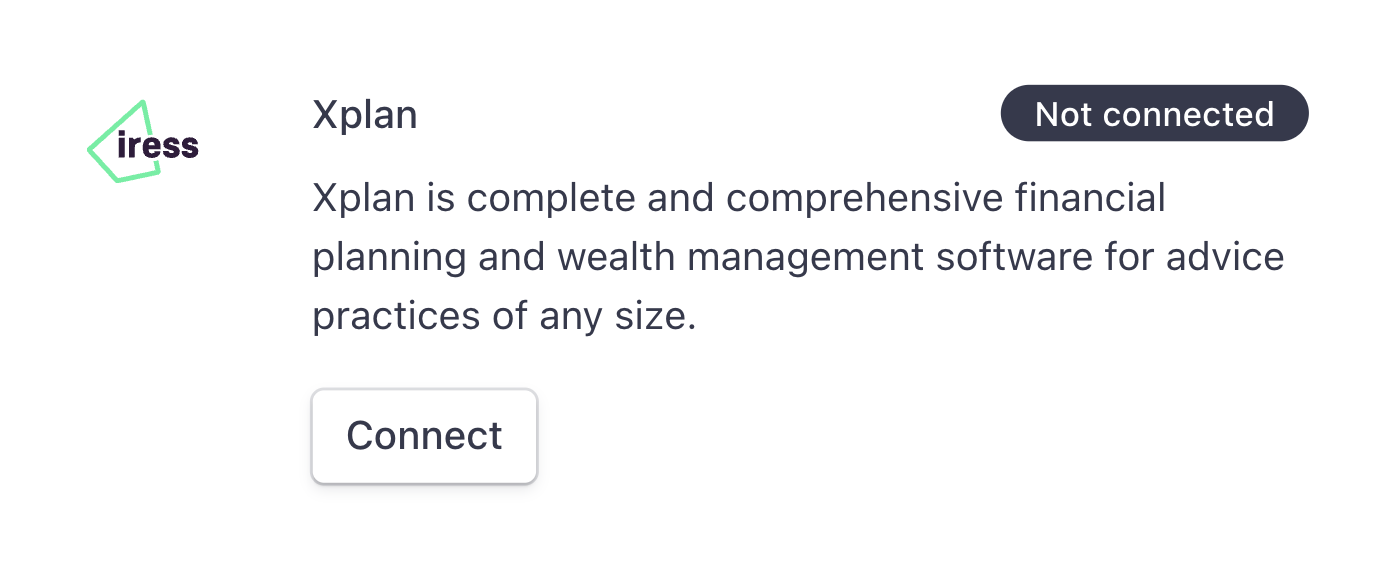
Click Connect under Xplan.
Enter your Xplan site URL (e.g.
https://yourfirm.xplan.iress.com.au).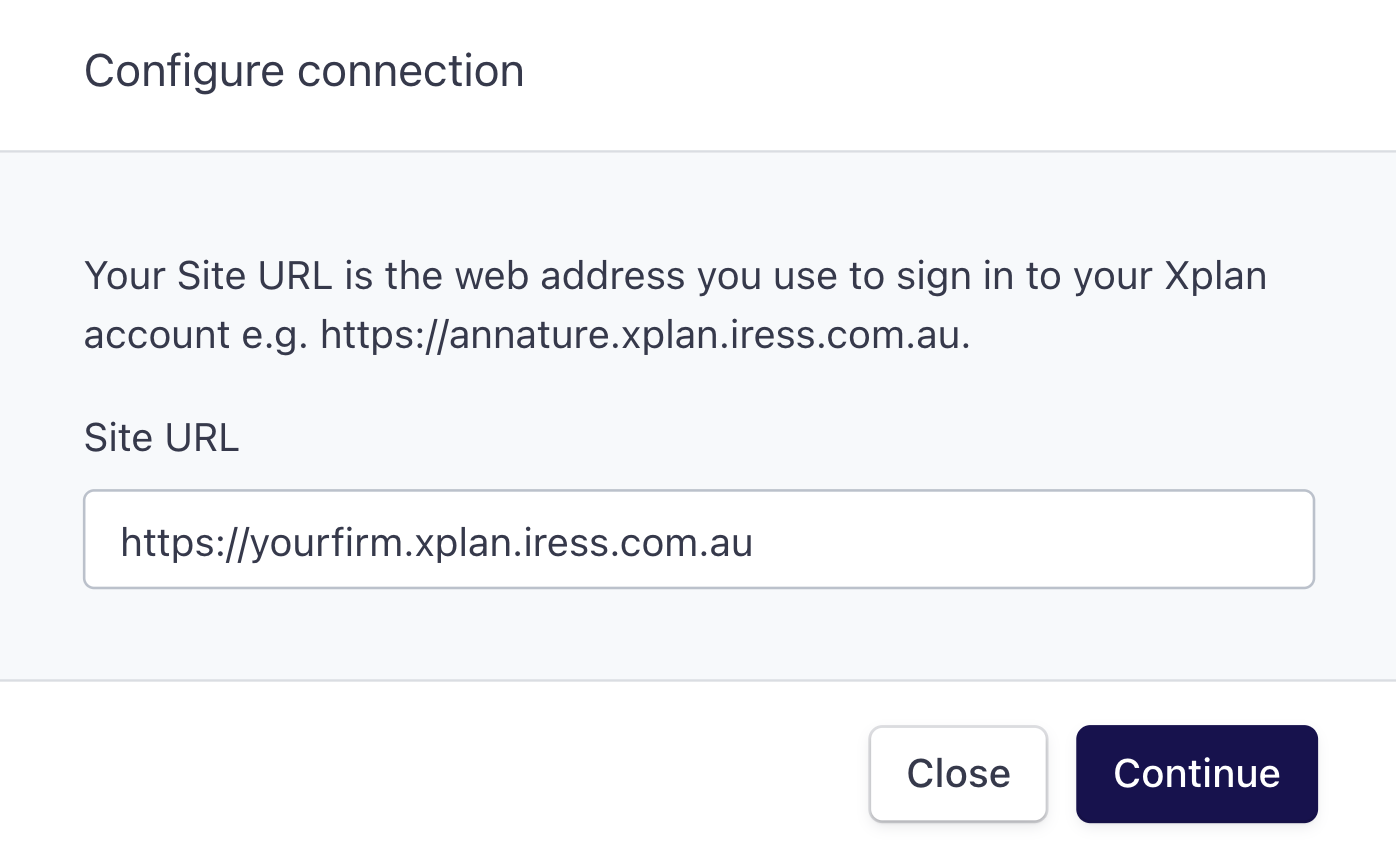
Click Continue and log in to your Xplan account if prompted.
Click Allow to grant Annature access.
Once connected, Xplan will appear in your left-hand dashboard menu where you can access all your Xplan clients.
Sending envelopes to Xplan clients
There are two ways to send envelopes to Xplan clients.
From the Xplan integration page:
Click Open beside a client.
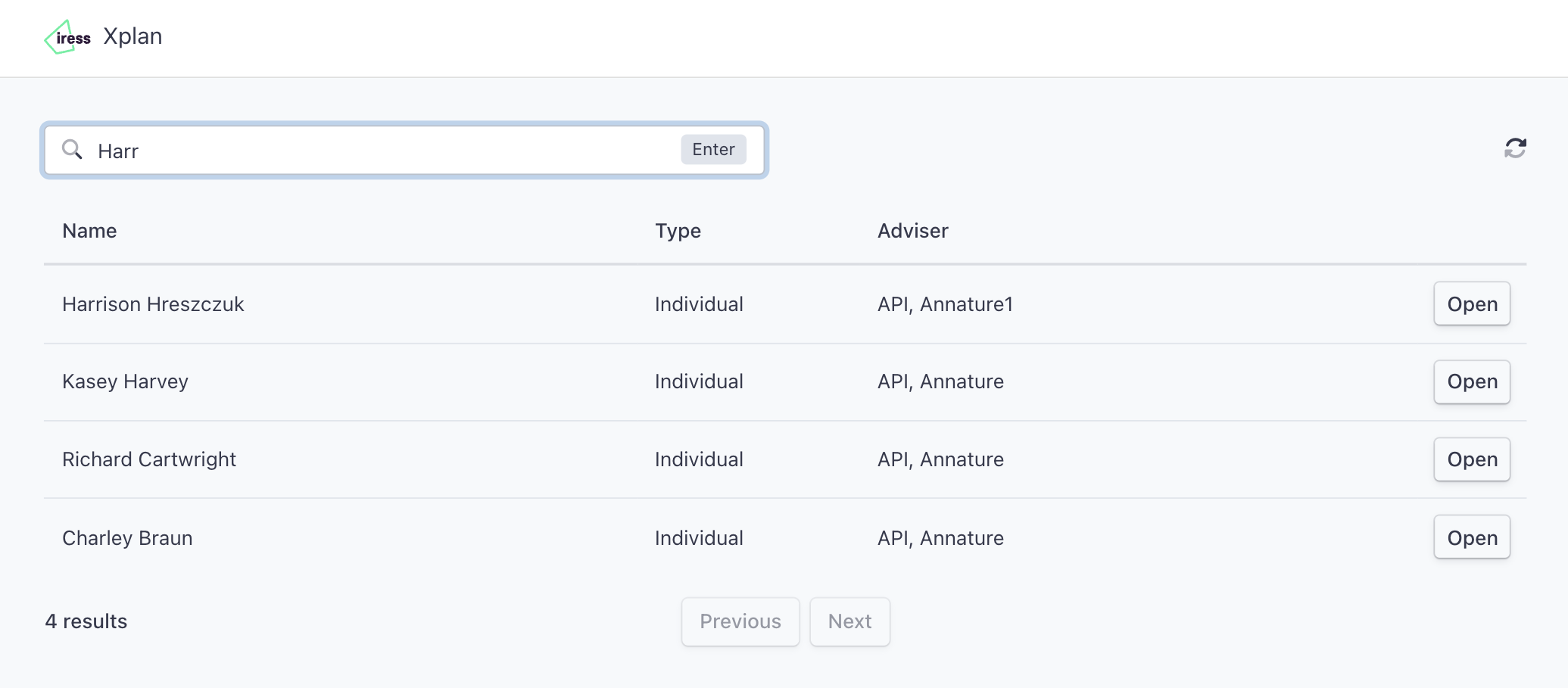
Under Envelopes, click Create envelope. The recipient details will be populated automatically.
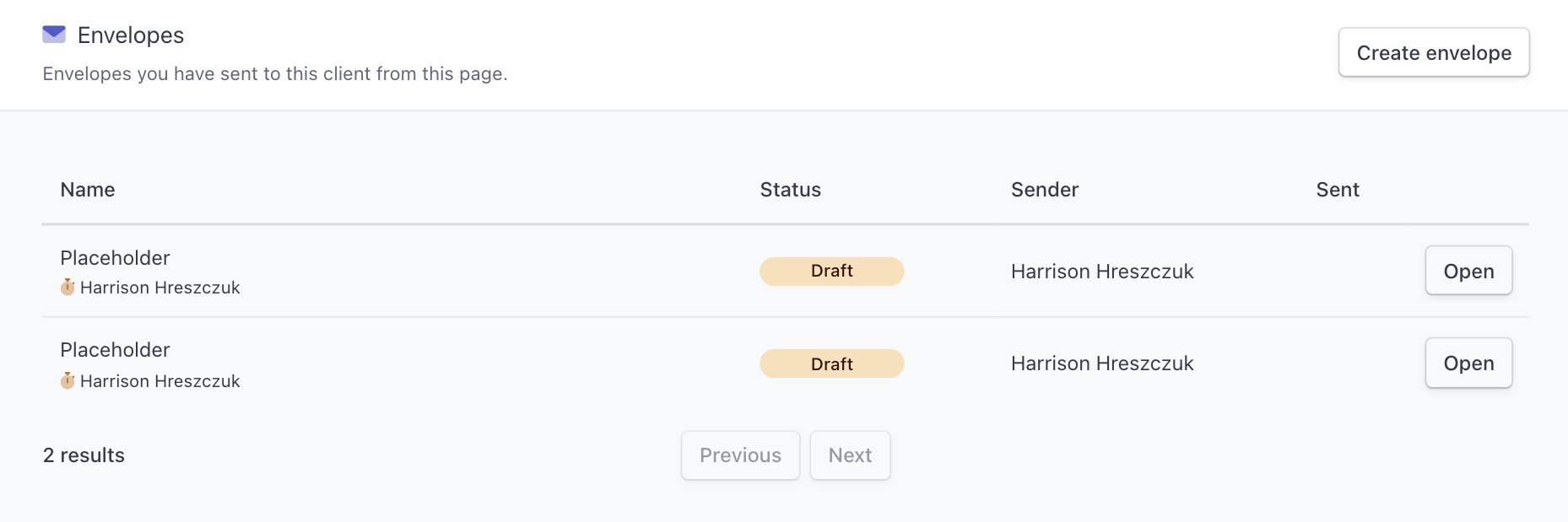
In the Review envelope section, select the Xplan document type and subtype.
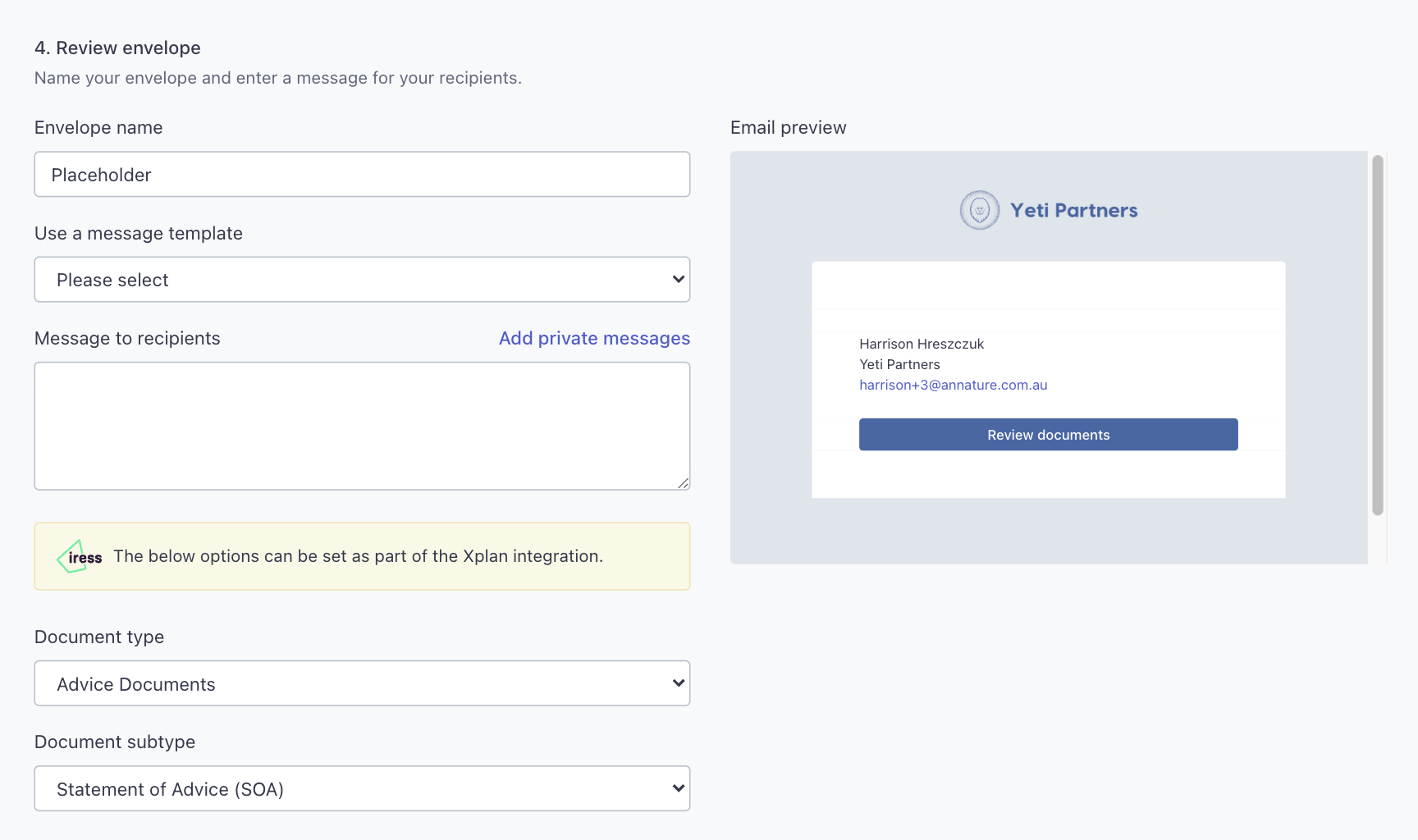
Complete and send the envelope as usual.
From the Send envelope tab:
Click the Send envelope tab and upload your documents.
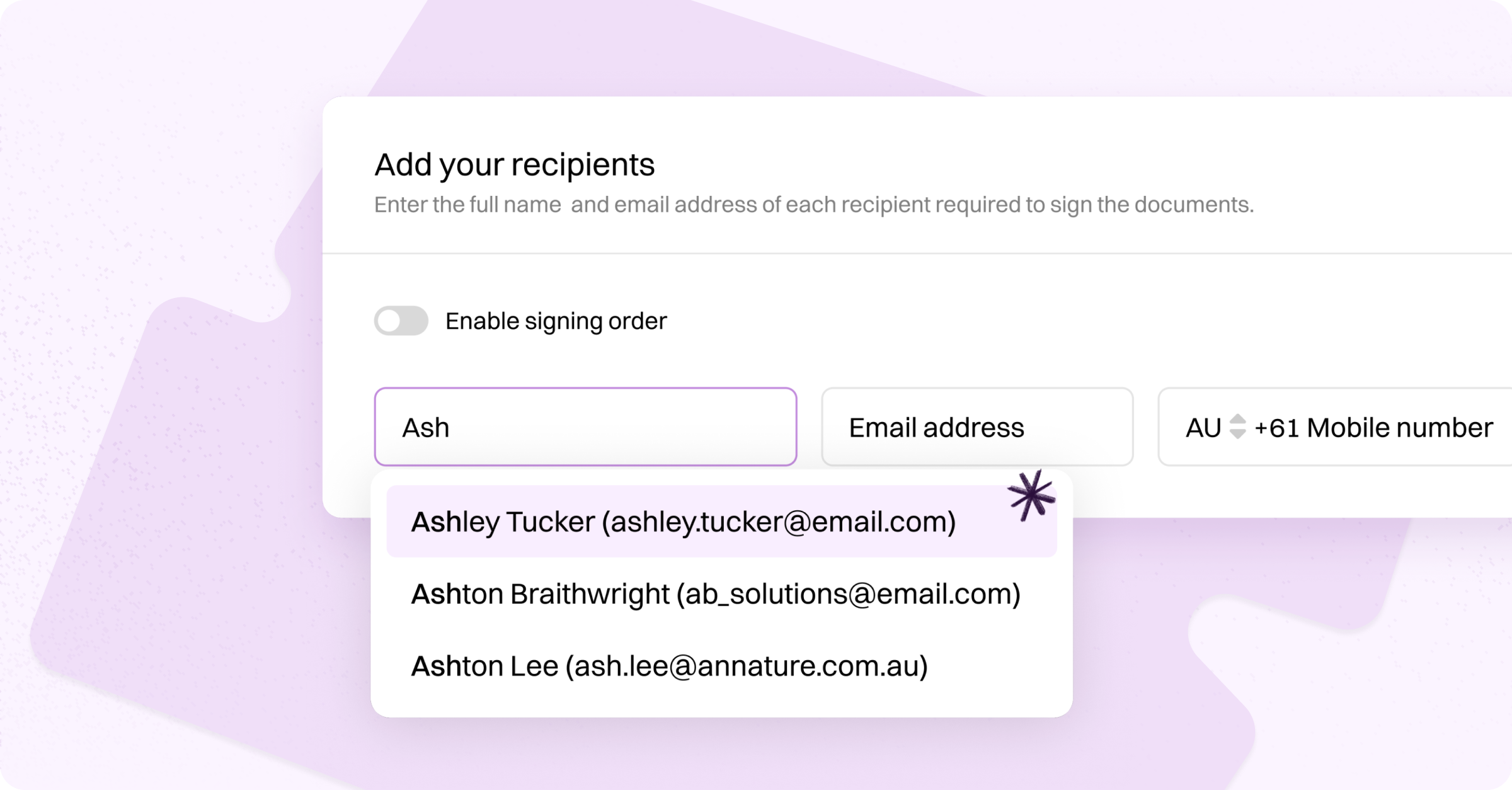
Type your Xplan contact's name and select them from the address book suggestions. The email address will sync automatically.
In the Review envelope section, select the Xplan document type and subtype.
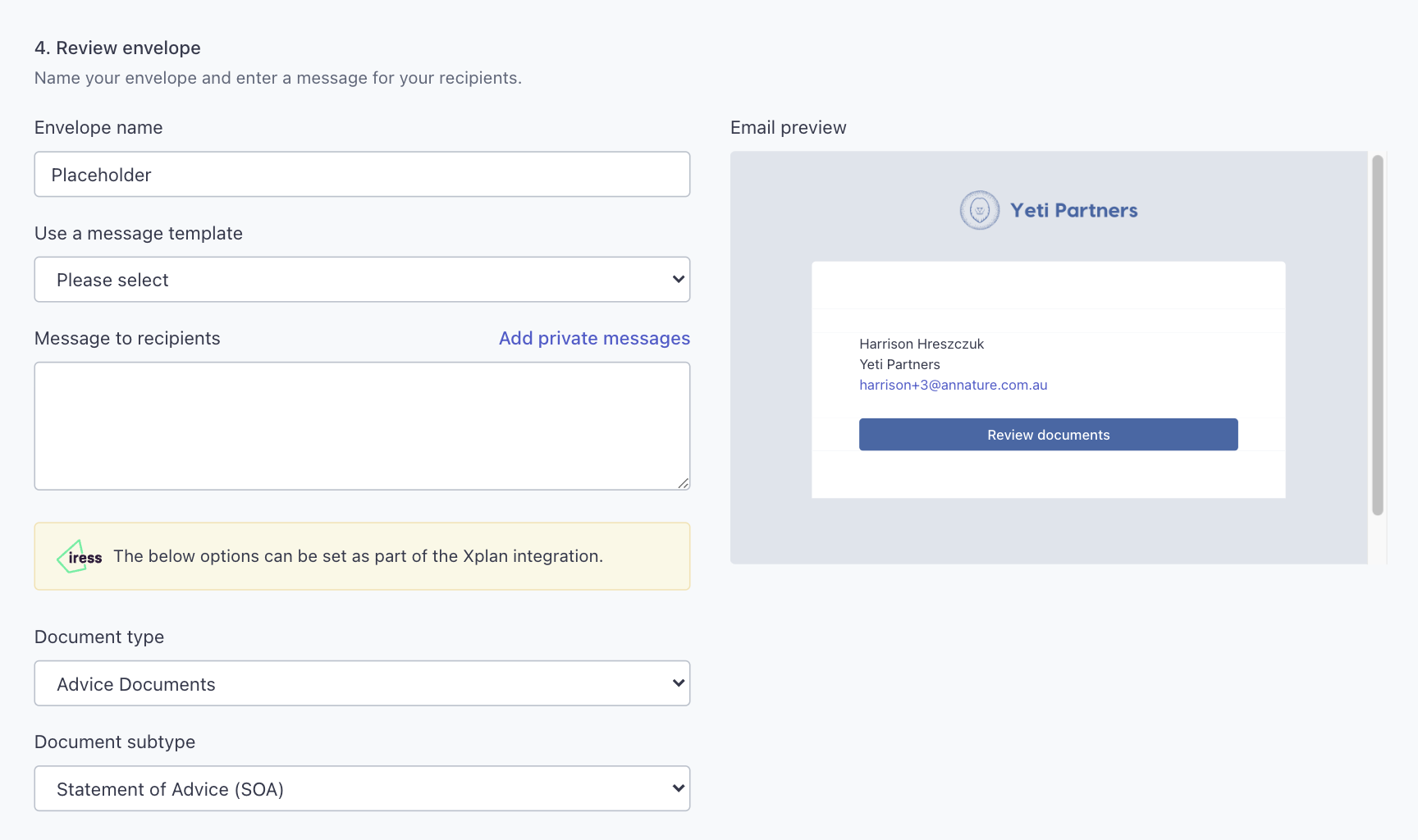
Complete and send the envelope as usual.
Once the client completes the envelope, a copy of the signed documents and certificate of completion is automatically pushed to Xplan and added to the client's file notes using the document type and subtype you selected.
Creating identity verifications for Xplan clients
On the Xplan integration page, click Open beside the client.
Under Identity verification, click Create verification.
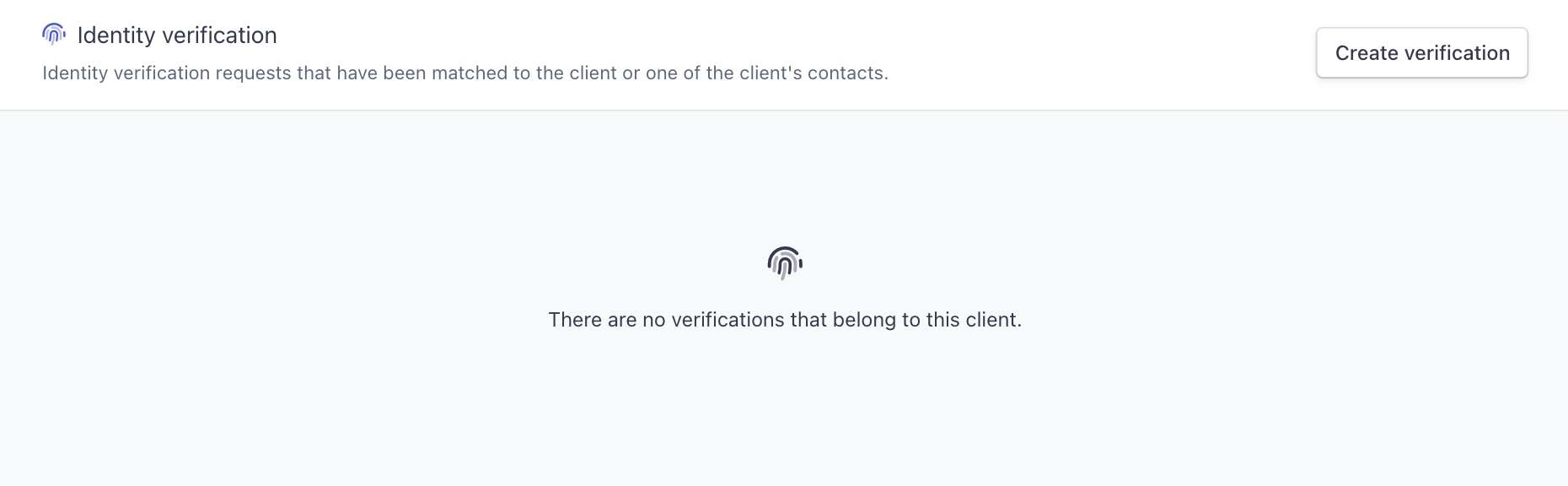
Review the pre-filled client details and click Create.
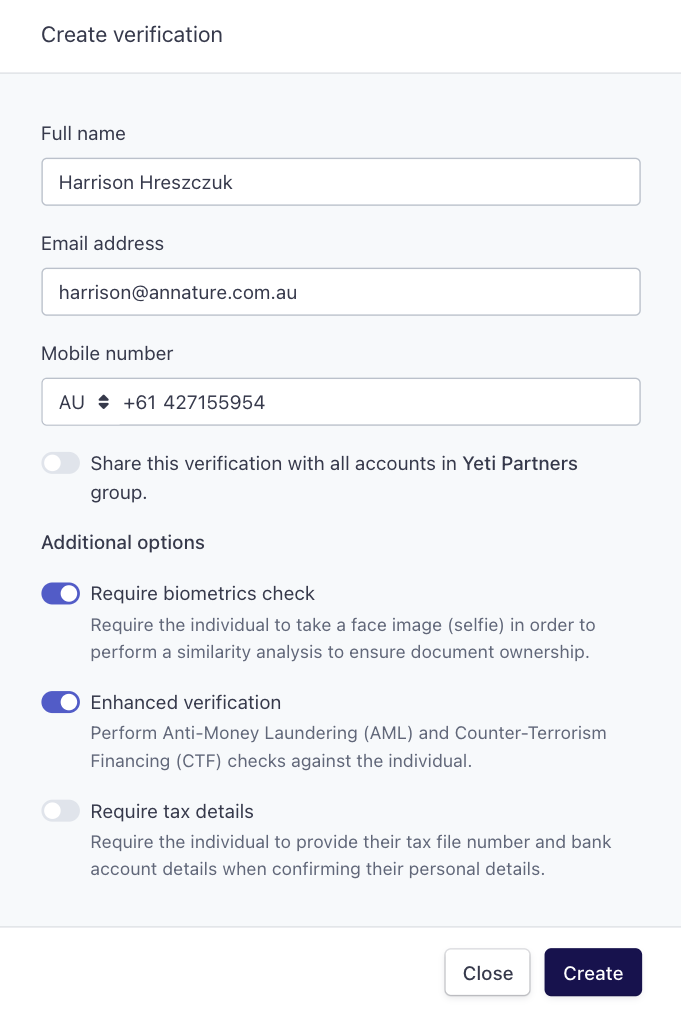
Once the verification is complete, a copy of the certificate is automatically pushed to Xplan and added to the client's file notes.
Data sync
The Xplan integration page provides a live feed of your Xplan clients, which is more up-to-date than the address book that syncs every hour.
Annature automatically pulls Xplan clients into your address book.
Changes made in Xplan sync to Annature automatically.
Changes made in Annature are not pushed back to Xplan and may be overwritten.
Always update client information directly in Xplan to keep data consistent. Use the Xplan integration page (rather than the address book) to create envelopes and verifications — this ensures they sync correctly back to your Xplan account.
Was this helpful?