
Docs / Envelope Basics
Managing in-progress envelopes
Track envelope progress, manage recipients, and take actions like voiding or resending from your dashboard.
Once an envelope has been sent, you can track its progress, manage recipients, and take actions from both the envelopes dashboard and the envelope detail view.
Envelope Statuses
Throughout an envelope's lifecycle, its status will change to reflect its current stage:
Draft — The envelope has been created but has not yet been sent.
In progress — The envelope has been sent but not yet completed by all recipients.
Completed — All recipients have completed their assigned roles.
Voided — The envelope was voided after being sent and can no longer be completed.
Recipient Statuses
Each recipient within an envelope also has their own status:
Pending — A signing order has been set and the recipient has not yet received the envelope.
In progress — The recipient has received the envelope but has not yet completed their role.
Completed — The recipient has completed the envelope.
Failed — There was an issue sending the envelope to this recipient. Check the audit log for details.
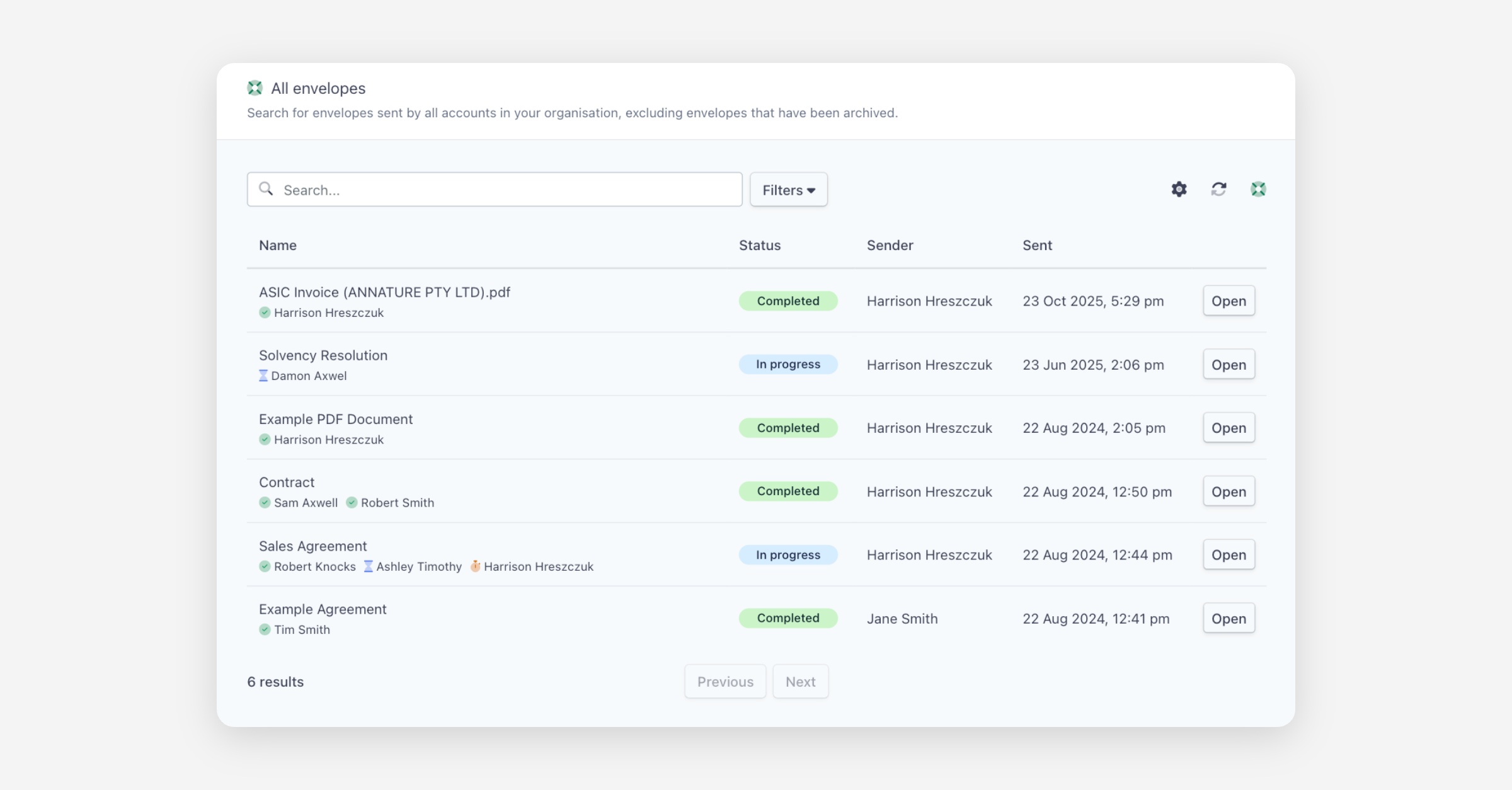
Envelopes Dashboard
The envelopes dashboard displays all envelopes in your organisation. You can access it by clicking Envelopes in the left-hand navigation menu. The dashboard shows the envelope name, status, sender, and date sent, along with recipient names and their completion status.
Filtering and searching:
Use the search bar to find envelopes by name, or click Filters to narrow results by:
Status — Draft, In progress, Completed, or Voided.
Sender — Filter by the name of the person who sent the envelope.
Recipient — Filter by recipient name or email.
Date range — Filter by a from and to date.
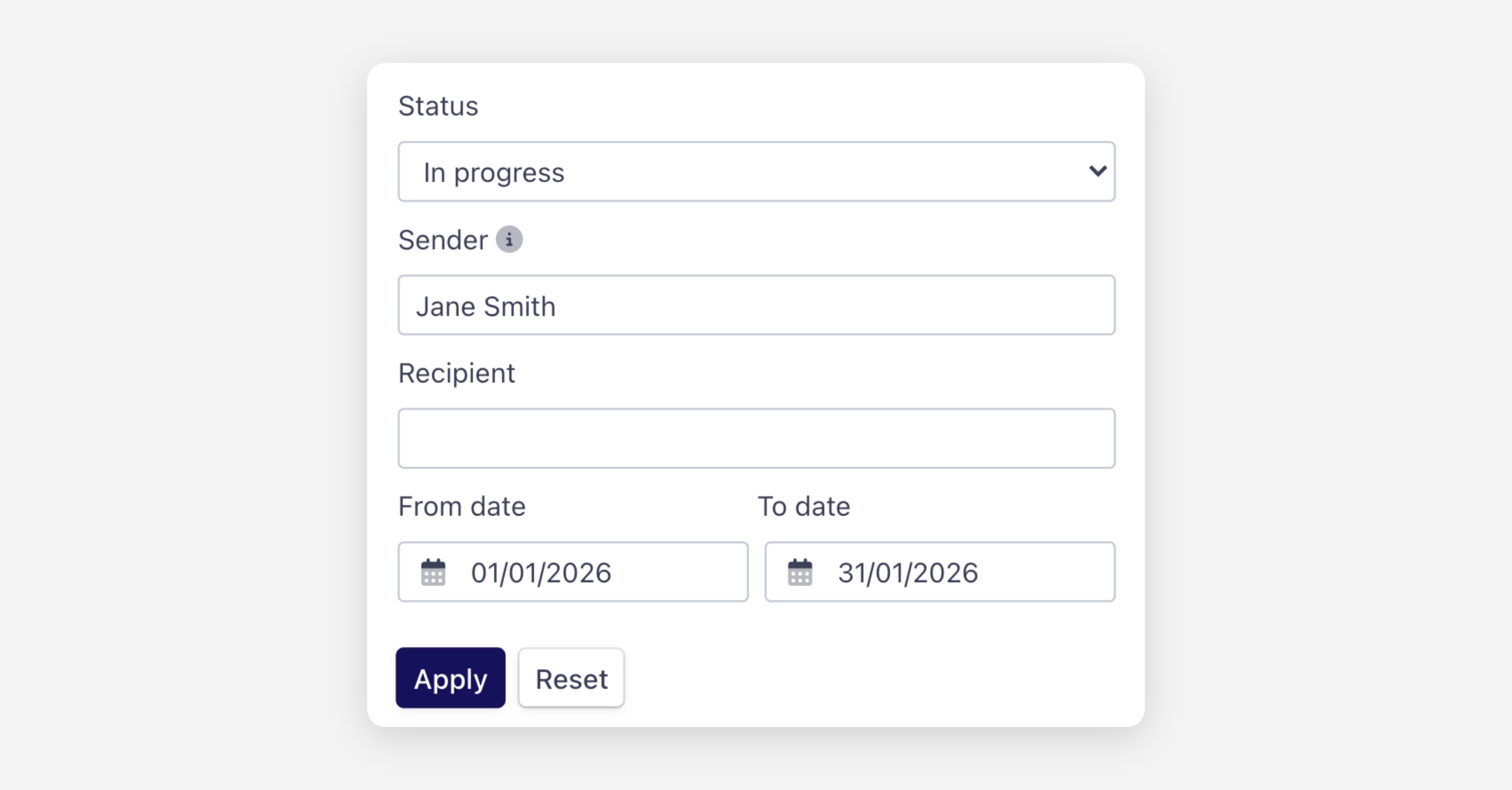
Click Apply to update the results, or Reset to clear all filters.
Page settings:
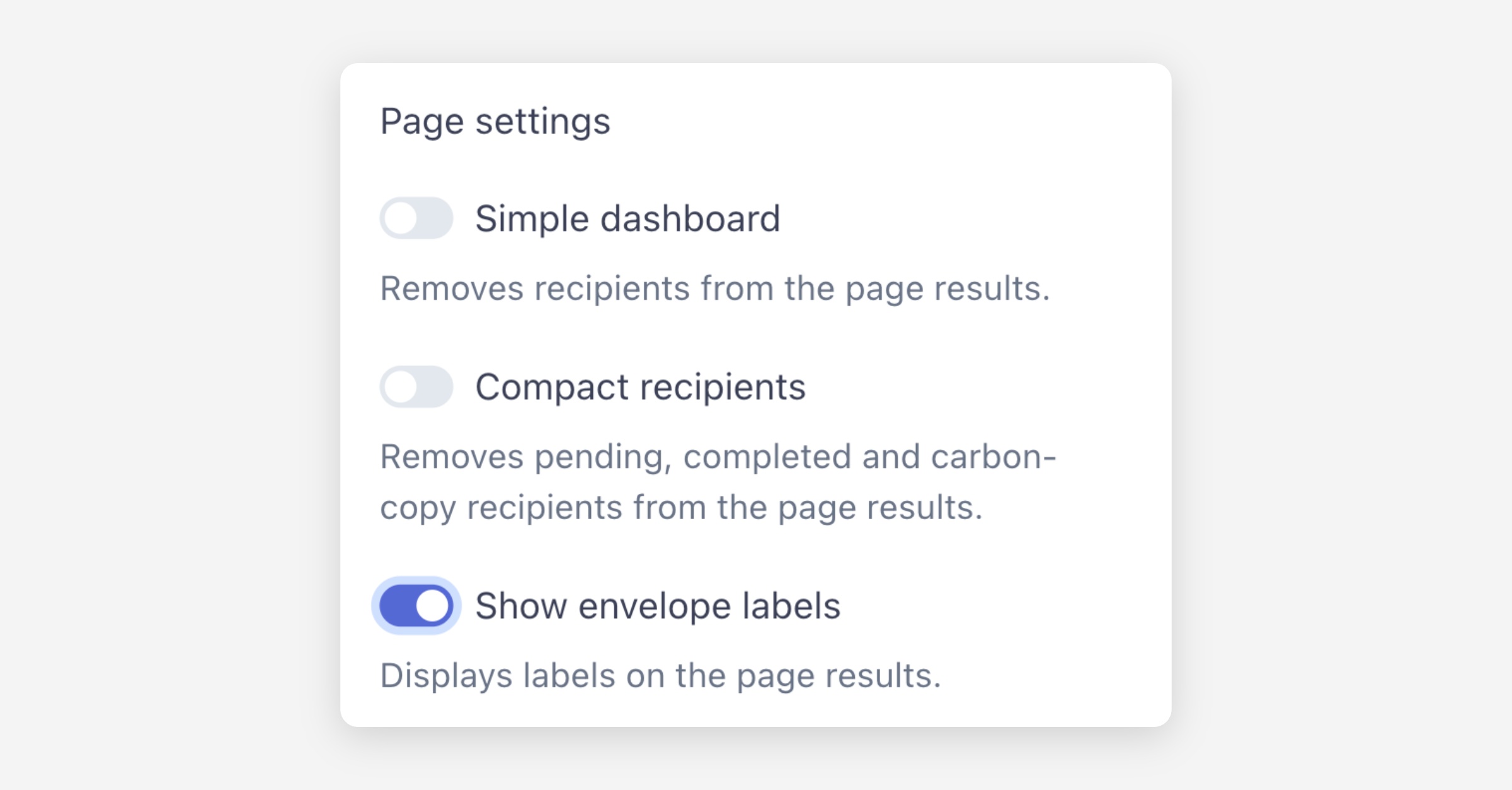
Click the settings icon to customise how the dashboard displays results:
Simple dashboard — Removes recipient details from the results, showing only the envelope name and status.
Compact recipients — Removes pending, completed, and carbon-copy recipients from the results, showing only recipients who still need to take action.
Show envelope labels — Displays labels on the envelope results.
Envelope Detail View
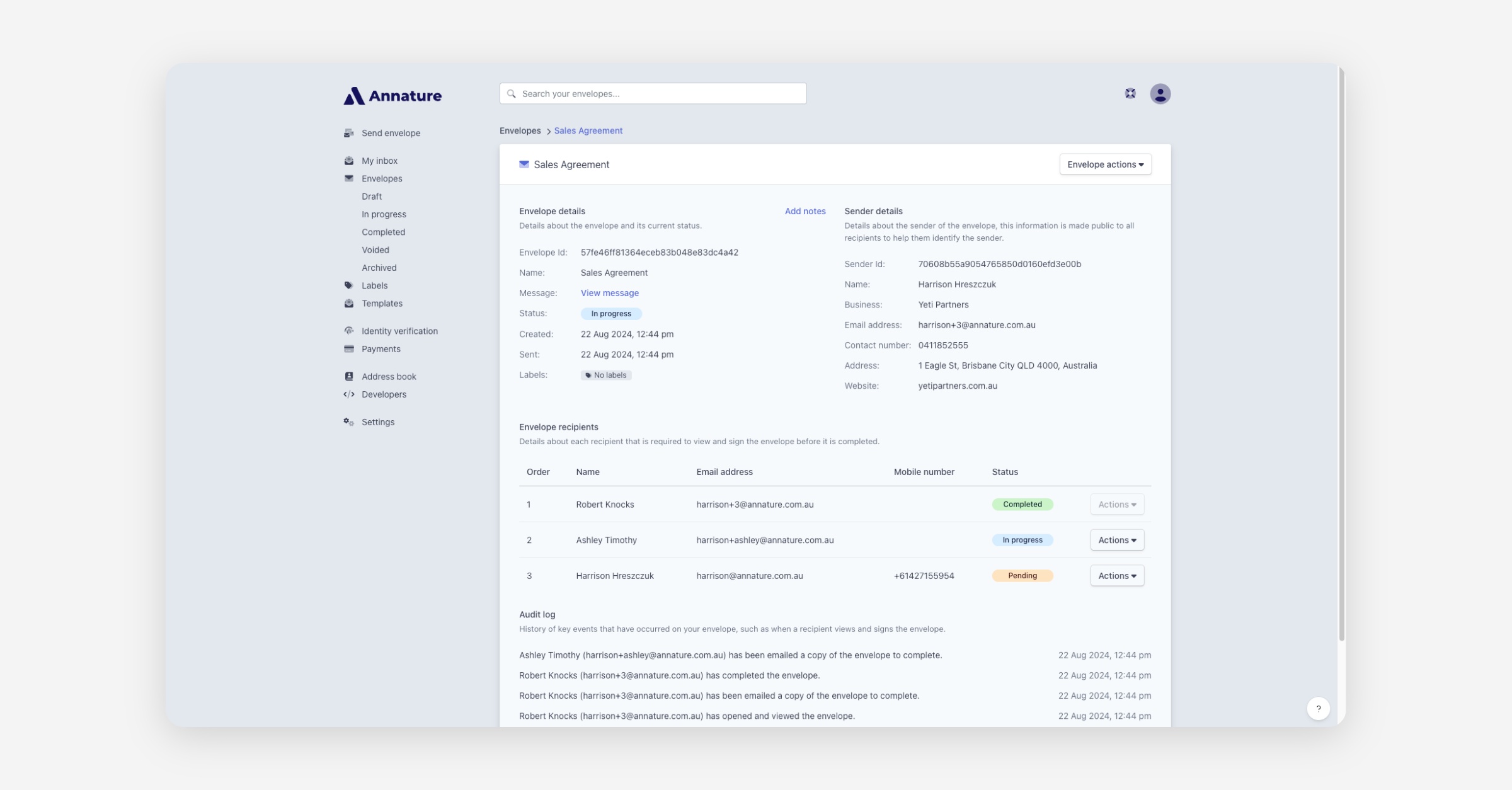
To view the full details of an envelope, click Open on any envelope from the dashboard. The detail view is divided into several sections.
Envelope details:
Displays key information about the envelope including:
Envelope Id — The unique identifier for the envelope.
Name — The envelope name.
Message — Click View message to see the message sent to recipients.
Status — The current envelope status.
Created and Sent — Timestamps for when the envelope was created and sent.
Sharing — If the sender belongs to a group, a toggle to share or unshare the envelope with all accounts in that group.
Labels — Any labels applied to the envelope.
You can also click Add notes to attach internal notes to the envelope.
Sender details:
Displays the sender's name, business, email address, contact number, address, and website as they appeared to recipients.
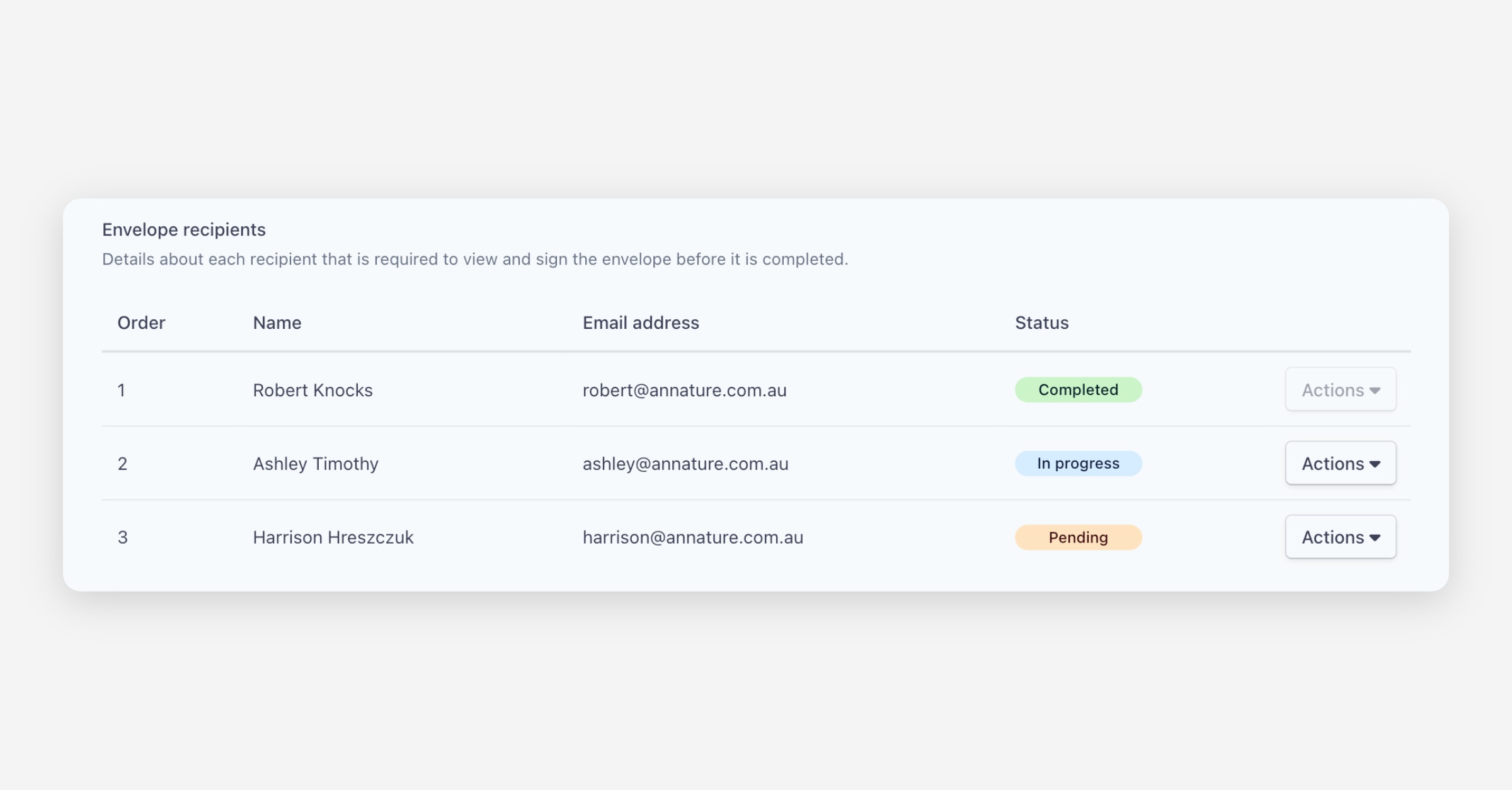
Envelope recipients:
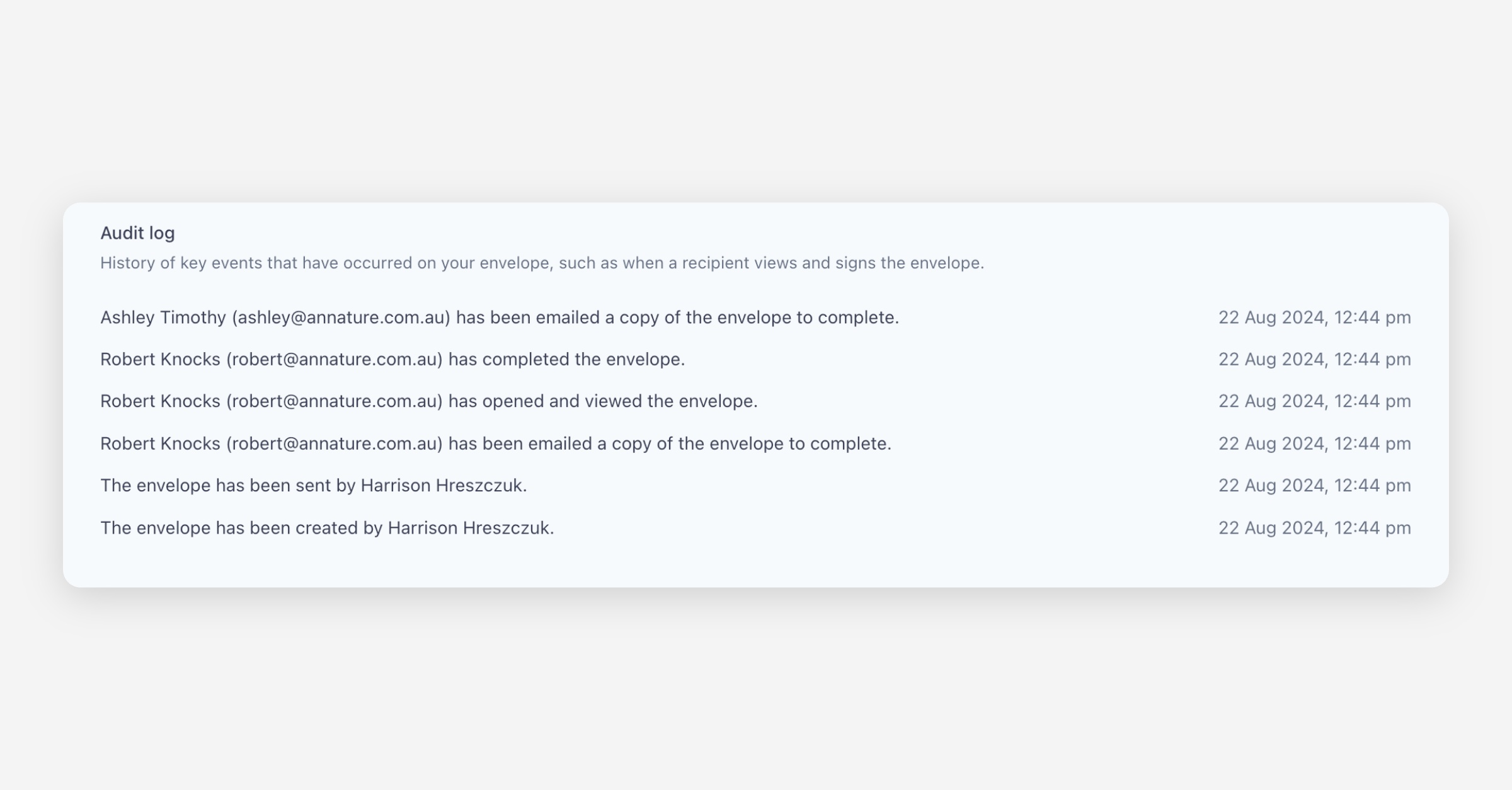
A table showing each recipient's name, email address, status, and signing order (if applicable). Each recipient with an active status has an Actions dropdown with the following options:
Edit details — Update the recipient's name or email address.
Edit authentication — Change the recipient's password or two-factor authentication settings.
Resend envelope — Resend the envelope notification to the recipient.
Remove recipient — Remove the recipient from the envelope (only available for recipients who have not yet completed their role).
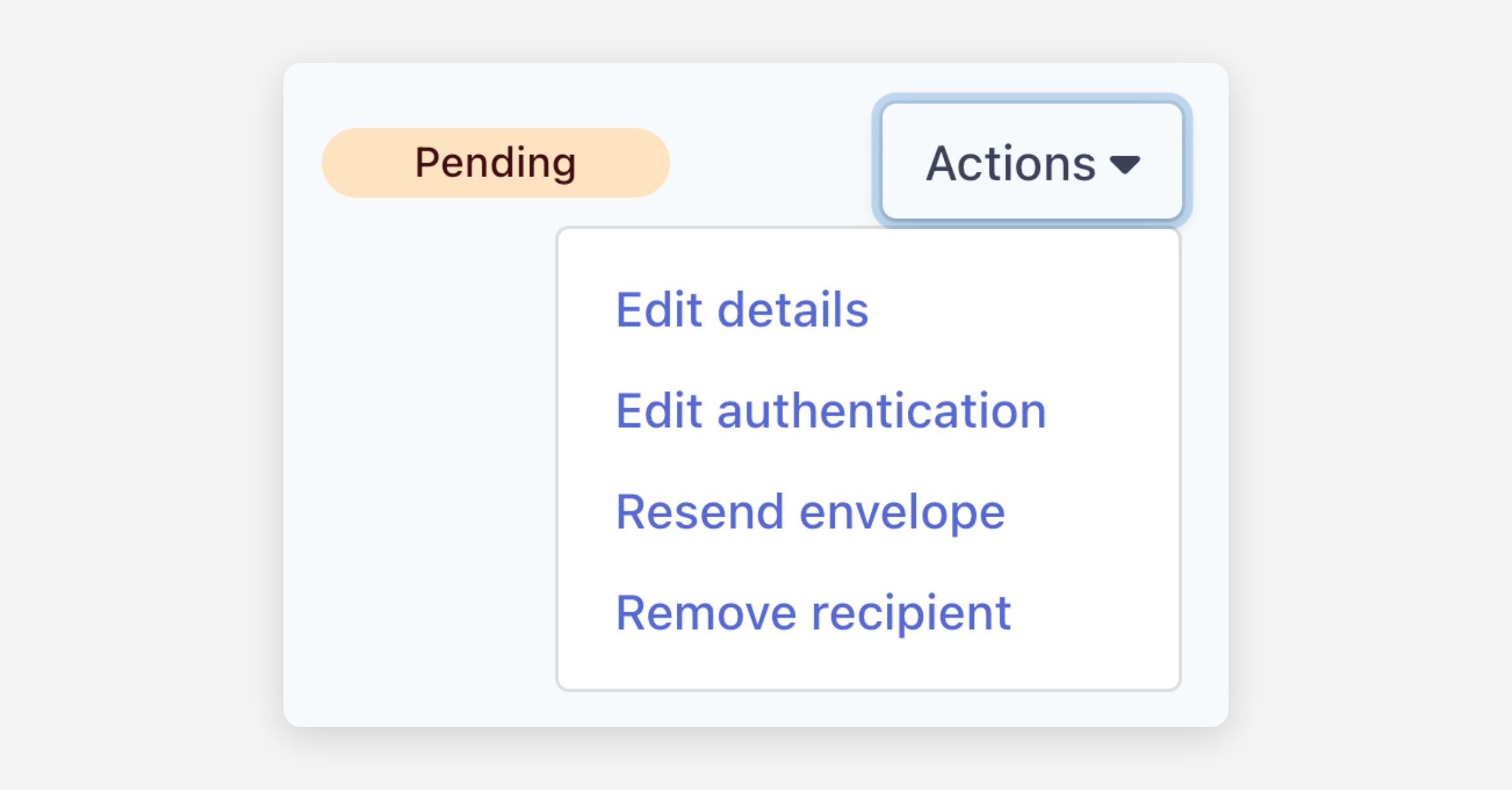
Audit log:
A chronological history of key events on the envelope, such as when it was created, sent, viewed, and signed by each recipient.
Resending an Envelope
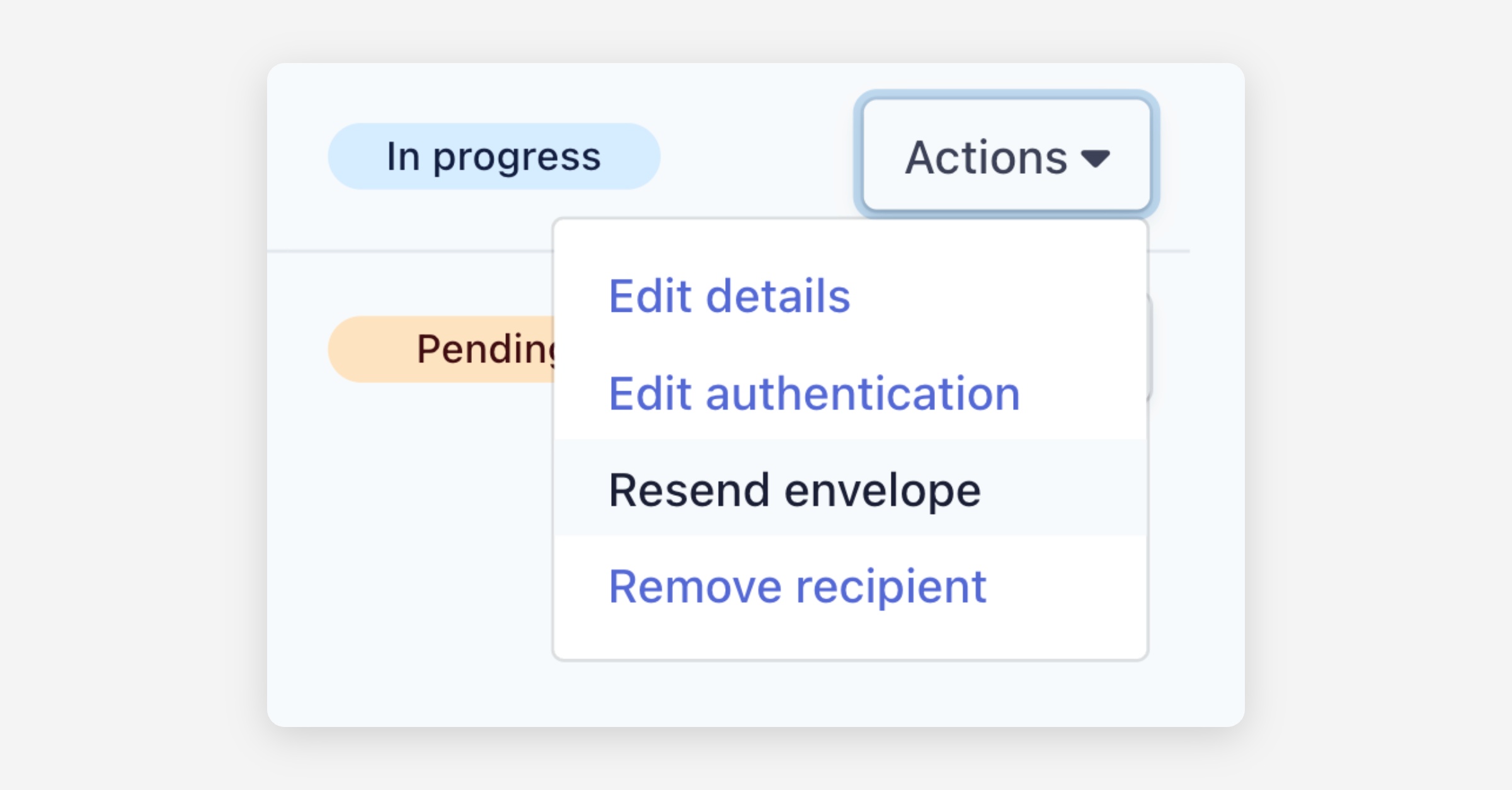
To resend an envelope to a recipient, open the envelope from the dashboard, scroll to the Envelope recipients section, and click Actions next to the recipient. Select Resend envelope to send them a new notification.
Downloading Documents
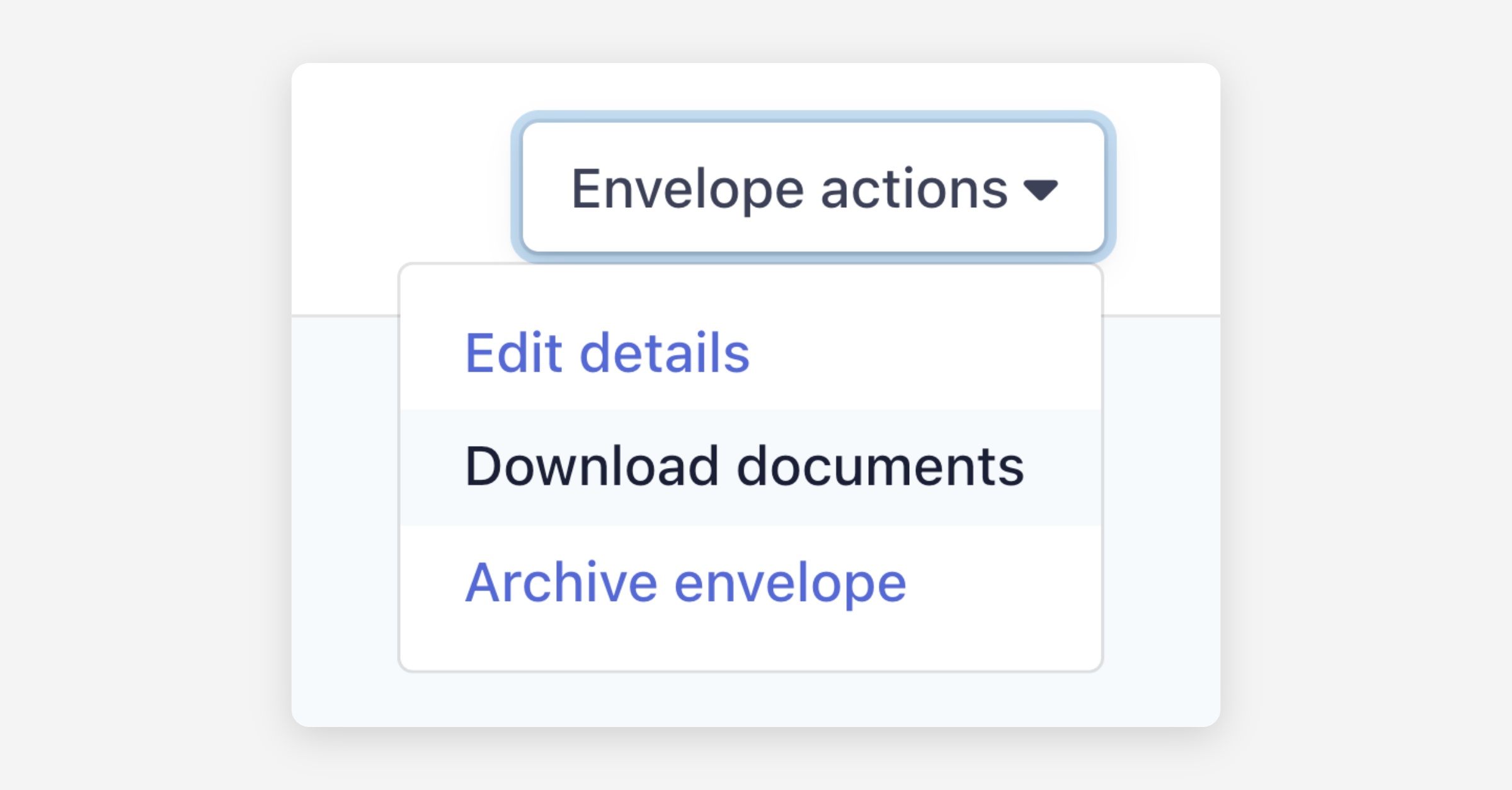
To download the documents from an envelope, open the envelope and click Envelope actions in the upper right corner, then select Download documents.
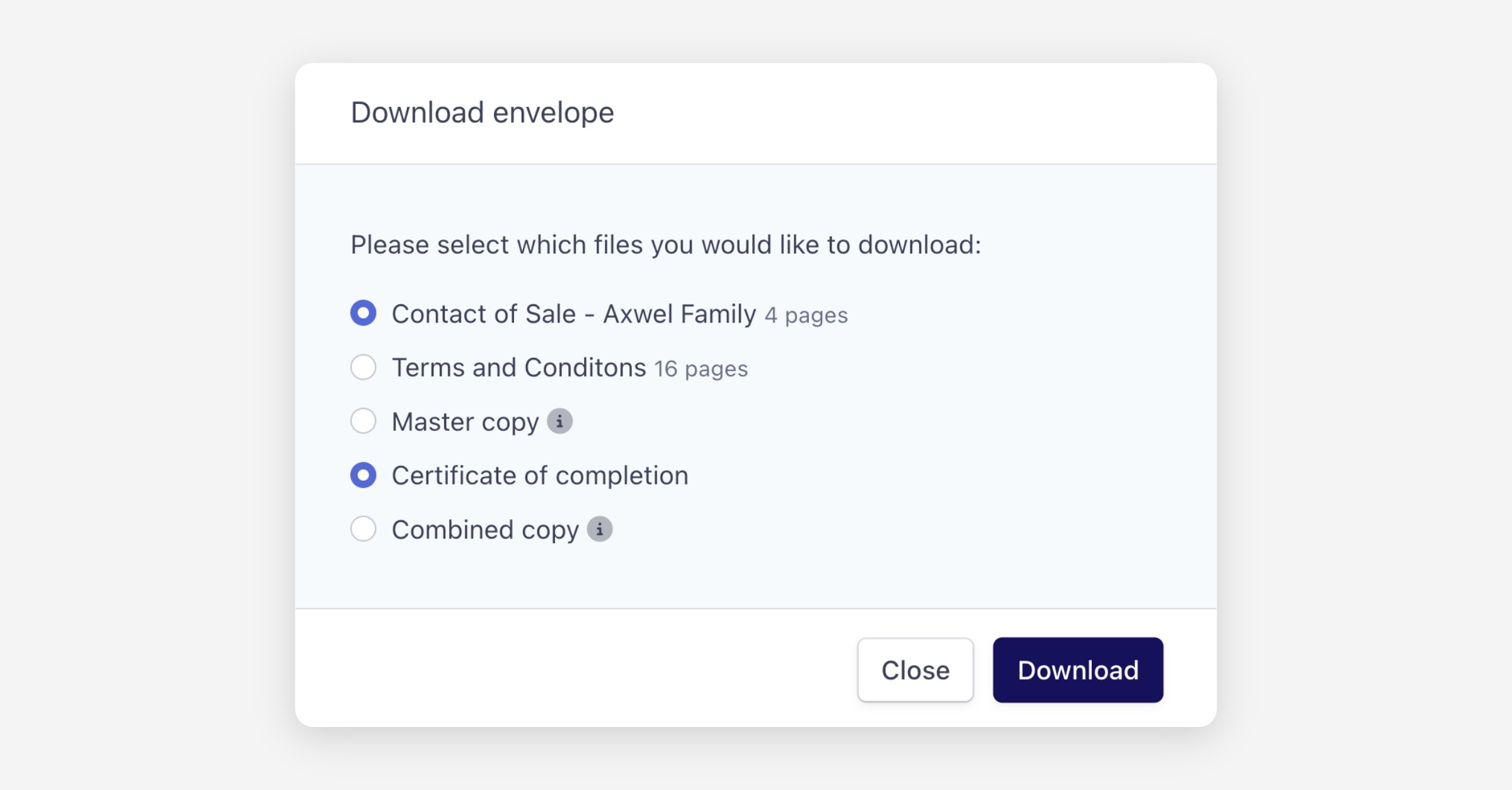
Choose the specific files you want to download, then click Download. By default, the signed documents and certificate of completion are downloaded as separate files. Select Combined copy to merge the documents and certificate into a single file.
Recalling an Envelope
To recall an in-progress envelope back to draft status, open the envelope and click Envelope actions > Recall envelope. This will return the envelope to a draft state so you can make changes and resend it.
Voiding an Envelope
To void an in-progress envelope, open the envelope and click Envelope actions > Void envelope. Voiding permanently cancels the envelope — recipients will no longer be able to complete it.
Archiving an Envelope
To archive an envelope, open the envelope and click Envelope actions > Archive envelope. Archived envelopes are removed from the main dashboard view but can still be accessed through filters.
Was this helpful?