
Assign to someone else
Hand off your signing step to someone else during a session.
During a signing session, you can hand off your signing responsibility to someone else — for example, if the document was sent to you in error, or if a colleague needs to sign instead. When you assign to someone else, they take your place entirely: all fields, actions, and responsibilities are transferred to the new recipient.
This option is only available if the sender has enabled it on the envelope. If you don't see it, the sender has not turned it on.
How to assign to someone else
When viewing your document, click Actions at the top of the screen.
Select Assign to someone else.
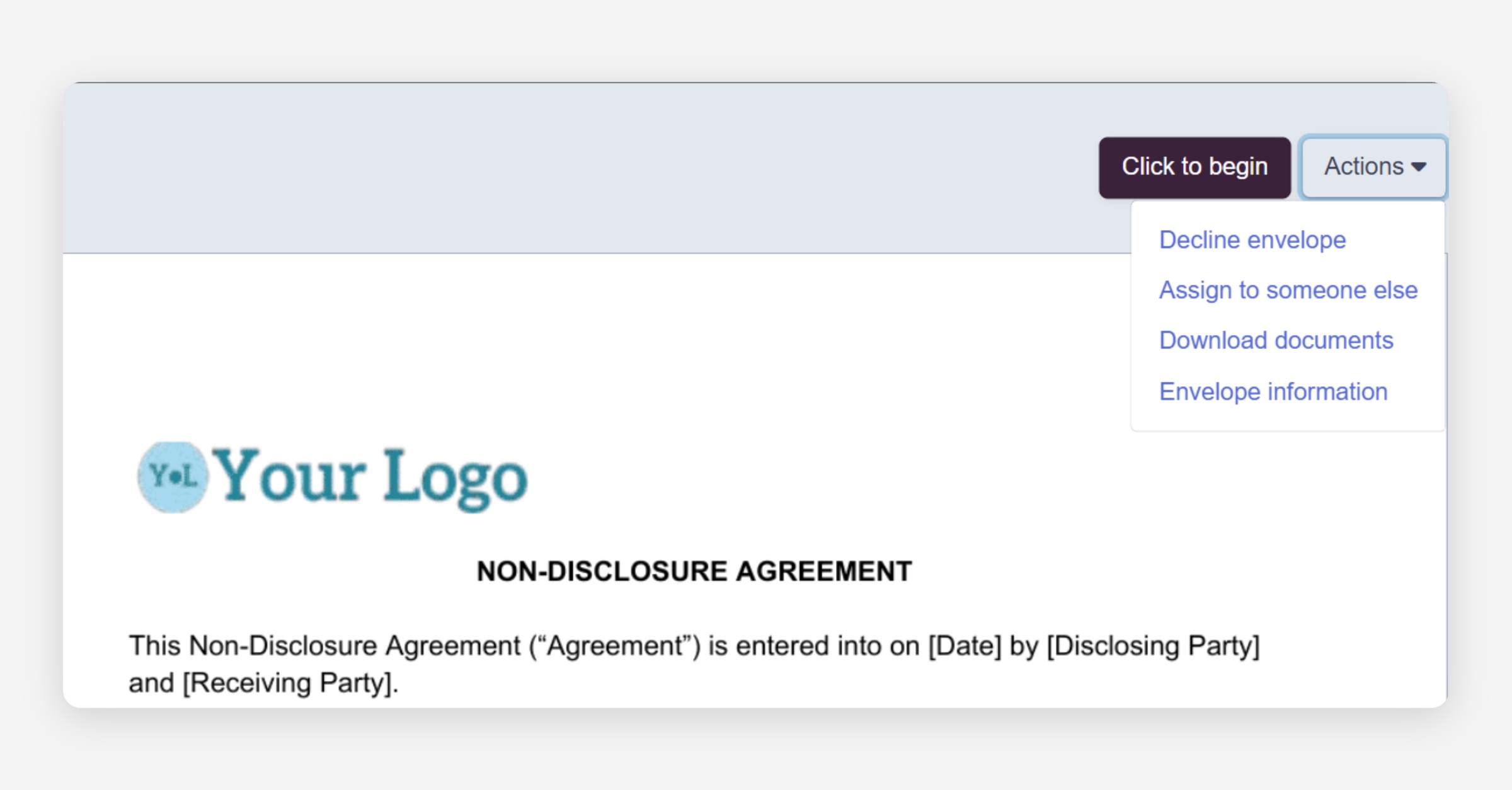
Enter the new recipient’s name and email address.
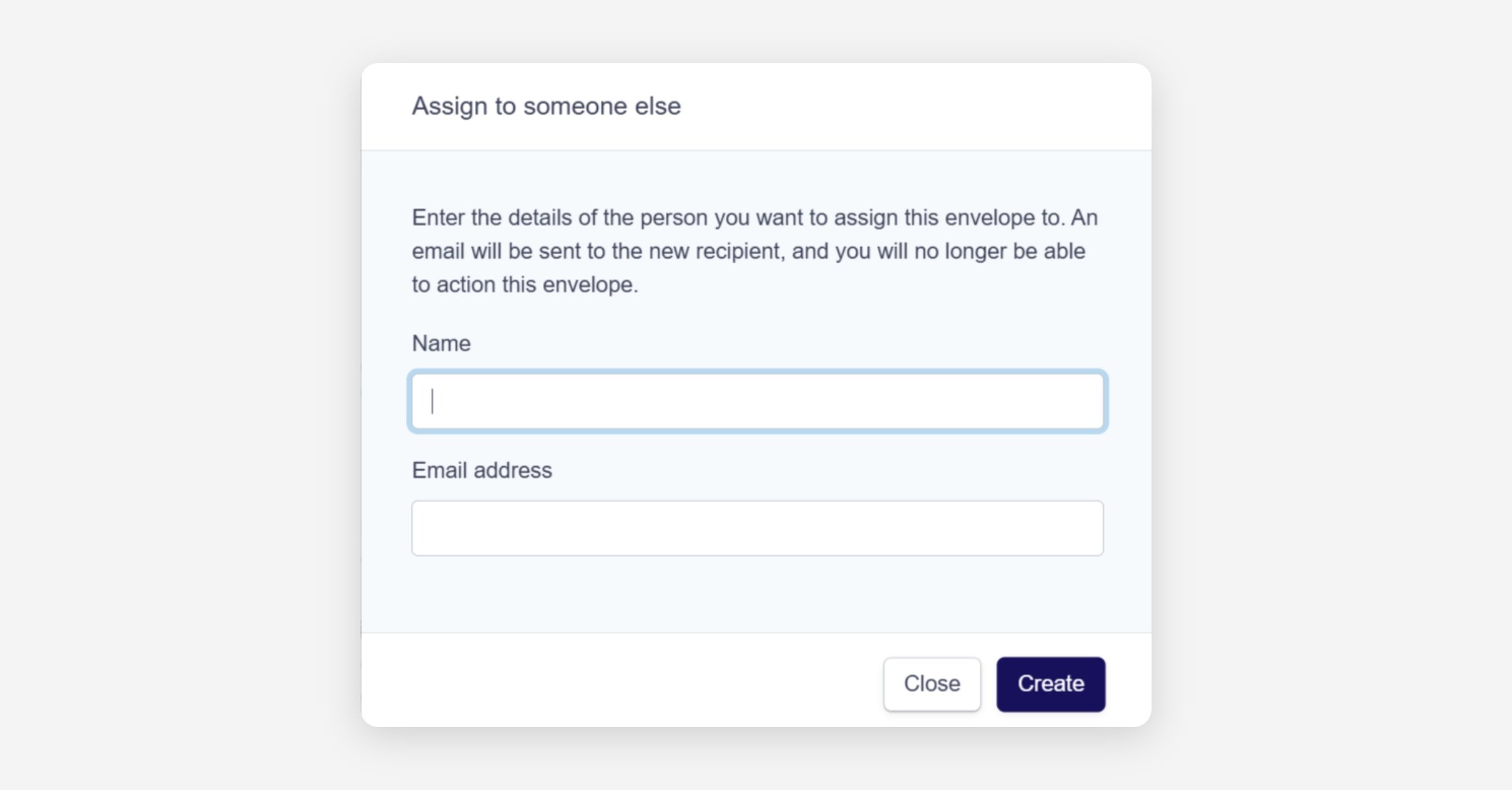
If required, enter a mobile number and/or password for the new recipient.
Click Create to confirm.
The new recipient will receive an email invitation and can begin signing straight away. You will no longer have access to the envelope.
Mobile number and password fields
These fields only appear if the sender applied extra security to your signing step.
Password: If your signing step required a password, you must set one for the new recipient. It can be the same password or a different one — either is fine.
Mobile number: If your signing step required two-factor authentication (2FA) via SMS, you must provide a mobile number for the new recipient so they can receive the verification code.
In both cases, the sender's security requirements carry over to whoever signs in your place.
Was this helpful?