
In-person signing
In-person signing allows a recipient to host a signing session for another person on the same device. This is useful when an adviser, representative or other team member is meeting with a signer in person and needs to guide them through the signing process.
Enable in-person signing
Before you can use in-person signing, the feature must be enabled by your organisation owner or an admin.
Log in to Annature.
Navigate to Settings from the left-hand menu.
Under Add-ons, find In-person signing.
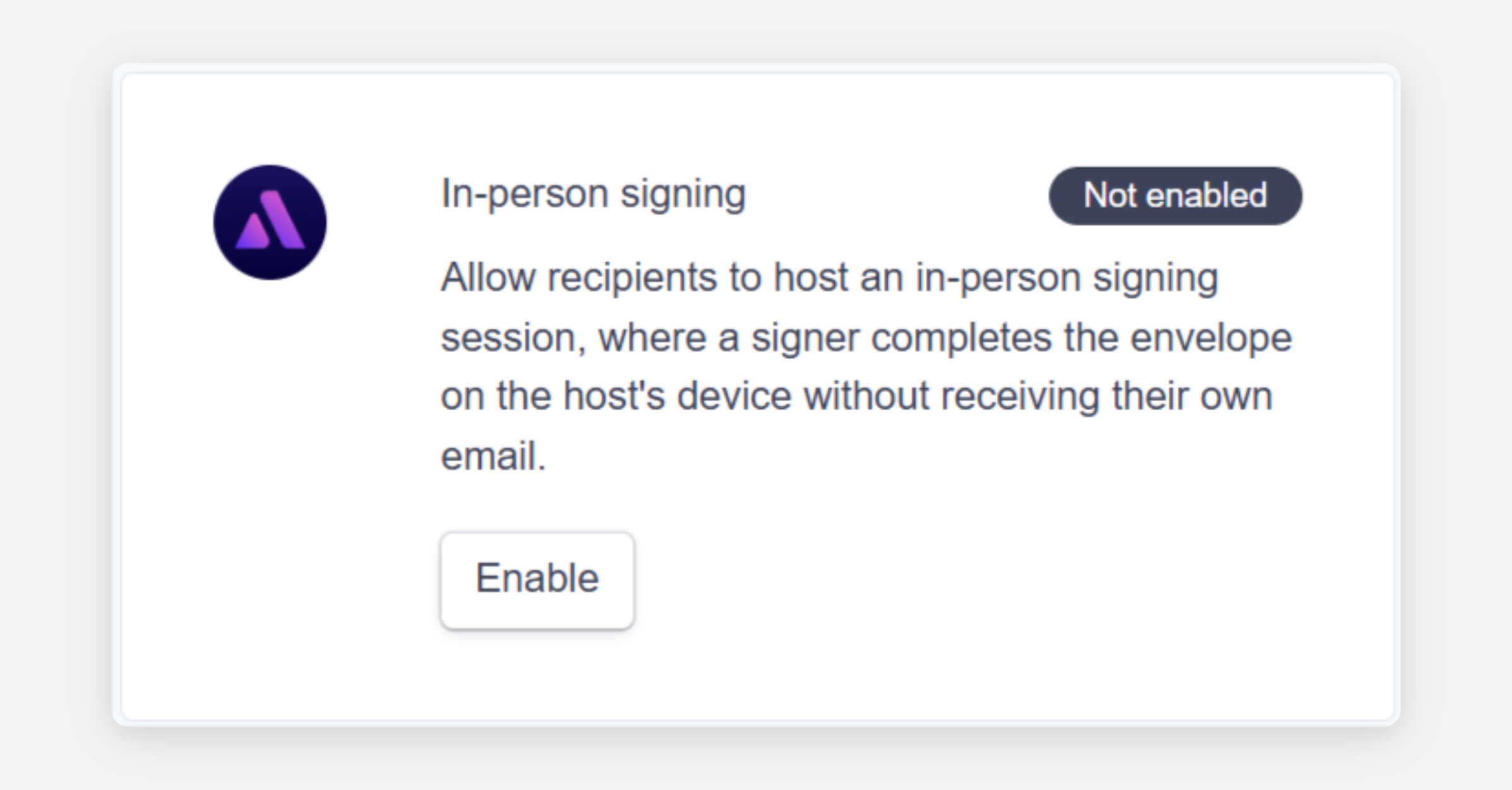
Toggle the feature on.
Once enabled, you can use in-person signing when creating an envelope.
Create an envelope for in-person signing
Create the envelope as you normally would and upload the document.
When adding recipients, the recipient details should belong to the person hosting the signing session.
For example, if an adviser is hosting the session, enter the adviser's name and email address as the recipient.
The details of the person who will sign the document are entered under Options → Host session.
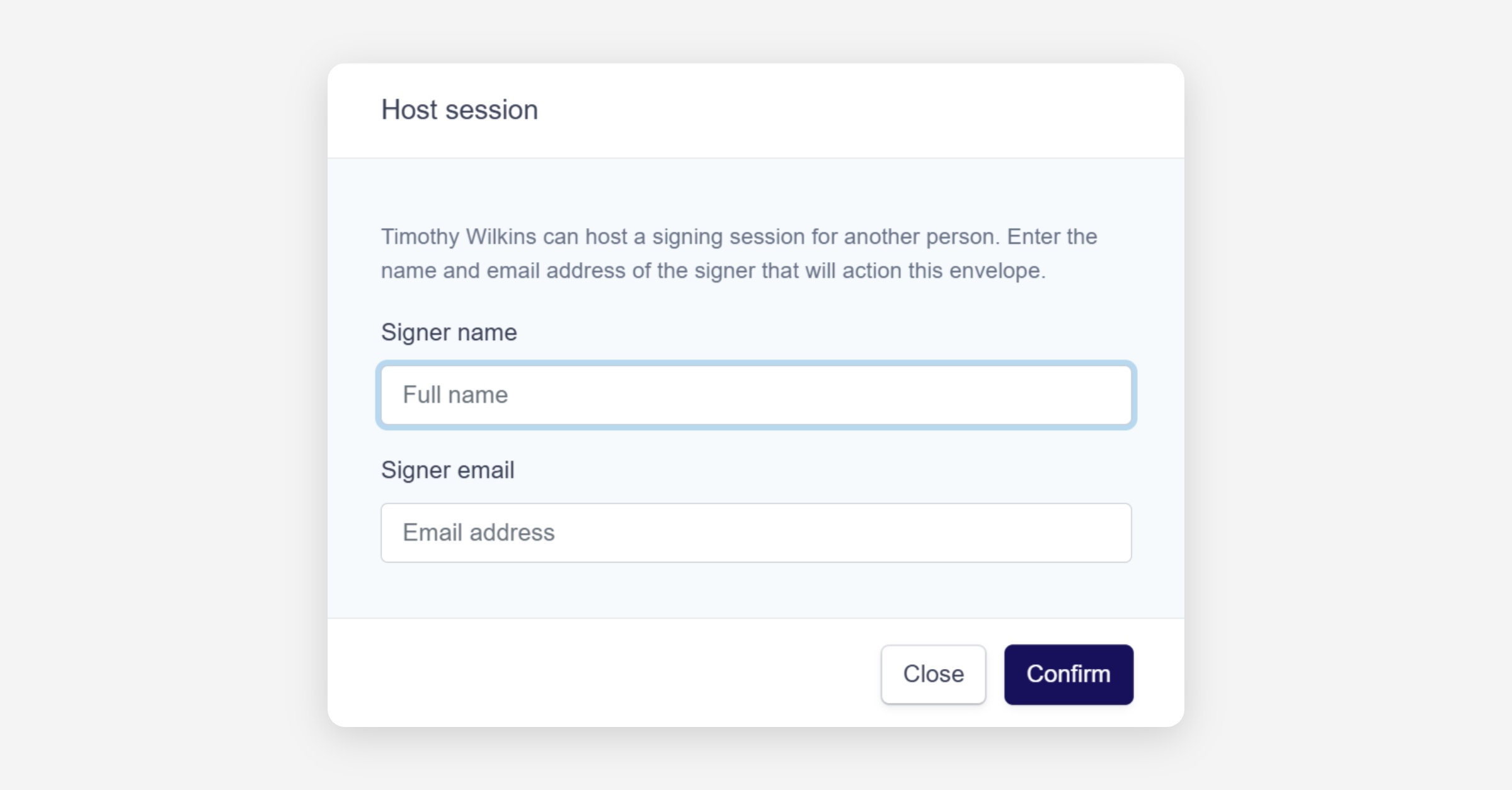
This includes the hosted person's:
Full name
Email address
The host will then provide the device to the hosted person when it is time for them to sign.
Note: You can set up multiple hosted signers by giving each signer a unique recipient name. Hosts can use the same email address where required.
Prepare the document
Preparing the document works the same way as a standard envelope.
Click Prepare documents.
Drag and drop the required fields onto the document.
Assign fields such as Signature, Date and Name as needed.
Once the document is ready, continue through the remaining envelope setup steps as usual.
You can add an envelope name, select a message template and configure any other required settings before sending the envelope.
Complete an in-person signing session
The host receives the envelope and opens it to begin the signing session.
If two-factor authentication is enabled for the hosted person, the verification code is sent to the hosted person's mobile number. We recommend using two-factor authentication to help confirm the identity of the person completing the signing.
After accessing the envelope, the hosted person is asked to acknowledge that they are:
The nominated signer
Physically present with the host
Taking over the device to complete the signing
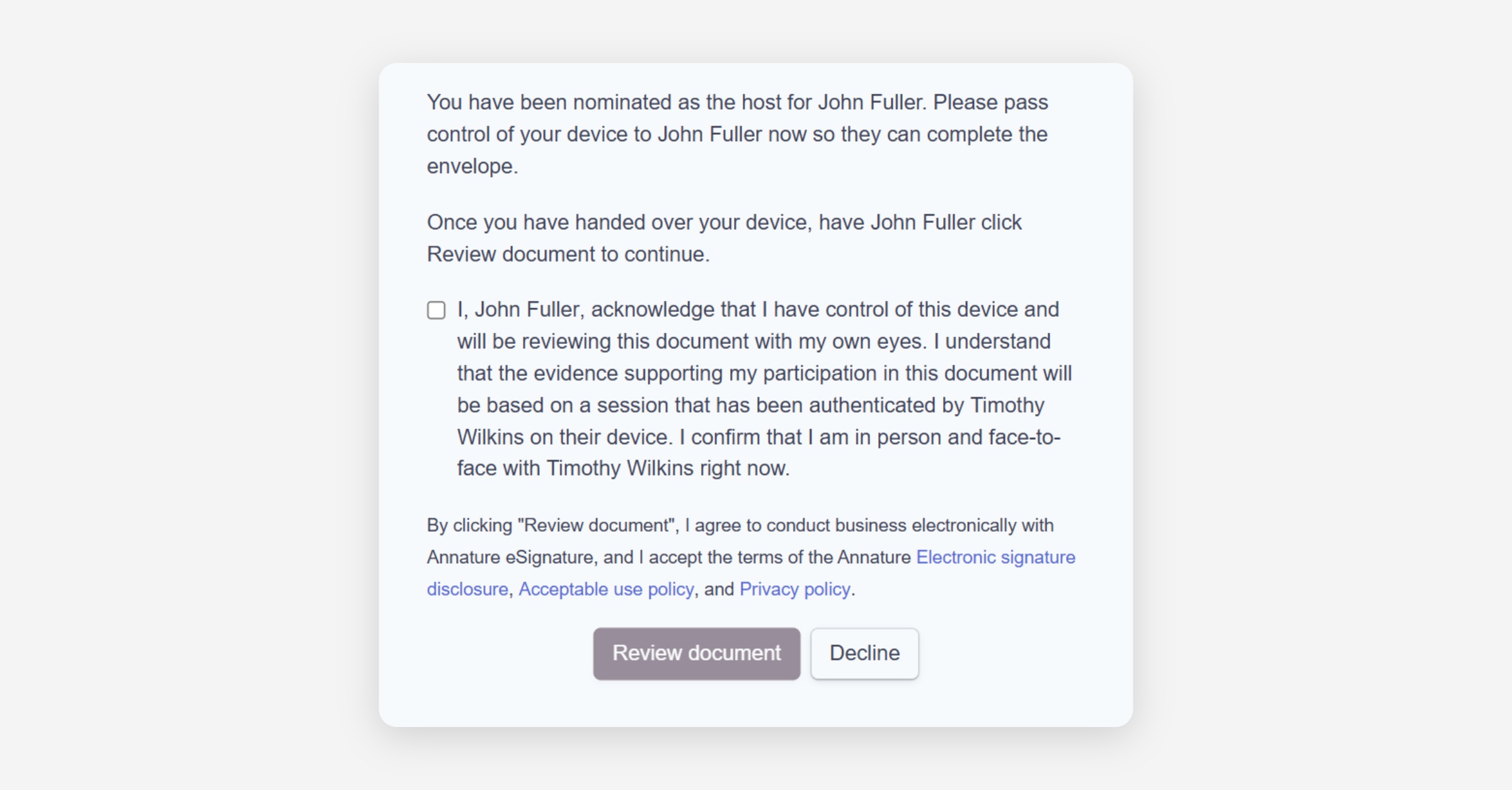
The hosted person can then review and complete the required fields and signatures.
Once they have finished signing, they can complete the signing session.
Certificate of Completion
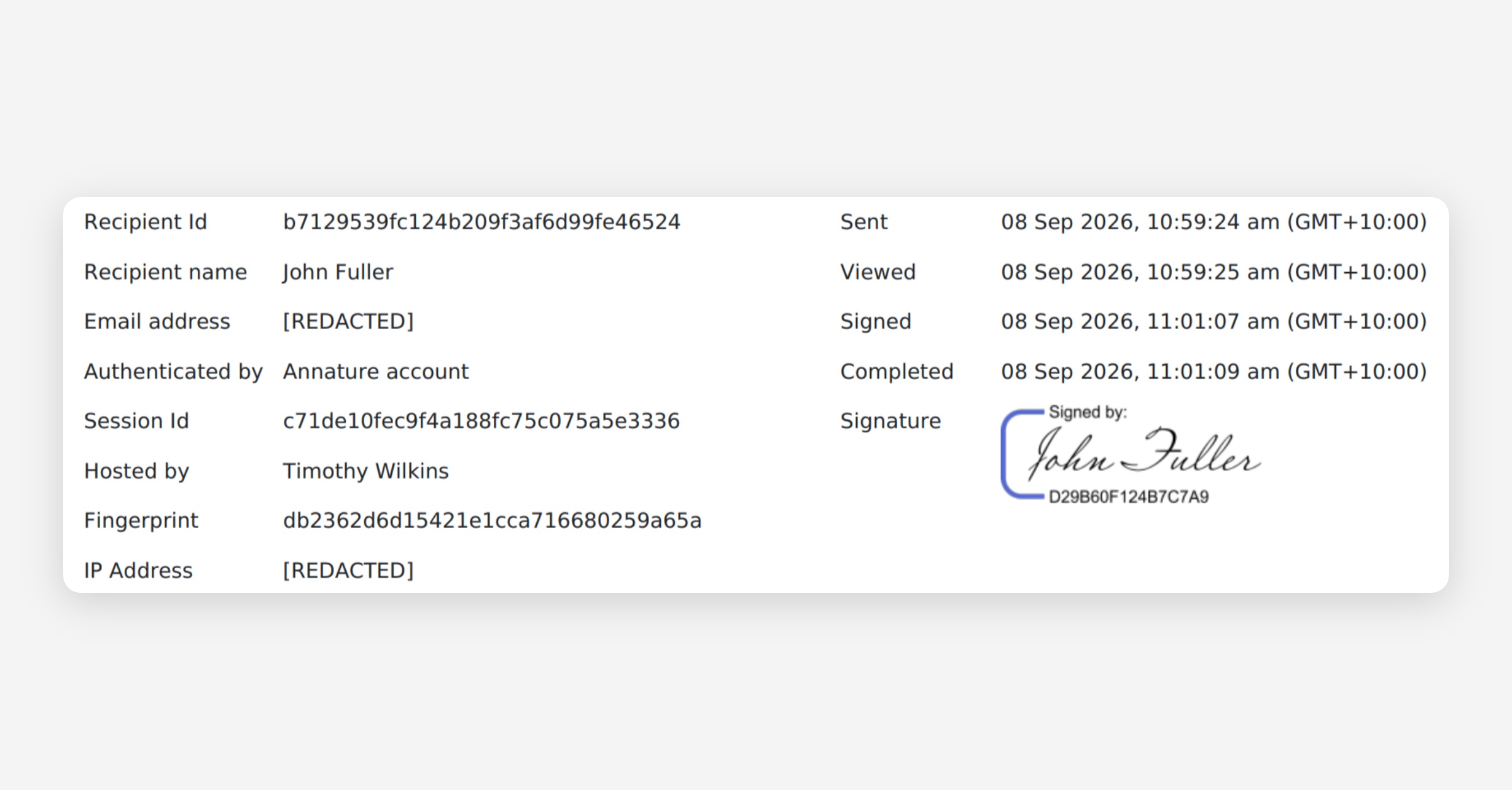
The Certificate of Completion is similar to a standard signing session.
For in-person signing sessions, the certificate also includes details of the person who hosted the signing session.
Was this helpful?